You can check your database version in phpMyAdmin at Hostinger by running the SELECT VERSION(); query on any of your databases. Knowing the exact MariaDB version helps you confirm that an application, such as Moodle or another CMS, meets its database requirements before you install or update it. To check it, open phpMyAdmin from the Databases section of your website dashboard, run the query in the SQL tab, and read the version in the result.
Step 1 – Open phpMyAdmin for your Hostinger database
Open phpMyAdmin from the database management page of the website you want to check.
- Log in to the Hostinger dashboard, go to Websites, and click Dashboard next to your website.
- In the sidebar, open Databases → Management.
- Under List of Current MySQL Databases And Users, click Enter phpMyAdmin next to any database.
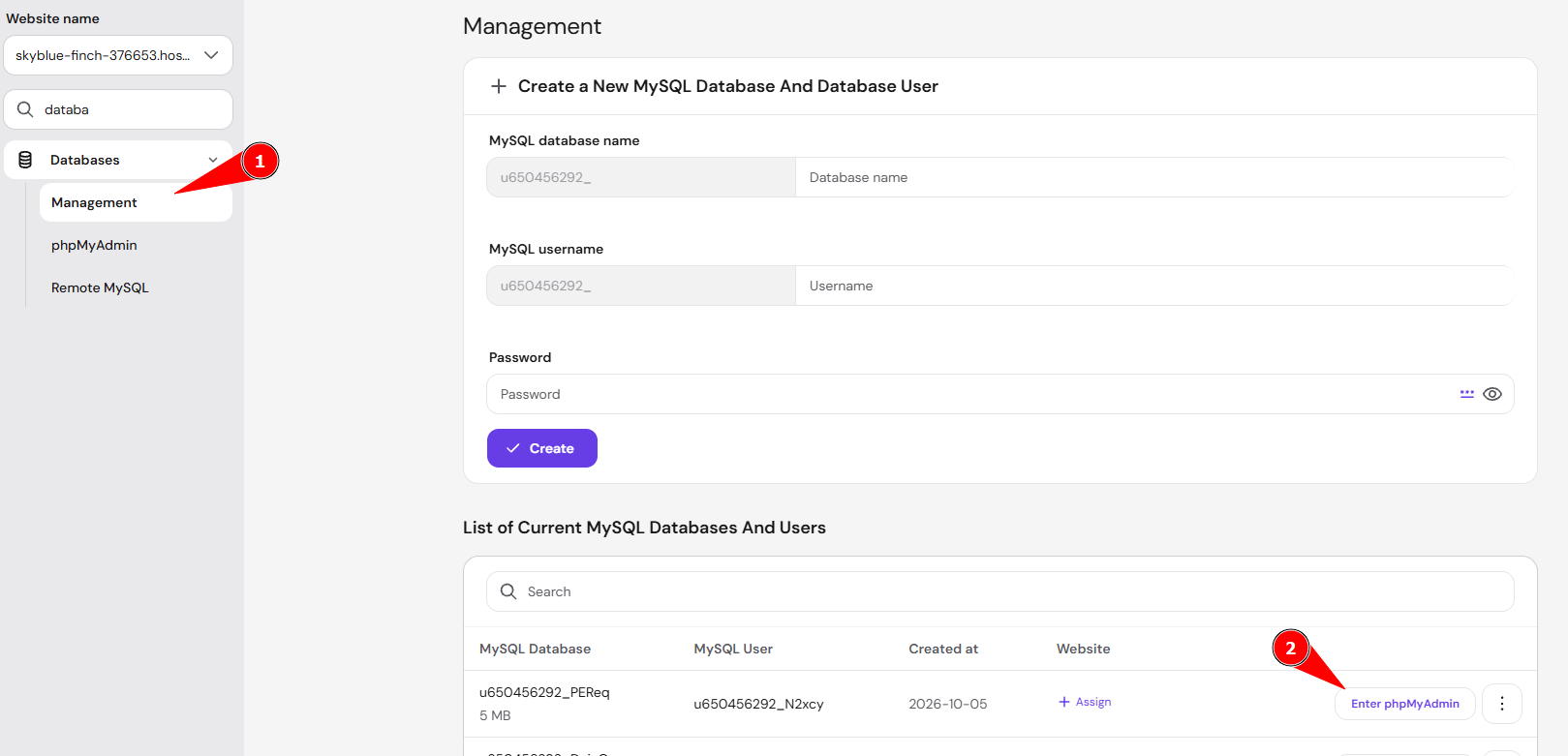
See how to access phpMyAdmin at Hostinger for other ways to open phpMyAdmin.
Step 2 – Run the database version query in phpMyAdmin
Run one SQL query in phpMyAdmin to display your database version.
- Click the SQL tab at the top of phpMyAdmin.
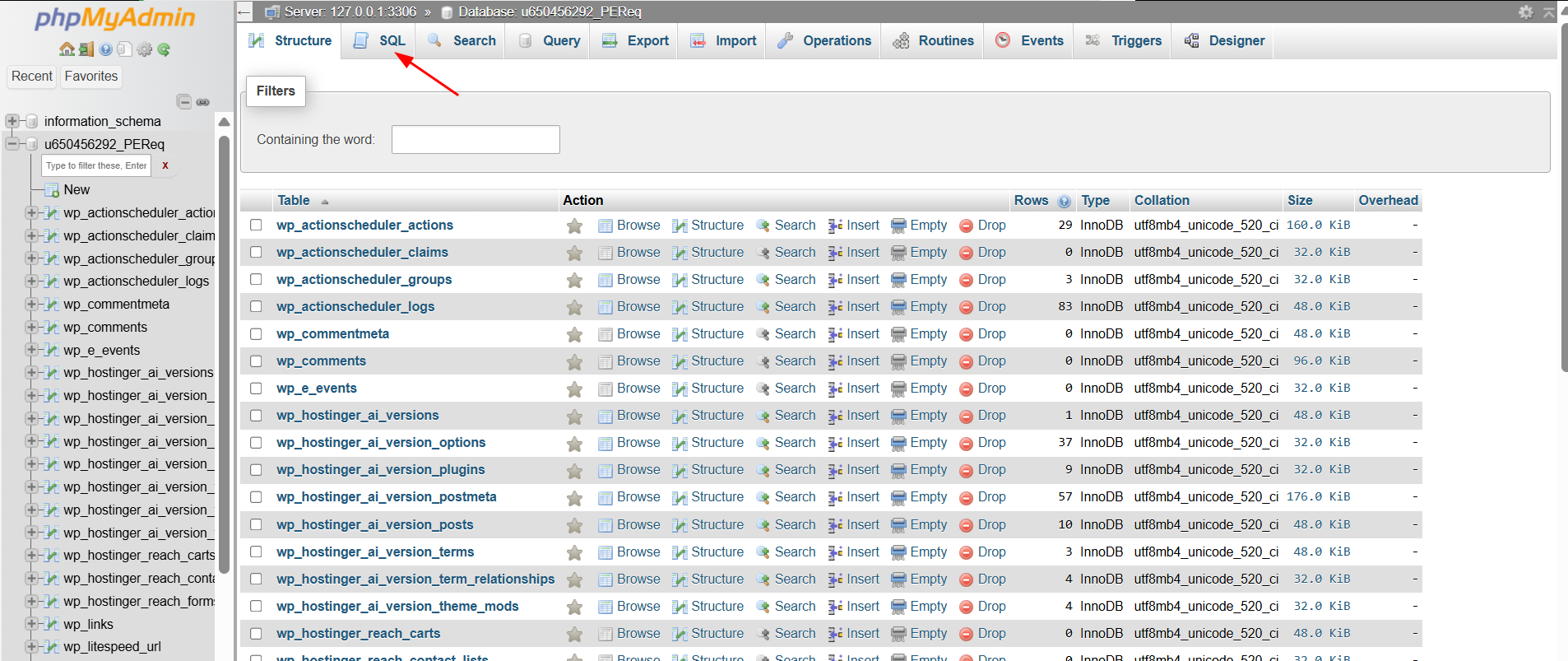
- Enter this query in the Run SQL query/queries on database box:
SELECT VERSION(); - Click Go.
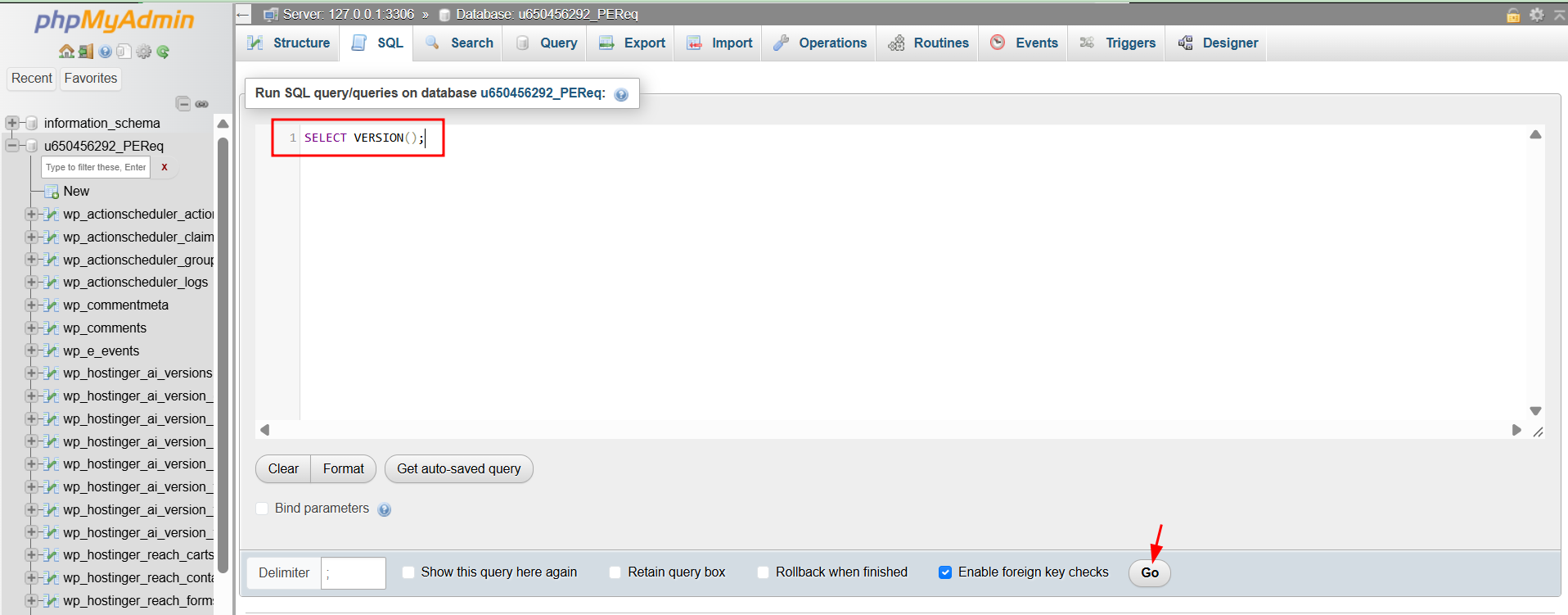
The query only reads the version, so it doesn’t change your database or its data.
Step 3 – Read your MariaDB version and compare it with the requirements
The result appears under VERSION(), for example 11.8.9-MariaDB-log. The number before -MariaDB is your database version, so in this example the version is MariaDB 11.8.9.
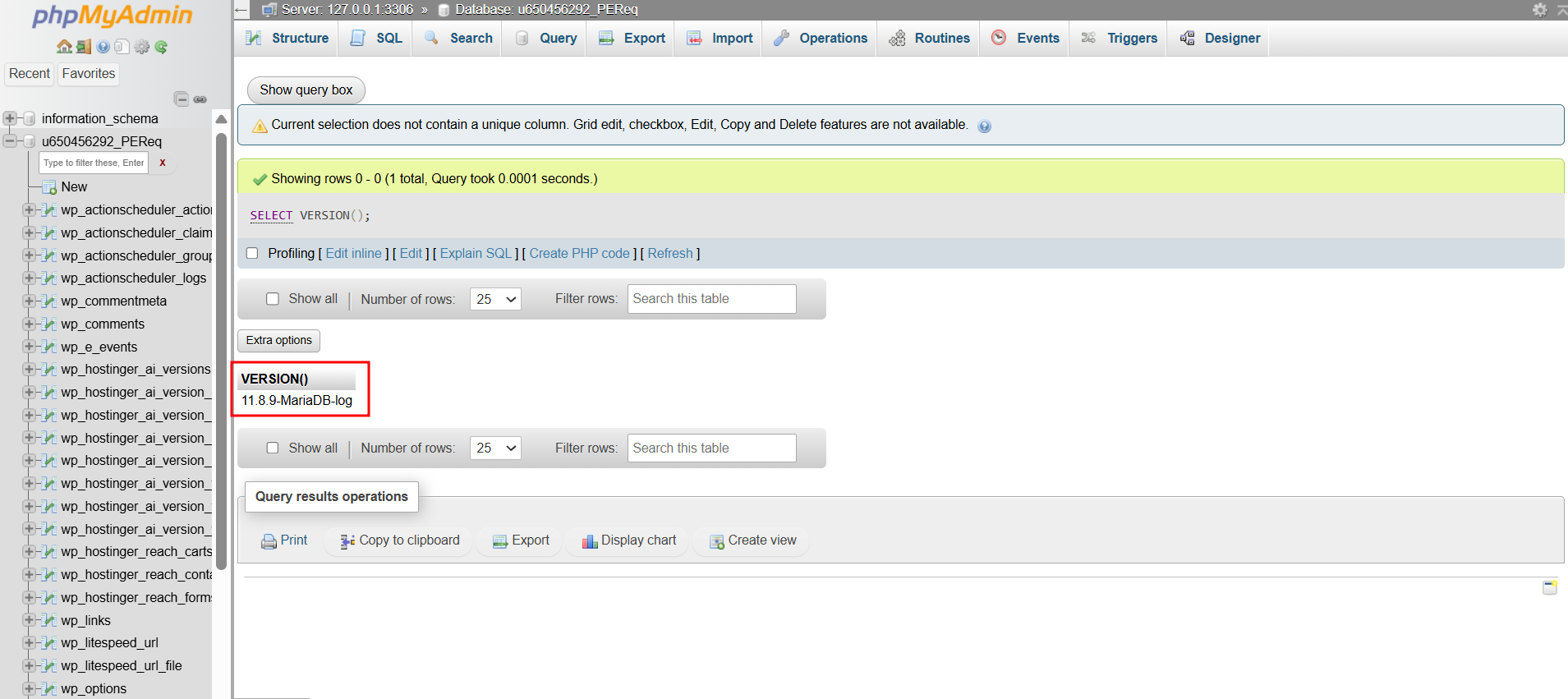
Compare this version with the minimum database version listed in your application’s official requirements. Applications often list requirements for both MySQL and MariaDB, so check the MariaDB requirement, because Hostinger Web and Cloud hosting plans use MariaDB. See which database management system is used at Hostinger for more details.
NOTE
- A message that the current selection does not contain a unique column may appear above the result. This message is expected for this query and doesn’t affect the version shown.
You now know your exact database version and can confirm whether your application is compatible before you install it. To install a compatible application, see how to install applications automatically at Hostinger.