If you’ve already built your website but want to use a different domain name for it you can easily change the domain name of your site in just a few steps.
Before you begin
By changing the domain of a website, you’ll lose all email data related to that domain, and your email plan will reset. Email inboxes will not be automatically changed and will need to be re-created by following the guide below:
If there are any subdomains, they will also have to be re-created:
The subdomain files will remain intact; they should be recreated in the hPanel Subdomain Tool as described in the guide above.
How to change domain
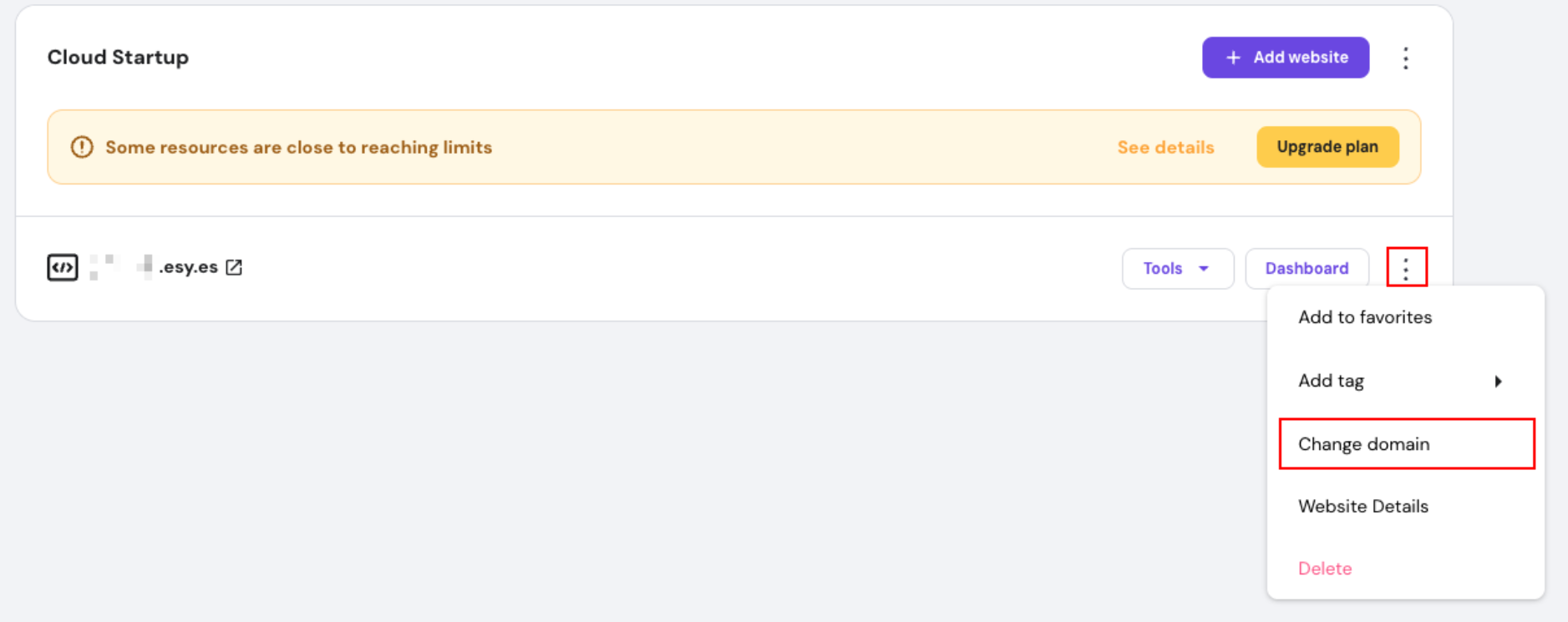
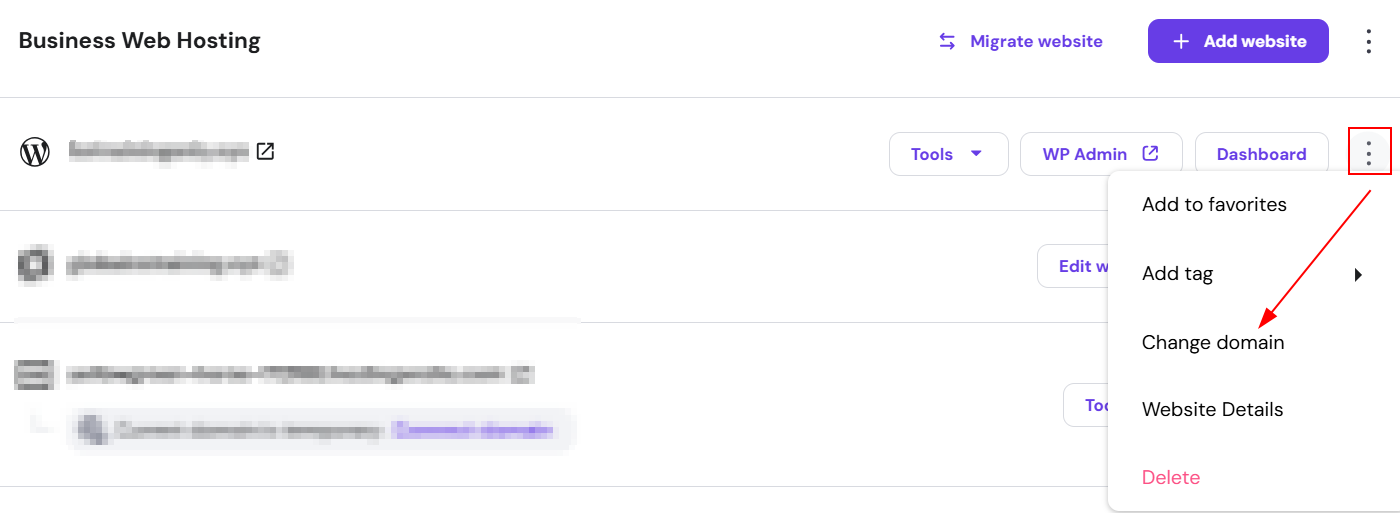
To change the domain locate the website in the Websites section. Then, click on the ellipsis button and select Change domain:
Generally, once registered, a domain itself can’t be changed or edited. In other words, you wouldn’t be able to give up an already registered domain and register another one instead of that one. As an alternative, you may register a new domain separately.
Change domain name to temporary domain
If you need to temporarily change your website’s domain, Hostinger now allows you to switch to a temporary domain from an actual domain name.
To switch your domain to a temporary domain:
-
Go to Websites > Websites List and navigate to Change Domain

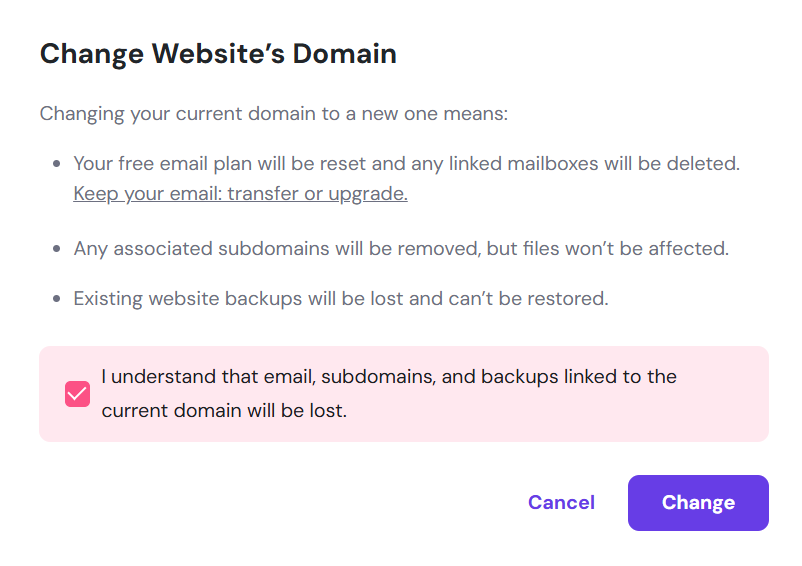
- Confirm that you understand all email data associated with the domain will be deleted including your subdomains and existing website backups will be lost, then click on Confirm.

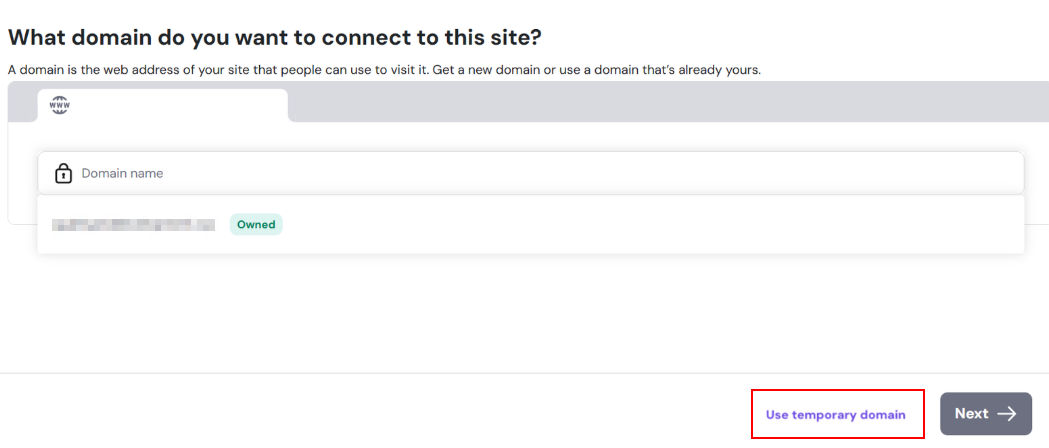
- Select the temporary domain option.