Within the builder, expand the Website styles panel on the left:
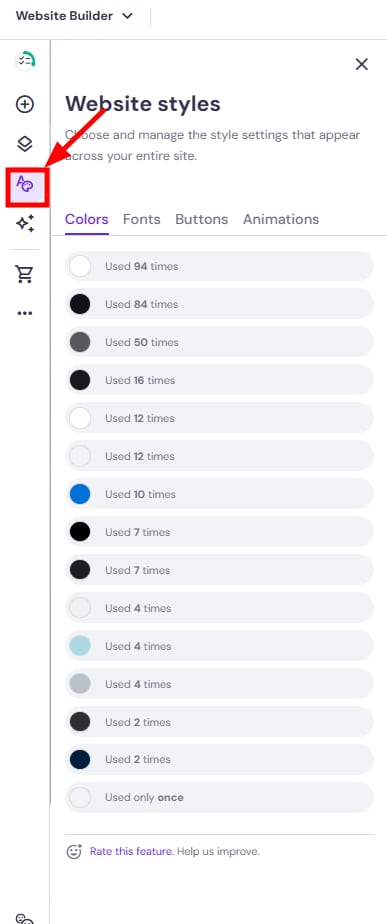
Here, you can find the global style settings of the following:
-
Colors: choose a color palette or create your own
-
Text: choose a pair of fonts and customize the style of headings, paragraphs, and navigation menu links
-
Buttons: choose the preferred button shape
-
Animations: choose the preferred animation style
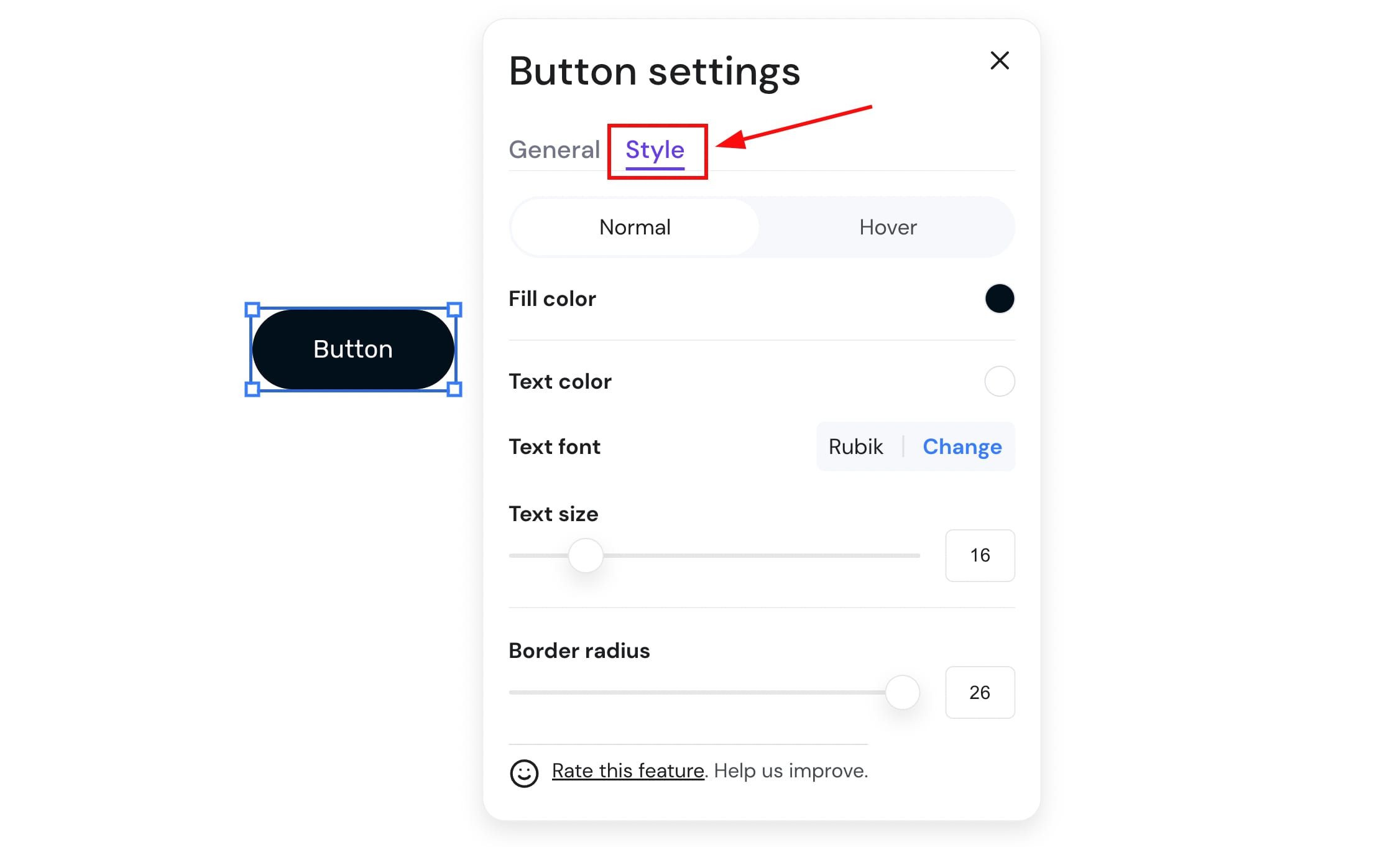
Besides the global style settings, you can also customize every website element locally. Simply click on an element, select Edit, and explore its individual settings:
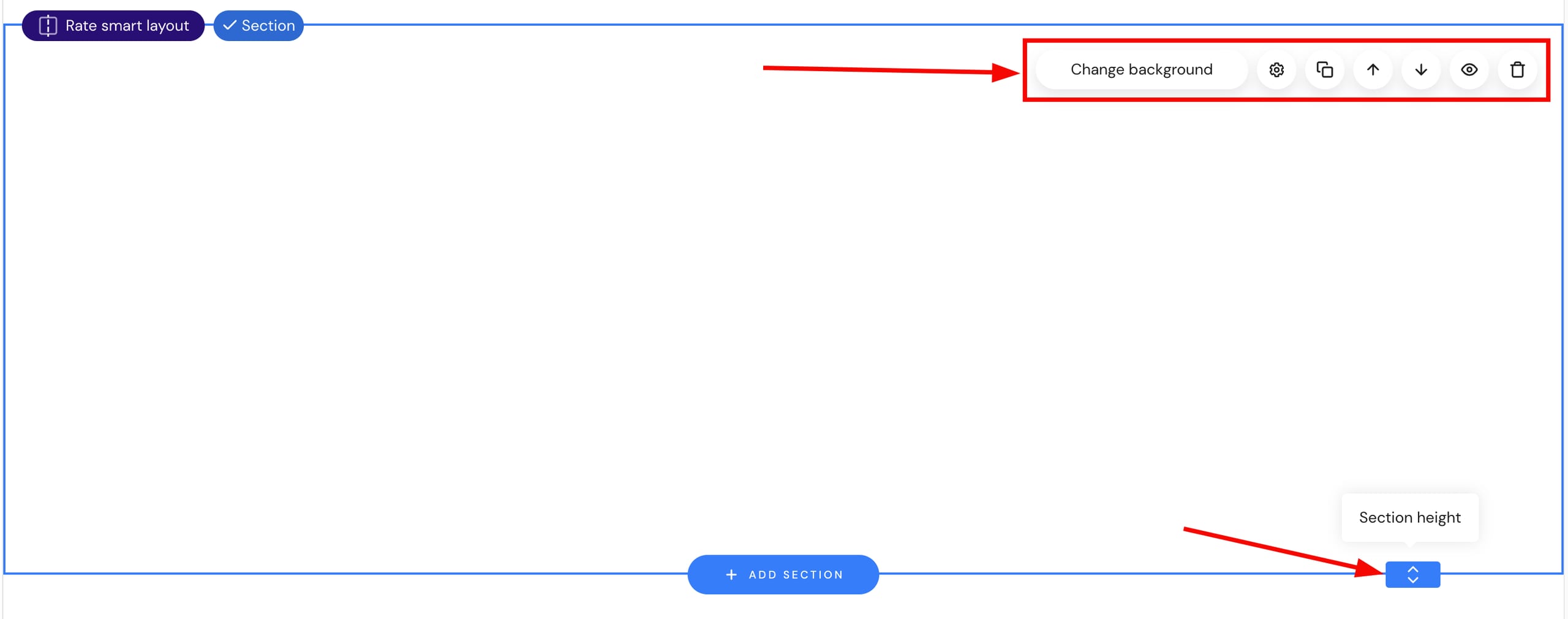
All website sections – be it a header, footer, or regular one – have their own settings, too. Click on a section to reveal its settings menu: