Change the text style of your Hostinger AI Builder manual mode website either globally, affecting all text of a particular style, or locally, affecting a specific text element. You can also set different font sizes for each style on mobile and desktop separately.
Changing text style globally
You can customize the text style of all text elements written in that particular style at once (e.g., all texts written in Heading 1).
If you make changes on the desktop mode, they will be applied to all text elements of a particular style in the desktop version. If you make changes on the mobile mode, they will be applied to all text elements of a particular style in the mobile version.
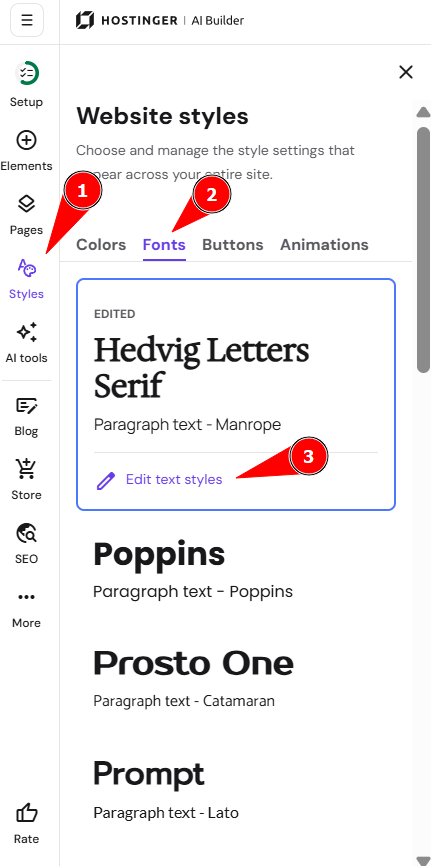
- Within the editor, expand the Styles panel on the left and open the Fonts tab. Choose the preferred pair of fonts from the suggested ones, or customize them by clicking on the Edit text styles button:
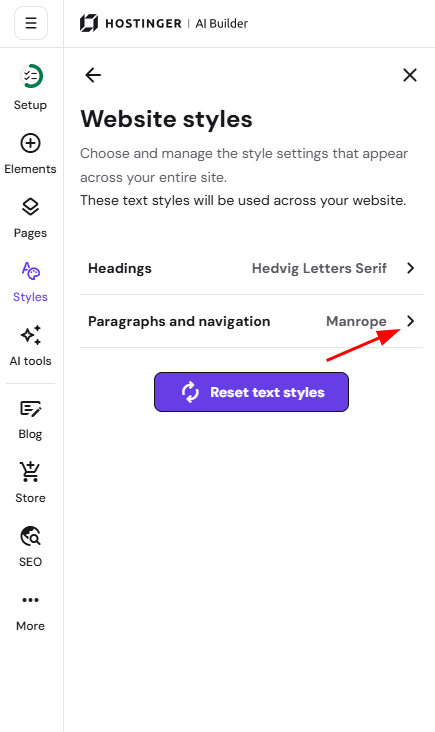
- Choose Headings or Paragraphs and navigation depending on what you’d like to change:
- Customize the text style (weight, size, line height, underline, capitalization):
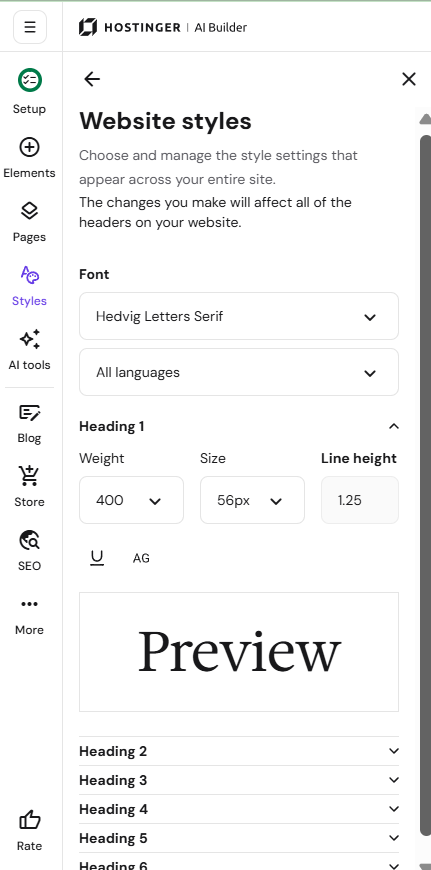
You may set two font families in the global text style settings:
-
One for headings
-
One for paragraphs and navigation
You can use more fonts by editing the text style locally.
The changes are applied to all texts of a particular style (e.g., all texts in Heading 1) across the whole website.
Changing text style locally
To change the style of a particular text element, click on it, select Edit text, and make the preferred changes. To change the style of just some particular words/phrases within that text, select (highlight) them first.

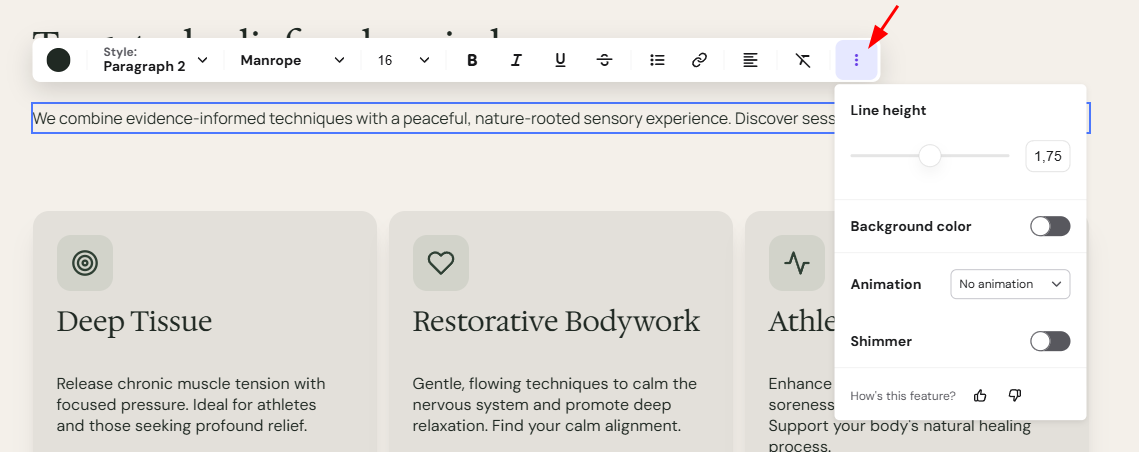
You may also upload and use custom fonts locally.