Hostinger Ecommerce checkout settings let you add legal pages as checkout policies, collect extra customer details, and set the checkout language. Shoppers can also change their cart and pay with a separate billing address during checkout, without any setup from you.
You cannot customize the checkout page’s structure, layout, or design, as this is not yet supported. The shipping method can’t be hidden at checkout. A custom checkout page isn’t supported with the Hostinger Ecommerce integration.
Add legal pages as Hostinger Ecommerce checkout policies
Add your Terms & Conditions, Privacy policy, and Refund policy to the Hostinger Ecommerce checkout so customers agree to them before they pay. Checkout policies also help you meet payment provider Know Your Customer (KYC) requirements and build trust with your customers.
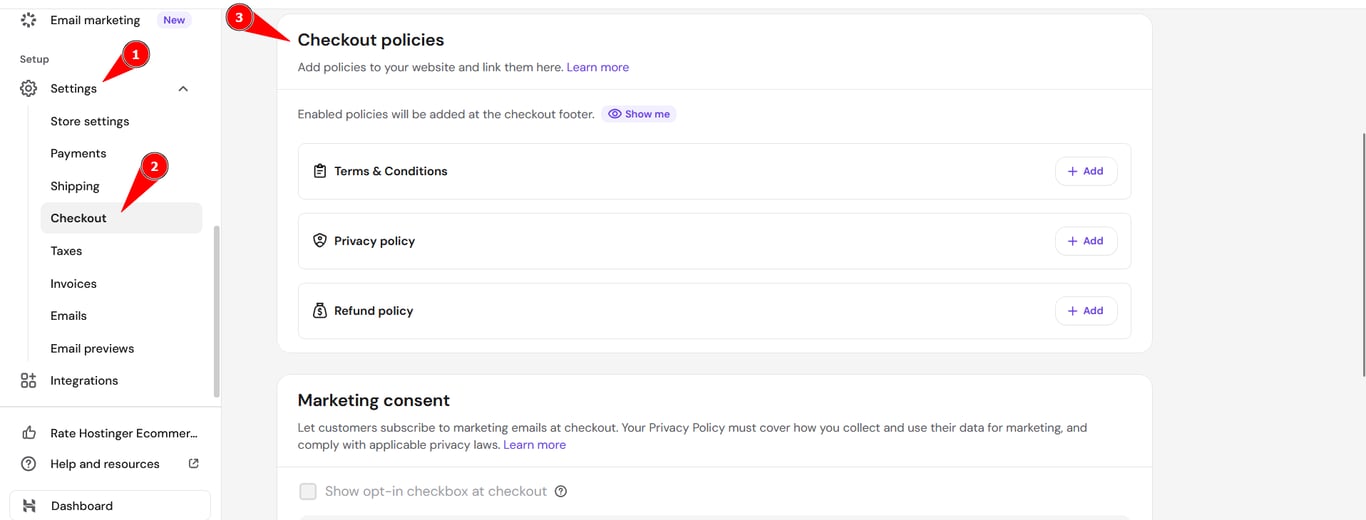
- Go to your Store Manager, then click Settings in the side menu.
- Select Checkout.
- Go to the Checkout policies section, where you can add Terms & Conditions, Privacy policy, and Refund policy.
- To add a policy, select Add and choose Website Builder Page or Custom link.
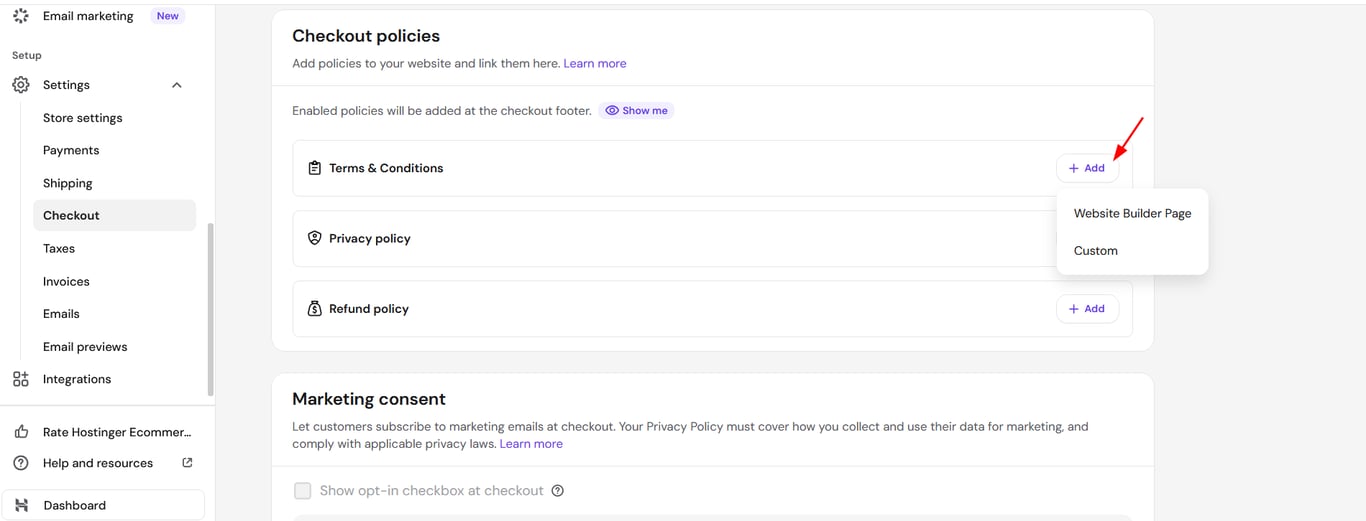 Website Builder Page can be used only for Hostinger AI Builder manual mode.
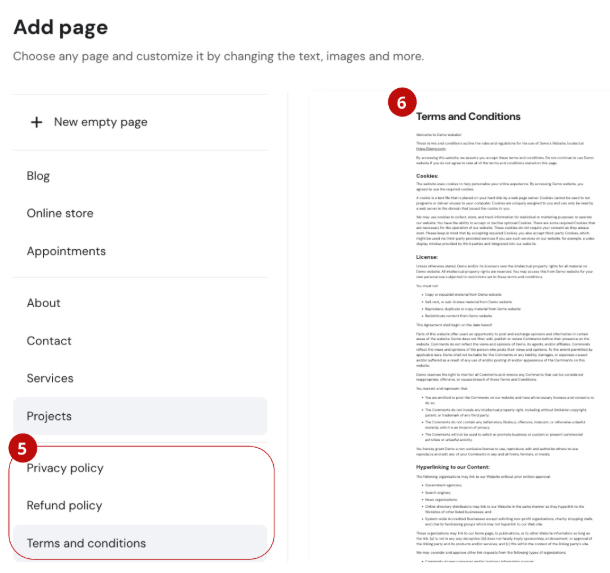
- If you select Website Builder Page, the editor opens in a new tab so you can add the legal page to both your website and your checkout. Select Add page.
- Select the legal page you need: Privacy policy, Refund policy, or Terms & Conditions.
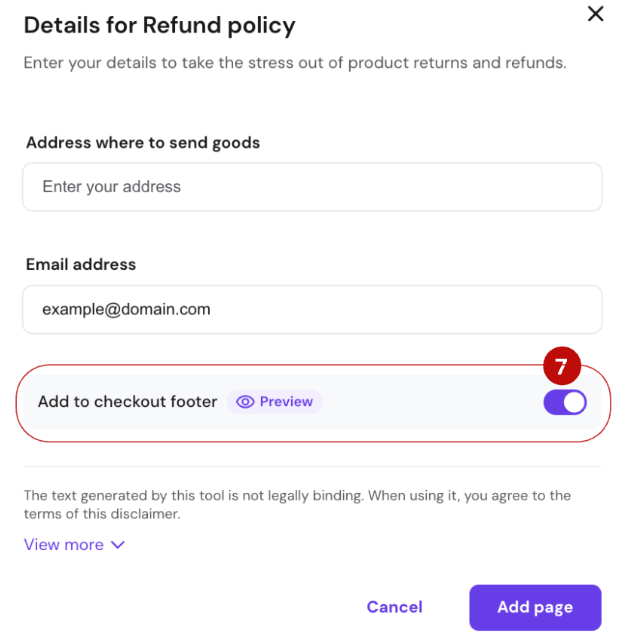
- Fill in all the required fields, turn on Add to checkout footer, and click Add page.
- Back in your Store Manager, the new policy link appears automatically.
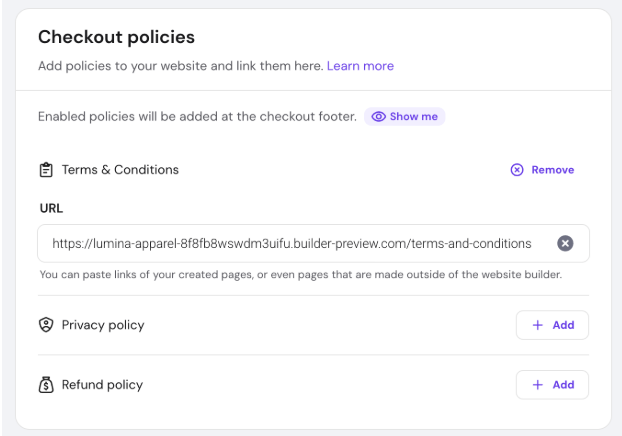
Repeat these steps for each policy. To use your own links instead, select Custom and paste the link.
Customers then need to agree to your checkout policies before they proceed to payment:
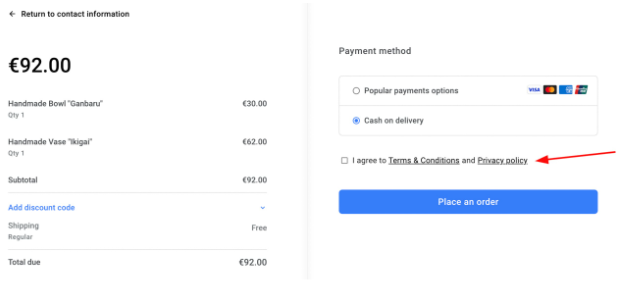
Learn more: How to Create Legal Pages for manual mode
Collect extra customer details in Hostinger Ecommerce checkout
Use Custom options in Settings → Checkout to collect extra details from customers at checkout. Two options are available:
- Require phone number at checkout – make customers enter a phone number before they can place an order.
- Add a custom field to the checkout – add one extra question for customers to answer at checkout, and choose whether an answer is required. Each store can have one custom checkout field.
Set the Hostinger Ecommerce checkout language
Choose your store’s checkout language under Checkout language in Settings → Checkout. The checkout language applies to the shopping bag, the checkout page, and invoices.
Shoppers can change their cart during checkout in Hostinger Ecommerce
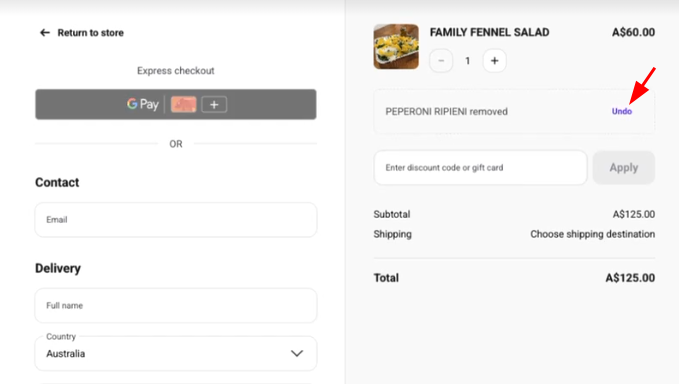
Customers can change item quantities or remove items directly on the Hostinger Ecommerce checkout page, without returning to your online store to restart the order. Totals, shipping, and discounts recalculate instantly after each change. You don’t need to set anything up in the Store Manager.
After a customer removes an item, an undo option appears for a few seconds. A customer cannot remove the last remaining item, so every order keeps at least one product.
Shoppers can use a different billing address in Hostinger Ecommerce checkout
Hostinger Ecommerce checkout lets shoppers pay with a billing address that differs from the delivery address, for example when they send a gift or order to an office. The Billing address is the same as delivery checkbox is selected by default. Shoppers clear it to enter a separate billing address in any country, with a full name, country, address, city, and postal code.
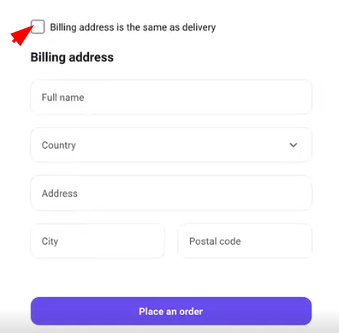
The billing address option appears for card payments, Paysera, and cash on delivery. PayPal, Google Pay, and Apple Pay collect billing details themselves, so shoppers who pay with them aren’t asked for a billing address at checkout. For PayPal orders, the payer’s PayPal billing address is used when it includes a usable street line and a known country; otherwise, the checkout address is used.
Hostinger Ecommerce addresses the order’s invoice to the billing address. Tax on physical products follows the delivery country, and tax on digital products follows the billing country. Card payments through Stripe use the billing name, so the card form doesn’t ask for Name on card.
Your Hostinger Ecommerce checkout now shows your checkout policies, extra customer fields, and checkout language. Customers can also change their cart and pay with a separate billing address at checkout, without any extra setup from you.
NOTES
- You can enable or disable the shopping bag in the website’s header settings for manual mode.
- Enable email marketing consent at checkout to let customers subscribe to your marketing emails with an opt-in or opt-out checkbox.
- You can also enable manual (offline) payment methods or remove payment methods you no longer want to offer.
- See Hostinger Ecommerce: Limitations and unsupported features for checkout settings you can’t change, such as the order button text.