Set up Hostinger Email on Mac OS X Mail by adding your mailbox as an IMAP account under Mail → Add Account → Other Mail Account, using imap.hostinger.com and smtp.hostinger.com.
To set it up automatically instead, use auto-config. You can also set up Mozilla Thunderbird automatically.
Before you start
If you wish to set up a different application or prefer manual setup, make sure that:
-
You have created an email account with Hostinger Email
-
Your domain is pointed to Hostinger
-
The correct Hostinger Email MX records are added to your domain’s DNS zone
Then, proceed with these steps.
Gather the Hostinger Email account details
Gather the configuration details of your email account:
|
IMAP (incoming) |
POP3 (incoming) |
SMTP (outgoing) |
|
Host: imap.hostinger.com Encryption: SSL Port number: 993 |
Host: pop.hostinger.com Encryption: SSL Port number: 995 |
Host: smtp.hostinger.com Encryption: SSL Port number: 465 |
If you’re not completely sure about your email password, you can easily reset it.
How to set up Hostinger Email on Mac OS X mail manually
-
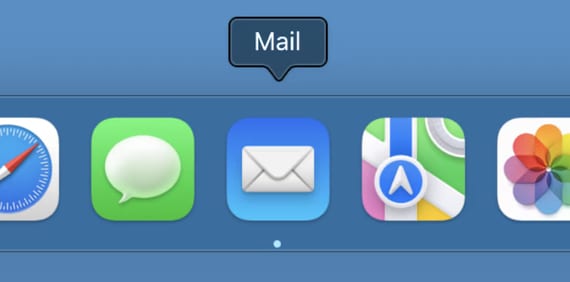
Open the Mail app (icon might be different depending on version)
-
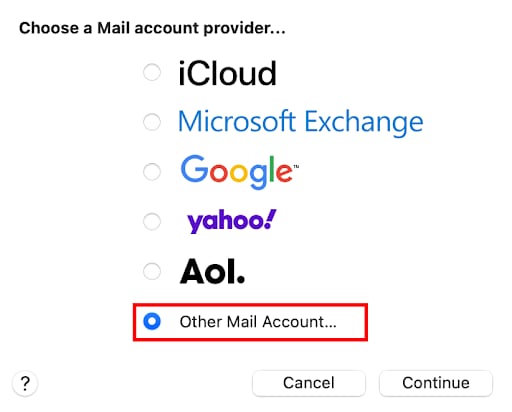
Go to Mail > Add Account.
-
Select Other Mail Account and click Continue.
-
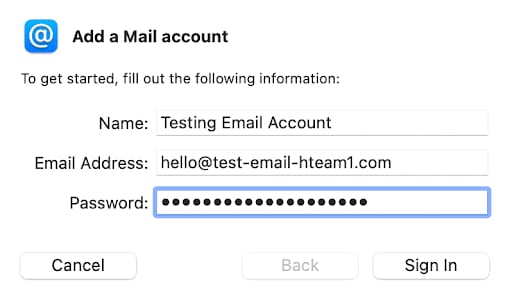
Enter your:
-
Name
-
Email address
-
Password
-
-
Click Sign In.
-
In the next panel, you may see the Unable to verify account name or password message.
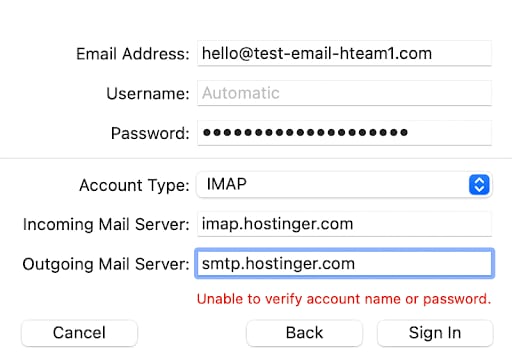
Don’t worry, as this prompt is common. Enter the following manually:
Account type: IMAP (Recommended)
-
Incoming Mail Server: imap.hostinger.com
-
Username: your full email address
-
Password: your email password
Outgoing Mail Server (SMTP)
-
Outgoing Server: smtp.hostinger.com
-
Username: your full email address
-
Password: your email password
After that, click Sign In, then Done.
Your Hostinger email is now connected to your Apple Mail app on iPhone, iPad, or Mac. To set it up on iPhone or iPad, see How to set up Hostinger Email on iOS devices manually.
Troubleshooting
Most errors are related to having entered incorrect parameters into your email client. In those cases, it is highly recommended to reset your password and re-enter the parameters one more time, making sure that the IMAP or POP3 and SMTP settings match those from the table above.