Hostinger File Manager is a browser-based tool for managing website files and folders directly in the Hostinger dashboard. It serves as an alternative to third-party FTP clients for uploading, editing, and organizing your website files. Edits to files are staged first, so you can review them and make them live with Deploy. Hostinger File Manager also includes a built-in terminal and works with Hostinger Agent.
Before you start
Hostinger File Manager is available on web, cloud and Agency hosting plans for websites built with custom PHP/HTML, Node.js, or CMS platforms like WordPress. Agency hosting plans currently use the previous version of File Manager.
- Hostinger AI Builder (manual mode): File Manager is not available for the Hostinger AI Builder. Instead, use the Media Library.
- Hostinger AI Builder (agentic mode): File storage in Hostinger AI Builder is managed through the integrated backend.
How to access Hostinger File Manager
- Go to Hostinger dashboard → Websites.
- Hover over the domain and click Manage site.
- On the sidebar, click Files → File Manager. Hostinger File Manager opens inside the Hostinger dashboard, in your website’s folder, in Browser view.
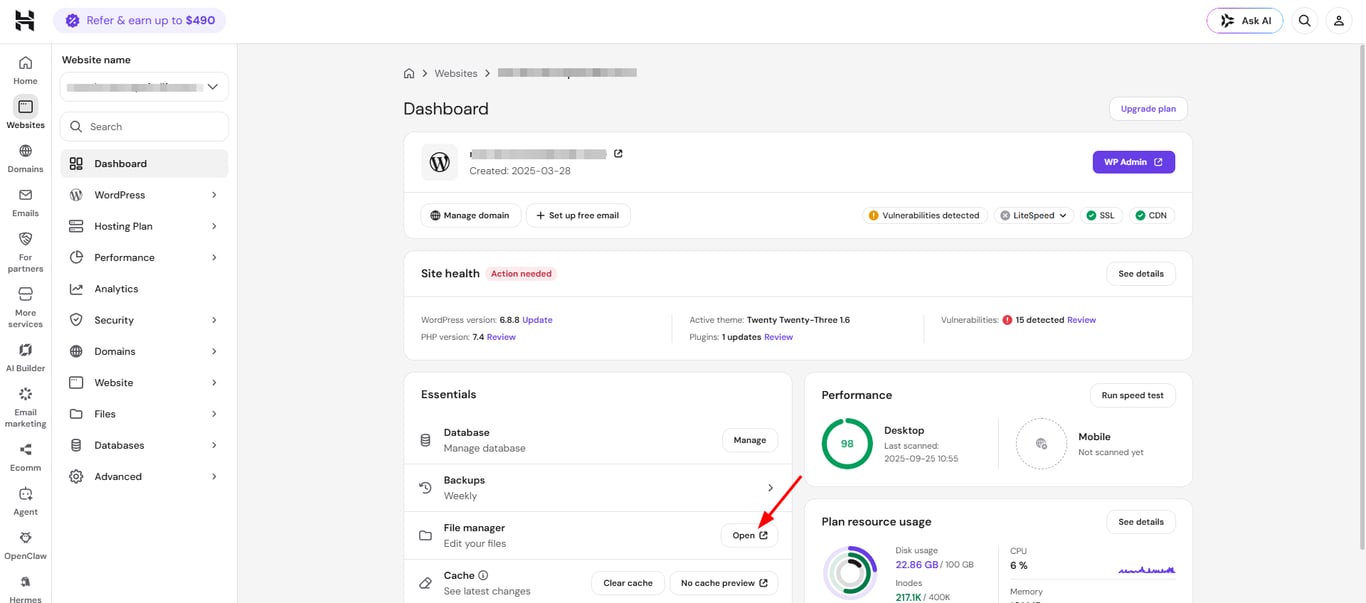
Browser view and Editor view in Hostinger File Manager
Hostinger File Manager has two views. Switch between them with the Browser and Editor buttons in the top-right corner. File Manager remembers the view you used last.
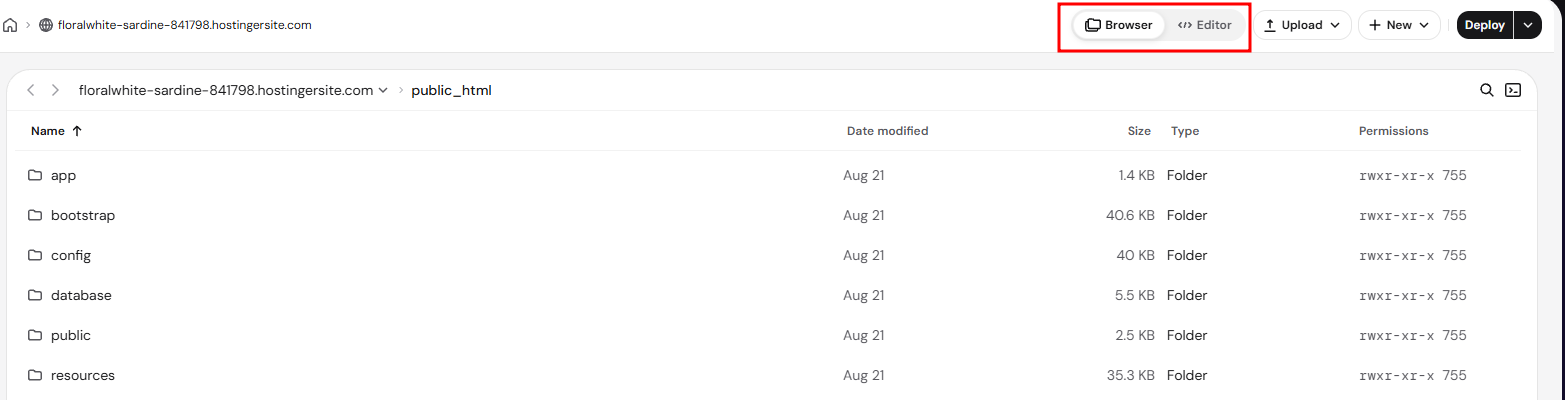
- Browser view (default): Lists the files and folders in the open folder, with Name, Date modified, Size, Type, and Permissions columns. The Size column also shows folder sizes. Click a folder to open it, or click a file to view and edit it.
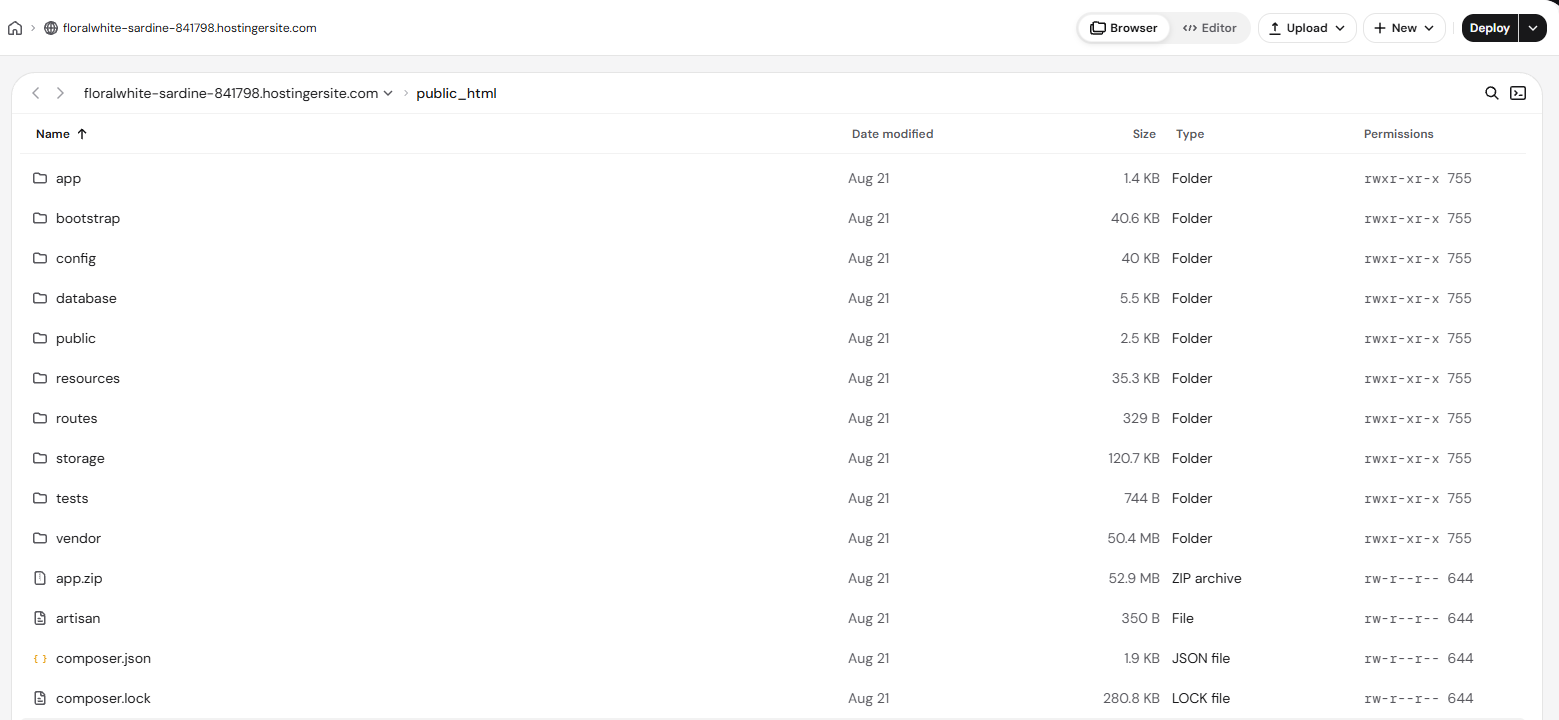
- Editor view: Shows the file tree in the side panel and opens files in tabs, so you can work on several files at once. To open a file from Browser view in Editor view, click Open in editor.
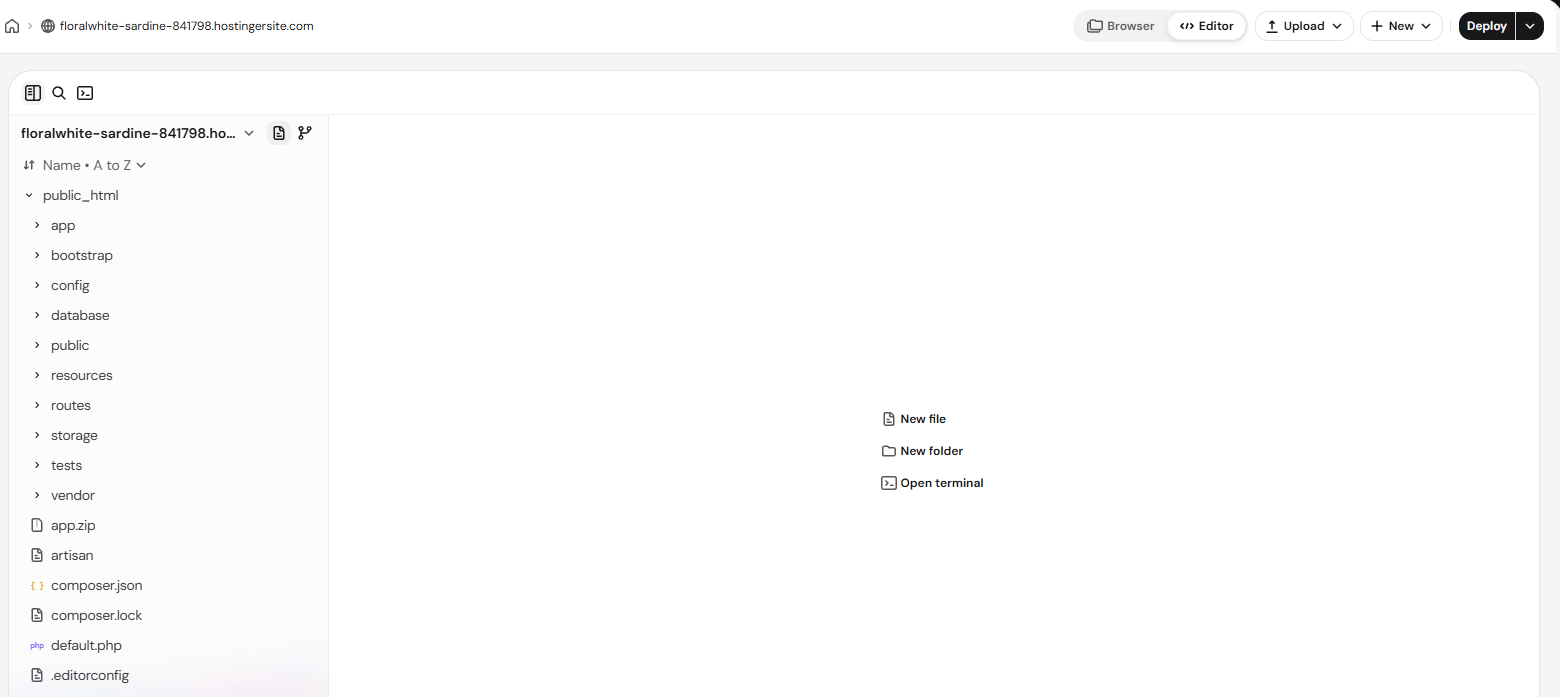
To switch to another website on your hosting plan, click the website name in the file path and choose a website. Select All hosting files to see the files of your whole hosting plan.
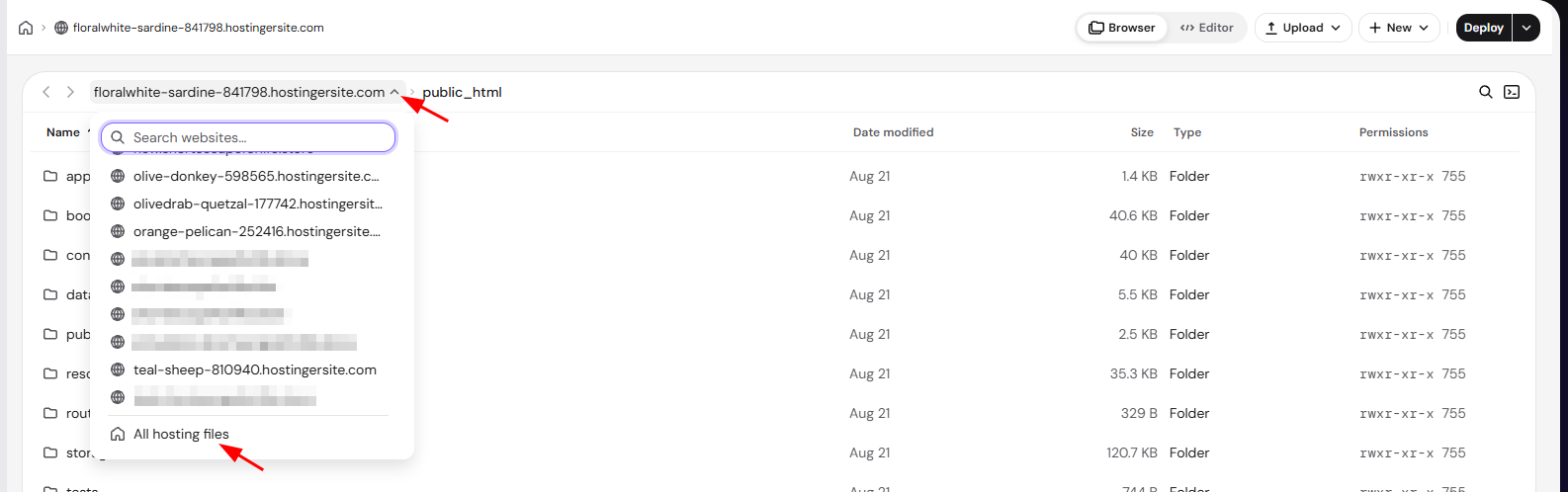
Hostinger File Manager layout
The header is the same in both views. Below it, Hostinger File Manager shows a file list in Browser view, or a file tree and editor in Editor view.
Section 1 – Header
The header shows where you are and holds the main action buttons.
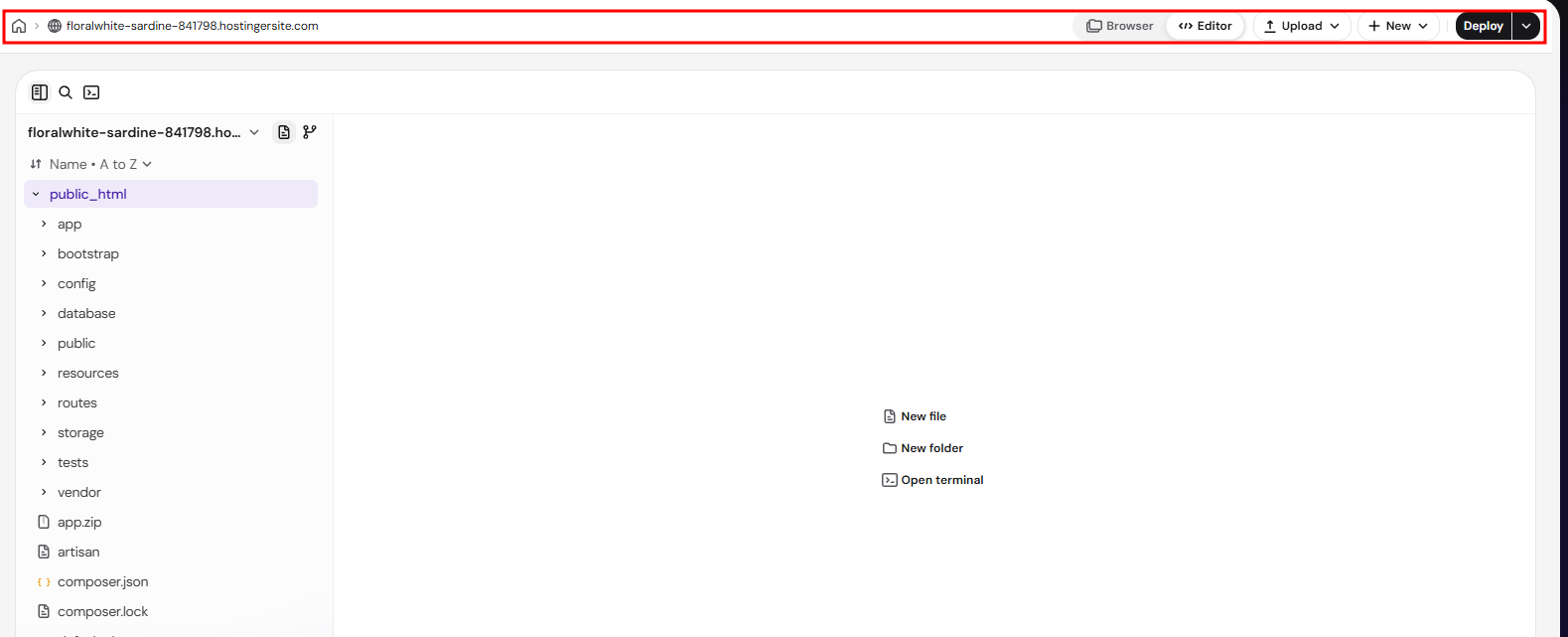
- File path: Shows the open folder or file. Click the Home folder icon (⌂) to open your hosting plan’s home folder.
- Browser and Editor: Switch between the two views.
- Upload: Upload files or a whole folder from your device. If uploads are slow, see how to resolve slow upload issues in File Manager.
- New: Create a new file or folder.
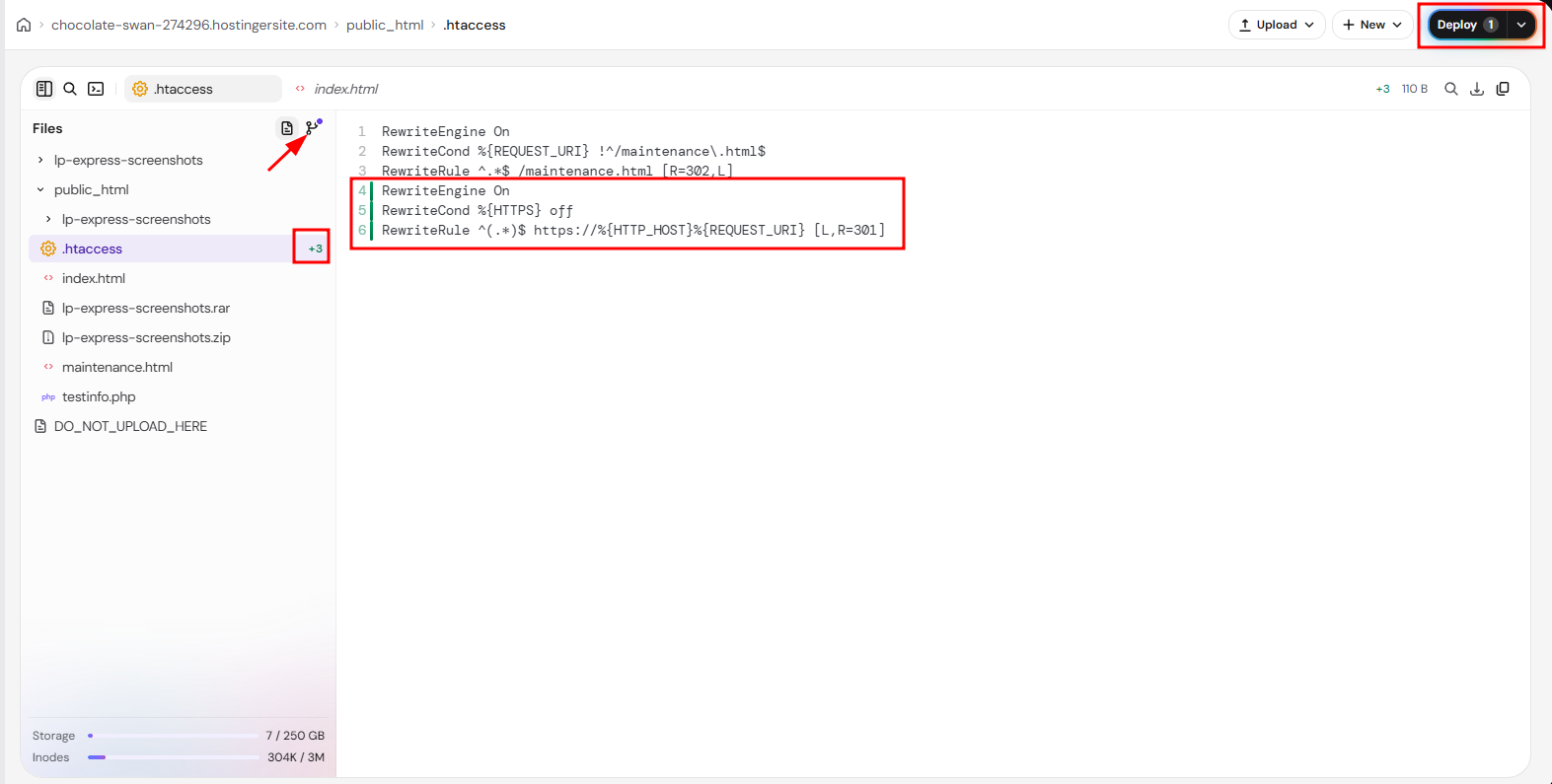
- Deploy: Make your edits live. The number next to it shows how many changes are waiting.
Section 2 – Browser view
Browser view lists the content of the open folder, similar to a file explorer on your computer.
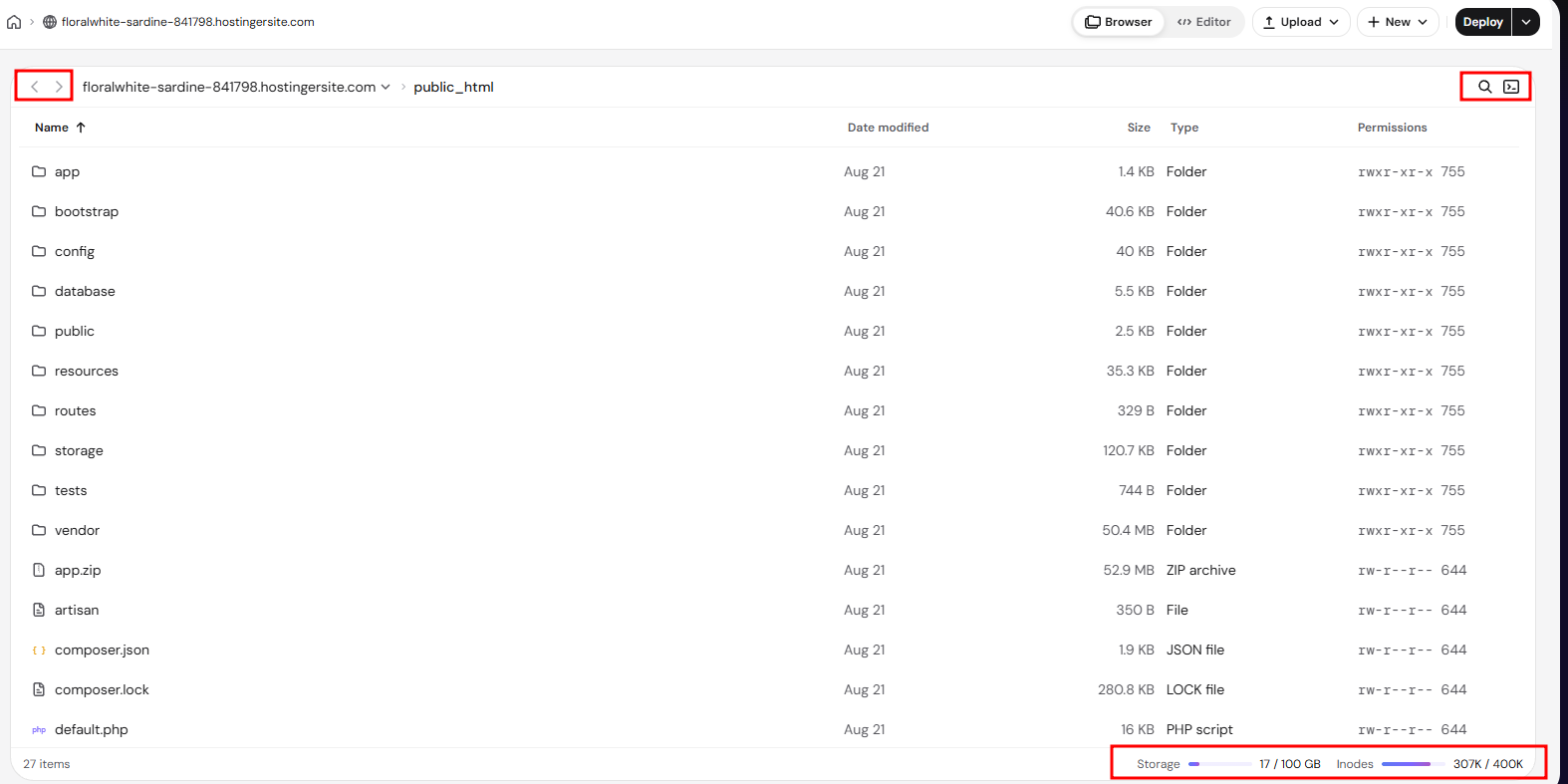
- Path bar: Back and forward arrows, the website name, and the path to the open folder. Click the website name to switch to another website or select All hosting files. The Search and Terminal icons are on the right.
- File list: The files and folders in the open folder, with Name, Date modified, Size, Type, and Permissions columns. Click a column name to sort the list.
- Footer: The number of items in the folder and your hosting plan’s Storage and Inodes usage.
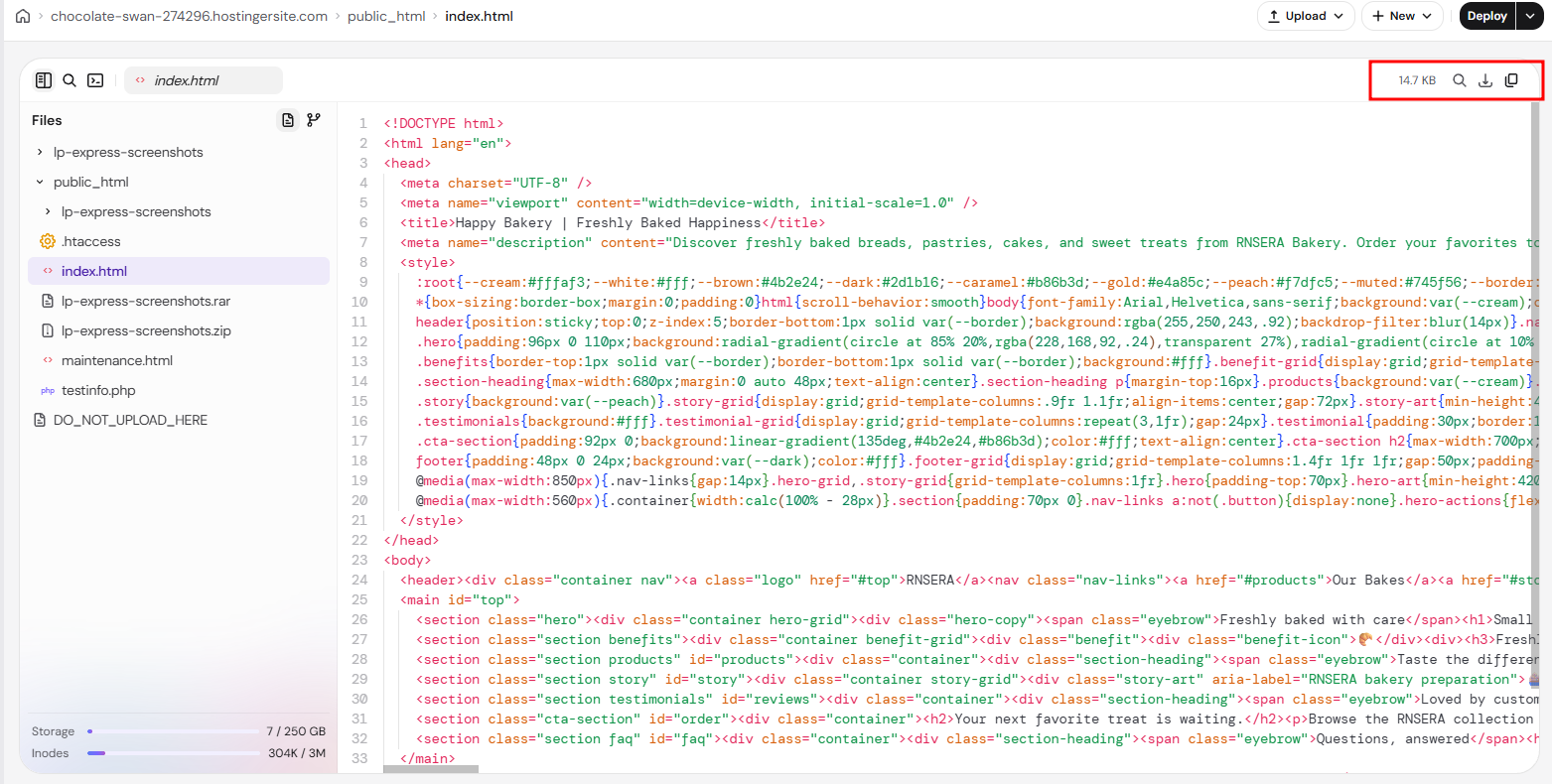
When you click a file, it opens in place of the file list. Above the file, you can see how many lines you added and removed, the file size, and the Find in file, Download, Copy content, and Open in editor options.
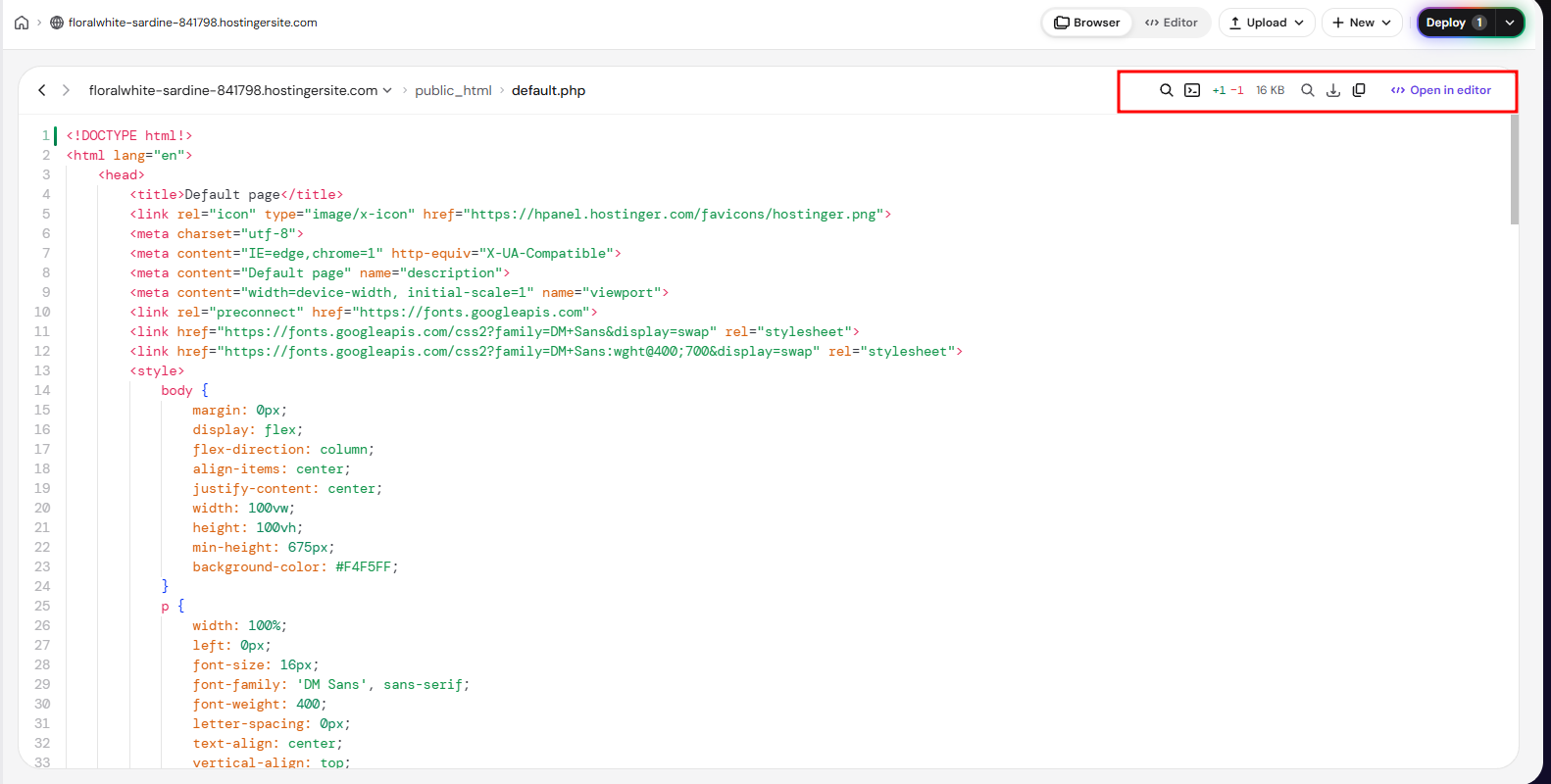
Section 3 – Editor view toolbar
- Hide sidebar, Search, and Terminal icons on the left.
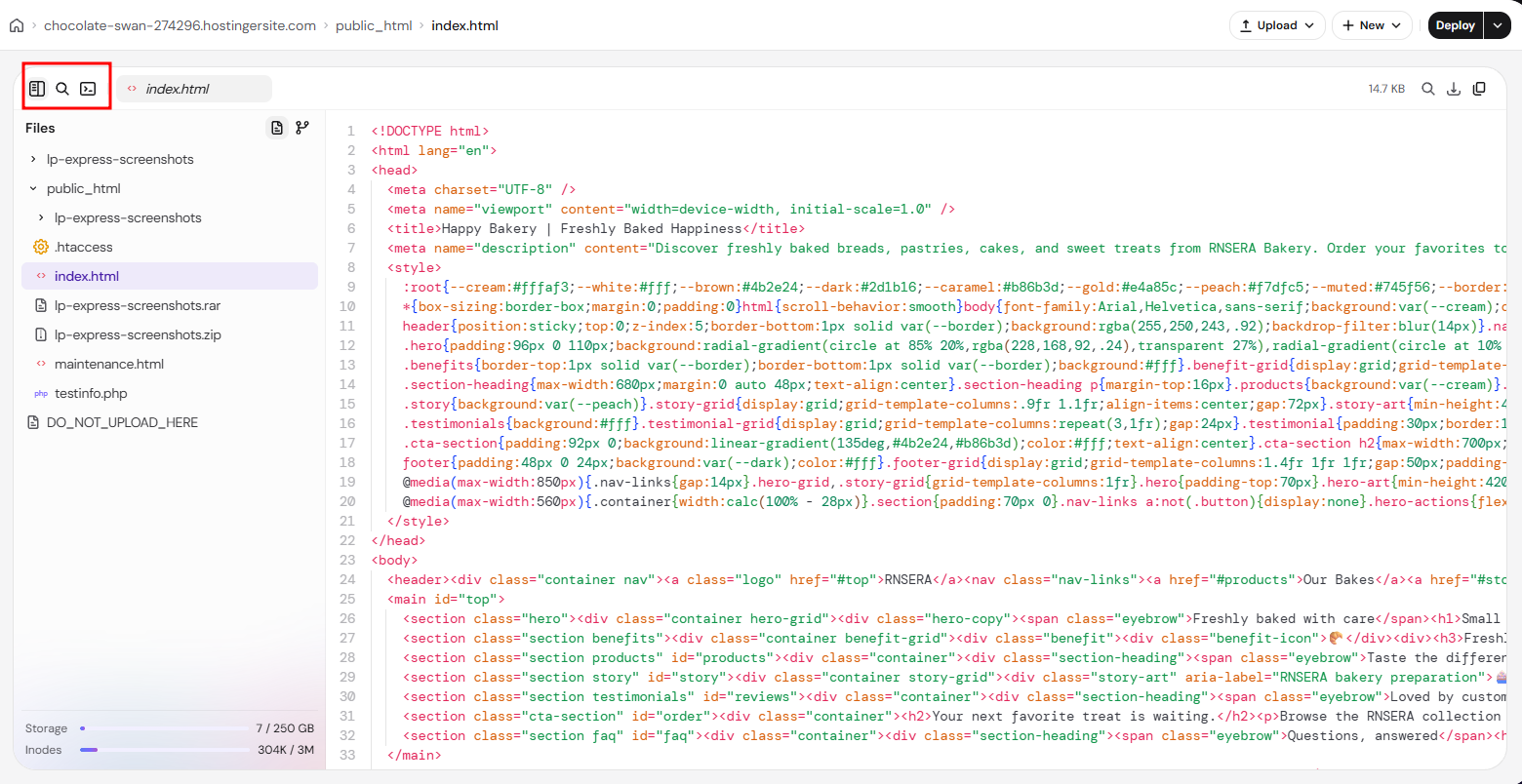
- Tabs for each file you open. You can open several files at once and switch between them in the tabs.
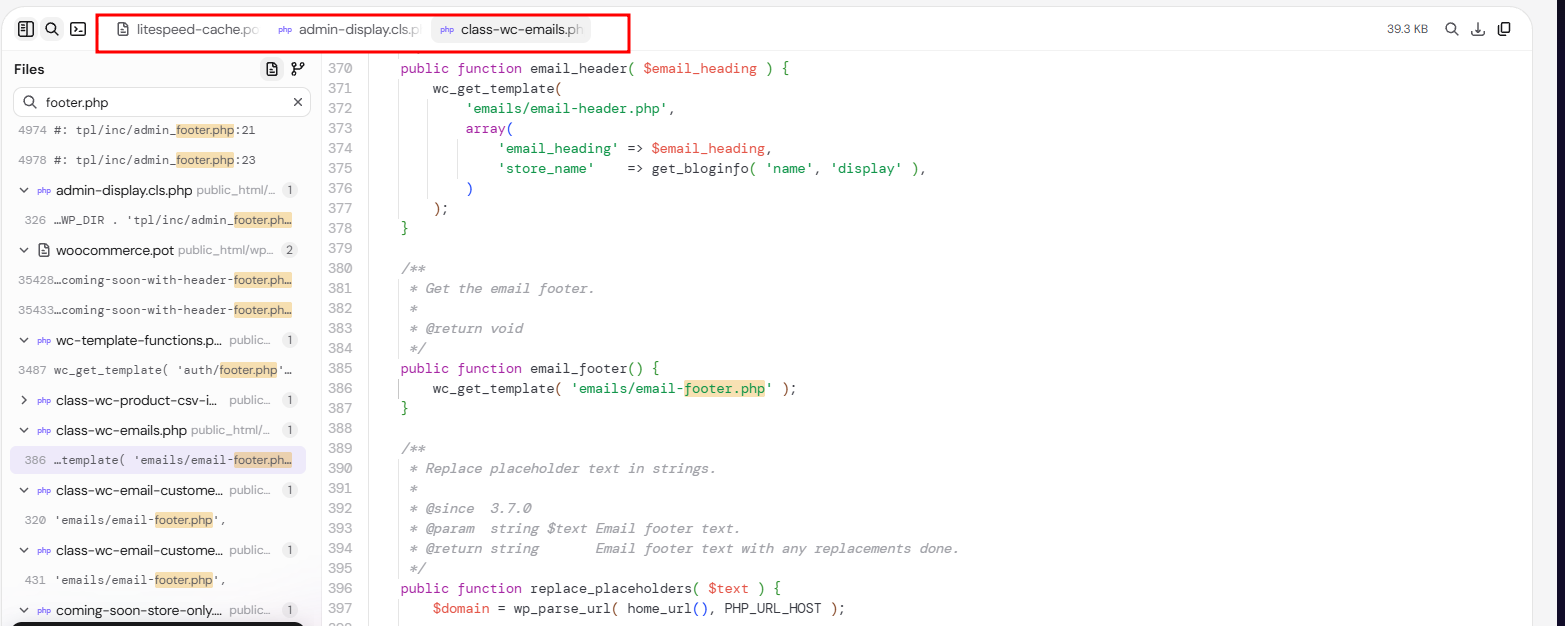
- For the open file: its size and the Find in file, Download, and Copy content icons.
Section 4 – Editor view side panel
The side panel shows your files and changes.
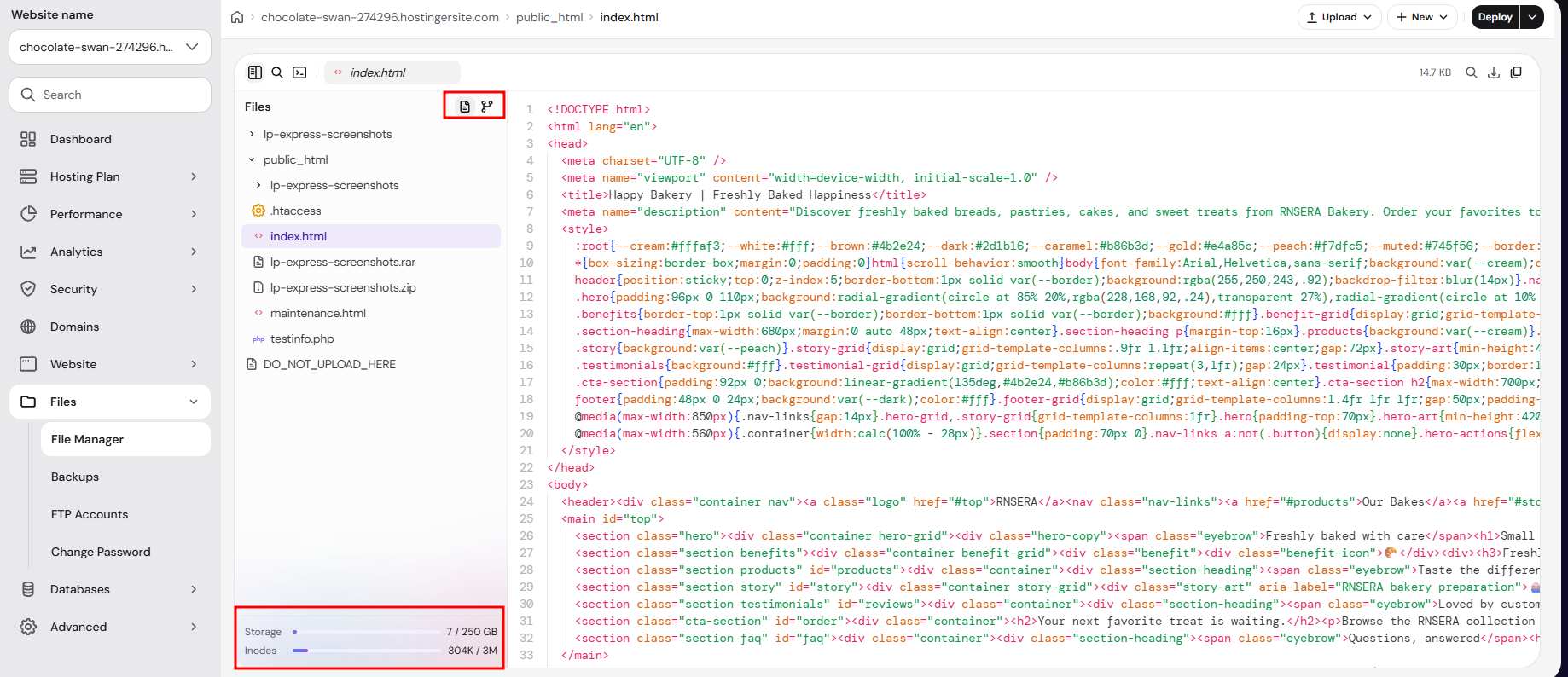
- Files: The file tree of your website’s folder.
- Changes: Your pending and recently deployed changes.
- Storage and Inodes: Your hosting plan’s disk space and inodes usage.
Manage files and folders in Hostinger File Manager
Right-clicking a file or folder opens the following options:
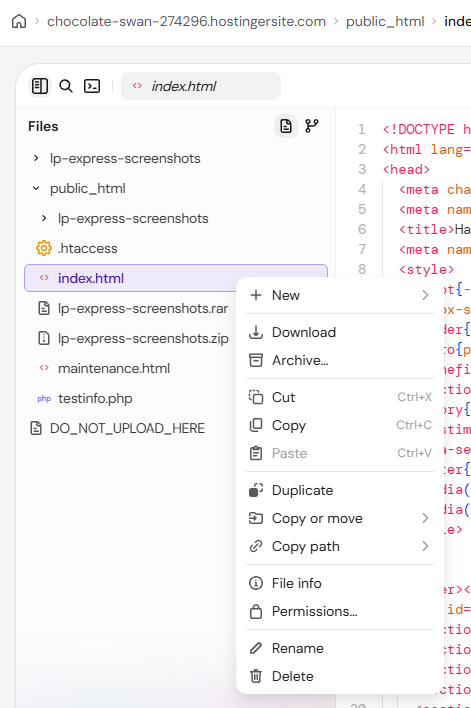
- New: Create a new file or folder inside the selected folder.
- Download: Download a file. For folders, this option is Download as ZIP.
- Archive: Compress selected items into a
.zipor.tar.gzfile in the same folder. - Extract here: Unpack a .zip, .tar, .tar.gz, .tar.xz, .tar.bz2, or .tar.zst archive (including the short forms .tgz, .txz, .tbz2, and .tzst) into the same folder.
- Cut, Copy, and Paste: Move or copy items between folders.
- Duplicate: Create a copy in the same folder.
- Copy or move: Copy or move items to a folder you choose.
- Copy path: Copy the full path of the item.
- File info or Folder info: Show the type, last modified date, and permissions. File info also shows the file size.
- Permissions: Set the read, write, and execute rights for files or folders.
- Rename: Change the file or folder name. If a file or folder name contains special characters, see how to handle files or folders with special characters in File Manager.
- Delete: Permanently delete the item from the server after confirming.
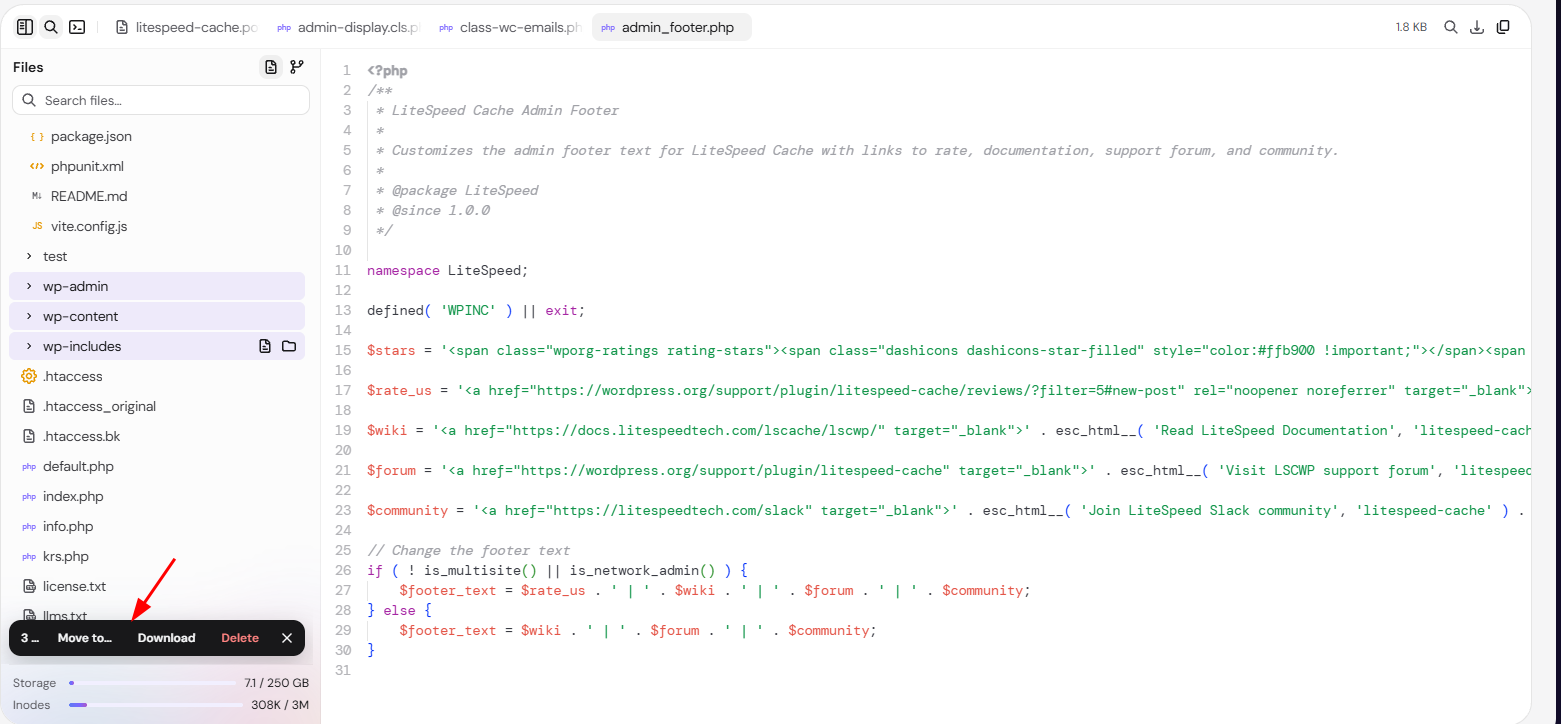
To select several items, hold Ctrl (Cmd on Mac) while clicking them, or press Ctrl + A (Cmd + A on Mac) to select all. A bar appears at the bottom of the side panel with the number of selected items and the Move to…, Download, and Delete options. You can also drag and drop files and folders to move them.
In Browser view, Ctrl + A selects the items in the open folder. In Editor view, it selects everything in the file tree, including the content of expanded folders. If you opened All hosting files, that includes the files of every website on your hosting plan. Check the number of selected items before you click Delete, because deleted files can’t be restored.
Search files in Hostinger File Manager
Hostinger File Manager searches both file names and the text inside files. To search your website’s files:
- Click the Search icon in the toolbar.
- Type a file name or the text you’re looking for, for example
footer.php. - The results appear in two groups: File names lists files whose names match, and Inside files lists each matching line with its line number, grouped by file. The total number of matches and files appears above the Inside files list.
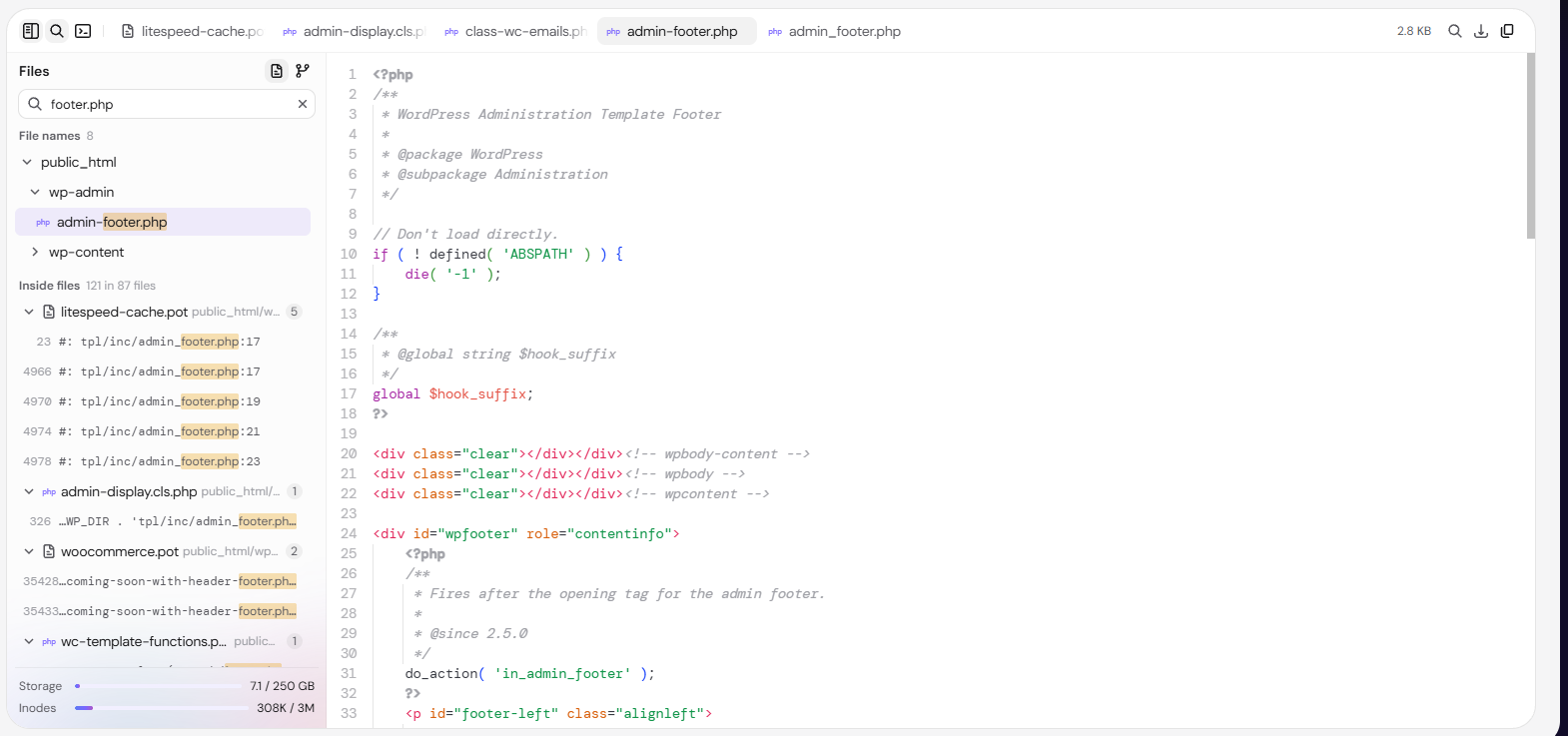
- Click a result to open the file. Results from Inside files open at the matching line.
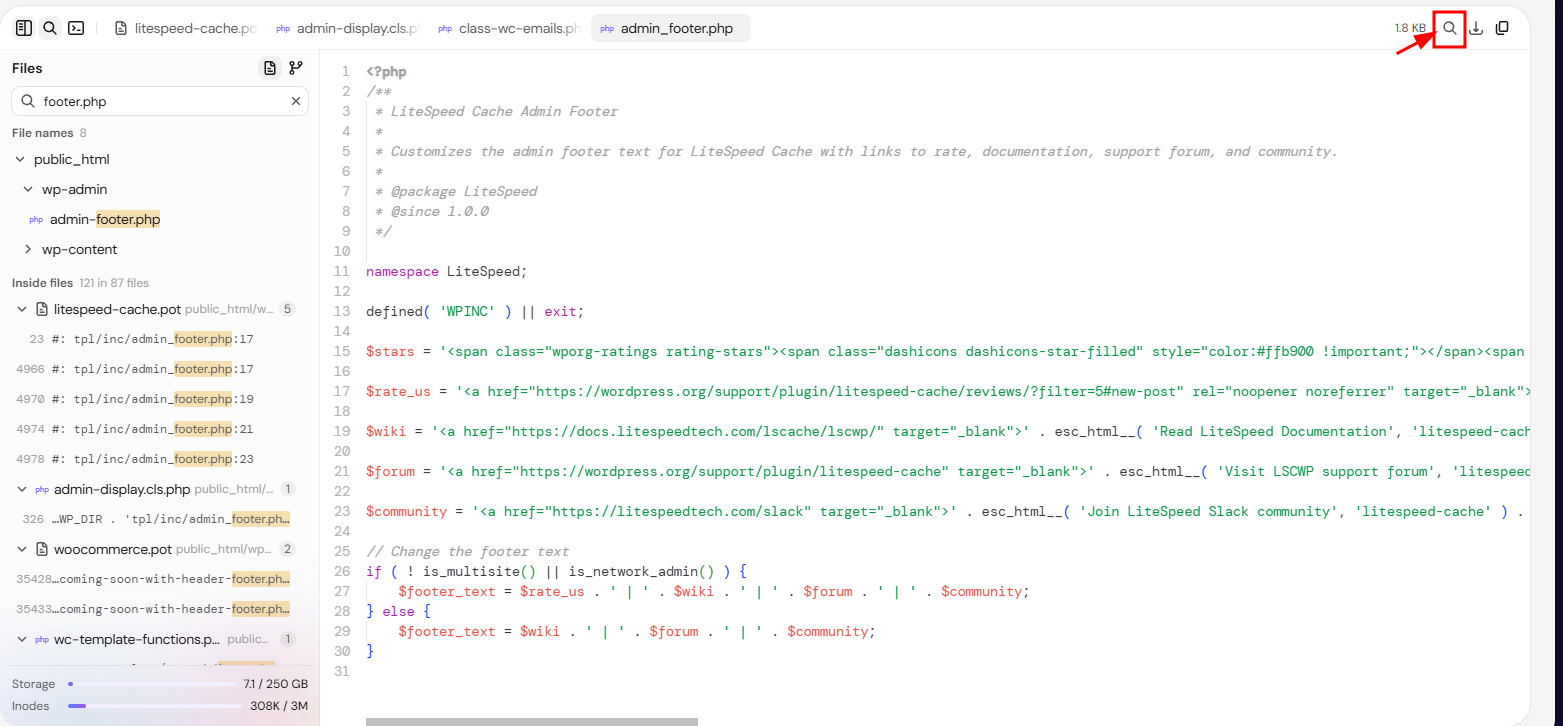
To search within the file that’s open, click the Find in file icon in the toolbar.
Edit and deploy files in Hostinger File Manager
Edits to files in Hostinger File Manager stay pending until you click Deploy. To edit a file in the editor and make the changes live:
- Click the file. In Browser view, it opens in the main area. In Editor view, it opens in a tab next to the file tree. You can edit the file in either view.
- Make your changes. The file is marked in the file tree, and the Deploy button shows the number of pending changes.
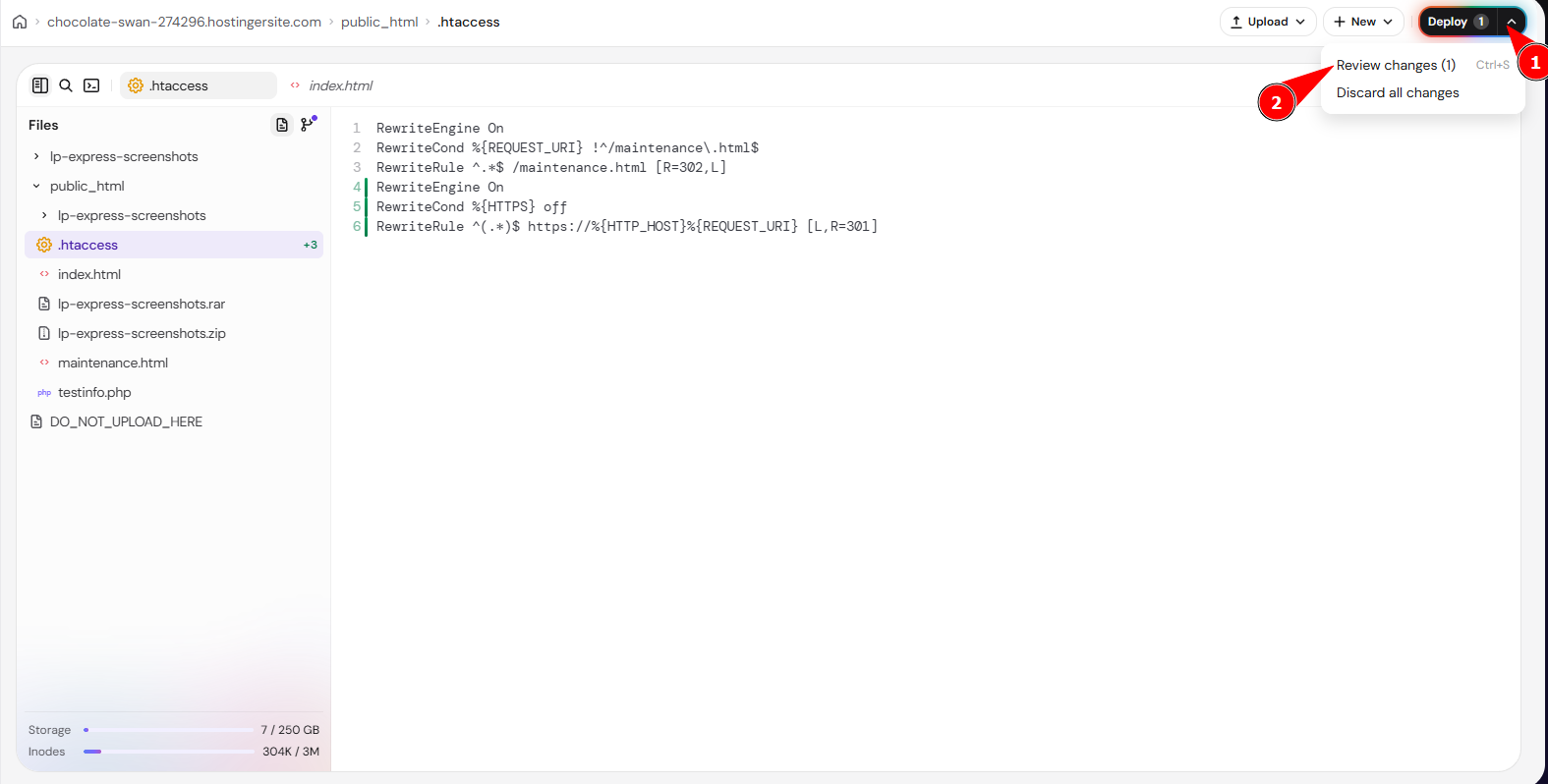
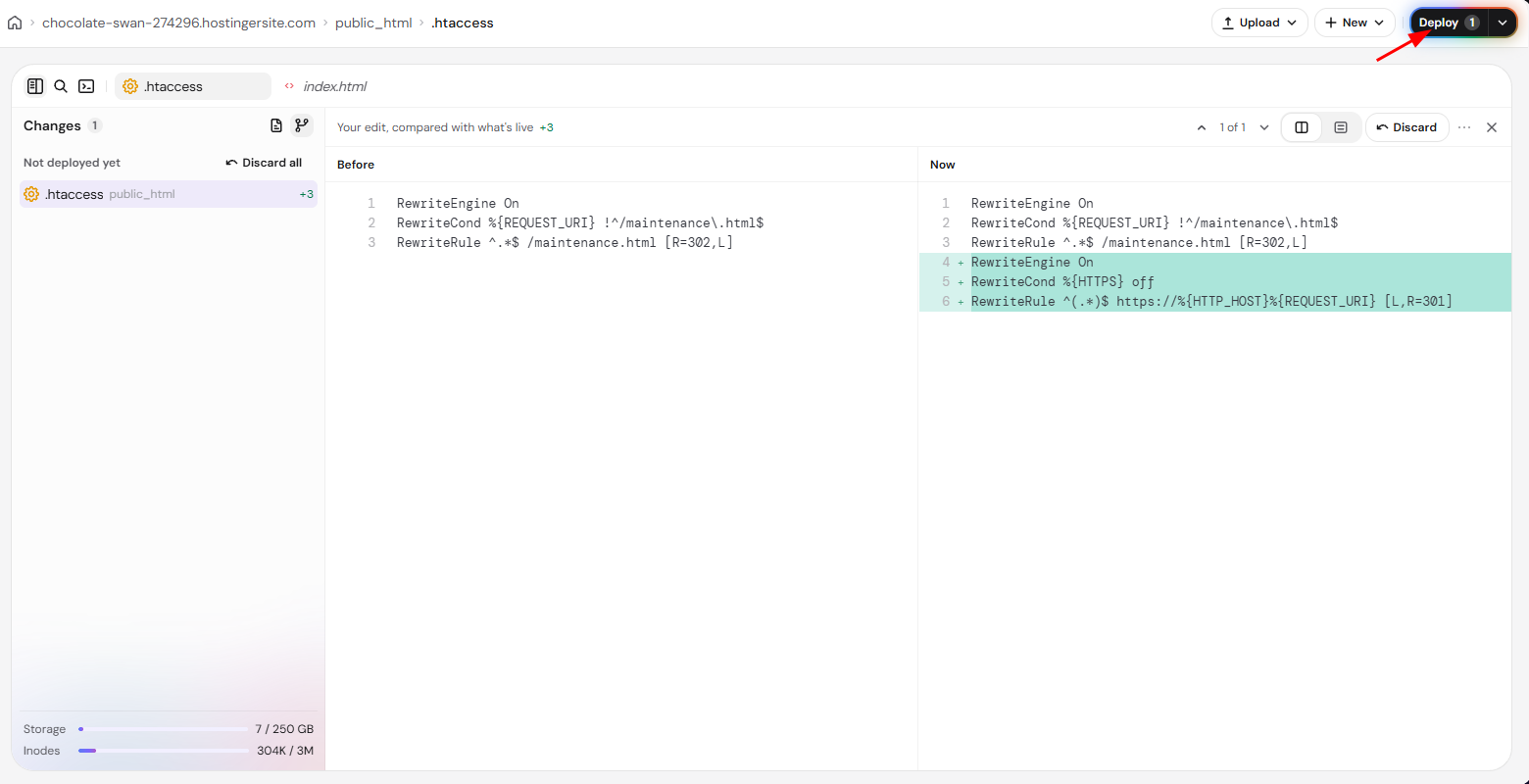
- To compare your changes first, click the arrow next to Deploy → Review changes, or press Ctrl + S (Cmd + S on Mac). The Before and Now versions appear side by side.
- Click Deploy. A confirmation appears once the changes are live on your website.
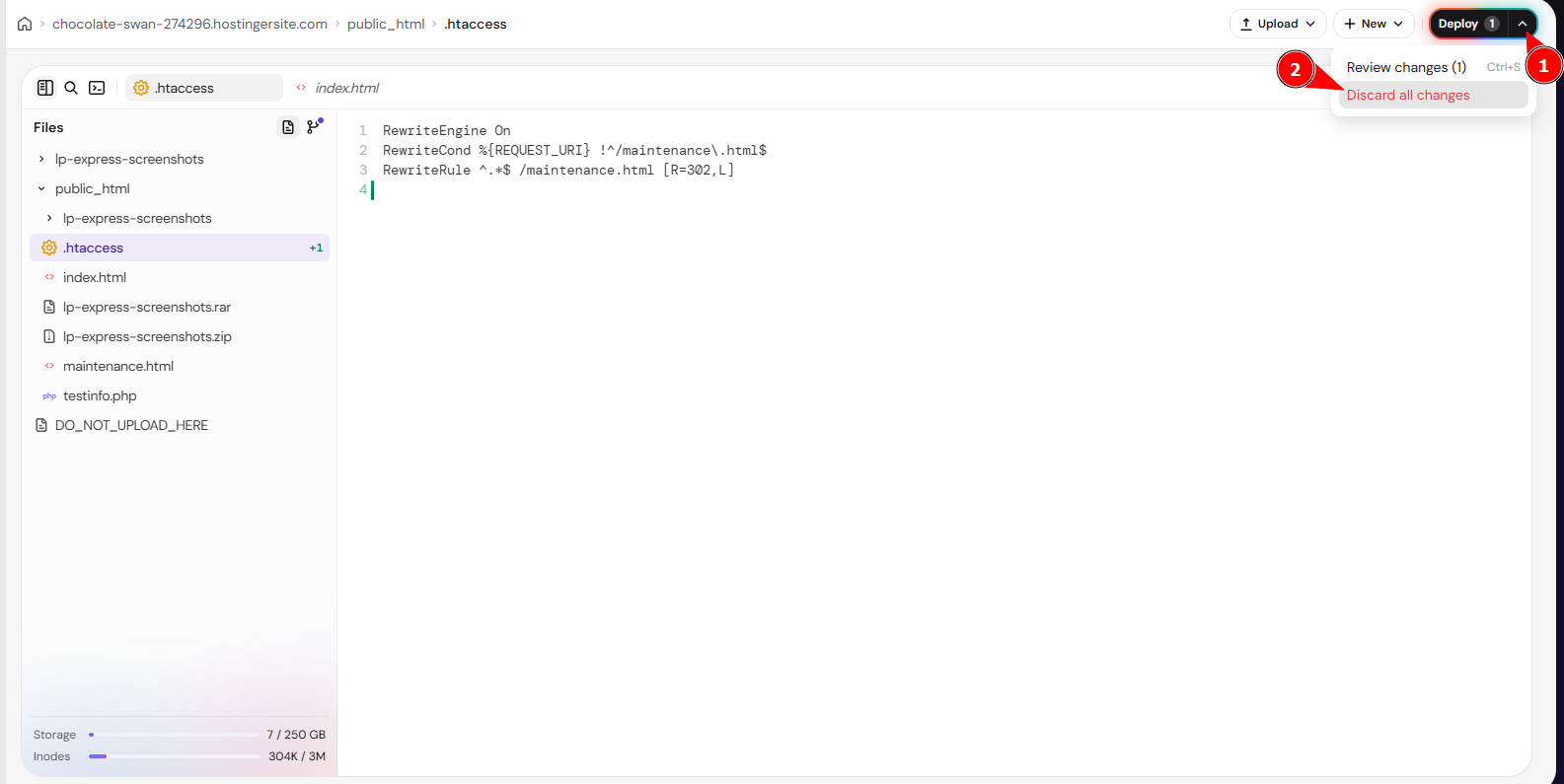
To undo pending changes, click the arrow next to Deploy → Discard all changes. Discarded changes can’t be recovered.
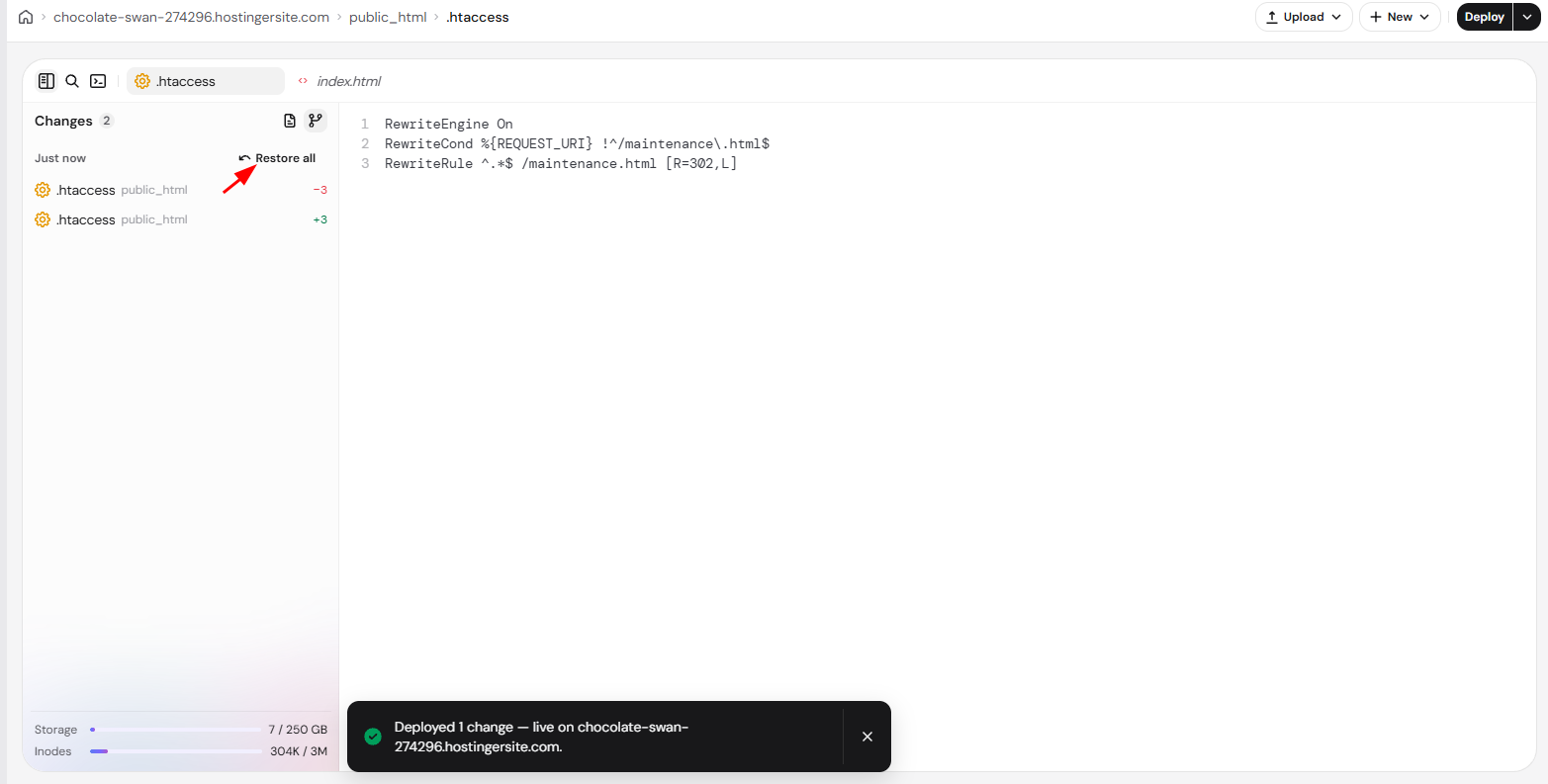
To revert a deployed change, open Changes in the side panel and click Restore all next to the deployment. The restored version becomes a new pending change, so click Deploy to make it live.
What goes live right away in Hostinger File Manager
Some actions in Hostinger File Manager wait for Deploy, while others apply to your website immediately.
|
Waits for Deploy |
Applies right away |
|
Edits to files, new files, and renamed files. |
Uploads, new folders, copies, moves, extracting and creating archives, permission changes, deletions, and changes made by Hostinger Agent. |
Pending changes stay saved if you leave Hostinger File Manager, until you deploy or discard them.
Upload files and folders to Hostinger File Manager
- Open the folder where you want to upload, for example
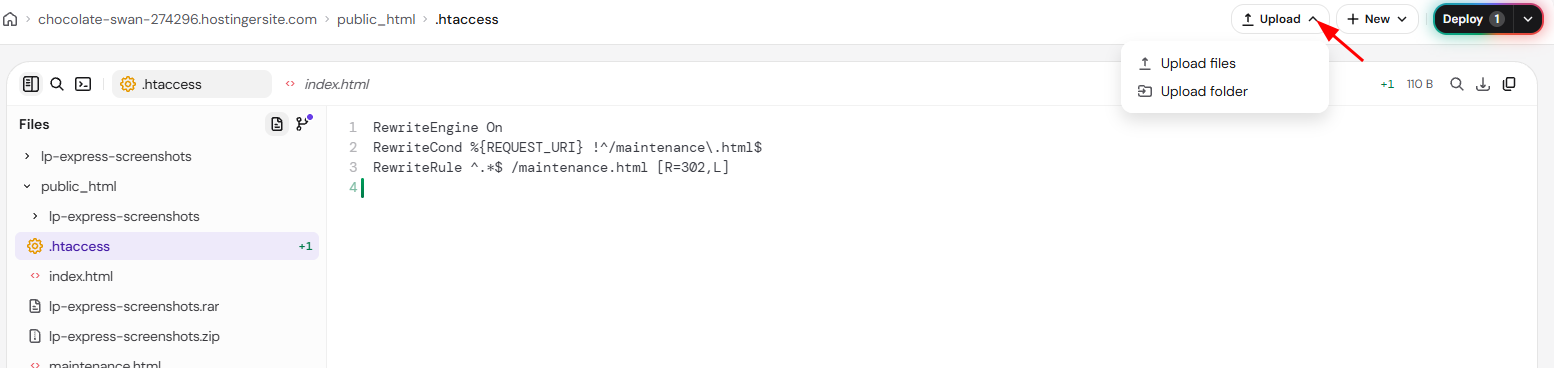
public_html. - Click Upload and choose an option:
- Upload files: Drag files into the window or click Choose files. Each file can be up to 64 GB.
- Upload folder: Select a folder on your device. The folder is uploaded with all its contents.
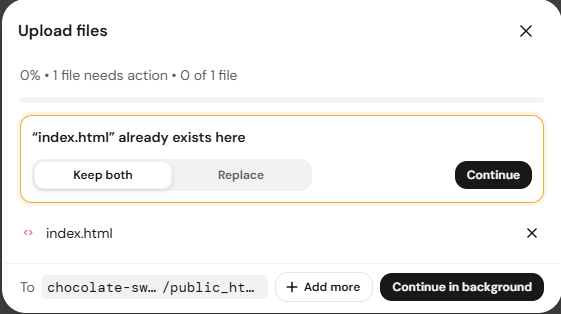
- If a file with the same name already exists, select Keep both or Replace and click Continue.
Leaving the page while an upload is running cancels it.
Access all files in your hosting plan with the Home folder
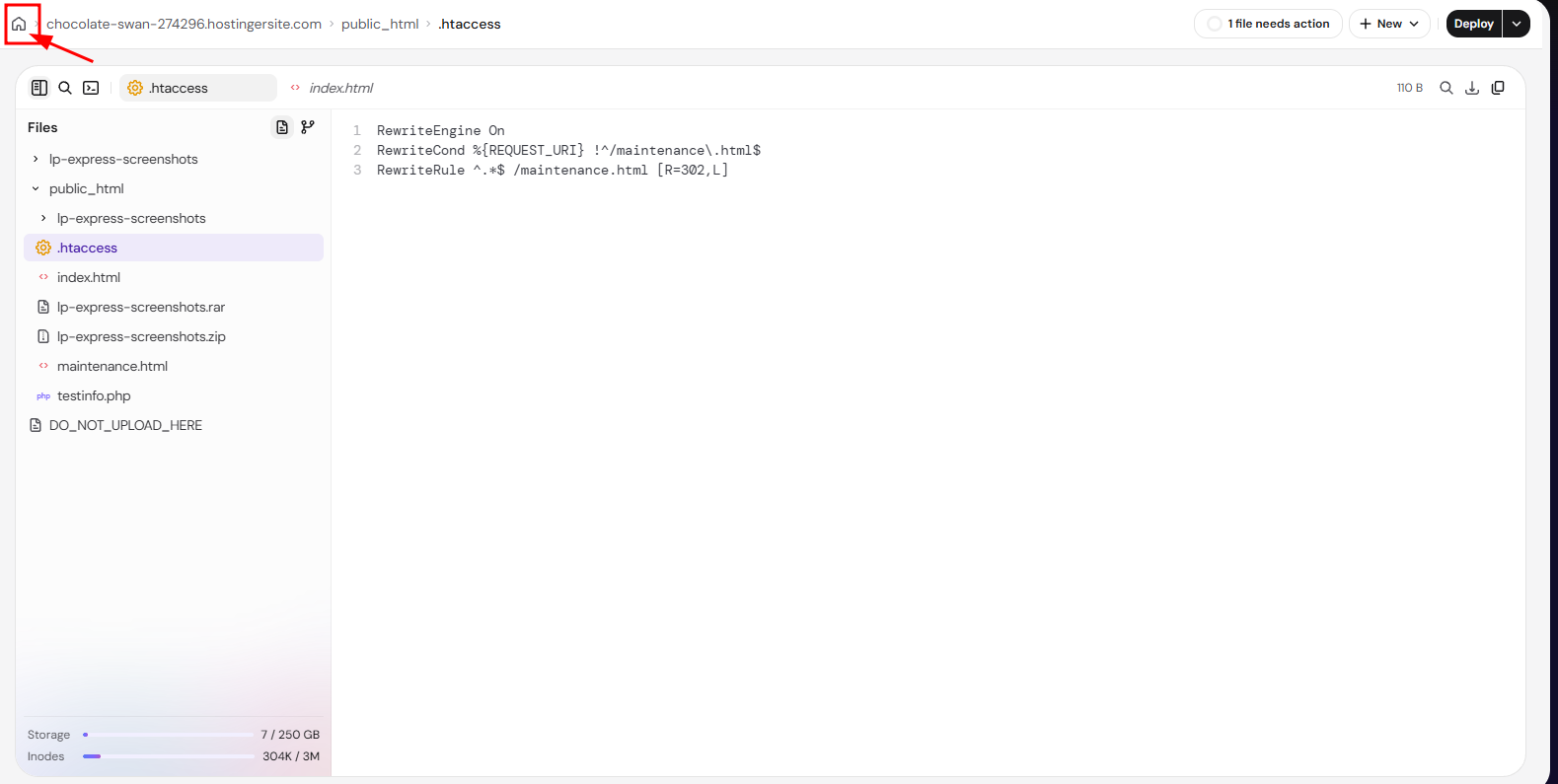
Hostinger File Manager opens in your website’s folder. To see the files of every website on your hosting plan, plus folders such as .logs, click the Home folder icon (⌂) at the start of the file path, or click the website name in the file path and select All hosting files. To return to your website, open domains and click your website’s folder.
Use the terminal in Hostinger File Manager
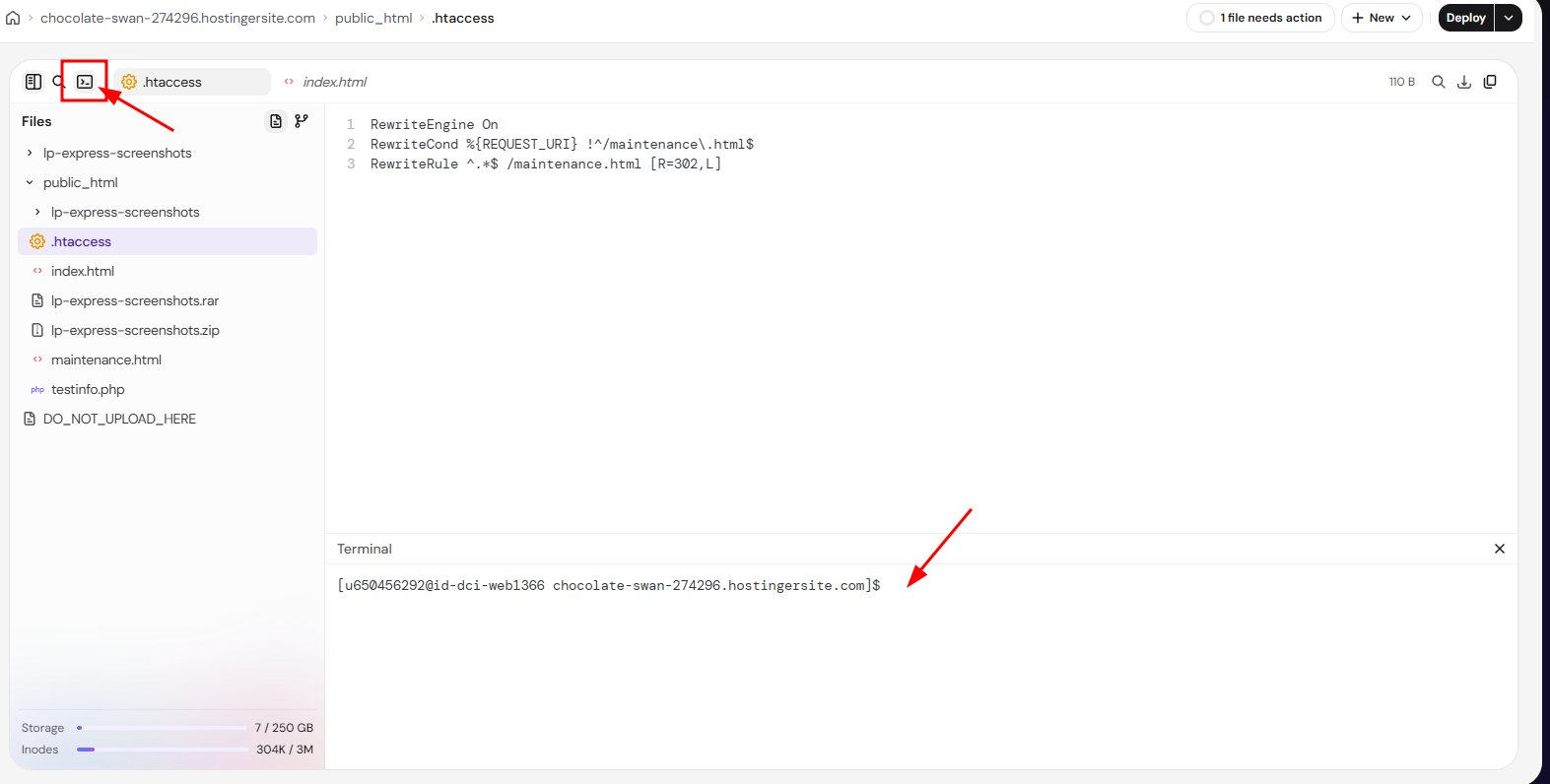
Click the Terminal icon in the toolbar, or press Ctrl + `, to open a terminal for your website’s folder below the editor. The terminal runs over SSH. For details, see How to use the terminal in Hostinger File Manager.
Manage files with Hostinger Agent
Hostinger Agent can create, edit, rename, and delete files and run terminal commands for you. Hostinger Agent asks you to confirm before changing files, and its changes go live right away. For details, see How to manage website files with Hostinger Agent.
You can now use the Hostinger File Manager to organize, edit, and deploy your website files or upload your backup. If you encounter an error not covered by the notes below, see how to fix errors in the File Manager.
NOTES
- Agency hosting plans have restricted access to core WordPress files for security; however, you retain full access to the
wp-config.phpfile and thewp-contentdirectory. - Within wp-content, the mu-plugins (must-use plugins) folder is visible in File Manager but is not directly writable in Agency hosting plans — it’s a symlinked, read-only view. This is intentional on Agency hosting’s managed environment and differs from Web/Cloud hosting, where the folder is fully writable. Changing file permissions will not make it writable.