Connect to your hosting using FTP in Hostinger to transfer files between your computer and websites built with file-based systems, such as WordPress, Joomla, or custom HTML. Use an FTP client like FileZilla with the FTP details from your website’s dashboard, either through Quickconnect or the Site Manager.
To follow along visually, watch our video guide on how to use FileZilla and connect to an FTP server.
Step 1 – Preparations
First, make sure that:
-
An FTP client is installed on your device; we recommend FileZilla (client version).
-
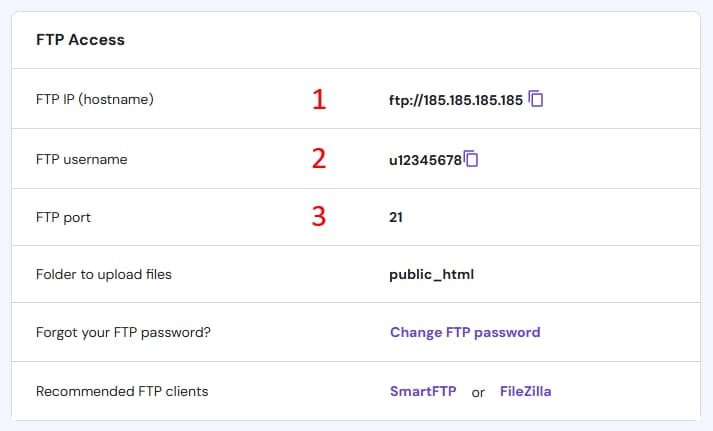
You have your website’s FTP information ready. You can find it by navigating to Websites → Dashboard, searching for FTP Accounts in the sidebar, and clicking on it.
If you need to create or reset your FTP password, refer to this guide: How to change your FTP password on Hostinger dashboard. To give other people access to your website files, create additional FTP accounts with their own login details.
Step 2 – Connection
Using FileZilla as an example, you have two main options to establish a connection.
Option 1 – Direct access
Open FileZilla and fill in the Quickconnect section with the FTP details you got from the FTP Accounts section:
-
Host: The FTP IP
-
User: Your FTP username
-
Port: 21
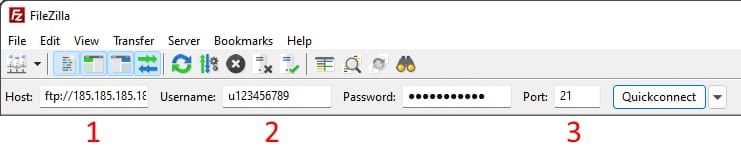
Enter your FTP account password in the corresponding field and click Quickconnect. The first time you connect to a server, you may encounter an Unknown certificate message. To proceed, check the Always trust this certificate in future sessions option and click OK:
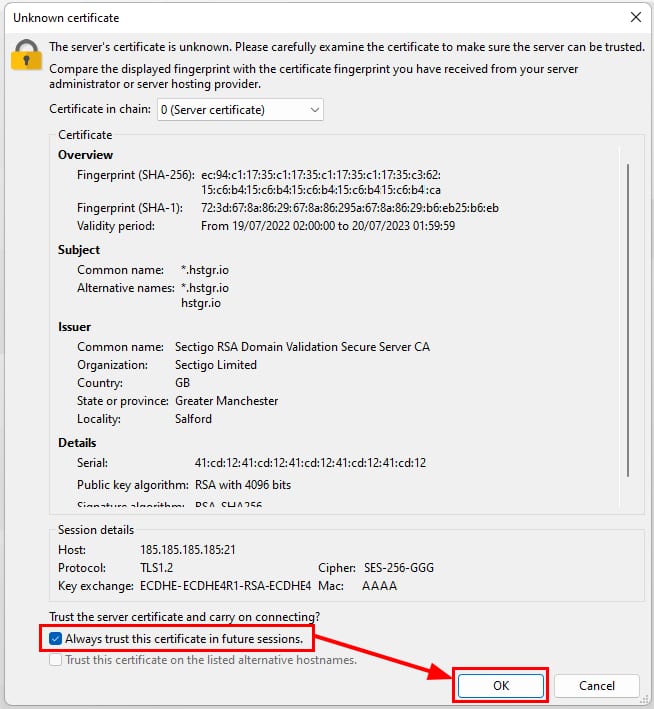
If successfully connected, you will get a Status: Logged in message in the area below the Quickconnect bar. If the connection fails, see How to fix FTP connection errors in Hostinger.
Option 2 – Site Manager
With Site Manager, you can save your connection details, adjust the encryption type, or the protocol (FTP or SFTP).
-
Open Site Manager in FileZilla:

-
Click on New site:


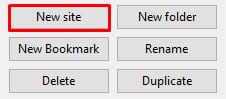
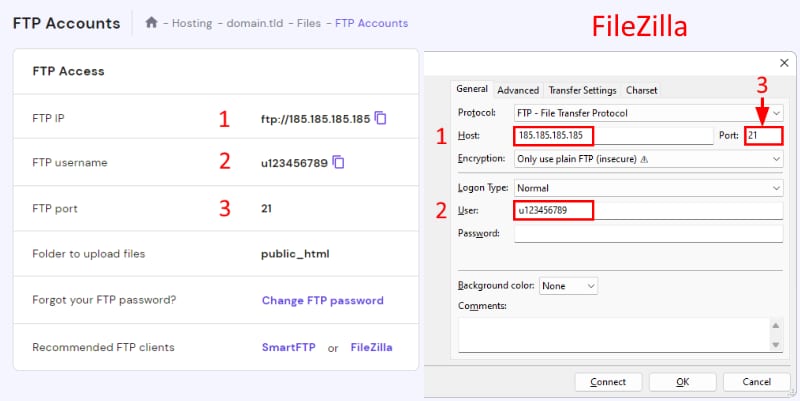
Then, configure the settings as follows, using the information from the FTP Accounts section:
-
Protocol: Selcect FTP – File Transfer Protocol from the dropdown.
-
Host: The FTP IP
-
Port: 21
-
Encryption: Select Only use plain FTP
-
Logon type: Normal
-
User: FTP username
-
Password: Your FPT password
Click on Connect, and if the details entered are correct, a Status: Logged in message will confirm the connection.
For more information on navigating the FileZilla interface to upload and download files, refer to this tutorial: How to use FileZilla.
With FileZilla connected over FTP, you can upload and download your website files directly from your computer.
NOTE
- The FTP feature is enabled by default on web, cloud, and Agency hosting plans. This setting is fixed and cannot be changed, except on VPS plans.