Create additional FTP accounts in Hostinger to give more than one person access to your website’s files, each with their own username and password. You can also restrict an additional FTP account to specific folders. One FTP account is created by default when you add a website to your hosting plan.
NOTE
- FTP is not available for websites created with Hostinger AI Builder
Create a new FTP account
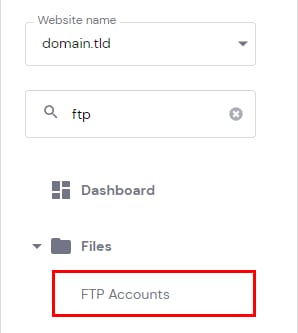
To create a new FTP account, go to Websites → Dashboard, search for FTP accounts on the sidebar, and click on it:
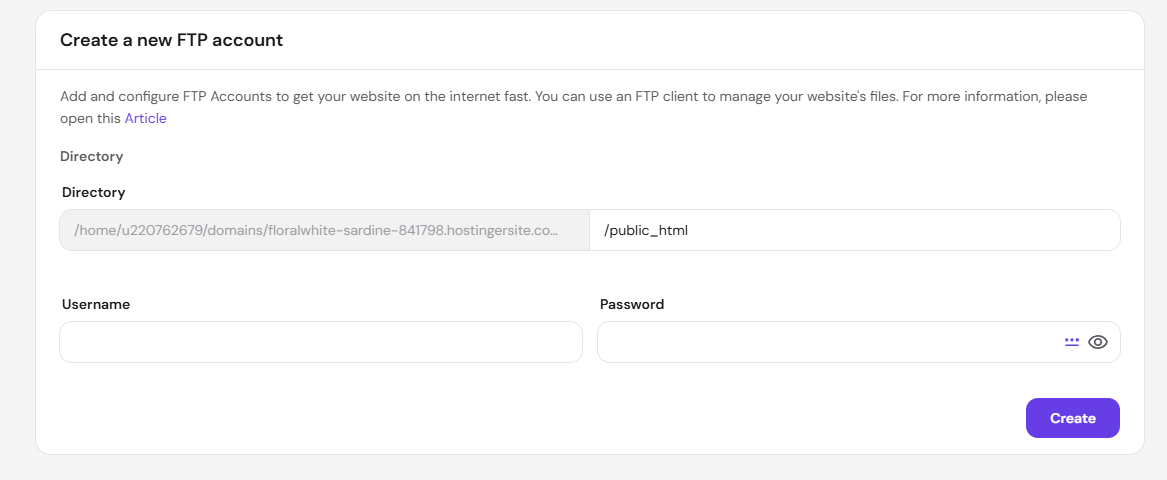
At the bottom of the page, you will be presented with Create a New FTP Account section. There you will be able to specify a custom directory, username, and password for your new FTP account:
NOTE
-
If you wish for your FTP account to have access to the root folder of your website, leave /public_html as the directory.
Once created, you will be able to either delete your FTP accounts or change their passwords:

Your new FTP account is ready. See How to connect to your hosting using FTP in Hostinger to start transferring files.