Display PHP error messages in Hostinger to find and fix issues in your website’s PHP code. There are three methods: enable error display and logging in PHP Configuration, turn on WordPress debugging in the wp-config.php file, or log errors through the .htaccess file.
NOTES
- The PHP programming language is not used in Hostinger AI Builder. Therefore, it is not possible to display PHP errors on such websites.
- These options apply to PHP functions like Warning, Deprecate, Notice, etc. Non-PHP errors, such as 503 errors, database connection issues, etc., will not be logged.
Option 1 – Error display and logging
You have two settings available on Hostinger dashboard regarding information about PHP errors:
-
To display them on the website directly
-
To store them in a log file
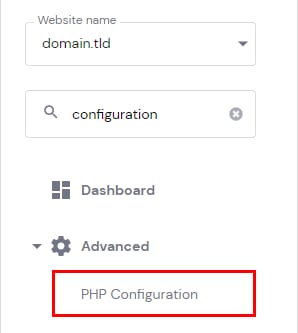
To enable either or both of them, go to Websites → Manage site, search for PHP Configuration on the sidebar and click on it:
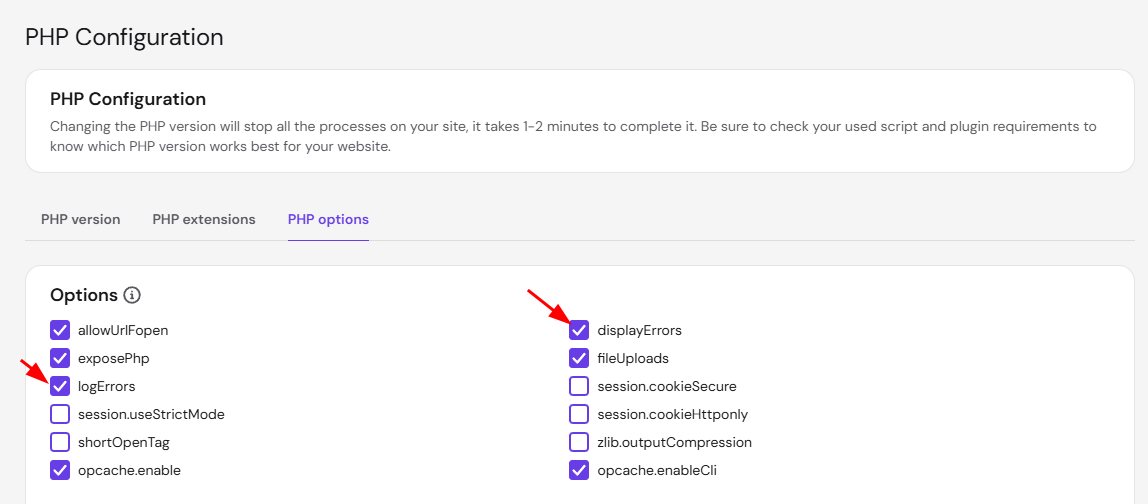
Once there, head to the PHP options tab and check the corresponding boxes:
-
To make errors visible on your website directly, enable the displayErrors (display_errors) parameter
-
To log a record of the errors to a file, mark the logErrors (log_errors) checkbox:
Scroll down to the bottom of the page and click on Save to apply the changes. Scroll down to the bottom of the page and click on Save to apply the changes. To read the logged errors, see where to find your website’s error logs.
Option 2 – Display errors on WordPress
If you are using WordPress, go to the File Manager and open your public_html/wp-config.php file. Then, search for the debugging line:
define('WP_DEBUG', false);If the line exists, change the value from false to true. Then, add the following line to enable error display on your website:
define('WP_DEBUG_DISPLAY', true);That’s it – now the PHP errors, if any, will be displayed directly on your WordPress website.
Option 3 – Display and log errors via the .htaccess file
You can log the PHP errors to a log file of your choice using the .htaccess file. First, create a backup of the .htaccess file before making any changes, as incorrect settings can make your website inaccessible. Or, if there is no .htaccess file, you can create it.
Next, add the following lines to your website’s .htaccess file:
# log PHP errors to a file
php_flag log_errors on
php_value error_reporting 32767
php_value error_log "error_log.txt"
Displaying and logging errors with any of these methods will help you troubleshoot your PHP code. Find a vetted developer in the Hostinger Agency Directory if you need help fixing the cause of an error.
NOTES
-
Once you are done working with the error data, it is recommended to hide it again to prevent potentially sensitive information from being exposed to users and protect against security risks.
- To disable PHP error messages entirely, see How to turn off PHP error messages in Hostinger.