Your website’s error logs in Hostinger are stored in the .logs folder of your hosting plan, in a file named error_log_ followed by the domain or subdomain name. Open the folder from the Access all files of your web hosting option in File Manager to read the PHP errors logged since error logging was enabled.
Where to find your website’s error logs
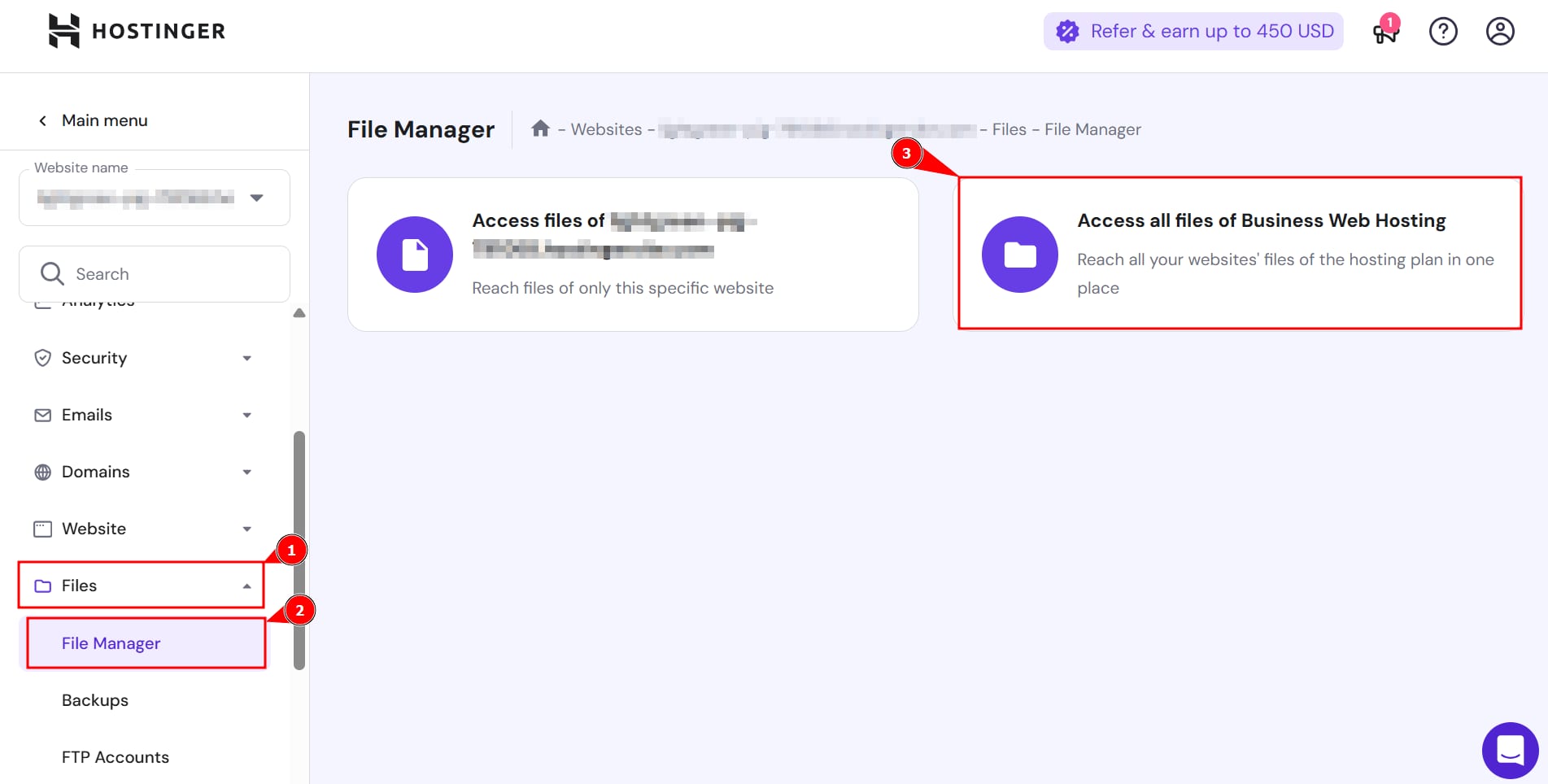
You can reach .logs from the Access all files of your web hosting option on File Manager:

Your website’s error log file name will be composed of “error_log_” and the name of the domain or subdomain. The content of the file will look similar to this:

Missing or empty error_log files
If the error_log file does not exist or is empty, first, double-check that you have enabled PHP error logging. Errors will start being registered from the moment you enable error logging onward. Previous errors will not be added to the log.
In addition, error_log files will only register PHP errors, such as Warnings, Deprecated, Notices, etc., and will not store other types of errors, like server, resource-related, database, domain-related, or similar errors.
If your error_log file is empty or does not exist, it means that there are no PHP errors on your website since you started logging.