How to use Gmail with a custom domain
Oct 23, 2026
/
By Bruno S.
/
6 min Read
To use Gmail with a custom domain, set up Google Workspace. It turns your @domain.tld address into a full Gmail inbox, hosted by Google and accessible on desktop and mobile.
The setup takes about 15 minutes: purchase Workspace through Hostinger, add the DNS (Domain Name System) records in Hostinger dashboard, verify your domain in the Google Admin console, and Gmail activates automatically.
Hostinger dashboard adds the DNS records Gmail needs with a single click, so you don’t have to enter them one by one.
Hostinger Business Email users can also connect their mailbox to the Gmail mobile app, keeping Hostinger as the email host. Google Workspace gives you a full inbox across all devices, while the mobile app integration lets you access an existing Hostinger mailbox on your phone.
What you need to use Gmail with a custom domain
To use Gmail with a custom domain, you need a domain name and a Google Workspace subscription.
A custom email domain is the part of your email address after the @ sign, like domain.tld. By owning one, you can have an email address like hello@domain.tld instead of yourcompany@gmail.com, which may sound unprofessional.
Register a domain with Hostinger before starting if you don’t have one yet. Your domain needs to be active before you can configure Gmail for it.
Pro tip
Choose something short and easy to spell. Buying a domain name that matches your business name makes your email address easier for customers to remember.
Google Workspace is Google’s paid business productivity suite. It makes Gmail the actual host of your @domain.tld inbox, rather than a client that checks email stored elsewhere. The same account includes Google Drive, Calendar, and Meet.
Buying Google Workspace from Hostinger is the simplest route if your domain already uses Hostinger’s nameservers, because the DNS records Gmail needs are a one-click addition in Hostinger dashboard. Add the records manually at your DNS provider if another provider, such as Cloudflare, manages your DNS.
How to set up Gmail with a custom domain using Google Workspace
Set up Gmail with a custom domain by purchasing Google Workspace through Hostinger, adding the DNS records in Hostinger dashboard, and verifying your domain in the Google Admin console.
1. Purchase Google Workspace through Hostinger
Purchase Google Workspace through Hostinger by choosing a plan and completing checkout. Plans are available on the Hostinger Google Workspace page and, for existing customers, in Hostinger dashboard under Emails → Buy email.
Have your domain ready before you reach the setup wizard. Check domain availability and register it first if you still need it, then return to finish the setup.
- Select a plan that fits your needs and click Choose plan.
- In your cart, confirm the billing period (monthly or annual) and number of mailboxes, then click Continue.
- Enter your billing details, choose a payment method, and click Submit payment.
- On the confirmation page, click Get started to open the setup wizard in Hostinger dashboard.
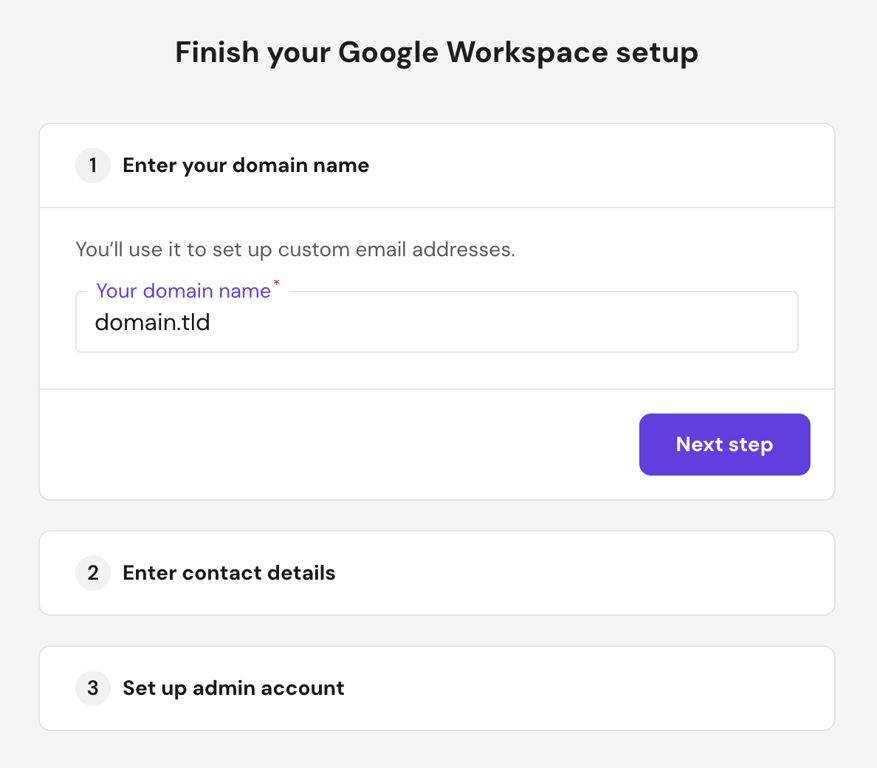
- Enter your domain name and click Next step, then fill in your contact details and set up your admin account.
- In Hostinger dashboard, go to Domains → DNS / Nameservers. Under Quick setup, click Google Workspace (Gmail), then Add records.
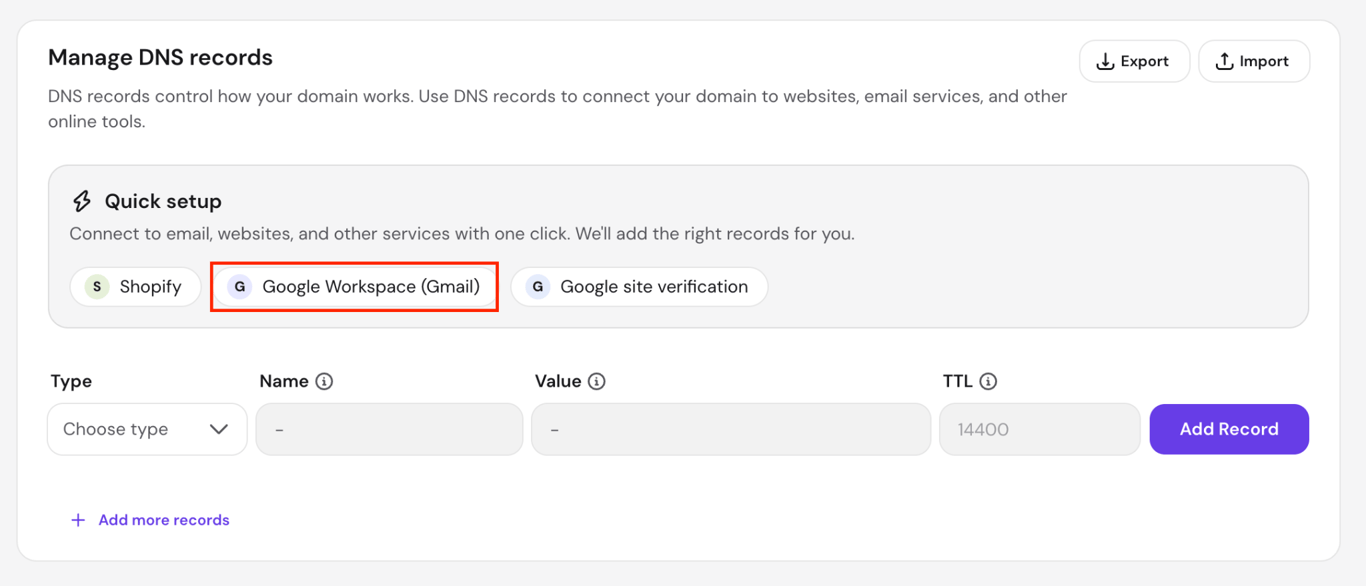
Quick setup adds the three DNS records that route and authenticate your email in one click:
| Record type | Value | Purpose |
| MX (mail exchange) | smtp.google.com | Routes incoming email to Gmail |
| TXT (text record) | v=spf1 include:_spf.google.com ~all | Authorizes Google to send email from your domain |
| TXT (text record) | v=DMARC1; p=none; … | Tells receiving servers how to treat mail that fails authentication checks |
Add the MX and SPF (Sender Policy Framework) records above manually at your DNS provider if another provider, such as Cloudflare, manages your DNS. Use the values in the table with @ as the name.
2. Sign in to the Google Admin console
Sign in to admin.google.com with the admin account you created during the Google Workspace setup wizard. This account is your super admin, with full control over your Workspace organization, including users, billing, and domain settings.
Keep your super admin credentials somewhere secure and add a recovery email or phone number in your account settings. Without recovery information, you’ll need to verify domain ownership through DNS to regain access, which takes up to 48 hours.
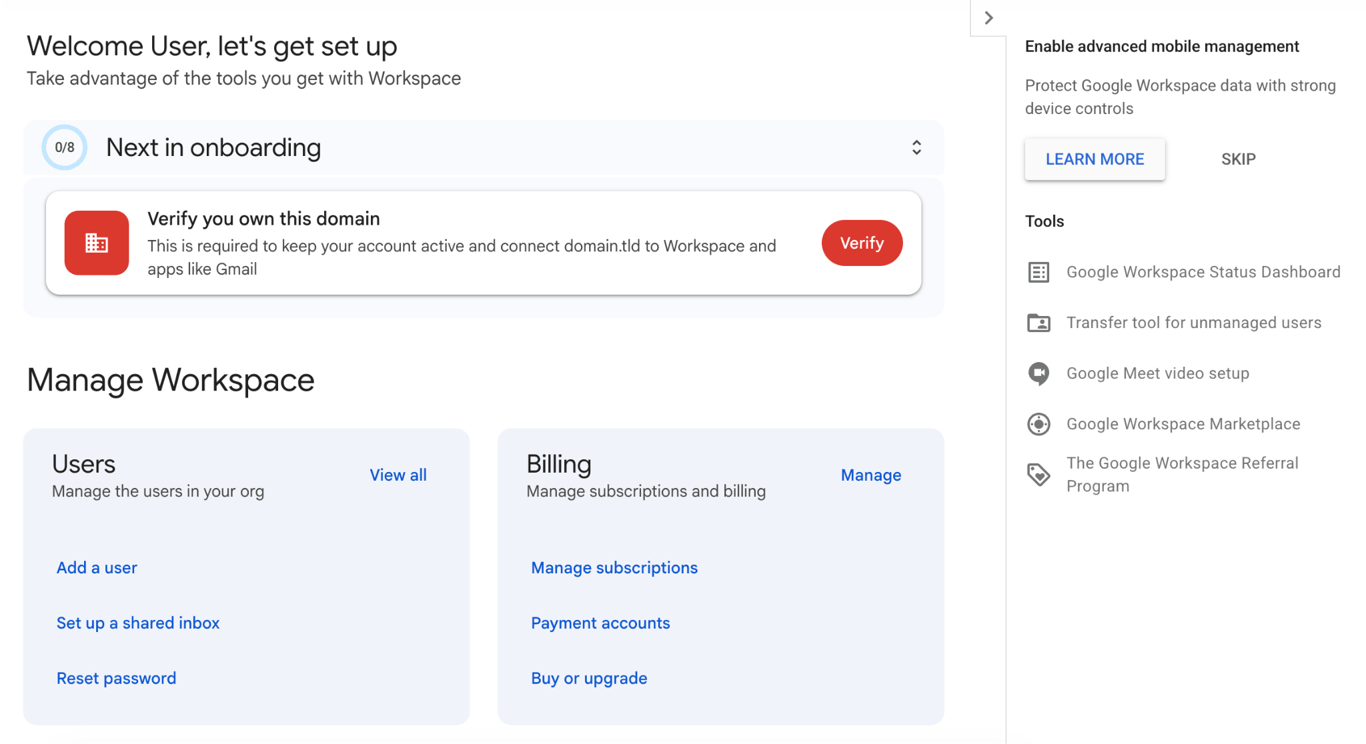
After accepting the Terms of Service, you’ll land on the Admin console dashboard. An onboarding panel shows Verify you own this domain as the required first step.
3. Verify your domain
Verify your domain by clicking Verify on the Admin console onboarding card. This opens the domain setup wizard at workspace.google.com.
Click Get started on the overview page. On the verification page, the Domain host field usually auto-detects Hostinger; if it doesn’t, select Hostinger from the dropdown. Two options appear:
- Start guided verification. Gemini in Workspace walks you through the process using screen sharing. You’ll need your Hostinger dashboard login credentials.
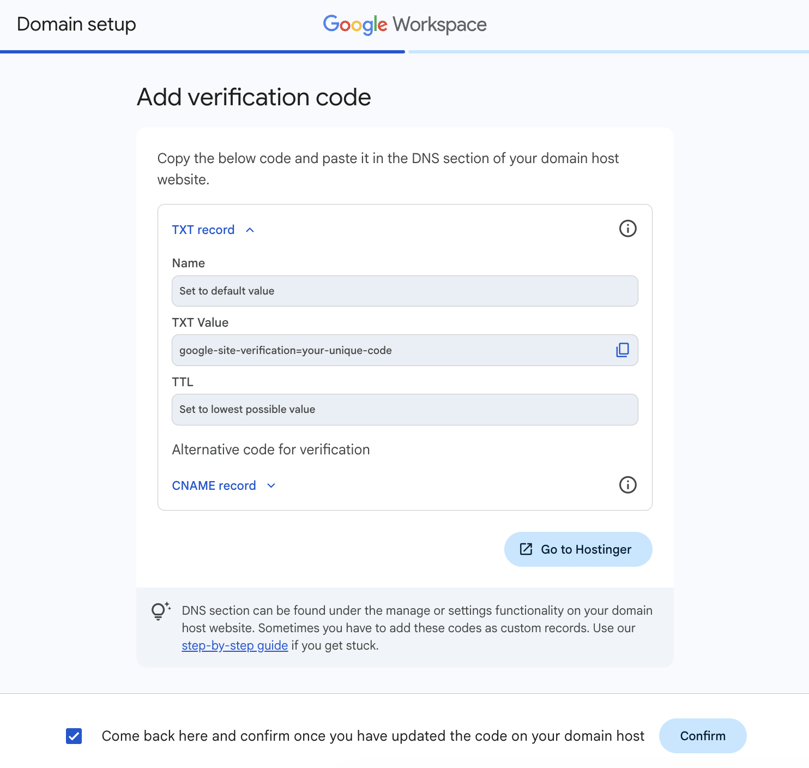
- Switch to manual verification. Google shows the TXT record value to add to your DNS settings, along with a CNAME (canonical name record) as an alternative.
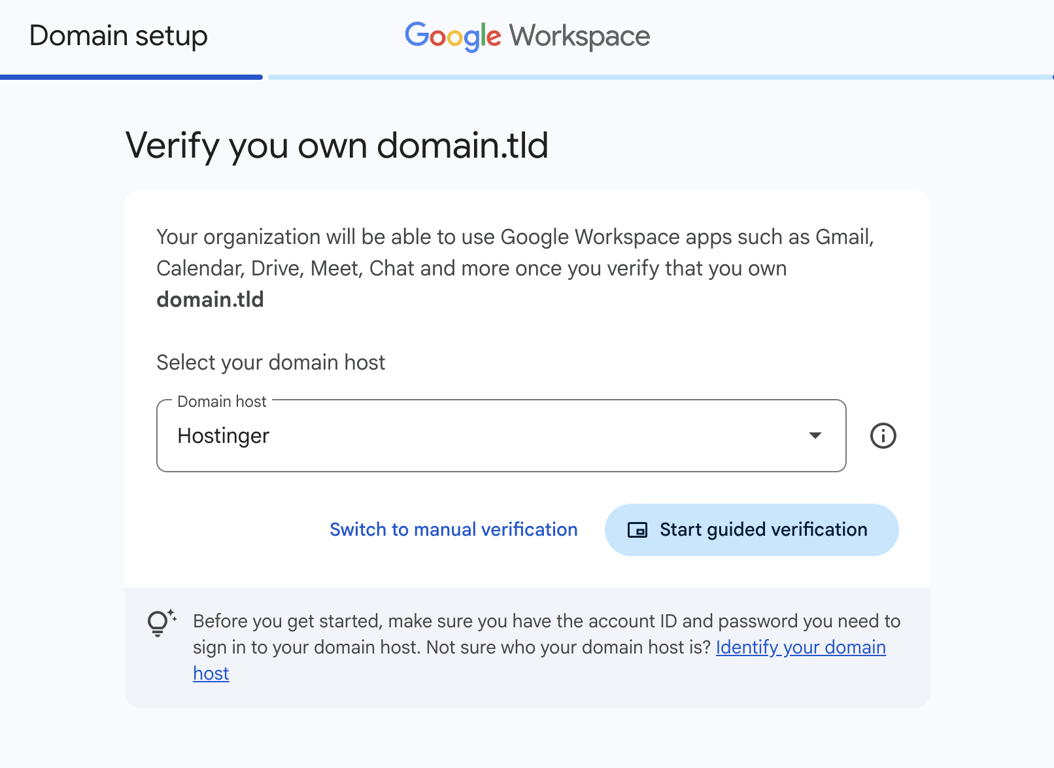
Click Switch to manual verification. Google shows a TXT record value beginning with google-site-verification=, followed by a code unique to your account. Copy it.
In Hostinger dashboard, go to Domains → DNS / Nameservers and add a new record: type TXT, name @, and paste the copied value into the content field. Back on Google’s page, tick the confirmation checkbox and click Confirm.
Google then shows a “Getting your domain ready” loading screen while it checks your DNS settings. Keep the page open for a few minutes while it runs.
Wait a few minutes for the DNS change to spread and try again if verification fails. Compare the TXT value in Hostinger dashboard against Google’s page character by character if it still fails, because a single missing character breaks the match.
4. Confirm Gmail is active
Gmail is active when your @domain.tld inbox opens at mail.google.com. In the Admin console, the onboarding panel confirms this by showing Get employees accounts for Gmail & other Workspace apps as the next item.
The MX record added through Quick setup routes incoming email to Gmail, so no separate activation step is needed in most cases. Wait for DNS propagation to complete, then refresh the Admin console if the panel hasn’t advanced after a few minutes.
Test your setup by sending an email from your new @domain.tld address to a personal account, then reply from that account to test incoming delivery. Some incoming messages arrive with a delay of up to 48 hours while DNS changes spread across the internet. Check your previous provider’s inbox during this time too if your domain had email elsewhere before.
What to do after Gmail is activated
After Gmail is activated, add more addresses as either new users or aliases, then review your security settings.
Add a user
A user is a separate person with their own login, password, and inbox. Each user requires a paid mailbox. Purchase another one from your Google Workspace subscription in Hostinger dashboard before setting up a second user, such as person2@domain.tld, if you bought only one at checkout.
Once you add the mailbox, create the account in the Admin console under Directory → Users → Add new user. Without a spare mailbox, the console shows “No license available for new user.”
Pro tip
Decide on one address format before adding users, such as firstname@ or firstname.lastname@, since changing it later means renaming every account. Skip nicknames, numbers, and underscores. Making a professional email address that reads cleanly aloud is easier for customers to spell correctly and looks more credible on a business card.
Add an alias
An alias is an extra address that delivers to an existing inbox, with no separate login. Setting up person2@domain.tld as an alias sends mail to the inbox you already have, such as your admin account. Each user gets up to 30 aliases at no extra cost.
Aliases suit role addresses like info@ or support@ that one person handles. To create an alias, go to the Admin console, head to Directory → Users, open the receiving user, and click Add alternate emails.
Sending from the alias is optional. To reply as support@ rather than your primary address, add it in Gmail under Settings → Accounts → Send mail as.
Review security settings
Go to Apps → Google Workspace → Gmail → Safety in the Admin console. Spam filtering and phishing warnings are on by default, and the section has configurable settings for attachment and link scanning that are worth reviewing before adding more users.
How to access Hostinger Business Email in the Gmail mobile app
Access Hostinger Business Email in the Gmail mobile app by adding your mailbox as an IMAP (Internet Message Access Protocol) account. The mailbox stays on Hostinger Business Email servers, and Gmail syncs it to your phone for reading and sending. This works in the Gmail mobile app only, because Gmail on the web no longer fetches email from other providers.
For a mailbox hosted by Google itself, available on desktop as well as mobile, use Google Workspace instead.
Before starting, set up a business email account in Hostinger dashboard if you haven’t already. You’ll need your full email address and password ready.
1. Find your IMAP settings in Hostinger dashboard
Find your IMAP settings by logging in to Hostinger dashboard and clicking Emails in the sidebar.
- Click Mailboxes next to your Business Email plan to open the plan management page.
- Click Connect apps & devices in the left sidebar.
- The Gmail tab is selected by default. Expand Advanced settings to see the server details.
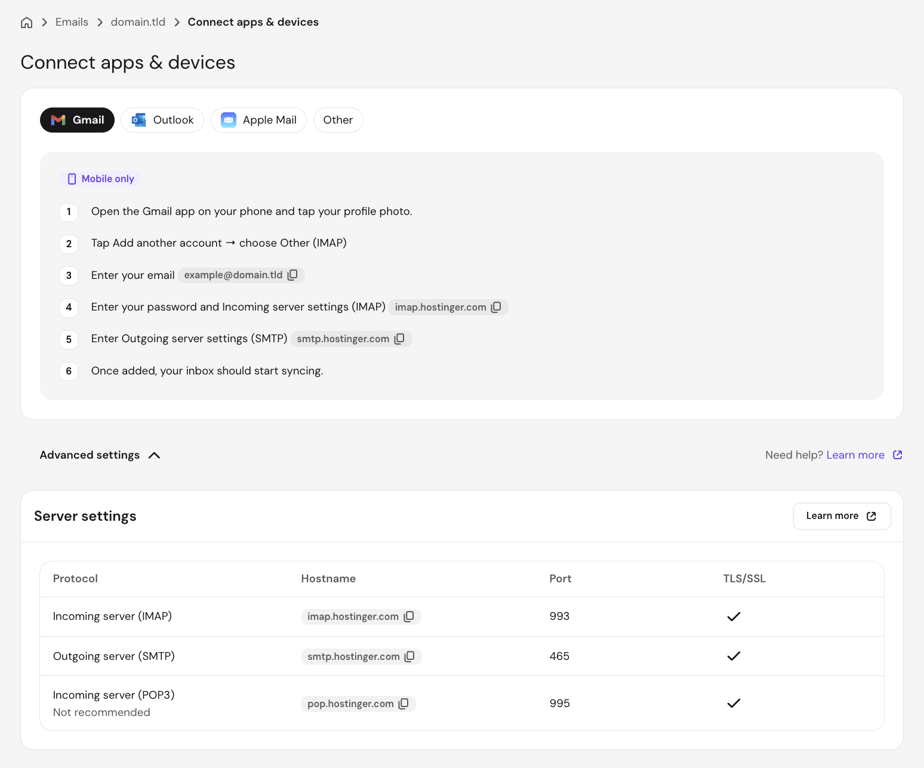
Your IMAP (incoming) and SMTP (Simple Mail Transfer Protocol, for outgoing mail) connection details are:
| Protocol | Hostname | Port | Security |
| Incoming (IMAP) | imap.hostinger.com | 993 | SSL/TLS |
| Outgoing (SMTP) | smtp.hostinger.com | 465 | SSL/TLS |
Both connections use the TLS (Transport Layer Security) security setting, which encrypts data between your device and the mail server.
2. Add your Hostinger email in the Gmail app
Add your Hostinger mailbox by opening the Gmail app and using the account switcher.
- Tap your profile photo in the top right corner. Alternatively, open the sidebar menu and go to Settings → Add account.
- Tap Add another account → Other.
- Enter your full email address (for example, name@domain.tld) and tap Next.
- Select Personal (IMAP) when asked where your account stores email.
- Enter your email password. For the incoming server, enter imap.hostinger.com, port 993, security type SSL/TLS.
- For the outgoing server, enter smtp.hostinger.com, port 465, security type SSL/TLS.
- Tap Next. The app will start syncing your inbox.

Which Gmail setup should you use?
Use Google Workspace if you want Gmail to host your @domain.tld inbox. It’s the only option that gives you a full Gmail inbox on every device, including desktop access at mail.google.com.
Buying Google Workspace through Hostinger keeps DNS setup to a single click in Hostinger dashboard, provided your domain uses Hostinger nameservers. Only the verification record needs a separate step, since Google generates that code for your account during setup.
Use the Hostinger Business Email IMAP setup if you want a standalone Hostinger mailbox and only need to check it in the Gmail mobile app. In this setup, Hostinger stores your email, and Gmail acts as the email client on your mobile devices.
This article is a localized version of How to use Gmail with a custom domain, originally published in English.
All of the tutorial content on this website is subject to Hostinger's rigorous editorial standards and values.

Bruno is a Content Writer at Hostinger, focused on creating and optimizing helpful, engaging articles about web development and marketing. With a background in journalism, he combines storytelling with practical insights to make complex topics easier to understand. He has also contributed to publications like MacMagazine and Jornal A Tarde. Outside of work, Bruno enjoys exploring art, cooking, and technology.