How to set up Cloudflare for WordPress
Oct 22, 2026
/
By Klara R. & Astari S.
/
7 min Read
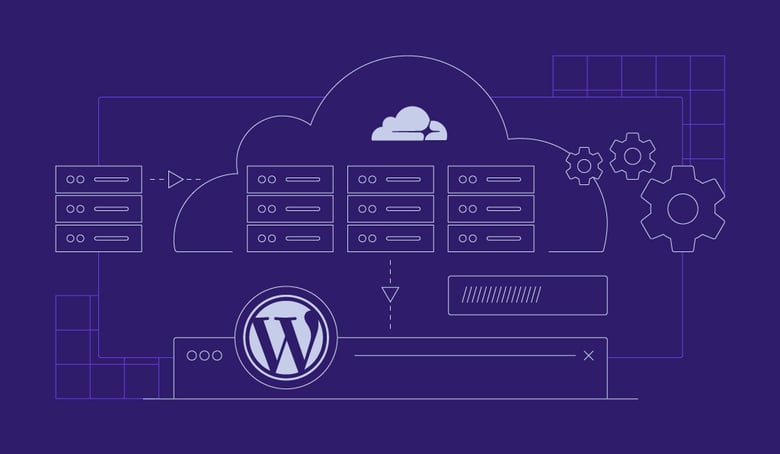
Cloudflare improves WordPress website performance and security through its content delivery network (CDN), caching, DDoS protection, and SSL/TLS features. To set it up, add your domain to Cloudflare, configure its DNS records, update your nameservers, and enable HTTPS.
You can also connect Cloudflare to WordPress through its official plugin to manage caching and additional optimizations. However, the plugin isn’t required for basic CDN functionality.
This tutorial covers the complete setup process, recommended Cloudflare settings for WordPress, and how to verify that everything works correctly.
1. Create a Cloudflare account
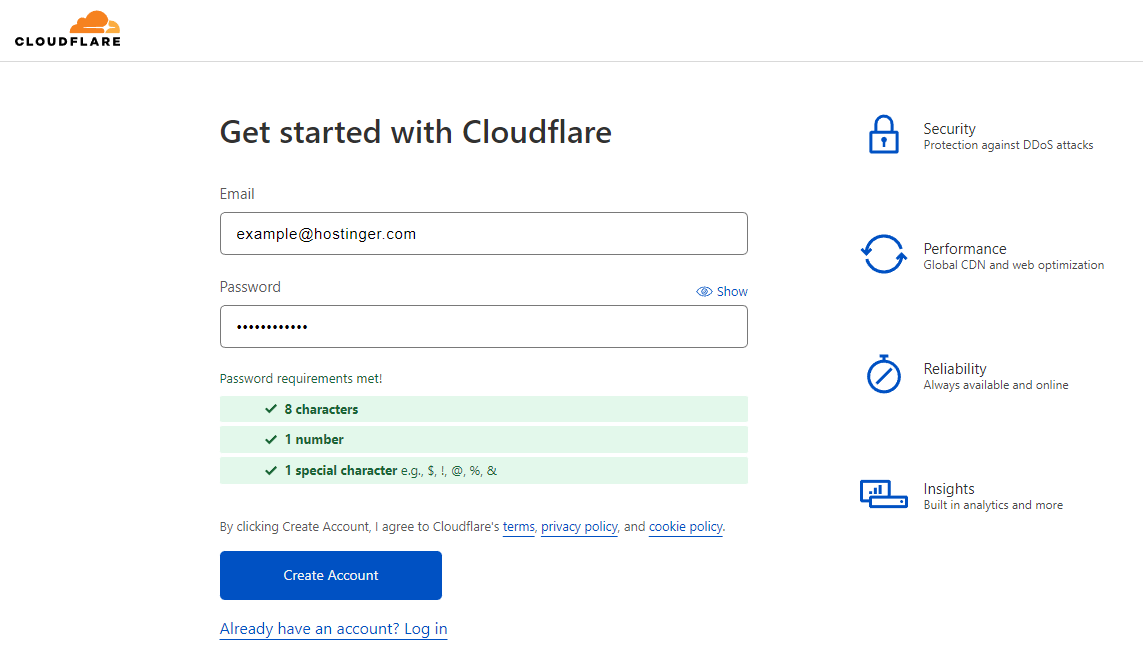
First, create a free account on the Cloudflare website. You’ll use the dashboard to manage your domain’s DNS, caching, security, and performance settings.
If you’re unfamiliar with this technology, understanding how a CDN works can help you choose the most useful settings for your website.
- Visit Cloudflare and select Sign Up.
- Enter your email address and create an account.
- Complete any required email verification and sign in to the dashboard.
2. Add your WordPress domain to Cloudflare
Next, add the domain connected to your WordPress website. Cloudflare will guide you through selecting a plan and importing existing DNS records.
- Open the Cloudflare dashboard and choose the option to add a domain.
- Enter your domain name, such as
example.com, without thehttps://prefix or page path. - Select a Cloudflare plan. The Free plan provides core CDN, DNS, SSL/TLS, and security features suitable for many WordPress websites.
- Continue to the DNS configuration step.

Paid plans offer additional security, performance, and support features, but they’re not required for a standard WordPress CDN setup.
3. Review your domain’s DNS records
Before changing your nameservers, verify that Cloudflare has imported the DNS records required for your website and email services. Missing or incorrect records can make your website unavailable or interrupt email delivery.
Cloudflare automatically scans for common DNS records, but the results may be incomplete.
- Open your domain’s DNS records in Cloudflare.
- Compare the imported records with those from your current DNS provider.
- Check that your root domain’s A or AAAA record points to the correct hosting server, or that its CNAME uses the correct target.
- Confirm that the
wwwrecord points to the correct destination. - Verify that all email-related records, including MX, SPF, DKIM, and DMARC where used, are present.
- Add any missing records before proceeding.
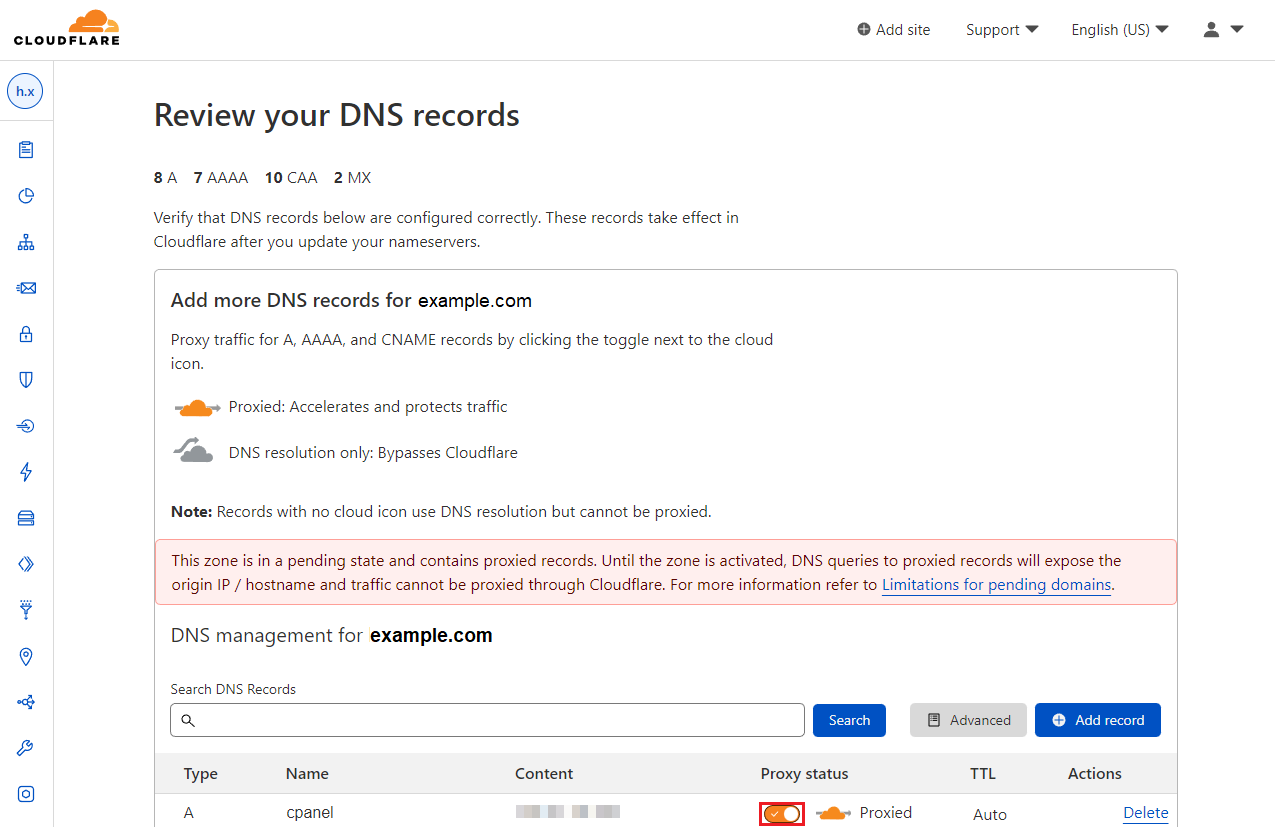
For regular WordPress website traffic, the root domain and www records can typically use Cloudflare’s Proxied status, indicated by an orange cloud.
Keep email and other services that don’t support Cloudflare’s HTTP proxy set to DNS only, indicated by a gray cloud. This commonly includes hostnames used for mail, FTP, and similar services.
If you’re unsure what a record does, check your existing provider’s configuration before modifying it. Incorrect DNS settings can affect services beyond your WordPress website.
4. Update your domain’s nameservers
Once you’ve verified your DNS records, update your domain’s nameservers so Cloudflare can manage its DNS configuration and proxy eligible website traffic.
Before proceeding, check whether DNSSEC is enabled at your current DNS provider. If your registrar has an existing DS record, follow Cloudflare’s instructions to remove the old record before changing nameservers. You can configure DNSSEC again through Cloudflare after activation.
To update the nameservers:
- Open your domain’s Overview page in Cloudflare.
- Copy the two nameservers assigned to your domain.
- Sign in to the registrar where your domain is registered.
- Locate the domain’s nameserver management settings.
- Replace the existing nameservers with the two values provided by Cloudflare.
- Save the changes.
- Return to Cloudflare and confirm the nameserver update, if prompted.
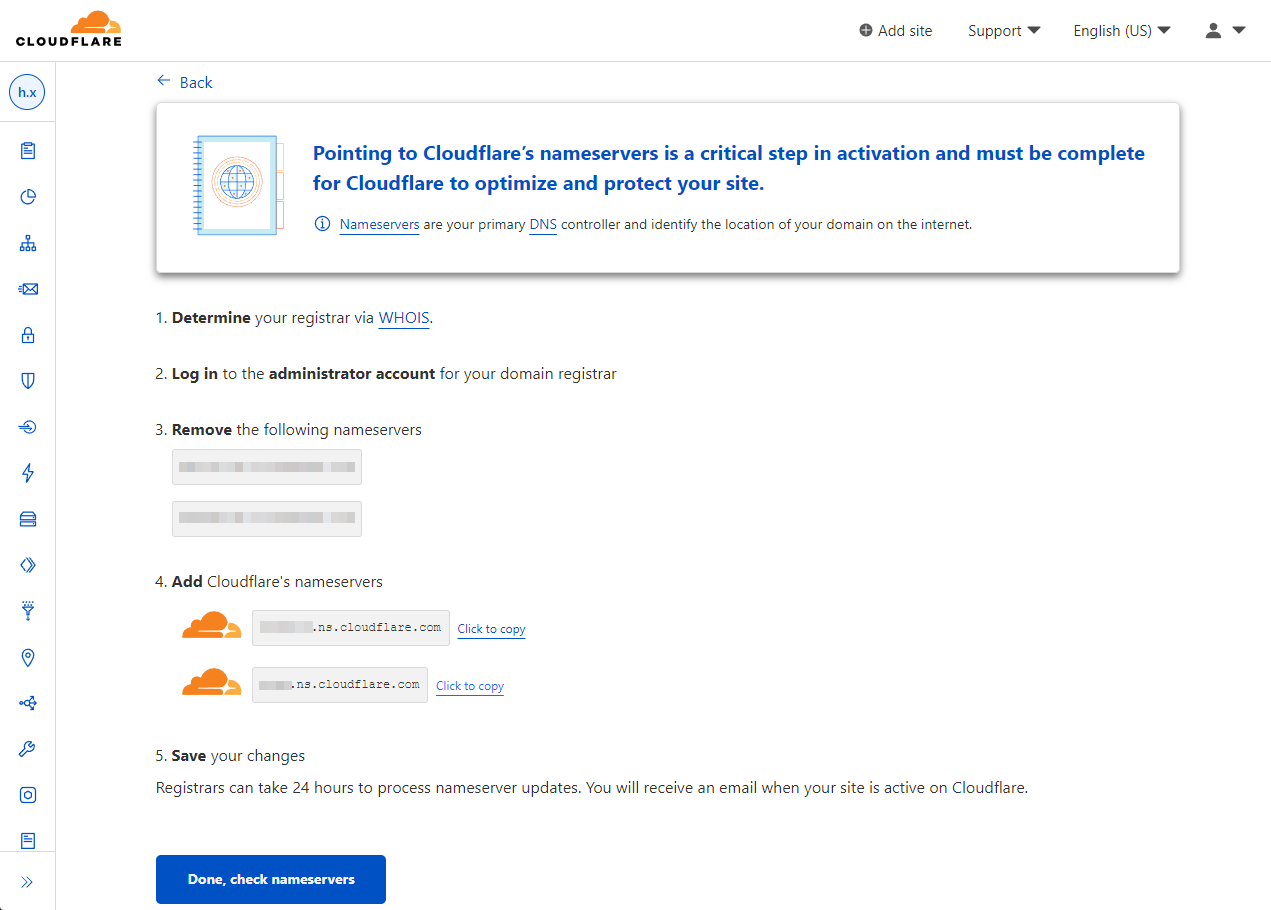
The nameserver update can take up to 24 hours to complete. Once Cloudflare detects the correct configuration, your domain’s status will change to Active.
Don’t delete or change the DNS records you verified in the previous step while waiting for activation.
After Cloudflare becomes active, continue with the SSL/TLS configuration to secure connections between your visitors, Cloudflare, and your WordPress server.
5. Configure SSL/TLS and HTTPS settings
Cloudflare’s SSL/TLS settings determine how traffic is encrypted between visitors, Cloudflare, and your WordPress hosting server. For secure connections throughout, use Full (strict) mode when your hosting server has a valid SSL certificate.
Before changing these settings, confirm that your hosting provider has installed an active SSL certificate for your domain.
Then follow these steps:
- Open the Cloudflare dashboard and select your WordPress domain.
- Navigate to SSL/TLS → Overview.
- Choose Full (strict) as the encryption mode. This option encrypts connections between visitors, Cloudflare, and your origin server while validating the origin certificate.
- Navigate to SSL/TLS → Edge Certificates.
- Once your edge certificate is active, enable Always Use HTTPS if you want Cloudflare to redirect HTTP requests to HTTPS. Check for existing redirects to avoid conflicts.
- Open your WordPress website and admin dashboard using HTTPS to confirm that both load correctly.
Avoid using Flexible mode for a typical WordPress installation. It doesn’t encrypt the connection between Cloudflare and your hosting server and can cause redirect loops when your origin server forces HTTPS.
If Full (strict) produces an SSL error, verify that your origin server has a valid, correctly configured certificate rather than switching to Flexible mode as a workaround.
6. Install and connect the Cloudflare WordPress plugin
The official Cloudflare WordPress plugin lets you manage Cloudflare settings and clear cached content directly from your WordPress dashboard.
The plugin is optional for basic CDN functionality, but it’s useful for cache management and for enabling Automatic Platform Optimization (APO), which can cache eligible WordPress HTML pages at Cloudflare’s edge.
To connect the plugin, first install it on your website:
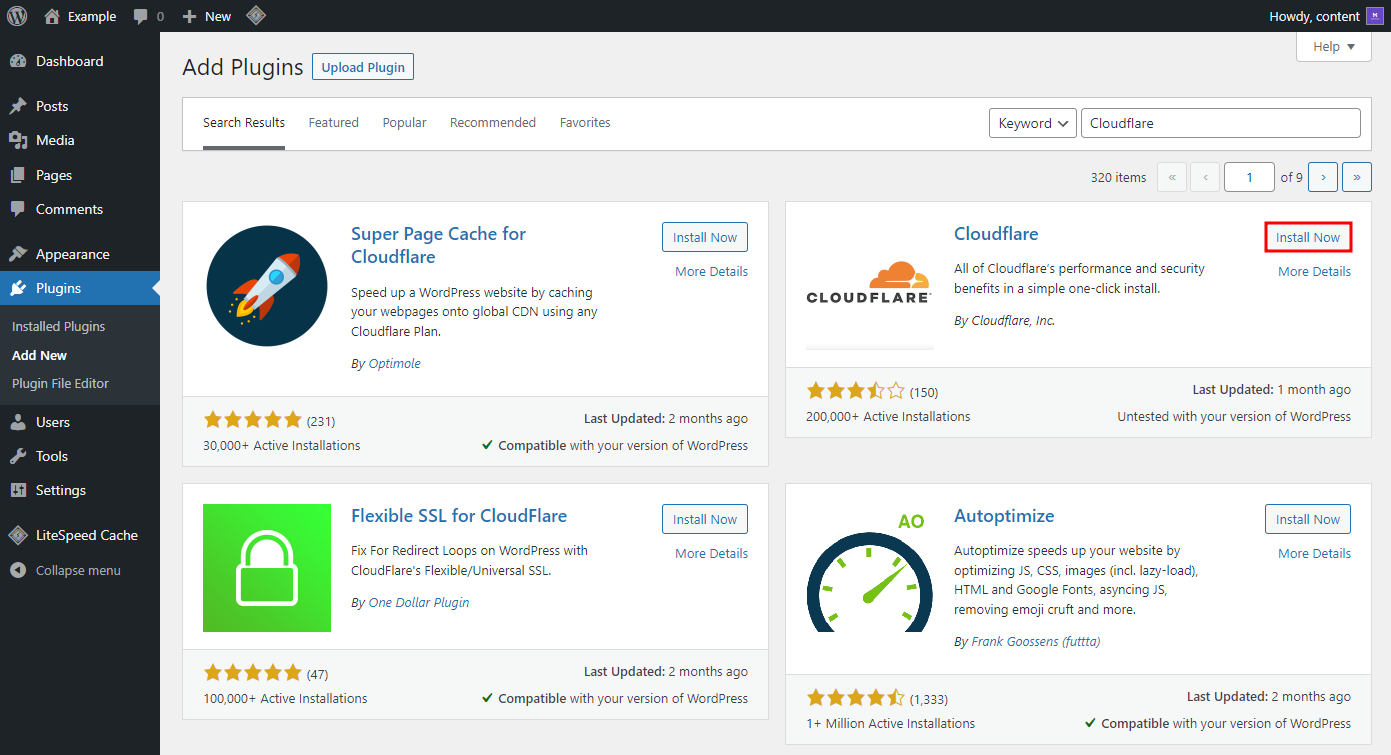
- Open your WordPress dashboard.
- Navigate to Plugins → Add New Plugin.
- Search for Cloudflare.
- Install and activate the official Cloudflare plugin.
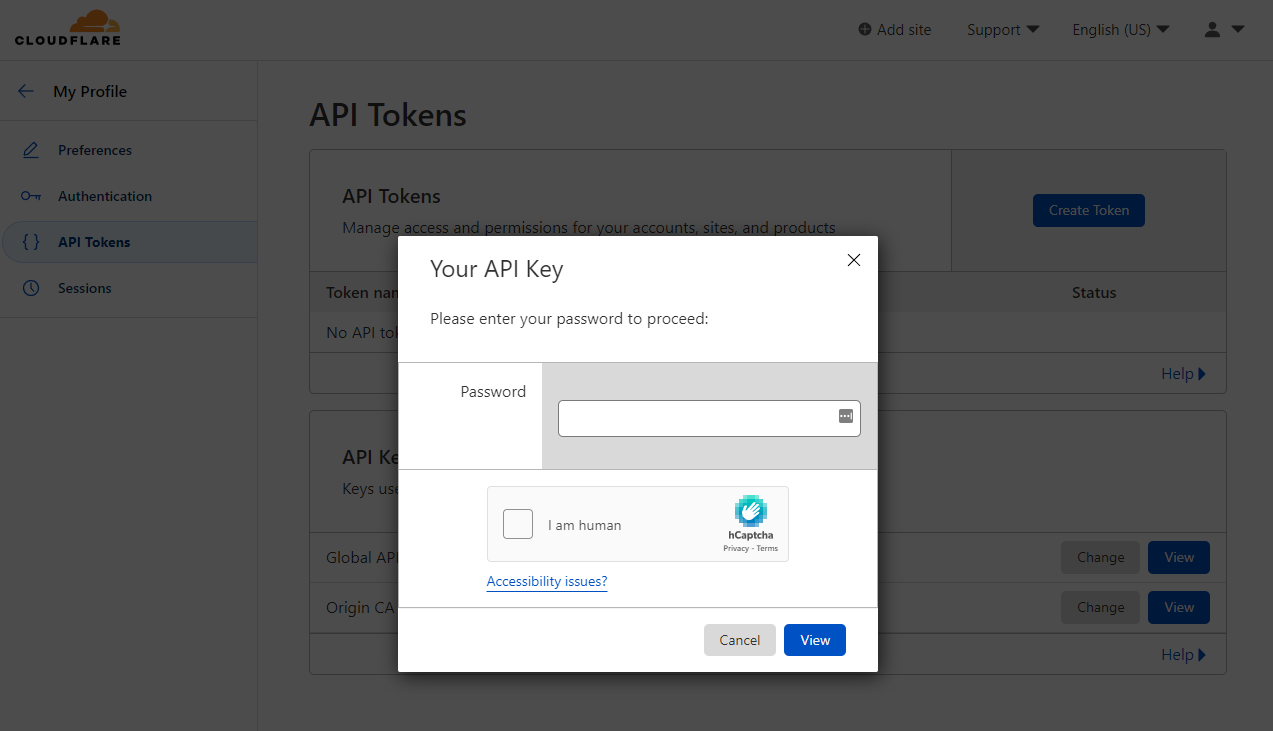
Next, create an API token for your website:
- Sign in to Cloudflare and open your account’s API Tokens page.
- Click Create Token.
- Find the WordPress template and select Use template.
- Review the permissions and select Continue to summary.
- Click Create Token and copy the generated token.
Return to WordPress and connect your account:
- Open the Cloudflare plugin’s Settings page.
- Choose the option to sign in with an existing account.
- Enter your Cloudflare account email address and paste the API token.
- Click Save API Credentials to complete the connection.
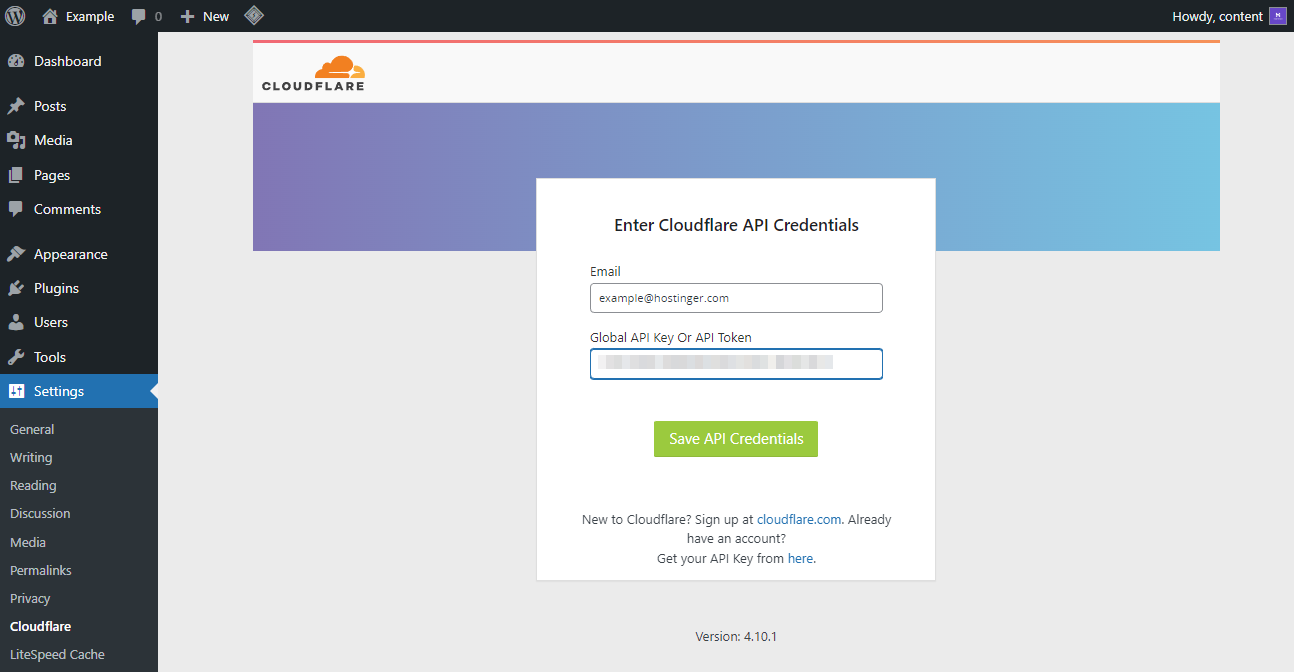
Once connected, you can review Cloudflare’s recommended WordPress settings and purge cached content after making website changes.
If you want to enable APO, check whether it’s included in your Cloudflare plan or available as an add-on. APO can improve delivery of eligible WordPress HTML pages, but it isn’t necessary for standard CDN caching.
Important: If you use another caching plugin, test compatibility before enabling additional Cloudflare caching features. Multiple caching layers can cause outdated content or unexpected behavior.
7. Verify Cloudflare is working
After completing the setup, verify that Cloudflare is active and your WordPress website works correctly.
- Open your domain in Cloudflare and confirm that its status is Active.
- Navigate to DNS → Records and verify that the website’s relevant A, AAAA, or CNAME records have the orange Proxied status.
- Visit your WordPress website using HTTPS and confirm that it loads without certificate warnings or redirect errors.
- Open your WordPress dashboard and check whether you can log in normally.
- Test a few pages, images, and forms to make sure they work correctly.
You can also confirm that website traffic passes through Cloudflare by checking the response headers.
Open your browser’s developer tools, navigate to the Network tab, and reload the website. Select the main document request and look for the cf-ray response header.
If the header appears, the request has passed through Cloudflare’s network.
You may also see a cf-cache-status header, which indicates how Cloudflare handled caching for that request. A cache MISS or DYNAMIC response doesn’t necessarily mean the CDN is configured incorrectly, since Cloudflare doesn’t cache all content by default.
Once the website works correctly, you can review additional performance and security settings.

What are the recommended Cloudflare settings for WordPress?
For most WordPress websites, Cloudflare’s default caching and security features provide a good starting point. You don’t need to enable every optimization option to benefit from the CDN.
The following settings offer a balance between performance, security, and compatibility.
| Setting | Recommendation | Why |
|---|---|---|
| SSL/TLS encryption | Full (strict) | Encrypts traffic between visitors, Cloudflare, and your hosting server while validating the origin certificate |
| Always Use HTTPS | Enable after confirming SSL works | Redirects HTTP requests to HTTPS |
| DNS proxy | Proxied for website traffic | Routes eligible website requests through Cloudflare’s CDN and security features |
| Caching | Keep default behavior initially | Cloudflare automatically caches eligible static assets, including images, CSS, and JavaScript |
| Cache Rules | Configure only when needed | Provides more control over caching specific URLs and content types |
| WordPress APO | Optional | Can improve delivery of eligible WordPress HTML pages through edge caching |
| Web Application Firewall (WAF) | Keep available managed protections enabled | Helps protect against common web attacks |
| Rocket Loader | Leave disabled initially | JavaScript optimization can cause compatibility problems with some themes and plugins |
| Compression | Use Cloudflare defaults | Cloudflare automatically applies supported compression methods |
| Development Mode | Enable temporarily when troubleshooting | Helps test changes by bypassing Cloudflare’s edge cache |
How should you configure Cloudflare caching for WordPress?
Cloudflare automatically caches eligible static resources, such as images, CSS, and JavaScript. However, it doesn’t cache HTML pages by default.
If you want to cache WordPress pages, consider Automatic Platform Optimization or carefully configured Cache Rules.
Avoid applying a universal Cache Everything rule without accounting for logged-in users and dynamic content. WordPress admin pages, shopping carts, checkout pages, and other personalized content may need to bypass caching.
If you make changes to your website but still see outdated content, purge the affected URLs from Cloudflare’s cache. You can manage this through the Cloudflare dashboard or the connected WordPress plugin.
Should you enable additional performance features?
Features such as Rocket Loader and image optimization may improve performance for some WordPress websites, but their benefits depend on the website’s configuration.
Test additional optimizations one at a time. Check that your theme, navigation, forms, and interactive features continue working before keeping a new setting enabled.
For most beginners, correctly configuring DNS, HTTPS, caching, and basic security is more important than enabling every available performance feature.
How to troubleshoot common Cloudflare errors
If your WordPress website stops working after setting up Cloudflare, the problem may involve DNS configuration, SSL/TLS settings, or communication with your hosting server.
Here are three common Cloudflare errors and what to check first.
| Error | Meaning | What to check |
|---|---|---|
| 520 – Web server returns an unknown error | The origin server returned an empty, malformed, or unexpected response | Review server error logs, security plugins, and server configuration |
| 521 – Web server is down | The origin server refused Cloudflare’s connection | Confirm the server is running and isn’t blocking Cloudflare IP addresses |
| 522 – Connection timed out | Cloudflare couldn’t establish or complete a connection to the origin in time | Check server availability, firewall rules, resource usage, and the origin IP address |
Start by confirming that your hosting server is online and that Cloudflare’s DNS records point to the correct destination.
If the problem persists, check the server’s error logs and firewall configuration. Avoid disabling security features or modifying server files without identifying the actual cause.
For connection-refused errors, our guide to fixing Cloudflare error 521 covers the troubleshooting process in more detail.
When contacting your hosting provider, share the error code, affected URL, and time of the incident. If Cloudflare displays a Ray ID, include it to help with the investigation.
How to test your WordPress website’s performance
After configuring Cloudflare, check whether your WordPress website loads correctly and whether its performance has improved.
A CDN can reduce the time needed to deliver cached content, but the results depend on your website’s location, visitor distribution, caching configuration, and hosting performance.
To evaluate your setup:
- Run a speed test. Use a website speed testing tool to measure loading performance and identify slow resources.
- Review caching behavior. Confirm that Cloudflare caches eligible static resources and that dynamic pages continue working correctly.
- Optimize your WordPress website. Combine Cloudflare with other WordPress performance improvements, such as image optimization, efficient themes, and plugin maintenance.
Make one optimization at a time and compare the results. This will help you understand which changes improve your website without introducing unnecessary compatibility issues.
All of the tutorial content on this website is subject to Hostinger's rigorous editorial standards and values.

Klara is an eCommerce enthusiast. She has a passion for developing content and building websites. In her spare time, she enjoys traveling to experience different cultures. Klara is always looking to learn new things in the IT field, and she loves sharing her knowledge with others.

Astari is a digital marketing expert, with a focus on SEO and WordPress. She loves to share her wealth of knowledge through her writing, and enjoys surfing the internet for new information when she's not out in the waves or hiking a mountain. Her mission is to learn something new every day, and she firmly believes that there is no such thing as too much knowledge.