How to fix the WordPress white screen of death (8 methods)
Oct 22, 2026
/
By Emma Y.
/
7 min Read
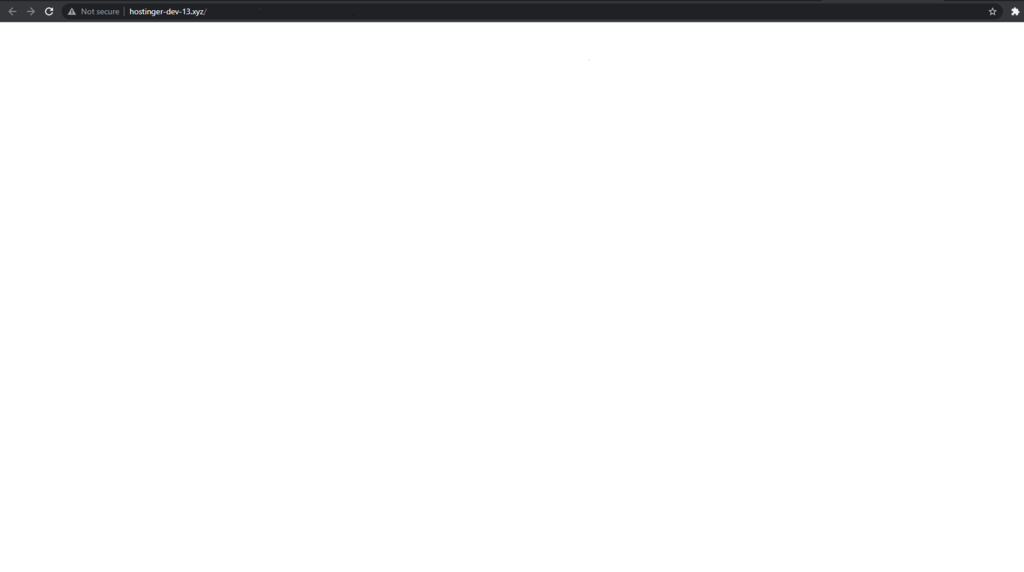
The WordPress white screen of death occurs when your website or admin dashboard displays a blank page instead of loading normally. Common causes include plugin conflicts, theme errors, PHP memory issues, and corrupted WordPress files.
To fix it, start by checking recent changes and administrator error notifications. If WordPress sends a recovery email, use Recovery Mode to regain access to your dashboard. Otherwise, try disabling plugins, switching themes, or checking error logs to identify the problem.
Below, we’ll walk through eight troubleshooting methods, from the simplest fixes to more advanced file and server checks.
How to Fix WordPress White Screen of Death – Video Tutorial
Find out how to fix the WordPress white screen of death and understand why this error happens in our video tutorial.


Why does the WordPress white screen of death happen?
The WordPress white screen of death usually occurs when an error prevents WordPress from loading a page correctly. It can affect your entire website, the admin dashboard, or specific pages.
Common causes include:
- Plugin conflicts. An incompatible or faulty plugin can trigger PHP errors that prevent WordPress from loading.
- Theme errors. Problems with theme updates, custom code, or compatibility can cause the website to display a blank screen.
- PHP memory exhaustion. Resource-intensive operations may exceed the available PHP memory limit.
- Corrupted or missing files. Incomplete updates or accidental file modifications can interrupt WordPress execution.
- Server configuration issues. Incorrect file permissions or PHP configuration problems can prevent website files from executing correctly.
Identifying the cause is the first step toward choosing the appropriate fix. Start by checking recent website changes and WordPress error notifications before modifying your website’s files or settings.
What to check before fixing the WordPress white screen of death
Before changing WordPress files or settings, check whether the white screen affects your entire website, a specific page, or only the admin dashboard. This can help narrow down the cause and avoid unnecessary troubleshooting.
Start with these checks:
- Review recent changes. Check whether the error appeared after installing or updating a plugin, changing themes, editing code, or updating WordPress.
- Check your administrator email. WordPress may send an email about a fatal error, including the affected plugin or theme and a Recovery Mode login link. Check your spam folder if you don’t see the message.
- Test the website from another browser or device. If the issue only appears in one browser, try clearing its cache before modifying WordPress.
- Check whether the website is down for everyone. Confirm whether your website is accessible from other locations to distinguish a broader availability issue from a local browser problem.
Before making changes to website files, create a backup of your current site if possible. This will help you recover your files and database if troubleshooting introduces additional problems.
If you received a WordPress recovery email, start with Recovery Mode. Otherwise, continue with the troubleshooting methods below, beginning with plugins and themes.
1. Use WordPress Recovery Mode
WordPress Recovery Mode helps you regain access to your admin dashboard when a fatal error is caused by a plugin or theme. Available since WordPress 5.2, it can identify the affected component and temporarily pause it during your recovery session.
If WordPress has detected a critical error, check your administrator email for a message with a recovery link. Then:
- Open the recovery link in the email and log in with your WordPress administrator credentials.
- Check the dashboard notices to identify which plugin or theme caused the error.
- Navigate to Plugins → Installed Plugins or Appearance → Themes to deactivate or replace the affected component.
- Click Exit Recovery Mode in the admin toolbar after resolving the problem.
- Reload your website to confirm that it works normally.
For more details about accessing the dashboard and resolving errors, see how WordPress Recovery Mode works.
If you haven’t received a recovery email, check your spam folder. Recovery Mode isn’t available for every WordPress error, so you may need to continue with the following methods to troubleshoot the issue manually.
2. Disable WordPress plugins
A plugin conflict can cause the WordPress white screen of death, particularly after installing or updating a plugin. Temporarily disabling plugins helps determine whether one of them is responsible.
If you can access your WordPress dashboard:
- Go to Plugins → Installed Plugins.
- Select all active plugins.
- Choose Deactivate from the Bulk actions menu and click Apply.
- Reload your website to check whether the white screen disappears.
- If the website works again, reactivate plugins one at a time, checking the website after each activation.
If you can’t access the dashboard, disable plugins through your hosting file manager:
- Open your hosting File Manager and navigate to
wp-content. - Rename the
pluginsfolder toplugins-disabled. - Reload the website. If it works, the issue likely involves a plugin.
- Rename the folder back to
plugins. - Access the WordPress dashboard and reactivate plugins individually to identify the cause.
Once you identify the problematic plugin, check for an update, contact its developer, or replace it with a compatible alternative.
If your website uses a caching plugin and still displays outdated content after the issue is resolved, clear the WordPress cache before testing again.
3. Switch to a default WordPress theme
An incompatible or corrupted theme can cause the WordPress white screen of death. If the issue appeared after installing, updating, or editing your theme, temporarily switching to a default WordPress theme can help identify the problem.
If you can access the WordPress dashboard:
- Go to Appearance → Themes.
- Find an installed default WordPress theme, such as Twenty Twenty-Five.
- Click Activate to switch to that theme.
- Reload your website to check whether the error disappears.
If you can’t access the dashboard, you can change the active theme through phpMyAdmin. Back up your database before making changes.
- Open your website’s
wp-config.phpfile and identify the database name and table prefix. - Check the
wp-content/themesdirectory to confirm that a default WordPress theme is installed. - Open phpMyAdmin through your hosting control panel and select the correct WordPress database.
- Open the options table, usually named
wp_options, and locate thetemplateandstylesheetentries. - Change both values to the folder name of the installed default theme, such as
twentytwentyfive. - Save your changes and reload the website.
If switching themes fixes the issue, inspect the original theme for compatibility problems, outdated files, or faulty custom code before reactivating it.
4. Check WordPress error logs
WordPress error logs can help identify the PHP error responsible for a blank screen. They are especially useful when disabling plugins or switching themes doesn’t resolve the issue.
To enable WordPress debugging:
- Open your hosting File Manager and locate
wp-config.phpin your WordPress root directory. - Create a backup copy of the file before editing it.
- Find the existing
WP_DEBUGsetting and update it using the configuration below. If the settings don’t exist, add them above the line that ends WordPress configuration. - Save the file and reload the affected page to reproduce the error.
- Open the
wp-content/debug.logfile and inspect the latest entries for fatal errors, file paths, or references to plugins and themes.
Use the following settings, replacing existing definitions rather than adding duplicates:
define( 'WP_DEBUG', true );
define( 'WP_DEBUG_LOG', true );
define( 'WP_DEBUG_DISPLAY', false );
@ini_set( 'display_errors', 0 );
If the error log identifies a specific plugin, theme, or file, investigate that component before making further changes.
Hostinger users can also inspect their hosting PHP error logs through File Manager’s .logs directory, provided PHP error logging is enabled.
Once troubleshooting is complete, disable debugging and remove temporary debug logs. These files can contain sensitive information and shouldn’t remain publicly accessible.
For additional troubleshooting options, learn more about WordPress debug settings and checking PHP error logs.
5. Increase the WordPress memory limit
Insufficient PHP memory can cause WordPress to display a blank screen when a plugin, theme, or other process exceeds the available limit.
Check your error logs for messages such as “Allowed memory size exhausted” before changing memory settings.
If the error confirms a memory problem, try the following:
- Open your hosting File Manager and locate the
wp-config.phpfile. - Create a backup of the file.
- Look for the
WP_MEMORY_LIMITsetting. If it doesn’t exist, add it above the line that ends WordPress configuration. - Set a suitable memory limit based on your hosting plan and the error message.
- Save the file and reload the website.
For example, to request a WordPress memory limit of 256 MB, use:
define( 'WP_MEMORY_LIMIT', '256M' );
This setting can’t override your hosting provider’s PHP memory restrictions. On Hostinger, you can check the server’s current memory_limit value in PHP Info.
If increasing the limit doesn’t resolve the issue, check the error logs again. A plugin or theme may be consuming excessive memory, requiring a different fix.
For more information, see how to adjust the WordPress memory limit.
6. Check and repair WordPress core files
Missing or corrupted WordPress core files can cause a white screen of death, particularly after an incomplete WordPress update or accidental file modification.
If the error appeared after editing WordPress files, restore the affected files from a known working backup first.
If you can access your WordPress dashboard:
- Go to Dashboard → Updates.
- Find the option to reinstall your current WordPress version.
- Reinstall the core files and reload your website.
Reinstalling the current version can replace damaged core files without deleting your website’s content.
If your admin dashboard is unavailable, you may need to reinstall WordPress core files manually through FTP or your hosting file manager.
Important: Don’t overwrite your existing wp-config.php, .htaccess, or wp-content directory with files from a fresh installation. These contain site-specific configurations, plugins, themes, and uploaded content.
If you’re unsure which files are corrupted, contact your hosting provider before manually replacing them.
7. Fix WordPress file permissions
Incorrect file permissions can prevent WordPress from accessing essential files and directories. This is more likely after a website migration, manual file upload, or changes to server settings.
If your error logs show permission-related errors, check your website’s file and folder permissions.
Hostinger users can reset standard permissions through the hosting dashboard:
- Go to Websites and open the Dashboard for your website.
- Navigate to Advanced → Fix File Ownership.
- Select the confirmation checkbox.
- Click Execute to reset the permissions.
For standard WordPress installations, the recommended permissions are generally:
- 644 for files
- 755 for directories
Avoid setting permissions to 777, as this can expose your website to security risks.
The Fix File Ownership tool is available on supported hosting plans. If you’re using another provider or need to modify specific files, check its documentation before changing permissions manually.
8. Restore WordPress from a backup
If none of the previous methods fix this issue, try restoring the site from a backup.
Important! We recommend this method as the last resort since the website might lose data in the process. eCommerce website owners should be aware that restoring a backup can also mean losing orders.
The steps to restore a WordPress backup depend on the web hosting provider. Hostinger users should follow these steps:
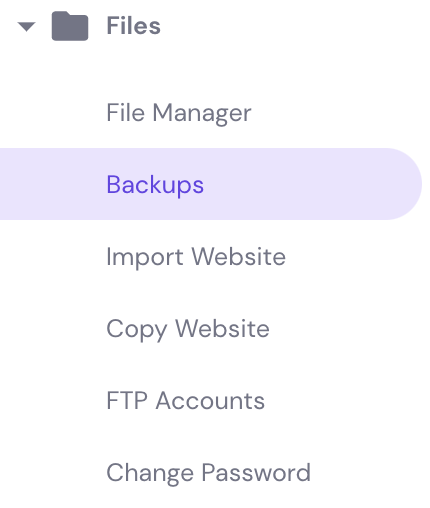
- Head to Hostinger dashboard and select Backups under Files.
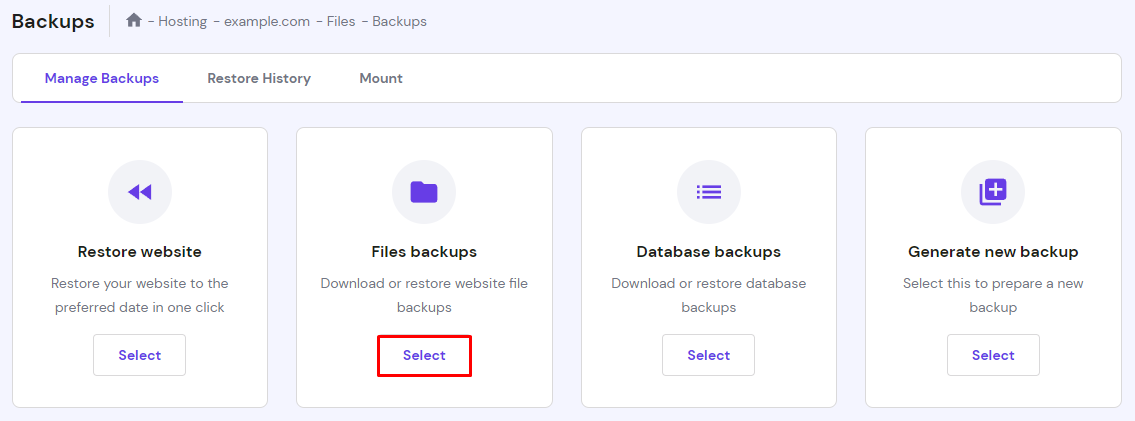
- Click Select under Files backups.
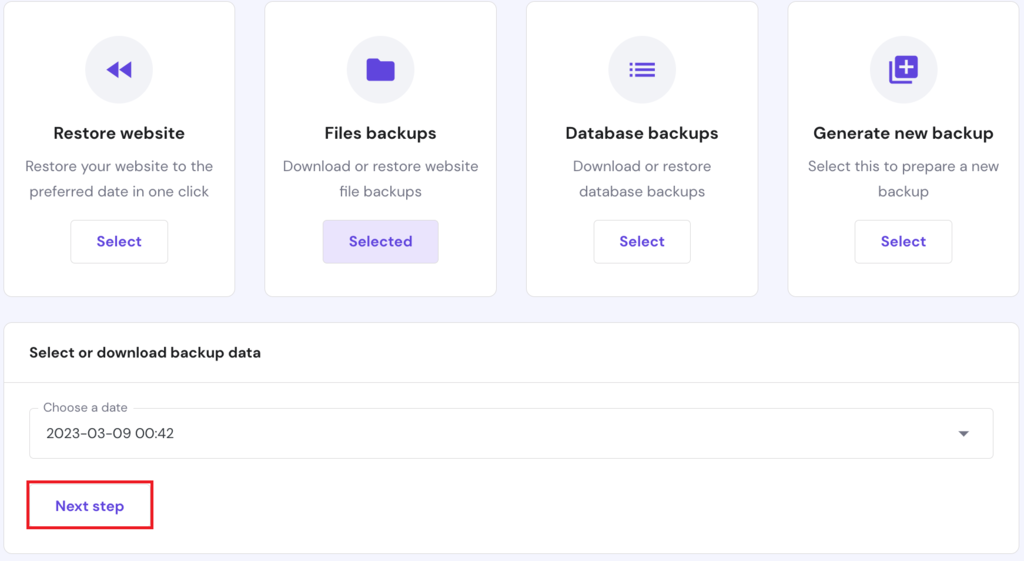
- Select the date, and click on Next step, which will load all your content from that date.
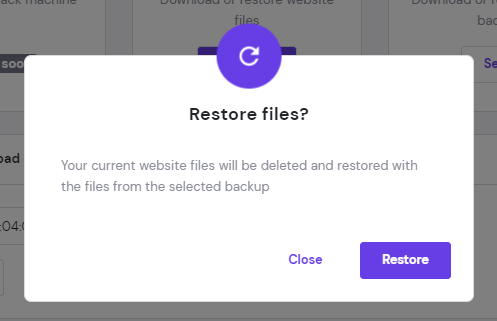
- Navigate through the folders, select which one to restore, and click on Restore files.
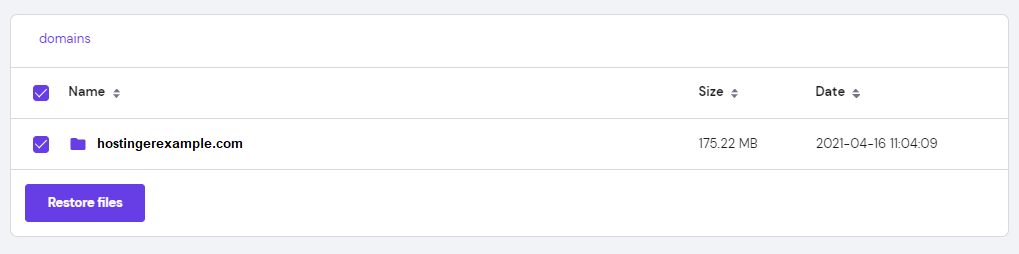
- Click on Restore again, and the system will start the process and send a notification after the process is complete.
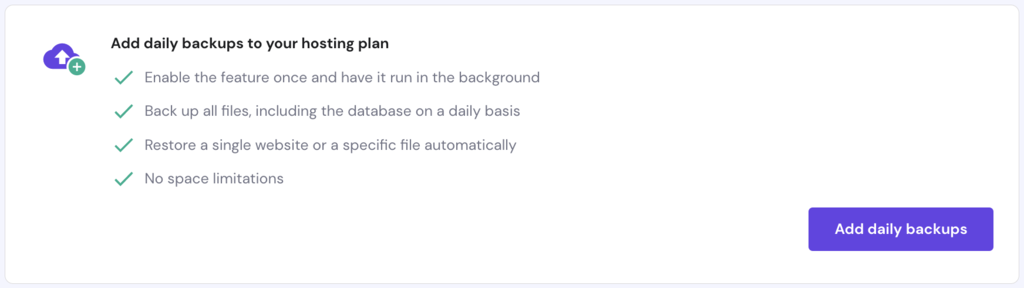
To prevent it from happening again, create daily backups of your site. To do so with Hostinger, head back to the Backups tool on Hostinger dashboard and click Add Daily Backups.

How to prevent another WordPress white screen
After fixing the WordPress white screen of death, check whether both the frontend and admin dashboard are working correctly. Test important features, including forms, navigation, and any ecommerce functionality.
To reduce the risk of the issue happening again:
- Keep WordPress updated. Update the core software, plugins, and themes regularly, and remove components you no longer use.
- Create regular backups. Make sure you have a recent copy of both your files and database before installing updates or modifying code.
- Test major changes before publishing. A WordPress staging environment lets you check plugins, themes, and custom code without affecting your live website.
If the white screen returns, note when it happened and which changes preceded it. Reviewing those changes alongside your error logs will help you identify recurring problems more efficiently.
All of the tutorial content on this website is subject to Hostinger's rigorous editorial standards and values.

Emma is an advocate for organized chaos. She loves longboarding, yoga, and cyber security. On a normal day, her content strategy is surfing the waves of content platforms, flexing the forms of social media and blog, and unlocking the paths of untouched SEO techniques.