The best content management system (CMS) for most people is WordPress, since it’s open-source, meaning anyone can use and change its code, and its themes and plugins support blogs, business sites, online stores, and membership sites.
Specialized platforms suit specific goals. WooCommerce adds a full online store to WordPress, Ghost runs newsletters and paid memberships without plugins, and Craft CMS gives developers precise control over complex, content-heavy sites.
Headless CMSs like Contentful and Sanity are an alternative for teams that publish to websites, apps, and other channels from a single platform. They store content without a built-in design, so a developer builds the front end, the part of the site that visitors see.
Choosing the right CMS comes down to your technical skill, budget, the features you need built in, and how far you plan to grow. For a simple site, a website builder gets you online faster than a CMS.
We built the same test site on every platform we could access as non-developers, then rated each one on setup, daily use, customization, add-ons, and business tools.
Here’s how the 10 platforms compare in terms of best use, licensing, and starting price.
CMS | Best for | Open source | Starting price |
WordPress | Overall control and flexibility | Yes | Free + hosting |
WooCommerce | Ecommerce on WordPress | Yes | Free + hosting |
Ghost | Newsletters and paid memberships | Yes | Free self-hosted, or $15/month billed yearly on Ghost(Pro) |
Craft CMS | Complex, content-heavy sites | Partly* | Free (Solo) + hosting |
PrestaShop | Dedicated online stores | Yes | Free + hosting |
Drupal | Enterprise and government sites | Yes | Free + hosting |
HubSpot CMS | Marketing-led businesses | No | Free, or $7/month per user billed yearly |
Adobe Commerce | Large-scale ecommerce | No | Custom quote |
October CMS | Laravel developers | Partly* | Free (first license) + hosting |
Joomla | Advanced users who want built-in control | Yes | Free + hosting |
*Craft CMS and October CMS publish their code, but some uses require a paid license. All prices in this article were checked on Oct. 16, 2026, and are listed in US dollars.
1. WordPress: Powerful and easy to use
WordPress offers the best balance of control and ease of use of any CMS we tested. Its free software, themes, and plugins scale from a personal blog to a large business site.
The main drawback is a learning curve, but some hosting providers now offer setup tools powered by artificial intelligence (AI) that build the first version of your site from a short description.
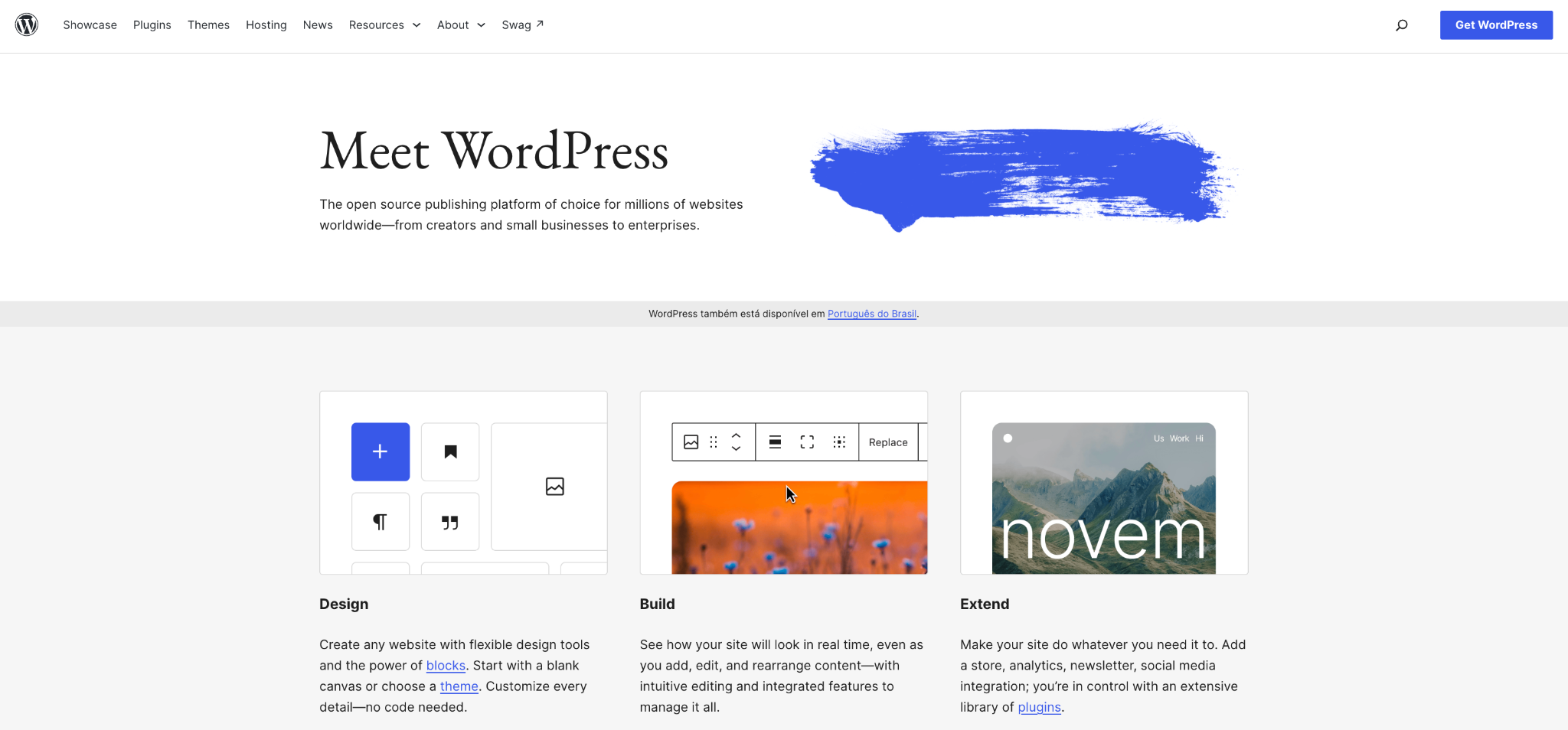
For this test, we used Hostinger’s managed hosting for WordPress, which includes an AI Website Builder. The builder isn’t part of WordPress itself, and it made onboarding one of the easiest of all 10 platforms.

Overall rating | 9/10 |
Best for | Beginners and experts who want a scalable platform with endless customization options |
Pricing | The software is free, but you need hosting. Hostinger’s managed hosting for WordPress starts at $2.49/month on a 48-month plan and renews at $10.99/month. |
WordPress onboarding and first impressions
WordPress onboarding with Hostinger’s AI Website Builder takes about four clicks. We described a fictional local business, picked a few style options, and had a working website in about three minutes.
The builder’s first draft filled every page with relevant text and images, and much of the AI-generated copy was good enough to keep.
Building a site with WordPress
Building a site with WordPress was fast for content but slow for design. The AI-generated text spared us from replacing filler copy page by page.
WordPress has dozens of design settings spread across several menus, so every visual change took several tries to get right.
Editing several pages also felt disjointed. You have to exit one page’s editor completely before opening another, which adds clicks to routine work.
Everyday content tasks were quick, though. Adding a contact form with the block editor, which builds pages from blocks like paragraphs and images, took a few seconds.
WordPress 7 already runs on 67.3% of WordPress websites, according toW3Techs.
WordPress 7.1, released in August 2026, added a media editor that opens right inside the page editor. On our WordPress 7.1.3 test site, it let us crop, rotate, flip, and straighten an image without leaving the page.
What we liked about WordPress
Replacing an image in WordPress takes one move: drag the new file from your computer onto the old image in the editor, and WordPress swaps it.
WordPress pros and cons
WordPress’ biggest strength is flexibility, while its biggest weakness is the number of options new users face.
WordPress pros
- The software is free and open-source, so there are no license fees.
- You own and control all of your content and data.
- The block editor makes elements like contact forms and galleries simple to add.
- Plugins add features like online stores, booking forms, and memberships as your site grows.
WordPress cons
- The number of design settings slows down new users.
- Editing multiple pages requires closing and reopening the editor.
- The editing experience changes depending on the theme you choose.

2. WooCommerce: The ecommerce engine for WordPress
WooCommerce turns any WordPress site into a full online store, so you can start selling without moving to a new platform.
WooCommerce is a free plugin you add from the WordPress plugin directory, or get preinstalled with WooCommerce hosting, which is how we set up our test store.
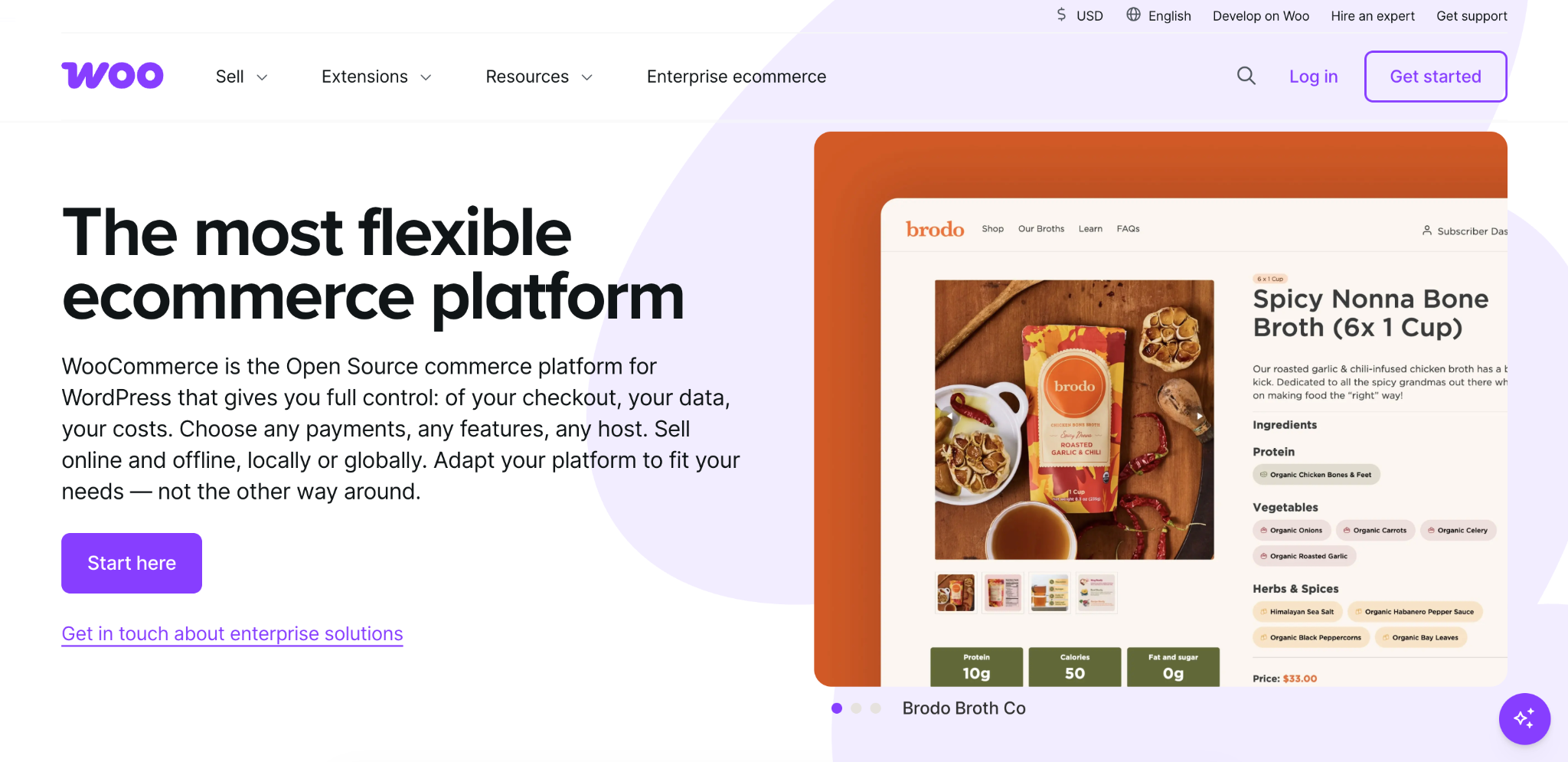
WooCommerce runs on 19.7% of all WordPress websites, according to W3Techs.
Overall rating | 8.5/10 |
Best for | Anyone who wants a flexible, scalable online store on WordPress |
Pricing | The plugin is free. Costs come from hosting, premium themes, and paid add-ons for specific features. |
According to WooCommerce’s release notes, version 10.9, released in June 2026, added built-in logging for order emails. You can now check whether a confirmation email was sent without installing a plugin, and the same release prepared WooCommerce for AI tools that manage products and orders.
WooCommerce onboarding and first impressions
WooCommerce onboarding was easy because it starts in the WordPress dashboard. After the automatic installation, we selected a theme from the Appearance menu, just as you would on any WordPress site.
Building a store with WooCommerce
Building a store with WooCommerce was straightforward, and adding a product took a few minutes. We generated the product description with AI, then filled in standard details like price and inventory.
The AI tool comes from Hostinger AI plugin, not WooCommerce itself. On Hostinger, the product editor includes a Create product with AI panel, where you describe the product in a sentence and choose a length and tone of voice.
Between built-in features and free add-ons, we had everything our small test store needed.
- A wide range of payment methods.
- Customer reviews on product pages.
- Sales analytics in the dashboard.
- Social media marketing add-ons.
What we liked about WooCommerce
WooCommerce’s built-in upsells and cross-sells take a few clicks to set up. Upsells suggest a pricier or upgraded version of a product, while cross-sells suggest related items. Customers see more items before checkout, which raises the average order value without a paid add-on.
WooCommerce pros and cons
WooCommerce’s main advantage is selling from a dashboard you already know, while its main drawback is a longer setup than a standard WordPress site.
WooCommerce pros
- WooCommerce works inside the WordPress dashboard you already know.
- Upsells and cross-sells come built in.
- WooCommerce supports a wide range of payment options.
- Analytics and marketing add-ons track sales and promote your products.
WooCommerce cons
- Setting up payments, shipping, and taxes takes more steps than a standard WordPress site.
- WooCommerce feels complex if you only sell a few products.
- WooPayments, WooCommerce’s own payment option, requires a free WordPress.com account, even if your site is hosted elsewhere.

3. Ghost: The fast, focused publishing platform
Ghost is a fast, focused publishing platform with built-in newsletters and paid memberships, so you don’t need third-party services to run a paid publication.
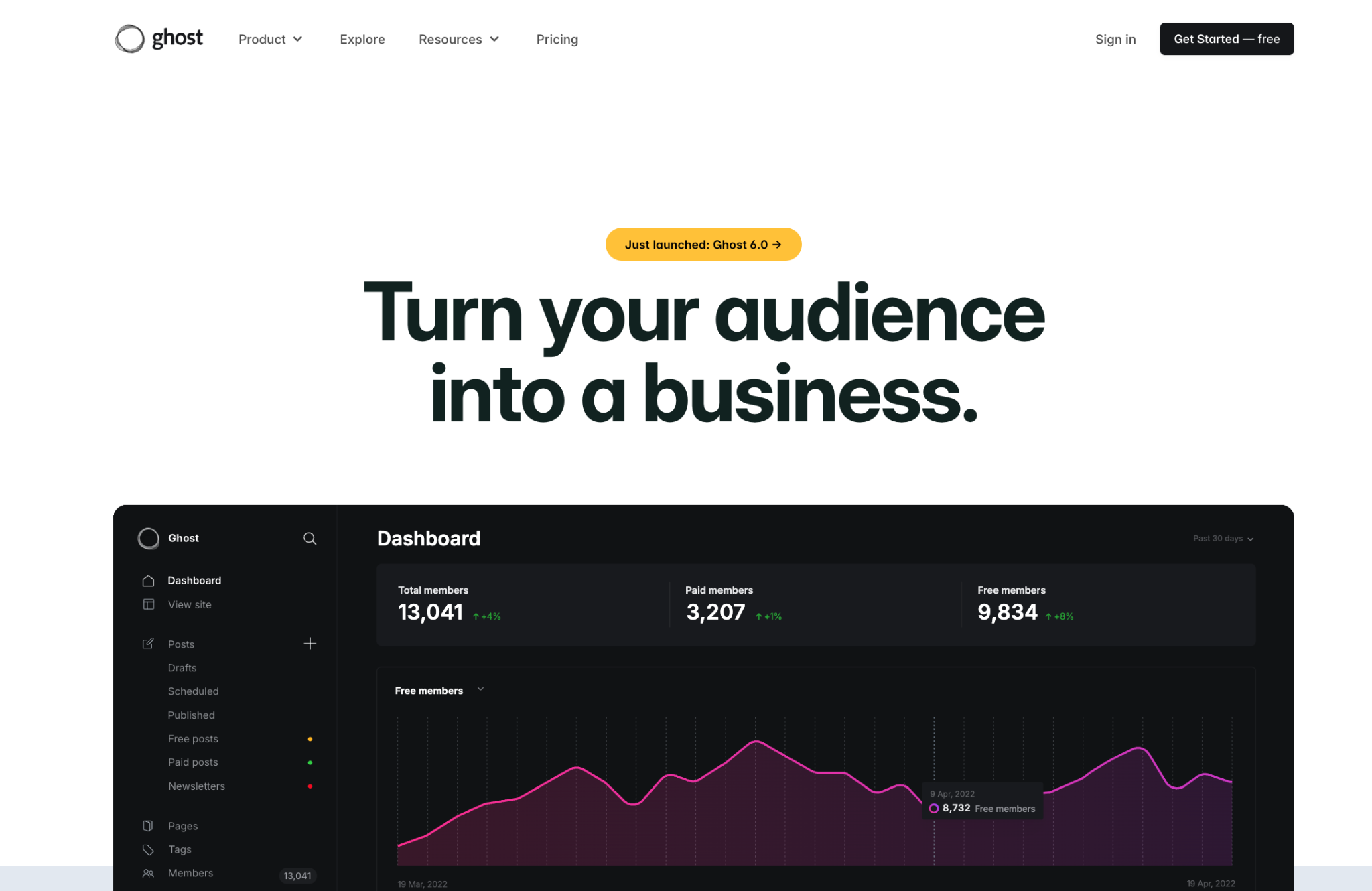
Ghost comes in two versions: the free, open-source version you install on your own server, and Ghost(Pro), the official hosted service. Installing it yourself requires server skills, but Hostinger’sGhost hosting sets it up in a few clicks.
Overall rating | 8.5/10 |
Best for | Bloggers, publishers, and creators who want to run a newsletter or paid publication |
Pricing | The open-source version is free, and you only pay for virtual private server (VPS) hosting, a server space dedicated to your site. Ghost(Pro), the official hosted platform, starts at $15/month billed yearly for up to 1,000 members. |
Ghost(Pro)’s Starter plan doesn’t include paid subscriptions or custom themes. Paid memberships require the Publisher plan, which starts at $29/month, billed annually, and its price increases as your audience grows.
Ghost 6.0, released in August 2025, added two notable features. Publications now connect to social networks like Mastodon and Threads, so readers there can follow them directly. Built-in analytics also track visits without cookies, the small tracking files that many sites store in your browser.
Ghost’s 2026 updates added gift subscriptions, so readers can buy a paid membership for someone else, and comment threads with votes and pinned replies.
Ghost onboarding and first impressions
Ghost had the simplest dashboard of any CMS we tested, showing little besides your posts and settings. After the busy admin areas of platforms such as Joomla and HubSpot, it felt like a dedicated writing app.
Publishing with Ghost
Publishing with Ghost was the most enjoyable writing experience in our test. The block-based editor works like the WordPress editor with fewer menus, and you preview the live site without leaving the dashboard.
Design control is more limited than in WordPress. Ghost puts speed and simplicity first, so you work within what its themes allow.
What we liked about Ghost
Ghost’s newsletters and paid memberships work right after setup. WordPress, for example, requires a plugin for paid memberships, while Ghost handles posts, emails, and subscriptions from a single dashboard.
Ghost pros and cons
Ghost’s main advantage is built-in newsletters and memberships, while its main drawback is limited design flexibility.
Ghost pros
- The editor shows few menus, so your text stays in focus.
- The interface is fast and easy to navigate.
- Live site preview is built into the dashboard.
- Newsletters, paid memberships, and native analytics are included.
Ghost cons
- The self-hosted version is difficult for non-technical users to install.
- The theme selection felt limited after WordPress, and the cheapest Ghost(Pro) plan doesn’t support custom themes.
- The cheapest Ghost(Pro) plan only includes basic integrations like Slack, while Zapier, webhooks, and custom integrations require the Publisher plan.

4. Craft CMS: The flexible content-focused platform
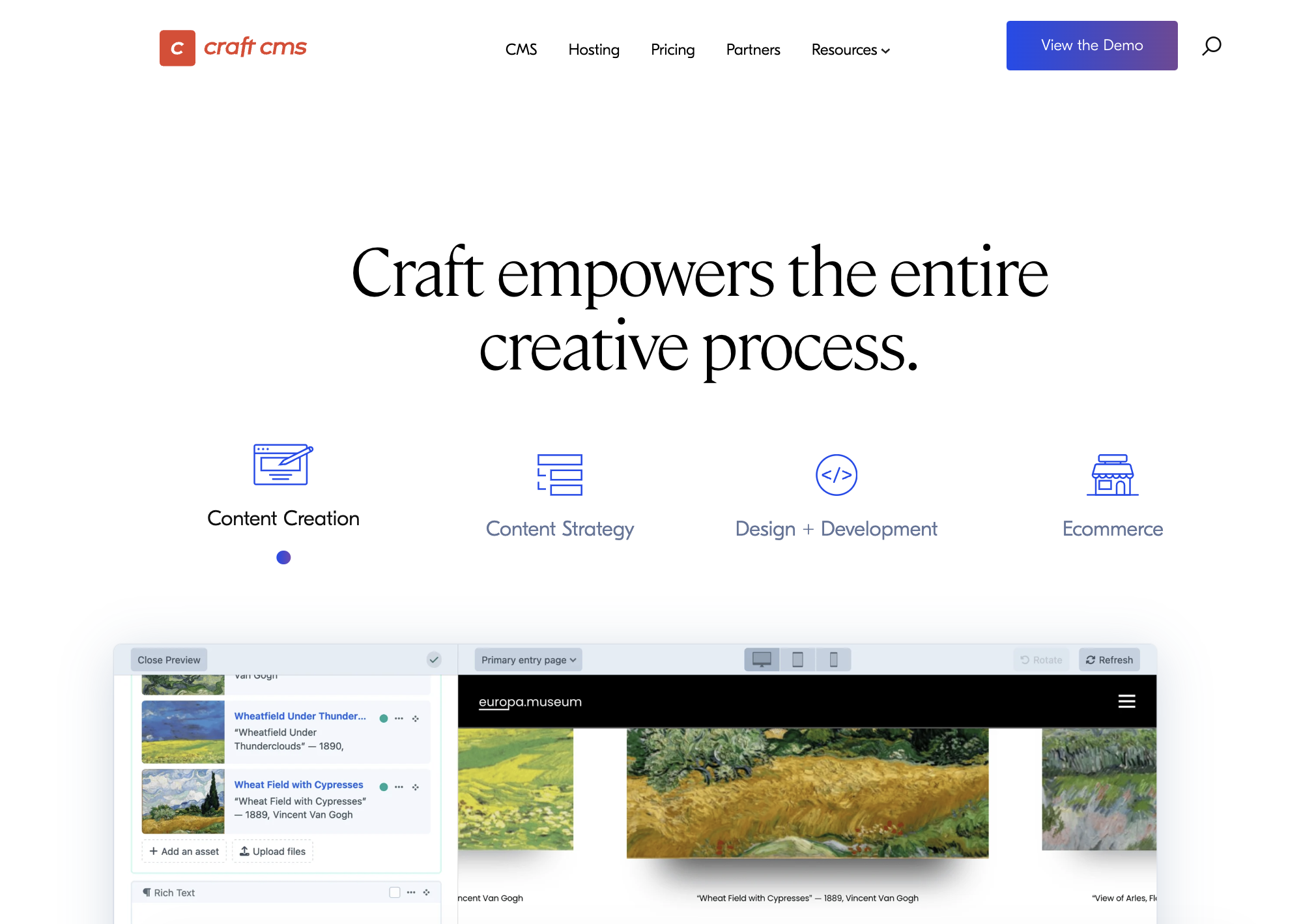
Craft CMS is a flexible platform built for complex, content-heavy sites. Developers define exactly how content is organized, and editors fill it in through a simple drag-and-drop interface.
Overall rating | 8/10 |
Best for | Agencies, developers, and content-heavy sites that need a highly organized admin area |
Pricing | Craft Solo is free for one admin account, plus hosting. Team costs $279 and Pro costs $399 per project, with $99/year for updates after the first year. |
Team and Pro licenses are included at no extra cost when you host the site on Craft Cloud, Craft’s own hosting platform.
Ecommerce isn’t included in any Craft CMS edition. Selling online requires Craft Commerce, a separate product with its own license.
Craft 5.9, released in January 2026, added bulk actions that duplicate or delete several content blocks at once. It also lets you export entries as XLSX spreadsheets straight from the entries list.
Craft CMS onboarding and first impressions
Craft CMS installation is a technical task, and we needed help from a developer colleague to complete it.
Once inside, the well-organized admin panel reminded us of WordPress, which made it easy to find our way around.
Building a site with Craft CMS
Building a site with Craft CMS was easy once it was installed, thanks to a drag-and-drop system of content blocks. Non-technical users quickly understand the blocks, and the customization options we tried required no code.
Developers get deeper control through code when needed, so the site can grow more complex without switching platforms.
Search engine optimization (SEO) was the weak spot. Many SEO features require paid plugins, even though Craft CMS is built for content-heavy sites.
What we liked about Craft CMS
Craft CMS’ collapsible content blocks give you a clean overview of a page’s structure. You collapse everything, then expand only the block you want to edit, which makes long pages easier to manage.
Craft CMS pros and cons
Craft CMS’ main advantage is a well-organized editing experience, while its main drawback is technical installation.
Craft CMS pros
- The admin panel feels familiar to anyone who has used WordPress.
- The drag-and-drop content builder organizes complex pages well.
- Customizing content layouts doesn’t require code.
- Live preview shows your changes as you edit.
Craft CMS cons
- The installation process isn’t beginner-friendly.
- Craft CMS’ rules for organizing content have a learning curve.
- Advanced SEO tools require a paid plugin.
- Multiple user accounts require a paid Team or Pro license.

5. PrestaShop: The all-in-one ecommerce solution
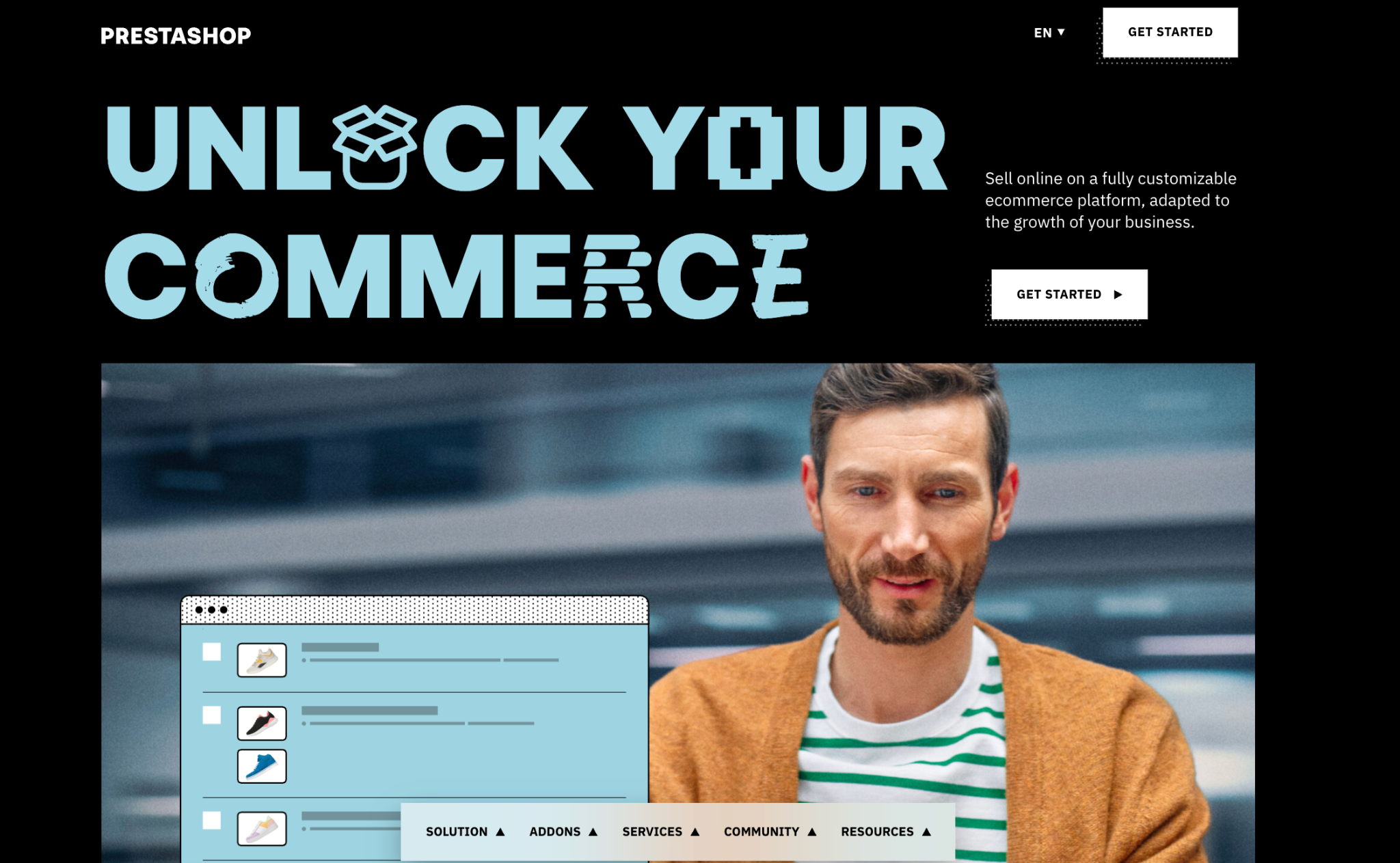
PrestaShop is a free CMS made only for online stores, with orders, inventory, and payments built in from the start, so you don’t need plugins to start selling.
Overall rating | 8/10 |
Best for | Small to medium-sized businesses that want a free, dedicated store platform |
Pricing | The software is free, but you pay for hosting. Some themes and modules, PrestaShop’s name for add-ons, are paid. |
According to the PrestaShop project, PrestaShop 9, released in July 2025, made it easier to connect other business software to your store and introduced Hummingbird, a more modern store theme.
Our test install ran PrestaShop 9.1.5 with Hummingbird 2.0 included but switched off. The store used the older Classic theme, so switching to the modern design requires one change in Design → Theme & Logo.
PrestaShop onboarding and first impressions
PrestaShop’s first hurdle was finding the admin area, which PrestaShop hides behind a random address for security. Hostinger’s dashboard lists it under Auto Installer → Details → Admin URL.
Once inside, a left sidebar organizes everything a store owner needs, from orders and product catalogs to customization options.
The store also comes with 19 sample products and demo orders, so the dashboard and storefront look like a working shop from the start.
Building a store with PrestaShop
Adding products and tracking inventory in PrestaShop was easy, even for a non-technical user, and the dashboard shows useful sales analytics.
The product editor splits each product into clear tabs, such as Stocks, Shipping, Pricing, and SEO. The Pricing tab even calculates tax and profit margin as you type.
Building the rest of the site was harder. PrestaShop doesn’t include a blog, a standard feature on almost every other CMS, and most blog modules in its built-in marketplace cost between $84.99 and $163.99 at the time of our search.
Design options are limited, too. Without code, you can swap logos and configure the sections of each page, while bigger changes mean editing a copy of the theme’s code, known as a child theme.
What we liked about PrestaShop
PrestaShop’s dashboard has a dedicated customer service section for handling messages and issues, so you can answer customers without leaving your store’s admin area.
PrestaShop pros and cons
PrestaShop’s main advantage is comprehensive store management with free software, while its main drawback is the need to pay extra for features like a blog.
PrestaShop pros
- Core ecommerce features are built in from the start.
- The dashboard makes products, orders, and inventory easy to manage.
- Customer service management has its own section.
- The analytics dashboard shows sales and store performance in one place.
PrestaShop cons
- A blog requires a paid module, and most cost $84.99 or more.
- Design changes beyond logos and page sections require editing a child theme’s code.
- The cost of extra modules adds up over time.

6. Drupal: Enterprise power with a new visual builder
Drupal powers large, high-security sites such as enterprise and government portals, thanks to its ability to handle complex content and detailed user permissions.
Drupal’s newer edition, Drupal CMS, adds a visual page builder, so non-developers can design pages by dragging and dropping sections instead of filling in forms.
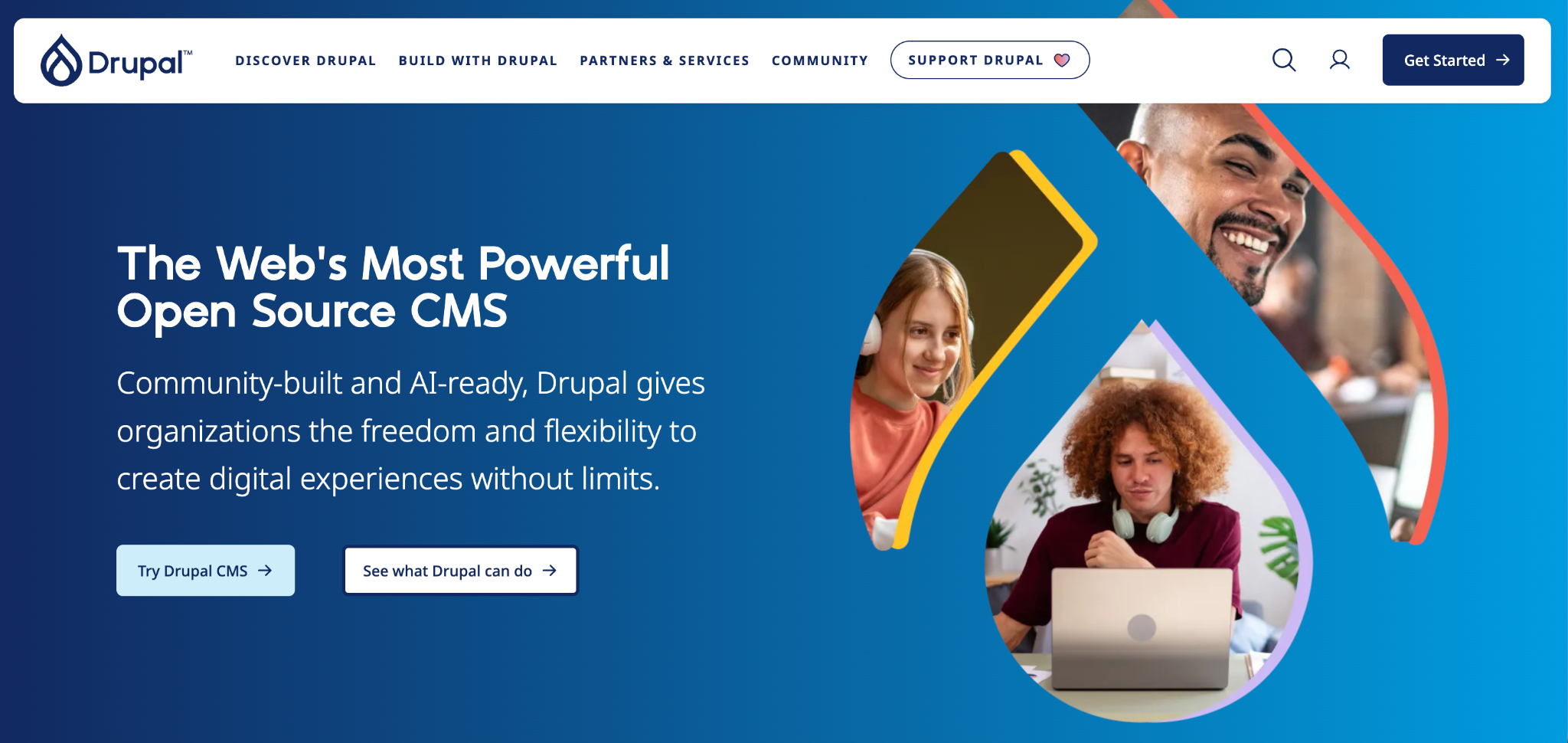
Hostinger’s auto-installer, a tool that sets up apps in a few clicks, offers two versions. Drupal CMS is the beginner-friendly edition built on Drupal Core, while Drupal Core is the bare version for developers who want to build everything from scratch.
Overall rating | 7.5/10 |
Best for | Developers, large enterprises, and technical teams that need performance, security, and complex content |
Pricing | The software is free, but you need hosting and, for complex projects, a budget for developers. |
Drupal CMS 2.0, released in January 2026, madeDrupal Canvas the default editor. Canvas is a drag-and-drop page builder with live previews and ready-made components.
Pro tip
Pick Drupal CMS over Drupal Core in the auto-installer unless you're a developer. It ships with a visual page builder, a modern theme, and built-in SEO settings.
Drupal onboarding and first impressions
Drupal CMS onboarding was quick, since it installs in a few minutes through Hostinger’s auto-installer and needs 520 MB of disk space. Our test install ran Drupal 11.4.10 and opened with a modern theme called Mercury, so the site looked finished from the start.
Building a site with Drupal
Building a site with Drupal was quick in Canvas, which works like other modern page builders. You click a section on the page, edit its text and buttons in a side panel, and add components from a library.
Drupal also has a second page system, which confused us at first. The Create menu opens a form for standard content like articles, while Canvas pages sit under Pages, and nothing on screen explains the difference.
That form uses CKEditor 5, a visual text editor with formatting, links, lists, and tables, so you don’t need to know code to format text.
What we liked about Drupal
Drupal Canvas includes SEO settings in the same panel you edit the page in. You set the meta description, the summary shown under your page title in search results, plus a social sharing image and a custom page address. A preview shows how the page will look on Google, with no plugin needed.
Drupal pros and cons
Drupal’s main advantage is a visual builder backed by enterprise-grade structure, while its main drawback is that it requires a developer to go beyond the defaults.
Drupal pros
- Drupal CMS includes Canvas, a drag-and-drop page builder with built-in SEO fields.
- The Mercury theme gives new sites a modern design from day one.
- Content formats, like articles and pages, are clearly defined and well-organized.
- Detailed user permissions control exactly who can edit each part of the site.
Drupal cons
- Installing themes and modules beyond the defaults still requires developer skills.
- Visual Canvas pages and form-based content are created in separate places, which confuses new users.
- Drupal’s add-on library is built mainly for developers rather than beginners.

7. HubSpot CMS: Built for marketers, not just for websites
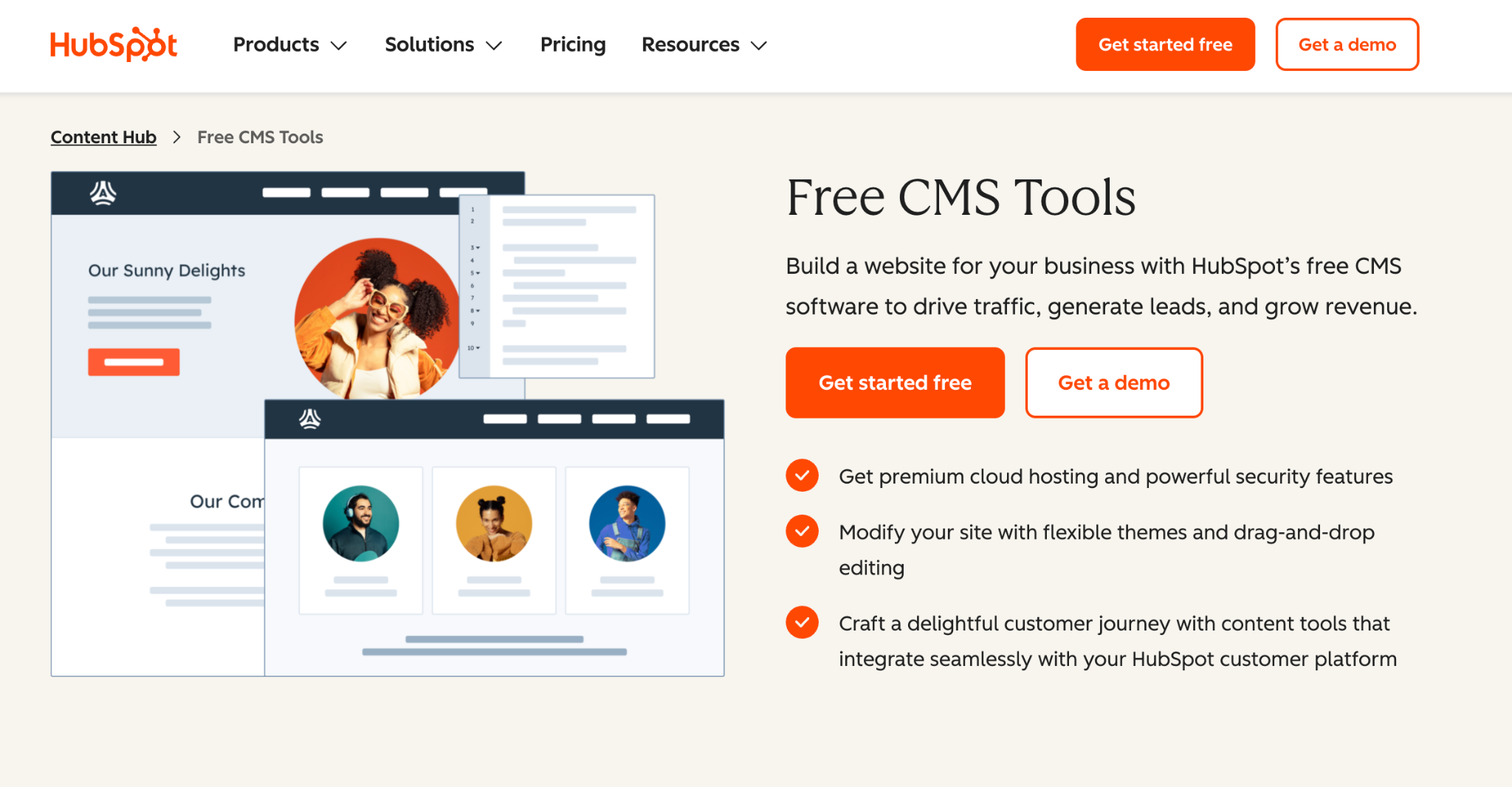
HubSpot CMS, now called Content Hub, is built for marketers, because it ties your website to HubSpot’s customer relationship management (CRM) software.
The CRM stores your contacts and sales history and connects to HubSpot’s email and sales tools. That connection adds complexity when you only need a website.
Overall rating | 7/10 |
Best for | Businesses that use, or plan to use, HubSpot for marketing and sales |
Pricing | There’s a free plan for up to two users, with HubSpot branding. Content Hub Starter removes the branding and costs $7/month per seat billed yearly. A seat means one user with paid access. |
Even the Starter plan includes Agent Hub, where you build custom AI agents for tasks like finding sales leads and cleaning up contact data.
HubSpot onboarding and first impressions
HubSpot onboarding is long and focused on the CRM rather than the website. The setup flow asked us to add contacts and invite a team, and the dashboard pushed sales and marketing guides before any website tools.
Building a site with HubSpot
Building a site with HubSpot was easy once we found its AI website builder. We then refined its draft in the drag-and-drop editor.
The editor is easy to learn, but the interface feels cluttered. Menus pop in and out, toolbars squeeze the workspace, and a banner keeps reminding you to upgrade to remove HubSpot branding.
What we liked about HubSpot
We liked HubSpot’s AI website builder most, because it made up for the slow onboarding. A few clicks gave us a complete site with copy we could actually use.
HubSpot pros and cons
HubSpot CMS’ main advantage is its direct connection to the CRM, while its main drawback is complexity for simple websites.
HubSpot pros
- HubSpot CMS connects directly to HubSpot’s CRM and marketing automation tools.
- The AI website builder creates a solid first draft in a few clicks.
- The drag-and-drop editor is easy for non-technical users to learn.
- Even Starter includes AI agents through Agent Hub.
HubSpot cons
- The onboarding and dashboard are built around the CRM, which adds steps for a simple standalone site.
- The page editor’s interface is cluttered.
- The free plan’s HubSpot branding can’t be removed without upgrading.

8. Adobe Commerce: The enterprise-grade ecommerce solution
Adobe Commerce powers large-scale online stores, managing multiple stores, large product catalogs, and business-to-business (B2B) sales from a single platform. It’s built on Magento and designed for big companies rather than small shops.
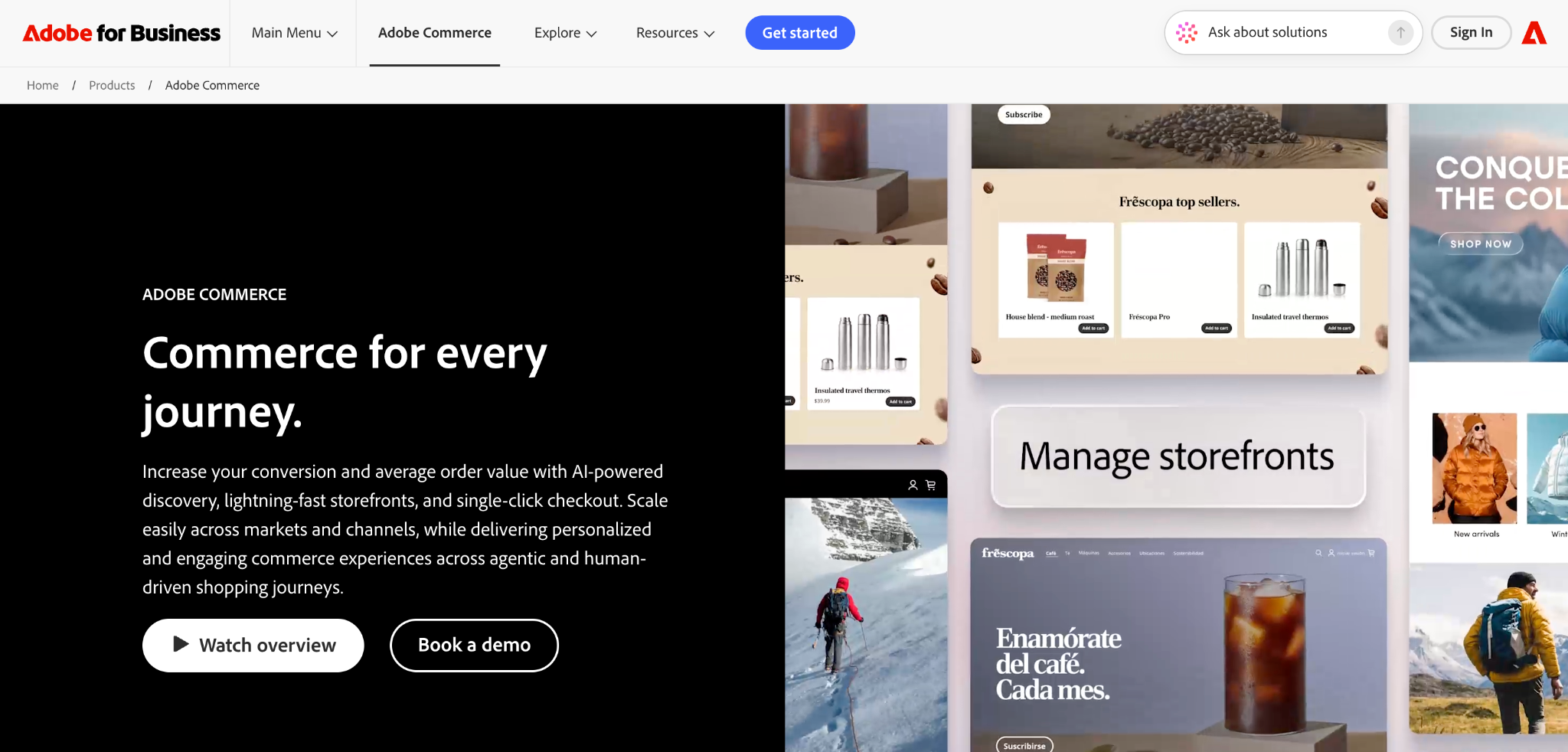
Adobe Commerce is sold through a sales team, so we couldn’t create an account to run our standard hands-on test. We based this review on research into Adobe’s official documentation and announcements.
Overall rating | 7/10 |
Best for | Large B2B or business-to-consumer (B2C) enterprises with complex catalogs, multiple brands, or global sales |
Pricing | Quote-based, at enterprise-level pricing. |
Adobe launched Adobe Commerce as a Cloud Service in June 2025. This online version, known as software-as-a-service (SaaS), runs on Adobe’s servers, so new features arrive without manual updates. Its storefront runs on servers located near shoppers to speed up page load times.
In June 2026, Adobe made Semantic Search available at no extra cost. This AI-powered search reads what shoppers mean instead of matching exact words. The same update added B2B tools like shared requisition lists and quick ordering by stock keeping unit (SKU), a product’s unique code.
Adobe Commerce onboarding and first impressions
Getting started with Adobe Commerce means contacting Adobe’s sales team rather than signing up online. That process suits a large company that wants the platform tailored to complex needs.
Building a store with Adobe Commerce
Adobe Commerce manages multiple stores from a single interface, such as separate B2B and B2C sites or regional stores with different currencies and payment methods.
Instead of a simple plugin store, you customize it by connecting it to other Adobe services and the business software you already use.
What we liked about Adobe Commerce
Adobe Commerce’s built-in B2B quoting lets wholesale clients request custom quotes, and sales teams negotiate them inside the platform. Keeping the whole conversation in one place saves time on complex deals.
Adobe Commerce pros and cons
Adobe Commerce’s main advantage is its ability to manage complex, multi-store businesses, while its main drawback is its high cost and barrier to entry.
Adobe Commerce pros
- One dashboard manages multiple stores.
- Advanced B2B features include custom quote negotiation.
- The SaaS version removes upgrade and maintenance work.
- Adobe Commerce integrates deeply with Adobe’s business and marketing tools.
Adobe Commerce cons
- Getting access requires a sales process and an enterprise budget.
- Adobe Commerce doesn’t suit small businesses, startups, or simple stores.
- Pricing isn’t public.
- Adobe Commerce’s feature set is overly complex for simple selling needs.

9. October CMS: A developer’s toolkit
October CMS is a developer toolkit built on Laravel, a framework for building web apps in PHP. Developers get a clean environment they can customize completely, but for non-developers, October CMS was the hardest platform on this list.
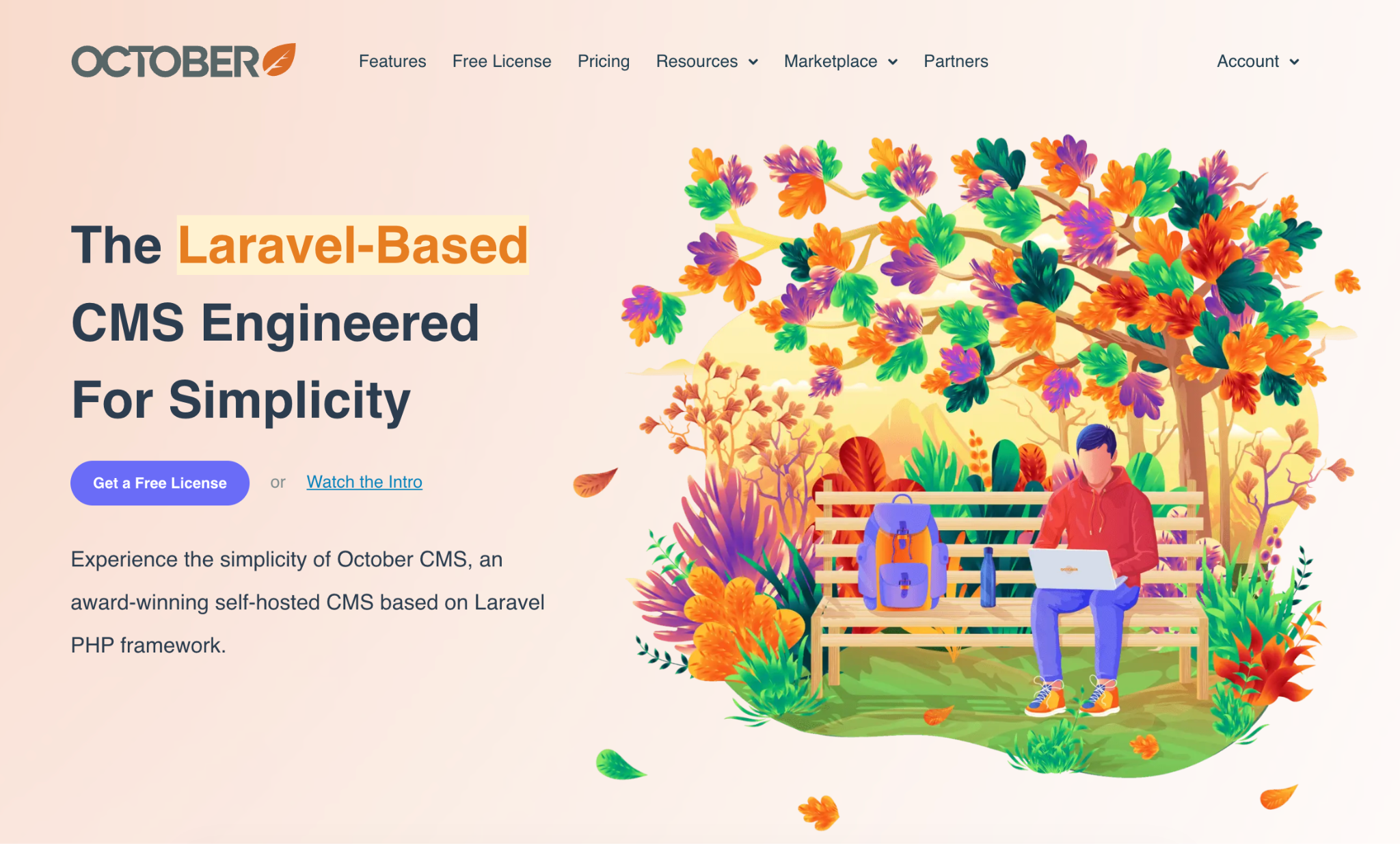
Like Craft CMS, October CMS required a technical installation, which we completed with a colleague’s help on Hostinger’sVPS hosting.
Overall rating | 6.5/10 |
Best for | Developers, especially those who prefer Laravel and want a toolkit for custom websites |
Pricing | Your first license is free, including for commercial projects, with one year of updates. Each additional website needs a $39 license, and updates cost $39/year after the first year. Your site keeps running even if you stop renewing. |
October CMS 4.4 added built-in tools for visitor-submitted content, such as comments, contact forms, and reviews, as well as a moderation inbox and spam protection.
October CMS onboarding and first impressions
October CMS looks technical as soon as you log in, because its dashboard opens with system builds and event logs. The layout is still uncluttered, with clear sections for CMS, Media, and Settings.
Finding themes is easy, but installing them is a manual process. In WordPress, the same task takes one click.
Building a site with October CMS
Building a site with October CMS requires writing code. The page editor is a code editor with no visual builder or blocks, so pages, layouts, and content are all written by hand.
Developers get total control this way, but we couldn’t finish the test site without writing code.
What we liked about October CMS
October CMS handles email without a separate service. You create templates, set branding, and configure mail settings from the dashboard.
October CMS pros and cons
October CMS’ main advantage is full control for developers, while its main drawback is that non-developers can’t build a site without code.
October CMS pros
- The dashboard splits into clear CMS, Media, and Settings sections.
- October CMS includes built-in email templates and settings.
- Version 4.4 adds moderated visitor submissions like comments and reviews.
- Developers get deep control to build fully custom sites.
October CMS cons
- Basic tasks like creating a page require coding knowledge.
- October CMS is inaccessible for non-technical users.
- The installation requires developer expertise.
- Themes and plugins must be installed manually.

10. Joomla: Built-in control for advanced users
Joomla suits advanced users who want built-in control over features like caching and privacy without relying on plugins. Caching stores copies of pages so they load faster. Beginners face a steep learning curve.
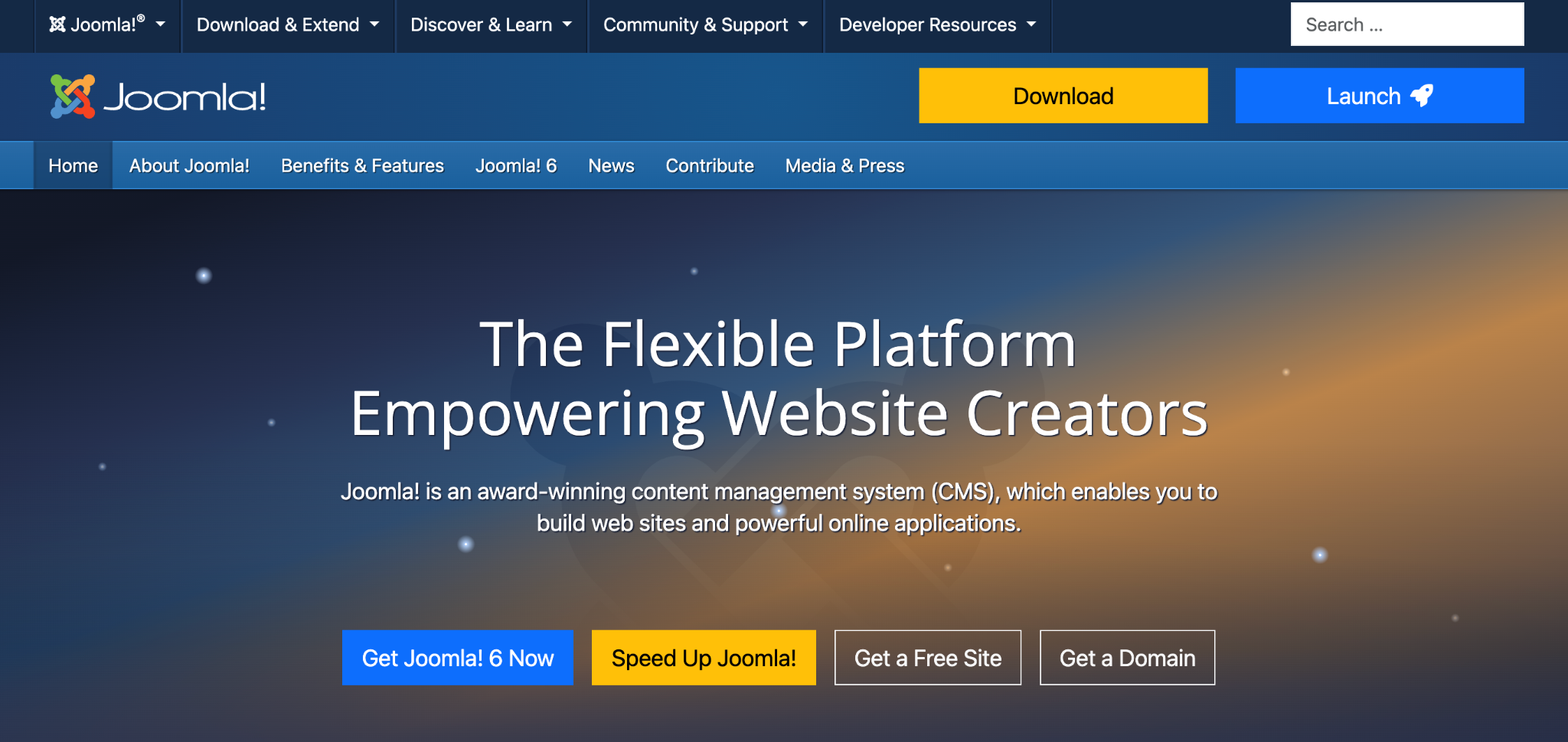
Installation was the easy part. Joomla has its own card in Hostinger’s auto-installer, so the software was running in a few minutes.
Overall rating | 6/10 |
Best for | Advanced users and developers who want control over every aspect of their site |
Pricing | The software is free, but you pay for hosting and for add-ons like drag-and-drop builders. |
Joomla 6, released in October 2025, added automatic updates for minor versions and security fixes, as well as a customizable copy of its default template, Cassiopeia. The copy lets you change colors and font sizes without editing code.
According to the Joomla project, Joomla 6.1, released in April 2026, added a privacy-friendly spam check for forms that don’t require an account and a visual editor that maps the whole publishing process.
Joomla onboarding and first impressions
Joomla onboarding was confusing, and after installation, we didn’t know where to go next. We had to ask Hostinger Agent how to find the administrator dashboard, an early sign that Joomla targets technical users.
Our test install ran Joomla 6.2.0. Once we reached the admin area, a Take a Tour button offered guided tours of the main screens.
Building a site with Joomla
Building a site with Joomla starts in an article editor, with a full formatting toolbar, version history, and a built-in accessibility checker.
Changing the design is harder. Joomla ships with one template, Cassiopeia, plus a customizable copy of it; any other design must be found and installed as an extension.
Joomla’s publishing logic was a bigger hurdle than changing the design, since creating content and showing it on the site are two separate steps.
After we published our first article, the homepage stayed blank. In Joomla, a published article only appears once you mark it as Featured, which adds it to the homepage, or link it to a menu item. Every other CMS we tested shows a published page without that extra step.
Joomla’s community forums featured a wide selection of templates, extensions (Joomla’s term for add-ons), and page builders. None of them appear during setup, though, so you have to know to look for them in the extension installer.
What we liked about Joomla
We liked Joomla’s built-in settings for caching and privacy most, because they work without installing plugins.
Hostinger Agent also made Joomla usable for a non-developer by providing clear instructions whenever we got stuck on the dashboard or during the publishing steps.
Joomla pros and cons
Joomla’s main advantage is built-in control without plugins, while its main drawback is a steep learning curve.
Joomla pros
- The default template lets you change colors, fonts, and layout without code.
- A large selection of extensions and templates adds functionality.
- Built-in cache and privacy settings work without plugins.
- Joomla 6 installs minor updates and security fixes automatically.
Joomla cons
- The learning curve is steep for anyone new to the platform.
- Published articles stay hidden until you feature them or add them to a menu.
- The admin area packs many options onto every screen.
- Onboarding doesn’t guide you to templates or page builders.

How do you choose the best CMS?
To choose the best CMS, start with your main goal, then match it to your technical skills, budget, and growth plans. Weigh these four factors before you commit.
- Your goal. Selling, publishing, generating leads, and building custom projects each favor different platforms.
- Your technical skills. WordPress, WooCommerce, and Ghost work without code, while Craft CMS and October CMS need a developer to install.
- Your budget. The software is often free, but hosting, premium themes, add-ons, and developer time add up.
- Your growth plans. A platform that’s too simple for your future needs means moving your whole site later.
What features should I look for in a content management system?
The most important CMS features are an editor you’re comfortable with, built-in SEO tools, regular security updates, enough add-ons for your future needs, and user roles for teams. Compare these five features across platforms before you decide.
Feature | What to check |
Editor | A visual block editor for non-developers, or a code editor for developers |
SEO tools | Built-in page titles, search descriptions, and a sitemap (a file listing your pages for search engines) are built in, not as paid add-ons |
Security | Automatic or 1-click updates for the main software and add-ons |
Add-ons | Enough themes and plugins for the features you’ll need later |
User roles | Permissions for editors and contributors if a team manages the site |
Which CMS should you choose and why?
Choose WordPress for most websites because it covers the widest range of goals, and a specialized platform when one goal, like selling or publishing newsletters, matters most. Here’s which CMS fits each common goal.
For | Our recommendation is | Why |
Bloggers and small businesses | WordPress | Free software with themes and plugins that scale from a small blog to a large business site. |
Online stores | WooCommerce | A full store inside WordPress, with a free plugin and low starting costs. |
Publishers and newsletters | Ghost | Built-in newsletters, paid memberships, and analytics, with no plugins needed. |
Marketing-driven businesses | HubSpot CMS | A website connected directly to a CRM and marketing automation. |
Large-scale ecommerce | Adobe Commerce | Built for large catalogs, complex B2B sales, and multiple stores. |
Complex, content-heavy sites | Craft CMS | A content structure developers define in detail, with an editor non-developers understand. |
Teams publishing to websites and apps | Contentful or Sanity | One content source for websites, apps, and other channels. |
What is the best CMS for beginners?
WordPress is the best CMS for beginners, because themes give you a ready-made design in minutes and the block editor works without code. Some hosts, including Hostinger, add AI website builders that create the first draft for you.
Plugins add features as you need them, and free tutorials and community forums cover common problems, from installing themes to fixing plugin conflicts.
What is the most widely used CMS?
WordPress is the most widely used CMS in the world. As of October 2026, it powers 39.5% of all websites and 58.3% of websites with a known CMS, according to W3Techs.
What is the best headless CMS?
Contentful is the best headless CMS for large companies, especially those already using Salesforce, while Sanity suits small to midsize teams that want to start free. Both store content in one place and deliver it to any website, app, or device.
A headless CMS manages content but has no built-in front end. It sends content through an application programming interface (API), a connection that lets two pieces of software exchange data, so developers build the front end with any tools they like.
A headless CMS makes sense in three situations.
- You publish the same content to a website, a mobile app, and other channels.
- Your developers want full control over the front end’s code and design.
- Your content needs a strict structure that many people and systems reuse.
For a single website managed by non-developers, a traditional CMS like WordPress is simpler. WordPress also works as a headless CMS through its built-in API if your needs change later.
Here’s how the two headless platforms we recommend compare.
Contentful | Sanity | |
Free plan | 10 users, for testing only | 20 users, public content only |
Entry paid plan | Lite, $300/month (20 users) | Growth, $15/month per seat (up to 50 seats) |
Best for | Large companies, especially Salesforce users | Small to midsize teams that want to start free |
Main limitation | The free plan can’t run a live commercial site | Single sign-on (SSO) and annual billing require Enterprise |
Contentful: Best for enterprise teams
Contentful is built for enterprise teams, with tools that keep large content libraries organized, plus approval controls, AI features, and personalization as a paid add-on.
Salesforce completed its acquisition of Contentful on September 1, 2026, and plans to integrate it with its customer platform.
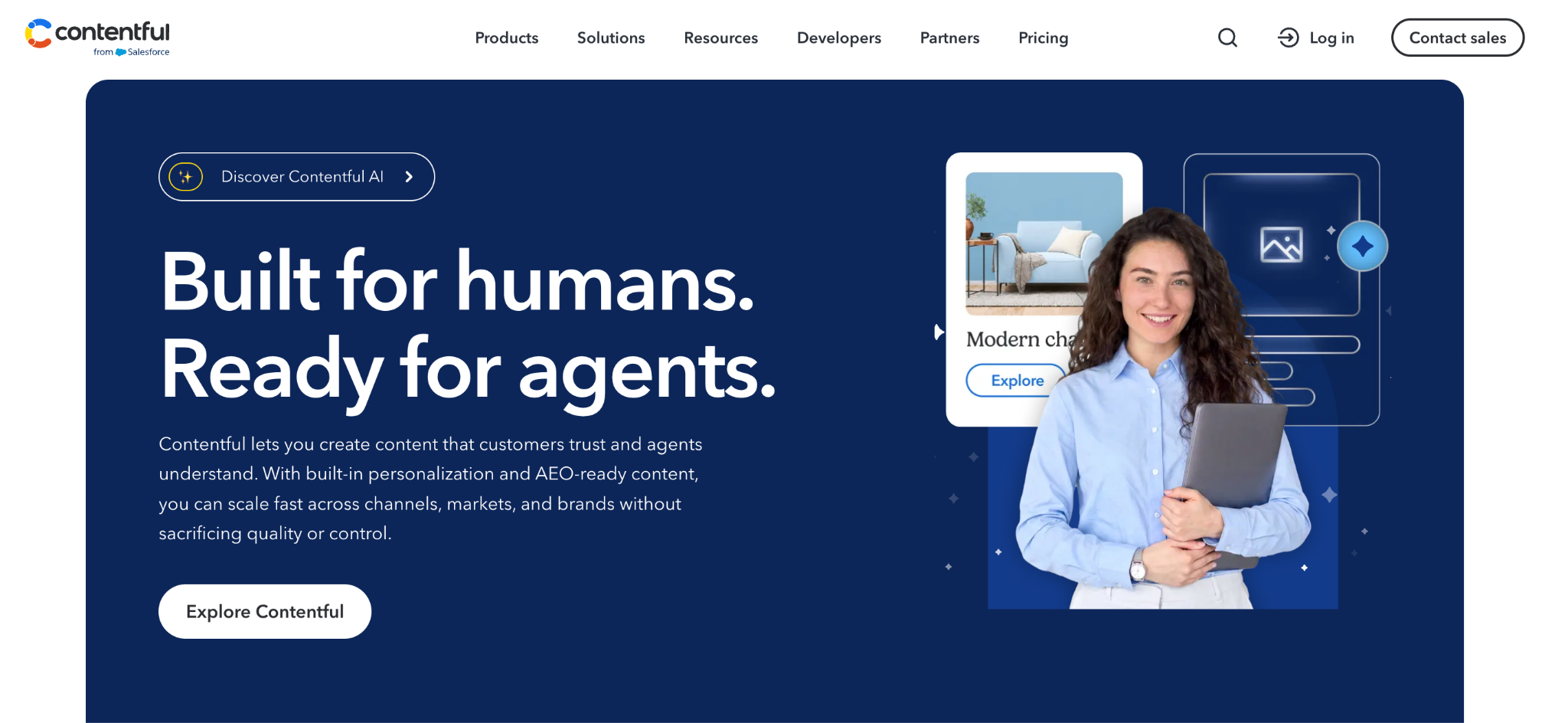
Best for | Large companies, especially Salesforce users, managing content across websites and apps |
Pricing | The Free plan costs $0 for learning and testing. Lite costs $300/month for up to 20 users. Enterprise pricing is custom. |
These are Contentful’s main features:
- Organized content. You define reusable content formats, like products or blog posts, and how they connect.
- Collaboration on Lite. Comments, task management, scheduled publishing, and live collaboration.
- Contentful Studio. A drag-and-drop canvas for assembling pages from design components, on Enterprise plans.
- AI Actions. Translation, rewriting, and SEO metadata generation inside the editor, on Enterprise plans.
Warning: Contentful’s Free plan is for testing and learning only, and its terms don’t allow commercial use. A live business site needs at least the Lite plan.
Contentful's Free plan is for testing and learning only, and its terms don't allow commercial use. A live business site needs at least the Lite plan.
Costs also rise as projects grow. A larger project space, with room for 50 content formats and 50,000 entries, costs $850/month on top of the Lite plan.
Sanity: Best for growing teams
Sanity fits growing teams best, because its free plan covers up to 20 users and the Growth plan charges per seat. You pay only for the editors who need access.
Best for | Small to midsize teams that want to start free |
Pricing | Free costs $0 forever. Growth costs $15/month per seat, billed monthly Each editor, developer, or admin needs a seat. Enterprise pricing is custom. |
These are Sanity’s main features:
- Live content storage. Changes appear instantly across all connected websites and apps.
- Visual editing. Live previews show changes on your actual site as you edit.
- Flexible structure. Unlimited content formats and languages, even on the free plan.
- AI tools. Content Agent on every plan, and AI Assist on Growth.
Viewers are free on every plan, so people who only need to read content don’t need a paid seat.
Sanity’s limits show up as your team grows. On the free plan, your content collections are public, so anyone can read them through the API. SSO, which lets employees log in with one company account, requires an Enterprise contract.
Where should you host a headless CMS front end?
You host a headless CMS front end on any hosting plan that supports the tools your front end is built with. Contentful and Sanity store and deliver your content, but your website’s code needs its own hosting.
Most headless front ends needNode.js hosting, because they’re built with frameworks like Next.js, Astro, and Nuxt, which depend on Node.js, software that runs JavaScript on a server.
Hostinger’s Unlimited and Cloud Startup web hosting plans support all three, along with React, Vue, and Angular.
How we tested the best CMS platforms
We tested nine of the 10 CMSs by building the same simple website for a fictional local business, from sign-up to launch. This showed us how easy each platform is for someone who can’t code.
We regularly review website builders and AI tools but don’t write custom code, so we tested each CMS the way a non-developer would. When a platform needed a developer to install, as Craft CMS and October CMS did, a developer colleague handled the setup, and we did the rest.
Adobe Commerce is only available through a sales team, so we rated it based on research into Adobe’s official documentation. We also researched Contentful and Sanity rather than testing them, so they have no rating.
We rated each platform on five factors.
- Technical knowledge required. How hard is the platform to set up and customize for a non-developer?
- Day-to-day ease of use. How intuitive do everyday tasks like adding photos and products feel?
- Customization and flexibility. How much freedom do you have to change design and functionality?
- Add-ons. How large and accessible is the marketplace for extra features?
- Built-in business tools. How many marketing and content features come included?
User-friendly platforms let us build a full site, while October CMS stopped us at basic tasks like creating a page. Each platform’s rating reflects that gap.
We updated our first-hand findings in October 2026 and re-verified every price and feature against official sources.
Is a CMS always the best option to build a website?
No, a CMS isn’t always the best option. It’s built for managing a growing library of content without coding, but a website builder suits simple sites better, and coding from scratch gives full control.
Each option fits a different situation.
- CMS. The best choice for blogs, content-heavy business sites, and stores that will grow over time.
- Website builder. The fastest choice for beginners who need a simple site without managing software.
- Custom code. The most flexible choice for developers, but every content update requires editing code.
Awebsite builder and a CMS split the work differently. A builder handles design, hosting, and updates for you, while a CMS leaves those tasks to you in exchange for more flexibility.
Hostinger AI Builder works like the AI setup tools we tested with WordPress and HubSpot, creating a complete site from a short description, but without a CMS to manage afterward. It’s a practical starting point if you don’t need a CMS’s flexibility yet.
Your choice also changeshow long it takes to create a website. A website builder usually gets a simple site online the same day, while a CMS site with custom features takes longer to plan and build.
Start with WordPress if you decide a CMS is right for you, but can’t pick a platform, since it handles everything from blogs to online stores.
All of the tutorial content on this website is subject to Hostinger's rigorous editorial standards and values.

Simon is a dynamic Content Writer who loves helping people transform their creative ideas into thriving businesses. With extensive marketing experience, he constantly strives to connect the right message with the right audience. In his spare time, Simon enjoys long runs, nurturing his chilli plants, and hiking through forests. Follow him on LinkedIn.