To rank in ChatGPT, allow OpenAI’s search crawler, the program that reads web pages for ChatGPT, on your site, then publish pages that answer your customers’ questions and earn mentions on trusted websites.
ChatGPT, OpenAI’s Artificial Intelligence (AI) chatbot, responds in conversation rather than displaying a page of search results like Google. When it searches the web, it picks sources for each prompt (the question someone types), based on how relevant, easy to find, and trustworthy a page is.
There are six steps to rank in ChatGPT:
- Give OpenAI’s search crawler permission to visit your site.
- Confirm the crawler can reach your pages.
- Get your pages into Bing and Google search results.
- Keep your most important text in the page itself, so crawlers don’t need JavaScript to see it.
- Write pages that answer the exact questions your customers ask.
- Earn coverage on the websites ChatGPT cites for your customers’ questions.
After that, track how often ChatGPT sends you visitors and mentions your brand, and fix the problems that keep sites out of answers.
No method guarantees a citation, but these steps address common access and content problems that keep ChatGPT from finding or citing your site.
How does ChatGPT choose which websites to cite?
ChatGPT chooses websites to cite by searching the web when a question requires current information and picking the pages it judges most relevant and reliable.
When it searches, ChatGPT rewrites the prompt into one or more targeted search queries. It gathers pages from partner search providers and from OpenAI’s own crawler.
Two people asking the same question in different words can get different sources, because ChatGPT rewrites each prompt before searching.
Answers also vary from person to person, depending on each user’s approximate location and ChatGPT’s memory feature, which saves details from past chats.
OpenAI says ChatGPT ranks search results based on several factors designed to surface relevant, reliable information. In practice, you can influence three areas:
- Discoverability. OpenAI’s crawler and search engines can find and read the page.
- Relevance. The page answers the question behind the prompt in the words people use to search. The principles of AI content optimization apply here.
- Authority. Other trusted websites mention your brand often and describe it consistently.
What’s the difference between a ChatGPT mention and a citation?
The difference is the link: a mention is your brand named in ChatGPT’s answer without a link, while a citation is a clickable link to your page. Citations appear as small links next to the sentences they support and in the list that opens when you select Sources.
Website citations appear when ChatGPT searches the web. Mentions can come from a live search, too, or from ChatGPT’s training data, the text it learned from. That’s why it sometimes names a brand without linking anywhere.
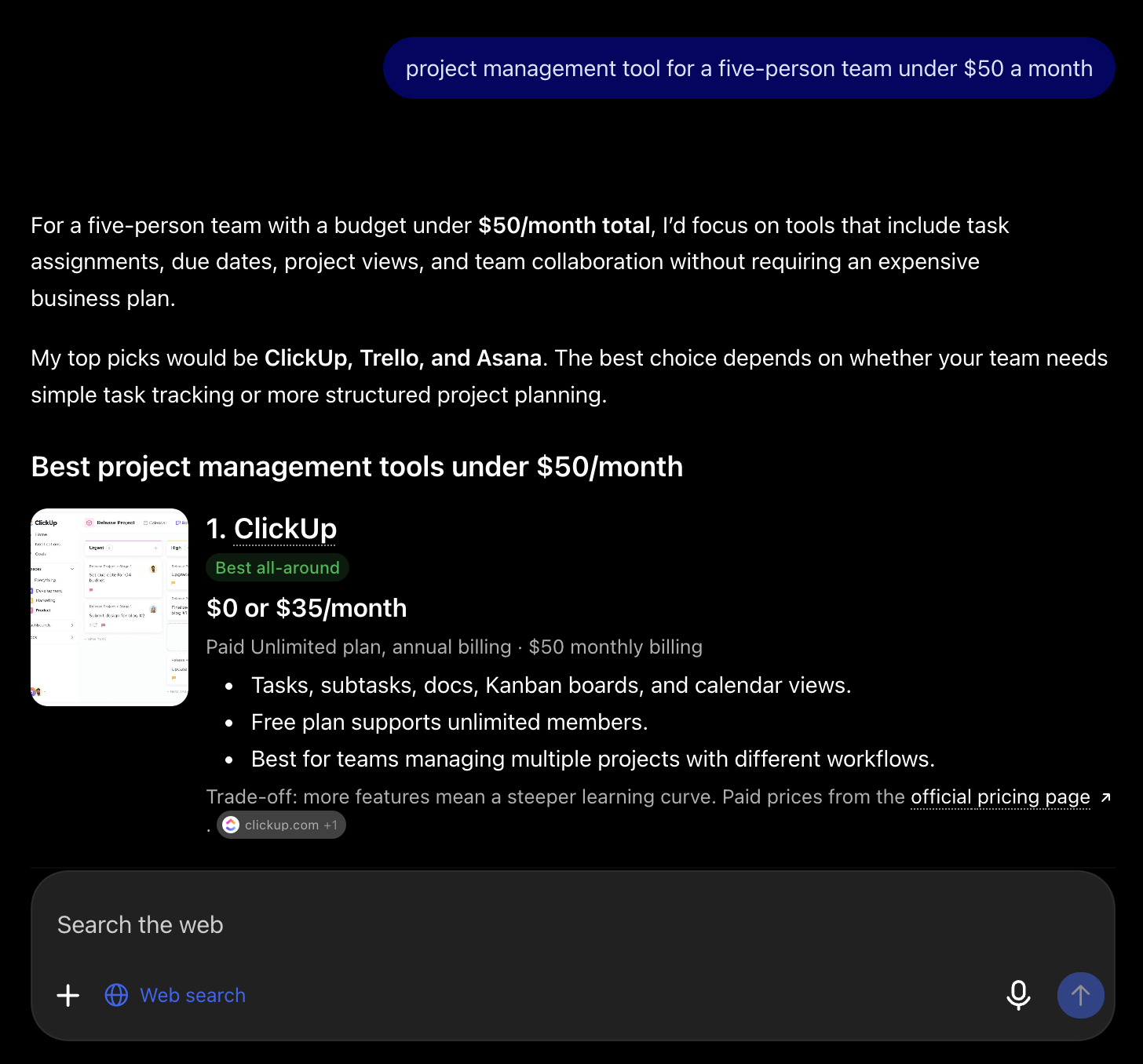
When we asked ChatGPT for a project management tool for a five-person team under $50 a month, its summary named ClickUp, Trello, and Asana without links. Further down, ClickUp’s entry cited clickup.com as a source.
1. Allow OpenAI’s search crawler on your website
To let ChatGPT find your site, allow OAI-SearchBot, the crawler OpenAI uses for ChatGPT search, in your robots.txt file, and make sure your security settings don’t block it.
The robots.txt file is a short text file in your site’s main folder that tells crawlers which pages they may visit. OpenAI’s search crawler checks this file before it reads your pages.
According to OpenAI’s crawler documentation, sites that block OAI-SearchBot don’t appear in ChatGPT search answers, although a plain link to the site can still show up.
OpenAI documents four bots that visit websites. Only OAI-SearchBot controls whether your pages can appear in ChatGPT search:
Crawler | What it does | Affects ChatGPT search visibility |
OAI-SearchBot | Finds and refreshes pages for ChatGPT search | Yes |
GPTBot | Collects content that may be used to train OpenAI’s AI models | No |
ChatGPT-User | Opens a page when a person asks ChatGPT to visit it | No |
OAI-AdsBot | Checks the pages that advertisers link to from ChatGPT ads | No |
GPTBot and OAI-SearchBot work independently, so you can let ChatGPT cite your pages while opting out of GPTBot’s collection for AI training.
OpenAI notes that robots.txt rules may not apply to ChatGPT-User, because a person triggers each of its visits.
Many site owners already make this choice. In Hostinger’s analysis of 66.7 billion automated requests across 5 million hosted websites, OAI-SearchBot reached 68% of sites during a six-day sample in November 2025, while GPTBot fell to 12%, down from 84% in August.
Hostinger’s report calls this approach, allowing search crawlers and blocking training crawlers, the emerging standard.
Most hosts let you edit robots.txt through a file manager or a WordPress plugin. On Hostinger web and cloud hosting, the file sits in your site’s main folder, public_html, which you can access via the File Manager in the Hostinger dashboard.
On WordPress, a file you create there replaces the default version, so copy the rules and sitemap line from your live robots.txt into the new file first.
Hostinger AI Builder works differently. It automatically creates robots.txt that allows all crawlers, including OAI-SearchBot, and doesn’t accept custom rules.
To allow OpenAI’s search crawler and block its training crawler, add these two sets of rules to your robots.txt file. Edit the existing set instead of adding a new one if the file already has a set for either crawler:
User-agent: OAI-SearchBot Allow: /

User-agent: GPTBot Disallow: /
Each set starts with a User-agent line naming one crawler, followed by what it may visit (Allow) or may not visit (Disallow). A single slash (/) means the whole site.
OAI-SearchBot follows only the set that names it, not the rules under User-agent: *. Copy any restrictions you want it to follow, such as Disallow: /wp-admin/, into its own set.
Pro tip
Delete the two GPTBot lines if you don't mind GPTBot collecting your content for AI training. GPTBot has no effect on your ChatGPT search visibility either way.
After you change your rules, OpenAI’s systems take about 24 hours to pick them up.
A robots.txt rule only gives permission. OpenAI’s ChatGPT search help page also asks site owners to confirm their hosting provider and security services allow OAI-SearchBot.
The crawler can’t read your pages if your firewall, the filter that blocks suspicious traffic, stops it or asks it to prove it’s human.
2. Check that OpenAI’s crawlers can reach your pages
To check whether OpenAI’s crawlers can reach your pages, read your live robots.txt file, confirm your security settings don’t block them, and scan your site with the Hostinger AI Visibility Checker. Each check catches a different problem, so run all three.
- Read your live robots.txt file. Open domain.tld/robots.txt in a private browser window, using your real domain, not a temporary address. Look for an OAI-SearchBot entry. Without one, the User-agent: * entry, which covers all crawlers, applies instead. Neither entry should say Disallow: /.
- Check your security settings. On Hostinger, they’re part of the Content Delivery Network (CDN), a network of servers that speeds up your site and filters unwanted traffic. Go to Websites → your website → Performance → CDN → AI Audit and confirm OAI-SearchBot isn’t blocked.
- Scan with the AI Visibility Checker. Enter your domain in the Hostinger AI Visibility Checker and click Scan site. Review the Crawl permission category first. On Hostinger web and cloud hosting plans, you can also run it from Websites → your website → Analytics → AI visibility.
Clear your site’s cache, the saved copy of your pages that speeds up loading, if you still see old rules after editing robots.txt. On Hostinger, go to the Essentials section of your website’s dashboard and click Clear cache.
Hostinger turns on its CDN automatically for eligible websites, so AI Audit can apply even if you’ve never opened it. On other hosts, look for crawler or bot settings in your CDN or firewall dashboard.
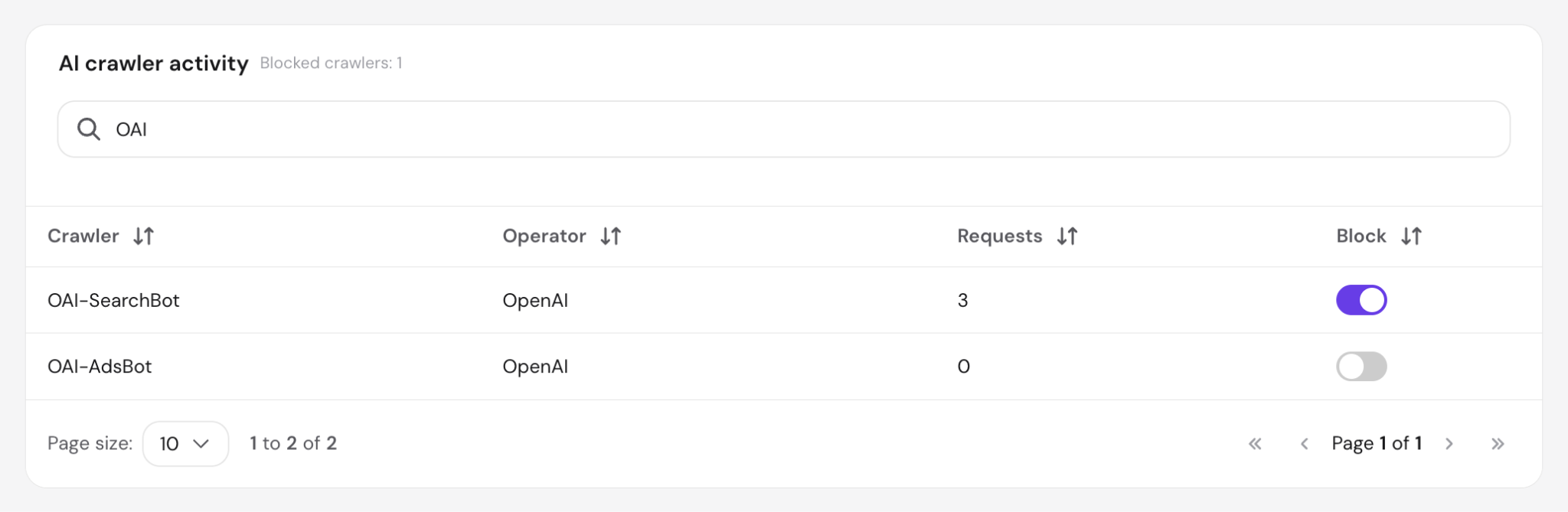
Every AI crawler in AI Audit has its own Block switch. On our test site, AI Audit allowed all of them by default. Other CDN settings, such as the security level, can still block crawlers while the switch is off.
AI Audit also counts each crawler’s requests over the last 24 hours. Requests from OAI-SearchBot mean OpenAI’s crawler is trying to reach your site.
The AI Visibility Checker scans your homepage and site-wide files, such as robots.txt, then runs 26 checks across seven categories. Each scan returns an AI readiness score out of 100, a letter grade, and a fix for every failed check.
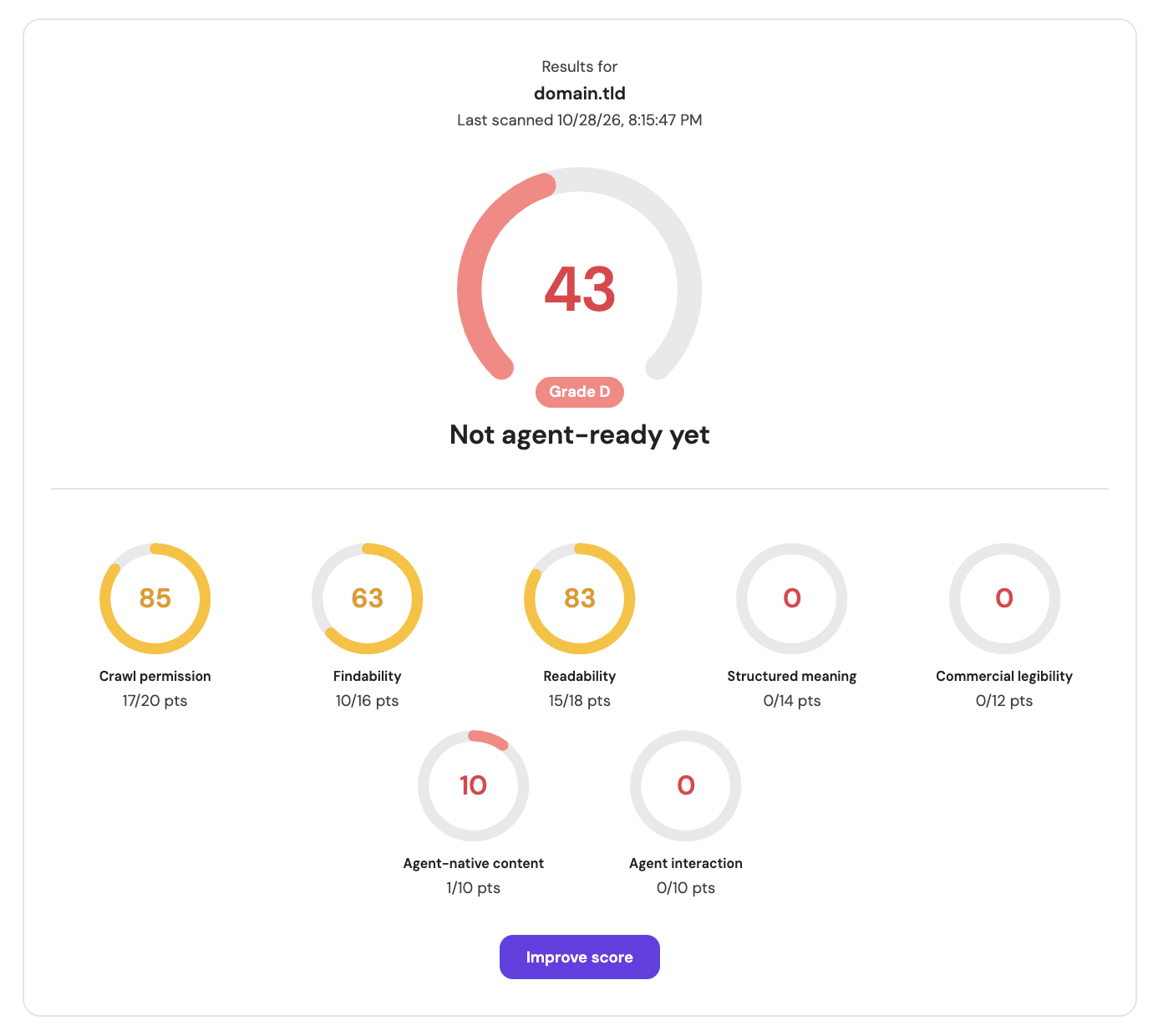
The Crawl permission category reviews your robots.txt rules for the AI crawlers the tool tracks. It also sends a test visit posing as an AI tool to check whether bot protection stops it from loading your homepage.
When we blocked GPTBot on a WordPress test site, the AI crawlers are not blocked check dropped to 6/7, and named the crawler responsible: “Blocked by robots.txt: GPTBot.” A lower score from blocking GPTBot doesn’t affect ChatGPT search, because GPTBot only collects content for AI training.
Every failed check also has a Copy prompt button. It copies the fix as instructions you can paste into an AI assistant, which helps if you don’t edit site files yourself.
The AI Visibility Checker spots common access and readability problems on your homepage and in site-wide files. It’s an AI readiness assessment, not a crawler manager or citation tracker. Its score doesn’t confirm that ChatGPT has crawled your pages or will cite them. It also doesn’t track ChatGPT mentions or citations, keep a history of crawler visits, edit robots.txt, or manage crawlers.
3. Get your pages listed in Bing and Google
To help Bing and Google find and list your pages, submit your sitemap in Bing Webmaster Tools and Google Search Console, the free tools each search engine offers site owners.
A sitemap is a file that lists your site’s pages and includes when each one was last updated. Search engines read it to find pages they would otherwise miss.
Getting listed matters for ChatGPT because Microsoft, which runs Bing, is one of ChatGPT’s search partners.
- Find your sitemap. On WordPress, open domain.tld/wp-sitemap.xml. Open domain.tld/sitemap_index.xml instead if you use the Yoast SEO or Rank Math plugin with its sitemap feature turned on. These plugins replace the WordPress sitemap with their own.
- Submit it to both search engines. Paste your sitemap’s address into Google Search Console under Indexing → Sitemaps, and into the sitemap section of Bing Webmaster Tools. Submission doesn’t guarantee a listing, so check each tool’s reports for excluded pages.
- Add it to robots.txt. A Sitemap: line points every crawler that reads the file to your page list. WordPress includes this line in its default robots.txt.
- Notify Bing faster with IndexNow. IndexNow is a free system that tells Bing and other participating search engines, such as Yandex and Naver, when you publish or update a page. Bing’s free IndexNow plugin for WordPress sends these updates automatically.
- Remove stray noindex tags. A noindex tag is a line of code that tells search engines to exclude a page from their results, and OpenAI respects it, too.
Being listed in search engines helps ChatGPT find your pages through its search partners. Readable content, clear answers, and accurate coverage on other sites improve your chances of citation, but no single factor decides whether ChatGPT picks your page.
4. Make key content readable without JavaScript
To make key content readable for ChatGPT, put the text you want quoted, such as answers, prices, and specifications, directly in your page’s code instead of loading it afterward with JavaScript.
The server, the computer that stores your site, sends code written in HyperText Markup Language (HTML) when someone opens a page. JavaScript is a different kind of code that runs in the visitor’s browser to add or change content.
OpenAI doesn’t say whether its crawlers run JavaScript, so text that appears only after JavaScript runs may never reach them.
Content that often goes missing includes:
- Pages built in the browser. Some sites send an almost empty page and fill in everything with JavaScript.
- Click-to-open sections. Tabs and collapsible sections sometimes load their text only when a visitor clicks.
- Embedded tools. Prices, reviews, and comparison tables pulled in from third-party tools load through JavaScript.
Follow these steps to check whether a page’s key text is in its HTML:
- Open the page in Chrome.
- View the page’s raw code with Ctrl+U on Windows or Cmd+Option+U on Mac.
- Search for a sentence you want ChatGPT to cite with Ctrl+F on Windows or Cmd+F on Mac.
Crawlers that don’t run JavaScript may miss the sentence if it doesn’t appear in the raw code.
The AI Visibility Checker runs a similar check on your homepage in its Content is readable without JavaScript check, but it doesn’t look for specific sentences. A default WordPress site we tested passed with 58,865 characters of readable text in its HTML.
Pro tip
Ask your developer to check the theme, plugins, and page builder if a WordPress page fails the test, since any of them can load text with JavaScript.
5. Create content that matches how people prompt ChatGPT
To get cited, write pages that cover the details people include in their ChatGPT prompts, such as budget, team size, and required features.
ChatGPT searches using a rewritten, more targeted version of the prompt and can combine several sources into a single answer. Pages that state these details plainly give it specific facts to match and quote.
Take the prompt “project management tool for a five-person team under $50 a month.” It contains three requirements: a tool type, a team size, and a price limit.
A page that addresses all three gives ChatGPT a fact for each requirement. A generic list of popular tools that omits prices and team sizes leaves it with far less to work with.
Three habits make your pages easier to cite:
- Answer first. Put the direct answer in the first sentence under each heading, then add detail.
- Use exact figures. Write numbers with units, dates, and version names instead of words like “fast” or “affordable.” Specific facts are easier to quote.
- Publish what nobody else has. Your own data, test results, and first-hand examples give ChatGPT a reason to cite your page over others that repeat the same facts.
6. Earn mentions and links from sites ChatGPT already cites
To earn mentions and links from the sites ChatGPT already cites, run your customers’ questions in ChatGPT, note which websites it lists as sources, and get your brand listed, reviewed, or featured on them. Accurate coverage there puts your brand where ChatGPT already looks.
Review sites, comparison articles, business directories, and online forums shape your brand reputation in AI search. ChatGPT can cite them when it answers questions about your brand.
Follow these steps to find and earn coverage on those sites:
- List your prompts. Write 10 to 20 questions that your customers ask before buying, in their own words.
- Log the cited websites. In a logged-out ChatGPT window, click +, select Web search, and enter each prompt. Write down the websites cited in the answer. Sources also lists other relevant links, so note those separately.
- Spot the repeats. Start with the websites that appear for several prompts, since they shape more of the answers your customers see.
- Get onto those pages. Contact the authors of comparison articles, complete your directory and review profiles, and answer questions in the forums that appear.
- Keep your facts consistent. Use the same prices, features, and contact details across all sources, so every source ChatGPT finds tells the same story.
Links from these pages also send visitors to your site and help search engines find and trust your pages.
How to track your ChatGPT visibility over time
To track your ChatGPT visibility over time, combine four signals: visits from ChatGPT, crawler activity, a monthly log of ChatGPT’s answers, and, for larger sites, a paid tracking tool.
You need more than one signal, because website statistics only record visits from links people clicked in ChatGPT.
Signal | What it shows | Where to find it | Limitation |
Visits from ChatGPT | Visits from links in ChatGPT answers | Your website statistics tool | Misses mentions and unclicked citations |
Crawler activity | Whether OAI-SearchBot reaches your site | Hostinger CDN AI Audit or your server’s visitor logs | Shows access, not citations |
Answer log | Mentions and citations for your chosen prompts | A spreadsheet you update monthly | Answers vary by account, wording, and location |
Paid tracking tools | How often ChatGPT mentions you compared with competitors | Tools such as Semrush’s AI Visibility Toolkit or Ahrefs Brand Radar | Paid subscription; results depend on the prompts and locations the tool tracks |
Links from ChatGPT can include the tracking label, utm_source=chatgpt.com. This label tells website statistics tools, such as Google Analytics 4 (GA4), Google’s free option, identify where a visit came from.
Follow these steps to check ChatGPT visits in GA4:
- Go to Reports → Acquisition → Traffic acquisition.
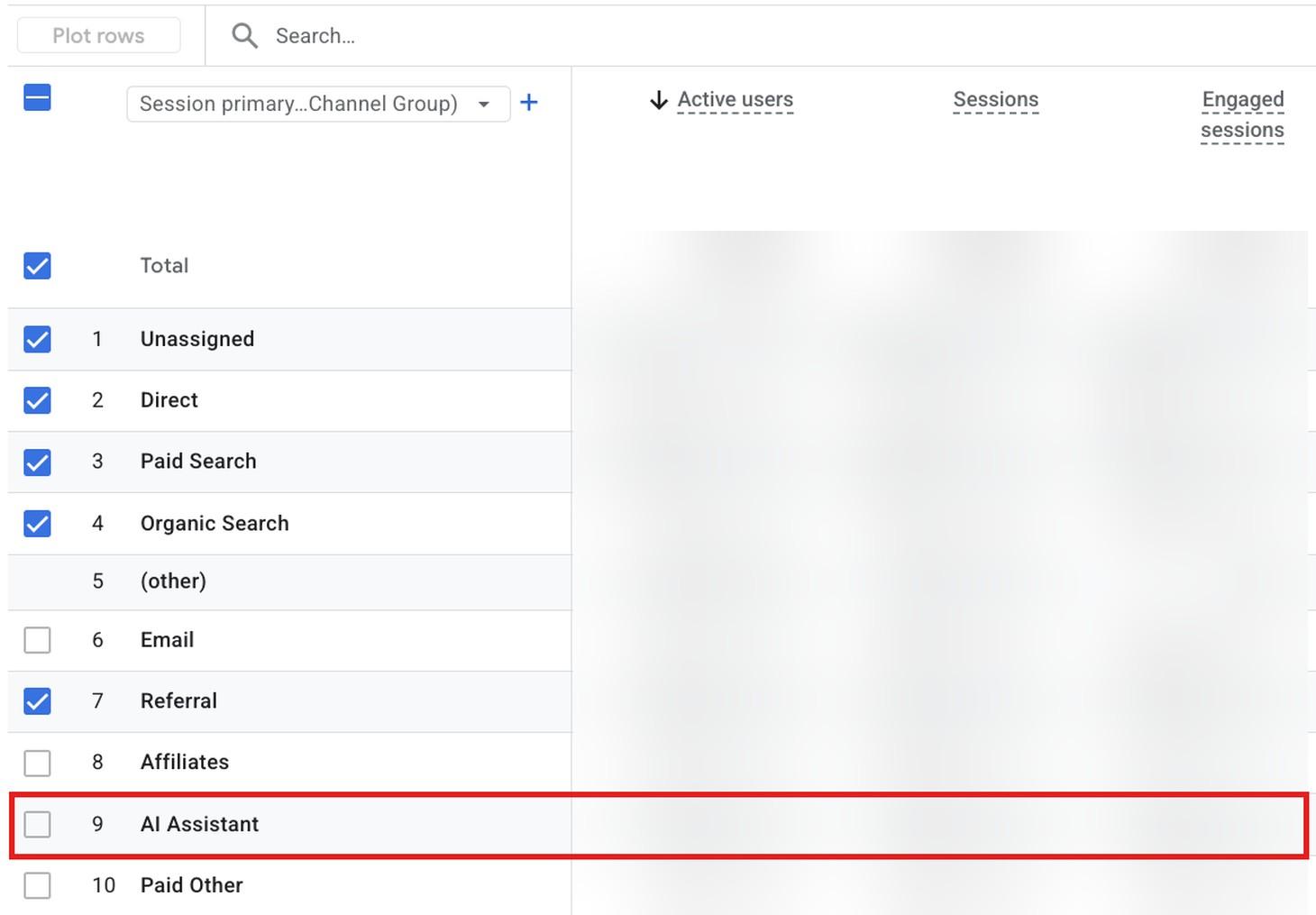
- In the default view, which groups visits by channel, find the AI Assistant row. It shows visits from AI chatbots, including ChatGPT, during the selected dates.
- To see ChatGPT on its own, click the dropdown above the first column of the table and choose Session source / medium.
- Type “chatgpt” in the table’s search box.
For the answer log, run each prompt in a logged-out ChatGPT window so saved memories don’t shape the answer. Record the date, whether ChatGPT mentioned your brand, whether it linked to your site, and which page it linked to.
Why isn’t my website showing up in ChatGPT?
Your website may be missing from ChatGPT because of one of five problems you can check: a blocked OAI-SearchBot, a security setting that stops OpenAI’s crawler, pages missing from search engines, content that loads through JavaScript, or pages that answer the question less completely than the sources ChatGPT cites.
Check these causes in that order, because an early problem can make later fixes pointless. Improving your content won’t help, for example, if OAI-SearchBot is blocked.
These checks identify technical and content gaps, but they can’t account for every missing mention or citation.
Symptom | What to check | Fix |
Your site never appears, even for prompts with your brand name | Whether robots.txt or your CDN settings block OAI-SearchBot | Allow OAI-SearchBot in robots.txt and unblock it in AI Audit |
Your live robots.txt still shows the old rules | Whether your site’s cache is serving a saved copy | Clear the cache, then check the file again |
AI Audit shows no visits from OpenAI | Whether the site just went live, or whether a security level or firewall rule is stopping the requests | Check again in a few days if the site is new. Otherwise, check OAI-SearchBot’s Block switch, your security level, and firewall rules, and change only the setting that stops the crawler |
New pages never get cited | Whether the pages are listed in search engines and free of noindex tags | Submit your sitemap and remove the noindex tag |
ChatGPT summarizes a page but misses prices or details | Whether that content loads through JavaScript | Move the content into the page’s HTML |
ChatGPT cites competitors’ comparison pages instead of yours | Whether the cited pages answer the question more directly or cover details yours lacks | Fill the gaps on your page and earn coverage on the cited sites |
ChatGPT describes your brand with outdated details | Whether old pages elsewhere still list outdated details | Update your profiles and earn fresh coverage |
Avoid the I'm under attack! CDN security level unless your site is under attack. On our test site, it showed every visitor a browser check page before loading. Crawlers that don't run JavaScript get that page instead of your content. Keep the level at Medium, the default.
How long does it take to show up in ChatGPT?
There’s no predictable timeline for appearing in ChatGPT. OpenAI doesn’t publish one and states that placement in ChatGPT search isn’t guaranteed.
You also can’t pay for a better position in ChatGPT’s answers. ChatGPT shows ads in some countries, including the US and the UK, but OpenAI states that ads don’t influence its answers and labels them separately from the response.
Each part of the process has its own typical timing:
- First crawler visits. On our test site, AI Audit logged three OAI-SearchBot requests within 24 hours of connecting its domain.
- Search engine listings. Google says crawling new pages can take days to weeks, and a crawl request doesn’t guarantee a listing.
- Mentions based on training. Updating your website doesn’t change what ChatGPT learned during training until OpenAI trains a newer model. Meanwhile, web search can bring newer information into its answers.
Next steps for auditing your ChatGPT visibility
To keep your ChatGPT visibility, audit your site after every change and once a month, because a new theme, plugin, CDN setting, or hosting provider can block crawlers or hide content without warning.
These checks also help in other AI search tools, such as Google’s AI Overviews and Perplexity, but each tool has its own crawler rules to confirm. Crawler access and content quality are the focus of generative engine optimization.
Run these checks on a schedule:
- After every site change. Rescan with the AI Visibility Checker and open your live robots.txt file. On Hostinger web and cloud hosting plans, AI visibility in the dashboard saves every scan and charts your score over time, so you can see whether a change helped.
- Every month. Update your answer log, compare visits from ChatGPT, and check AI Audit for OAI-SearchBot requests.
- Every quarter. Revisit the sites ChatGPT cites for your prompts, since that list changes as new comparison pages appear.

All of the tutorial content on this website is subject to Hostinger's rigorous editorial standards and values.

Bruno is a Content Writer at Hostinger, focused on creating and optimizing helpful, engaging articles about web development and marketing. With a background in journalism, he combines storytelling with practical insights to make complex topics easier to understand. He has also contributed to publications like MacMagazine and Jornal A Tarde. Outside of work, Bruno enjoys exploring art, cooking, and technology.