Connect your Hostinger Ecommerce online store to Printful to start selling print-on-demand products.
Print-on-demand product (integrated with Printful) is only available for Hostinger AI Builder manual mode, custom sales channel, and quick link stores.
Step 1 – Install the Printful app
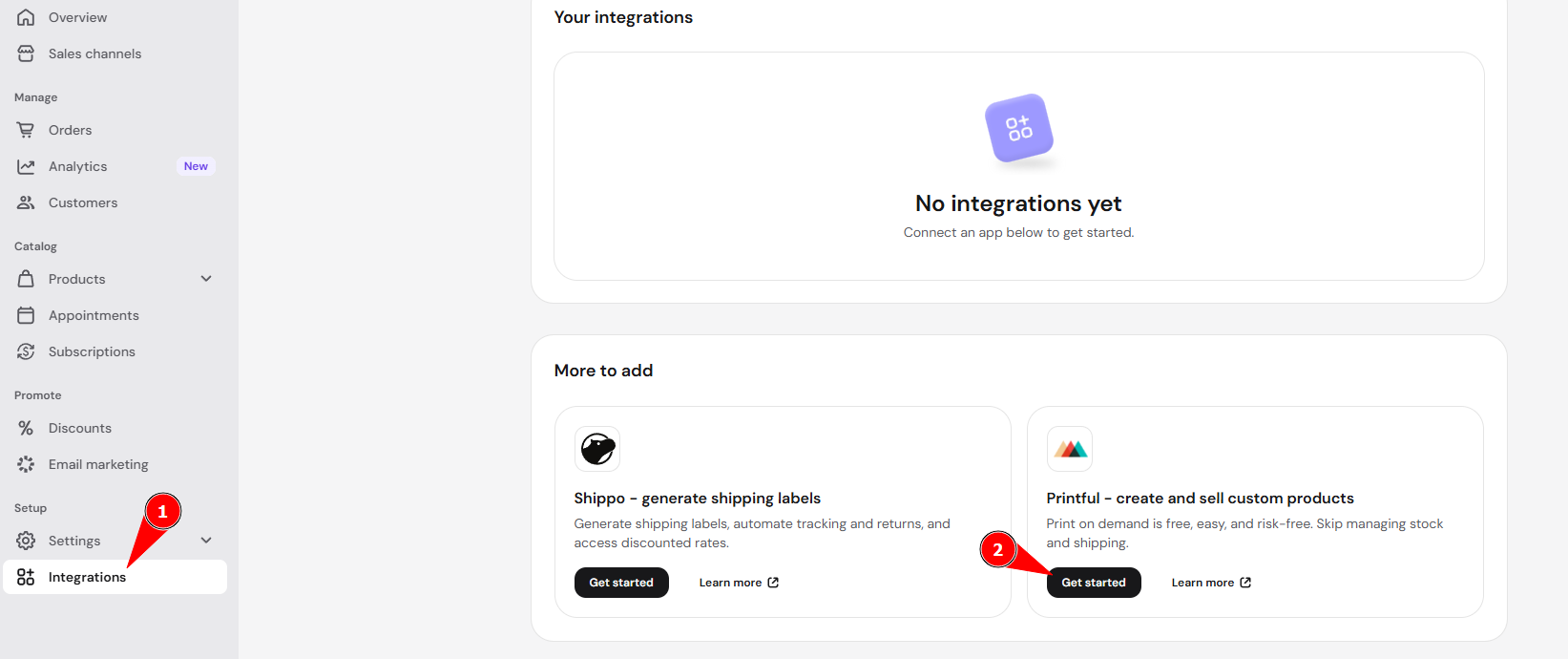
- In Store Manager, navigate to Integrations and click Get started next to Printful app.
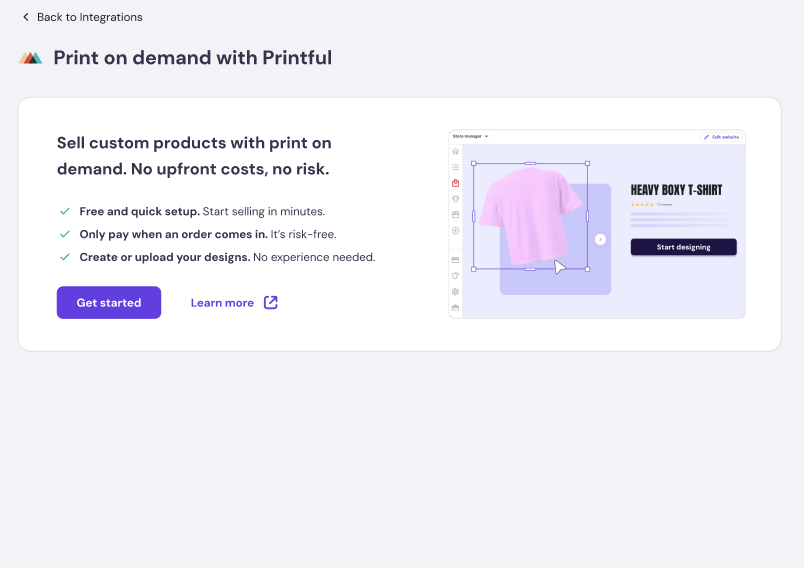
- Select Get started.
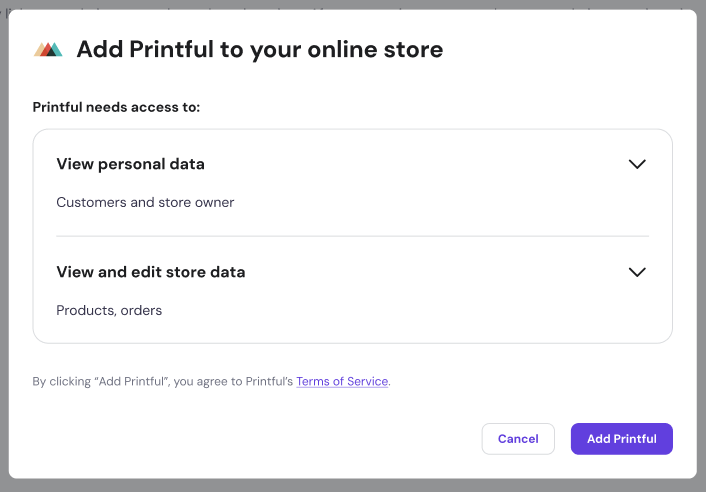
- Next, click Add Printful and confirm app installation.
Step 2 – Connect your store
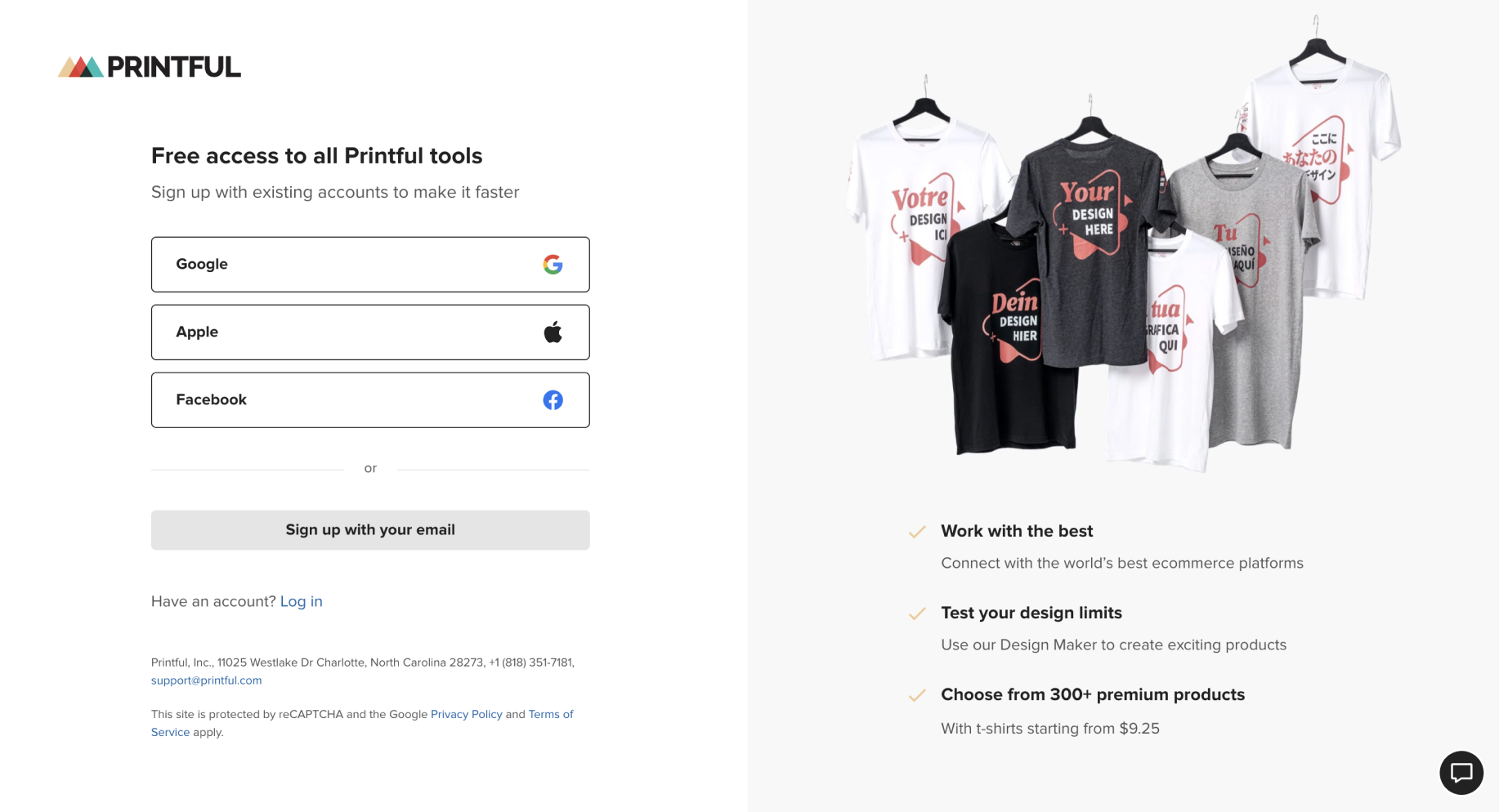
After you install the app, you’ll be asked to log in or create a new Printful account. Just follow the steps and connect the two together.
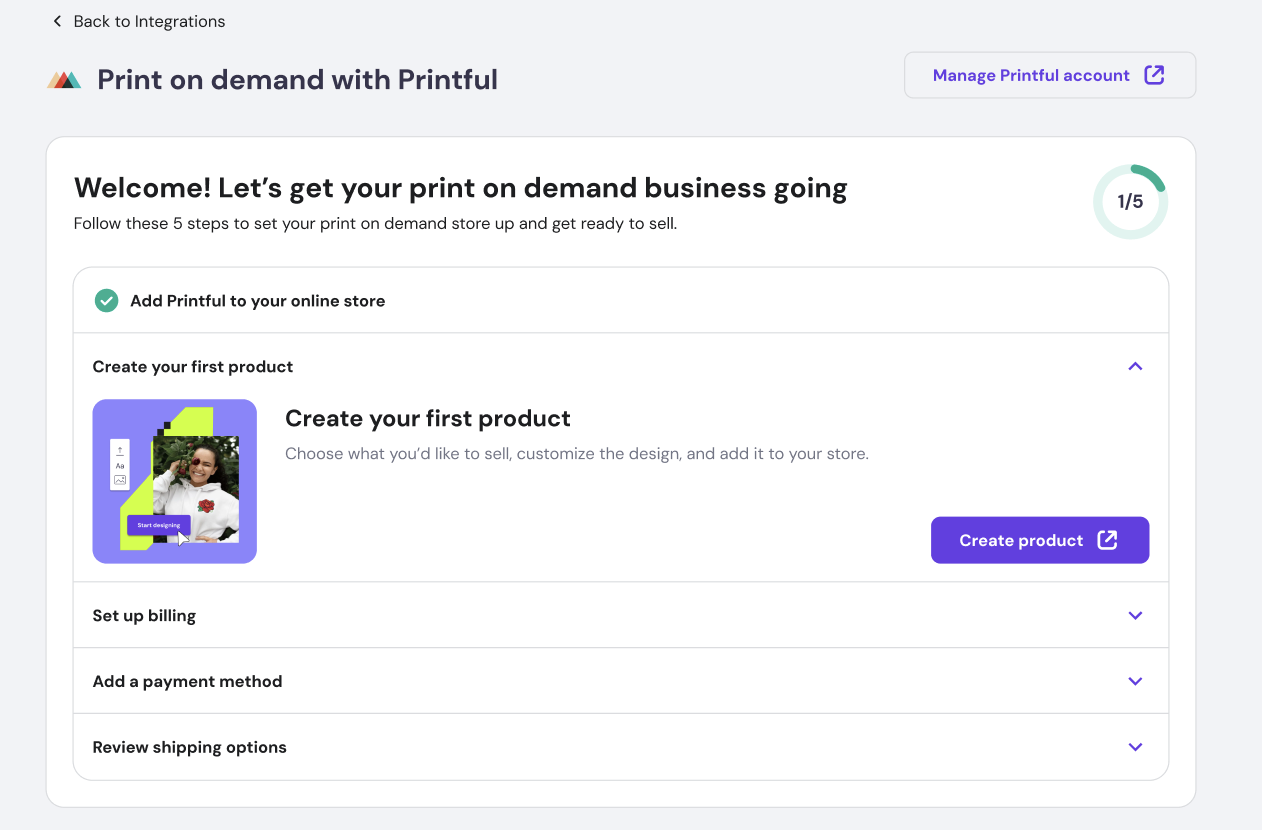
Step 3 – Follow print on demand onboarding steps
Follow all the print on demand onboarding steps such as product creation, billings set up, adding payment method to your online store to start collecting orders and set up shipping in order to successfully start accepting print on demand product orders.
That’s it. You’re done! Your store is now connected to Printful and ready to sell print-on-demand products.
More Printful print-on-demand resources