Managed OpenClaw allows you to connect your ChatGPT Plus or ChatGPT Pro subscription directly to your application. This powers your AI agent while replacing the need for a pay-per-token OpenAI API key.
This guide covers how to authorize and connect your ChatGPT subscription to your active Managed OpenClaw agent.
Before you start
- You must have an active Hostinger Managed OpenClaw service.
- An active ChatGPT Plus or ChatGPT Pro subscription.
- Your Managed OpenClaw application must be online.
Step 1 — Navigate to AI settings
To configure your provider settings, open the AI management interface inside your control area:
- Log in to your Hostinger account to access the Hostinger dashboard.
- Select the OpenClaw section from the left sidebar menu.
- Click the Manage button next to your application to manage your OpenClaw.
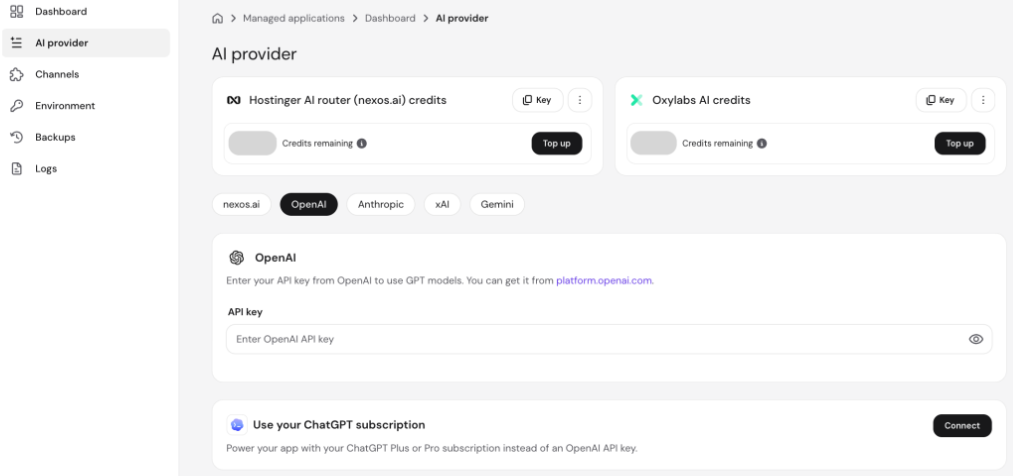
- Select the AI provider option from the management menu.
Step 2 — Select provider and initiate connection
Switch your provider setup to use subscription-based billing:
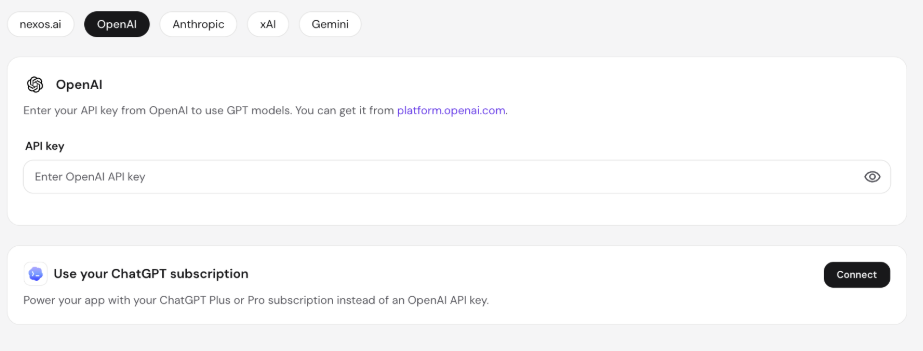
- Choose OpenAI from the list of available providers.
- Locate the “Use your ChatGPT subscription” section and click Connect.
- If you already have an API key saved, confirm the switch.
Confirming this action will automatically remove your existing API key.
Step 3 — Authorize your ChatGPT account
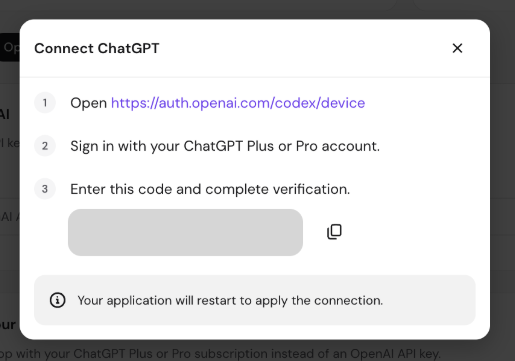
An authorization pop-up window will appear with three setup instructions:
- Click the provided OpenAI link to open the authorization page.
- Sign in with the OpenAI account associated with your active ChatGPT Plus or Pro subscription.
- Copy the code shown on OpenAI, paste it back into the prompt verification field, and click Verify.
Step 4 — Verify connection
After verification, your application will initialize:
- Wait a few moments while your Managed OpenClaw agent restarts automatically.
- Once connected, a green Connected badge will appear on your screen to confirm the connection is active.
NOTES
- Single Authentication Method: Your application uses either a ChatGPT subscription or an OpenAI API key—never both.
- Offline Applications: If the Connect button is greyed out, your application is currently offline. Wait until the app status returns to online before attempting to connect.
- Outdated App Versions: If you do not see the “Use your ChatGPT subscription” card, your application version may not support this feature yet. Check your dashboard to update your application to the latest version.