Hostinger Hub in WordPress is the home screen for Hostinger tools in your WordPress admin panel, available only to Hostinger customers. From Hostinger Hub, you can send requests to Hostinger Agent, complete a setup checklist, check your website, domain, and hosting plan status, and install other Hostinger products. Hostinger Hub lives inside your WordPress admin panel, not in your Hostinger dashboard.
Before you start
- Hostinger Hub is powered by the Hostinger Easy Onboarding plugin, which Hostinger adds automatically when you install WordPress on a Hostinger hosting plan.
- In your WordPress Plugins list, Hostinger Hub appears under its plugin name, Hostinger Easy Onboarding.
Access Hostinger Hub in WordPress
Hostinger Hub appears automatically in your WordPress admin panel once the Hostinger Easy Onboarding plugin is installed or updated. You can also open Hostinger Hub from the Hostinger menu in your WordPress admin panel.
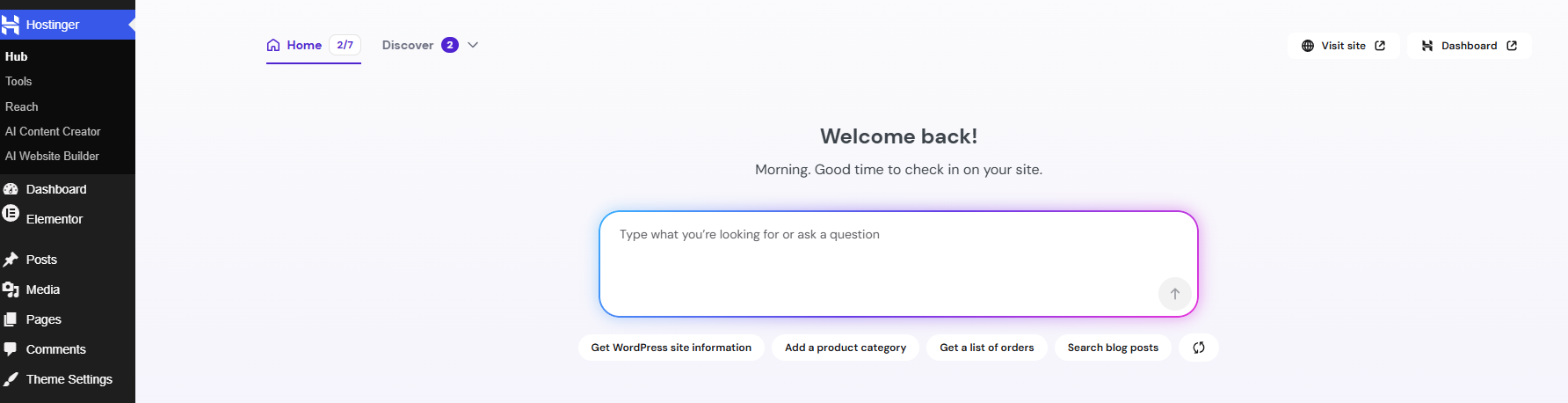
Hostinger Hub has two tabs: Home and Discover. The Home tab holds the prompt box, the setup checklist, and your website status cards. The Discover tab lists Hostinger products you can install.
Send requests to Hostinger Agent from Hostinger Hub
The Home tab of Hostinger Hub opens with a prompt box where you can ask Hostinger Agent to handle tasks, such as writing posts or improving site speed. Type a request, or select a suggested action, such as Search a blog post or Get a list of orders.
Suggested actions in Hostinger Hub change based on your site and its installed products. Select the refresh icon next to the suggestions to see different options.
Complete the Set up your website checklist in Hostinger Hub
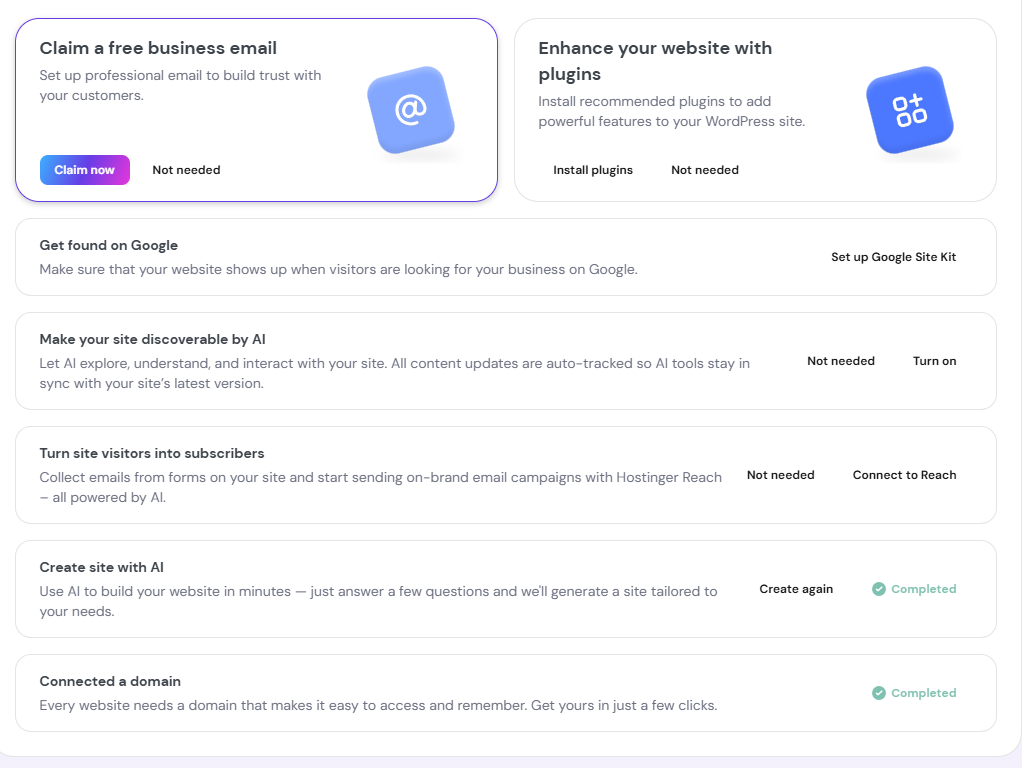
The Set up your website checklist in Hostinger Hub has six default steps: create your site with AI, add a domain, claim a business email, add plugins, get found on Google, and collect subscribers. Completed steps move to the bottom of the checklist. To skip a step, select it to expand it, then select Not needed.
Hostinger Hub adds more steps based on your site. Connecting a custom domain adds Make your site discoverable by AI. Installing a Hostinger product from Discover adds a related step, such as Set up your online store after installing Hostinger Ecommerce.
Create site with AI
Select Create new site with AI to build your website by answering a few questions, or select Not needed to skip this step. Once your site is created, the step is marked Completed. Select Create again to regenerate your site with new answers.
Add a domain
The Add a domain step appears while your website uses a temporary domain. Select Connect domain to register a new domain or connect one you already own. Once a domain is connected, the step is marked Completed and renamed Connected a domain.
Claim a free business email
Select Claim now to set up a professional email address for your domain, or select Not needed to skip this step.
Enhance your website with plugins
Select Install plugins to add recommended plugins to your WordPress site, or select Not needed to skip this step.
Get found on Google
Select Set up Google Site Kit to help your website appear when visitors search for your business on Google.
Turn site visitors into subscribers
Select Connect to Reach to collect emails from your site’s forms and send email campaigns with Hostinger Reach email marketing. Select Not needed to skip this step.
Make your site discoverable by AI
The Make your site discoverable by AI step appears after you connect a custom domain. Select Turn on to let AI tools explore, understand, and interact with your site, or select Not needed to skip this step. Content updates are tracked automatically, so AI tools stay in sync with your site’s latest version.
This step turns on the same setting as LLM Optimization in the Hostinger Tools plugin.
Set up your online store
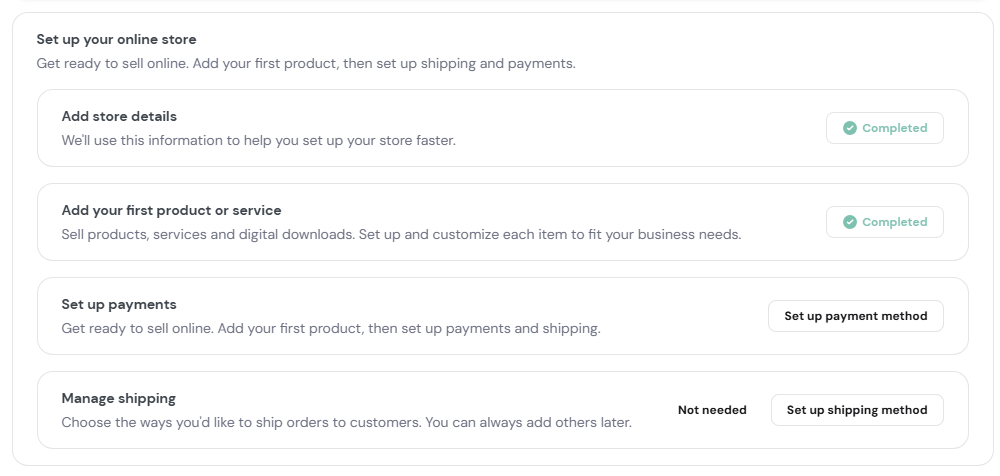
The Set up your online store step appears after you install the Hostinger Ecommerce plugin. Expanding the step shows four sub-steps:
- Add store details. Provide details to help set up your store faster.
- Add your first product or service. Add products, services, or digital downloads, and customize each item to fit your business.
- Set up payments. Select Set up payment method to configure how you get paid.
- Manage shipping. Select Set up shipping method to configure shipping options, or select Not needed to skip this step.
For the full store setup, follow How to set up the Hostinger Ecommerce plugin for WordPress.
Connect your affiliate account
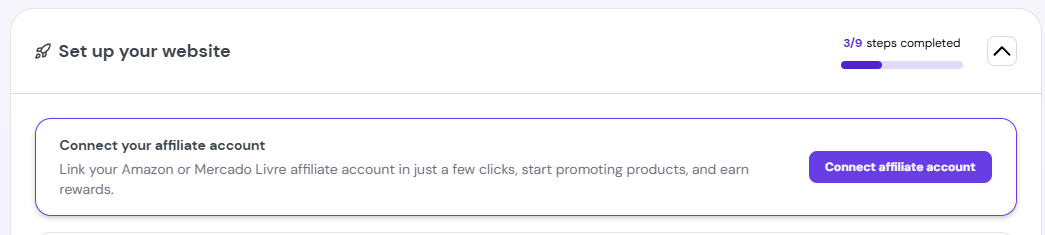
The Connect your affiliate account step appears after you install Hostinger Affiliate Marketing Tools. To connect your Amazon or Mercado Livre account, follow How to use the Hostinger Affiliate Marketing Tools plugin to build an affiliate website.
Check your website status in Hostinger Hub
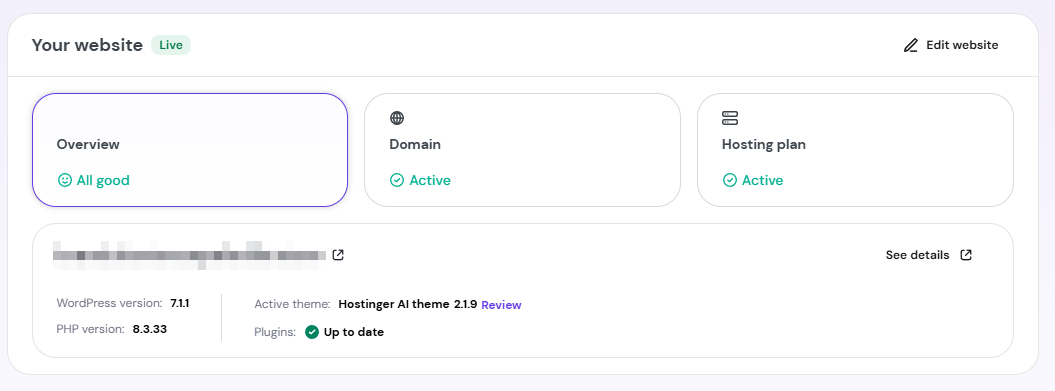
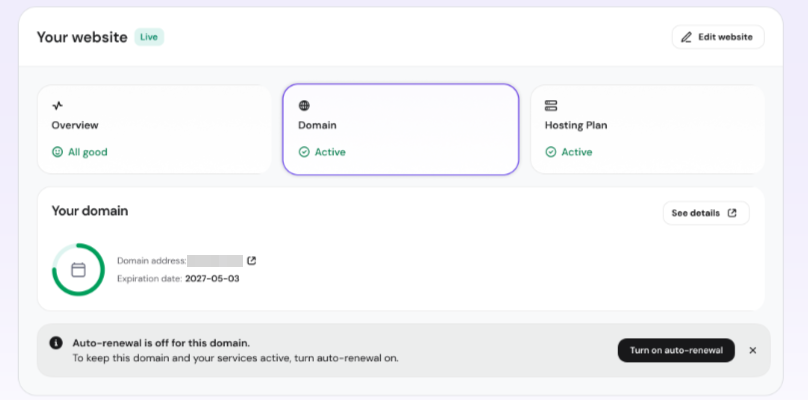
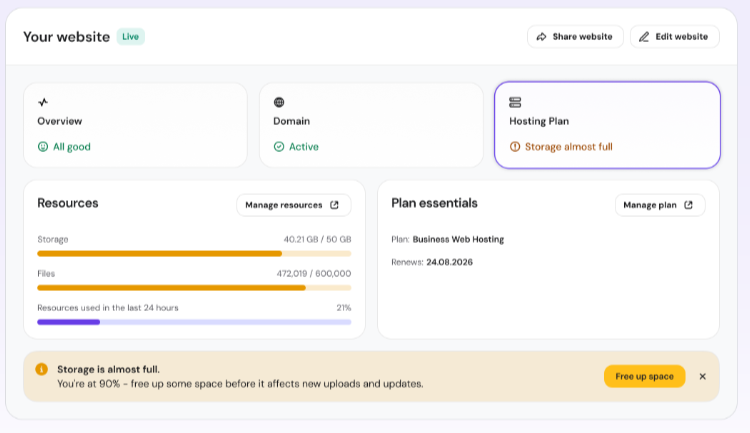
The Home tab of Hostinger Hub shows three website status cards: Overview, Domain, and Hosting plan. Select a card to expand its details:
- Overview. Shows your site URL, WordPress version, PHP version, active theme with a Review link, and plugin update status. Select See details for more information, or Edit website to open the editor.
- Domain. Shows your domain address, expiration date, and auto-renewal status. If auto-renewal is off, a Turn on auto-renewal button appears.
- Hosting plan. Shows storage and file usage under Resources, and your plan name and renewal date under Plan essentials. Select Manage resources or Manage plan to make changes.
Install Hostinger products from Hostinger Hub Discover
The Discover tab of Hostinger Hub lists Hostinger products available to install, such as Hostinger Ecommerce and Hostinger Affiliate Marketing Tools.
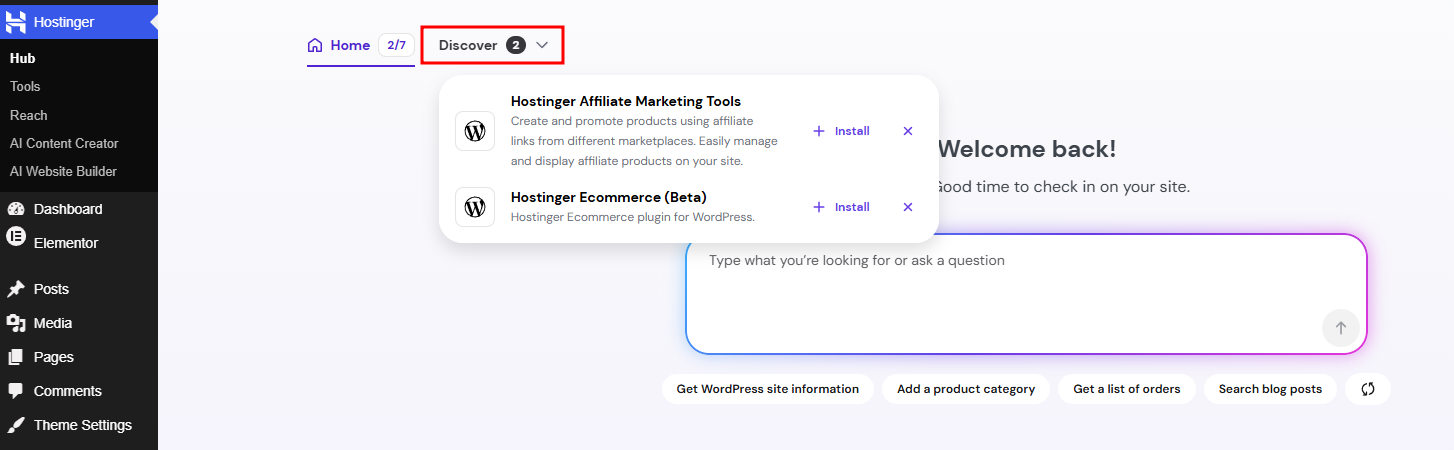
Once you install a product, it leaves the Discover tab and appears as its own item in the Hostinger menu. The installed product also adds a related step to the Set up your website checklist.
Hostinger Hub gives you one place in WordPress to finish setting up your site, keep track of your domain and hosting plan, and add Hostinger products as your site grows. For every plugin Hostinger adds to WordPress, see What are the Hostinger WordPress Plugins?
Hostinger Hub FAQ
Why isn’t Hostinger Hub in my WordPress Plugins list?
Hostinger Hub isn’t a separate plugin. It appears in your WordPress Plugins list as Hostinger Easy Onboarding, the plugin that powers Hostinger Hub.
Can I use Hostinger Hub without a Hostinger hosting plan?
No, Hostinger Hub is available only to Hostinger customers. The Hostinger Easy Onboarding plugin that powers it is added when you install WordPress on a Hostinger hosting plan.
Do I have to complete every step in the Hostinger Hub checklist?
No, most steps in the Set up your website checklist include a Not needed option so you can skip them. Completed steps move to the bottom of the checklist.