Switching to a temporary domain allows you to disconnect a custom domain from your website while keeping your files and database online. This is useful for troubleshooting, re-branding, or preparing for a new domain connection — for example, when you’re moving a website within Hostinger. Hostinger temporary domains are randomly generated and provide a consistent way to access your site without a registered custom domain.
Pre-requisites
-
An active hosting plan.
-
Access to your Hostinger dashboard.
Initiate the domain change
To move away from your custom domain, you must access the domain management settings for your specific website:
-
Log in to your Hostinger dashboard and go to the Websites section.
-
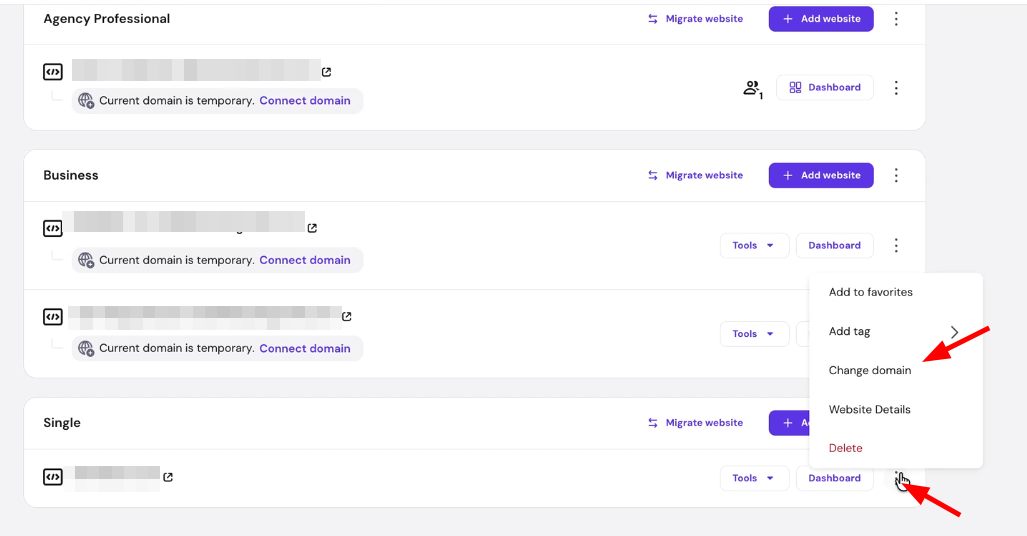
Locate your website and click the three dots (⋮) button next to Dashboard.
-
Select Change domain.
-
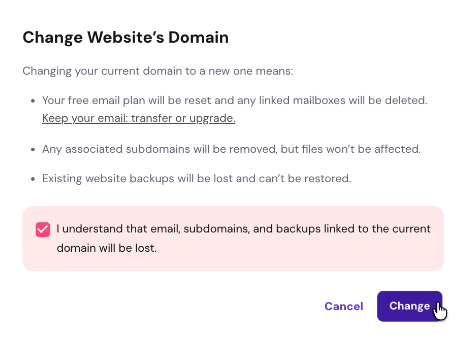
A warning modal will appear. You must check the boxes to acknowledge that:
-
All email accounts created with the current domain will be deleted.
-
All subdomains will be removed.
-
Existing backups for the current domain will no longer be accessible.
-
-
Click Change to proceed.
-
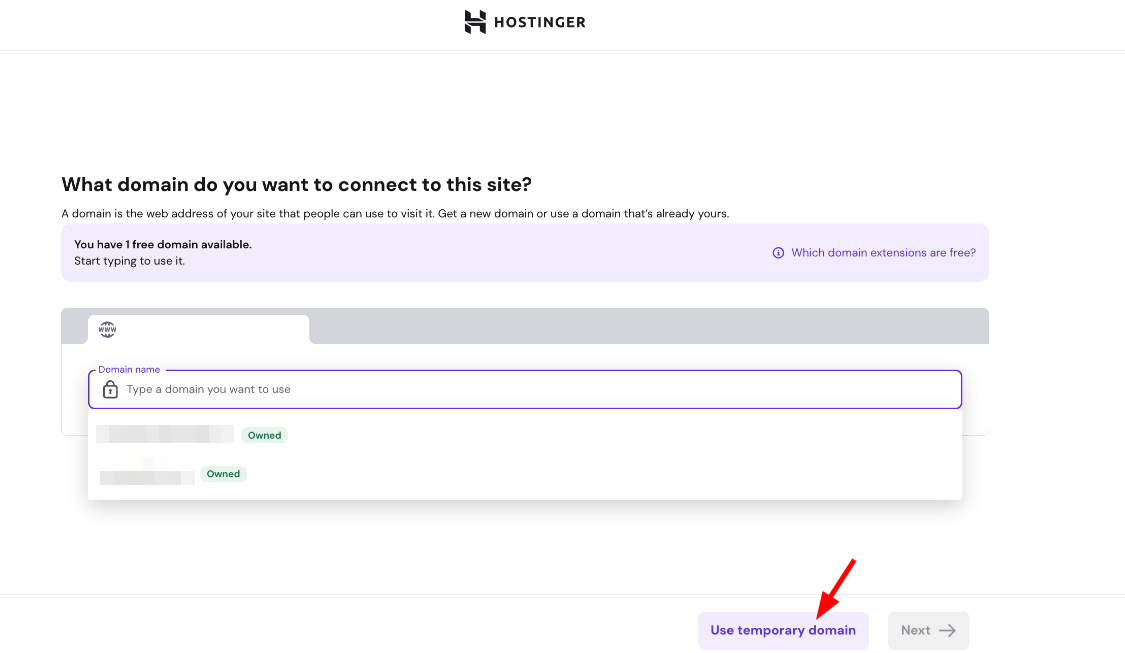
Once the custom domain is disconnected, Hostinger dashboard will ask which domain you want to connect next. Scroll to the bottom of the page and click the link: Use temporary domain.
-
Click Next to allow the system to generate a unique address for you.
-
The system will display your new temporary domain (e.g.,
brand-name-1234.hostinger-site.com). -
Click Continue to finalize the setup and return to your website dashboard.
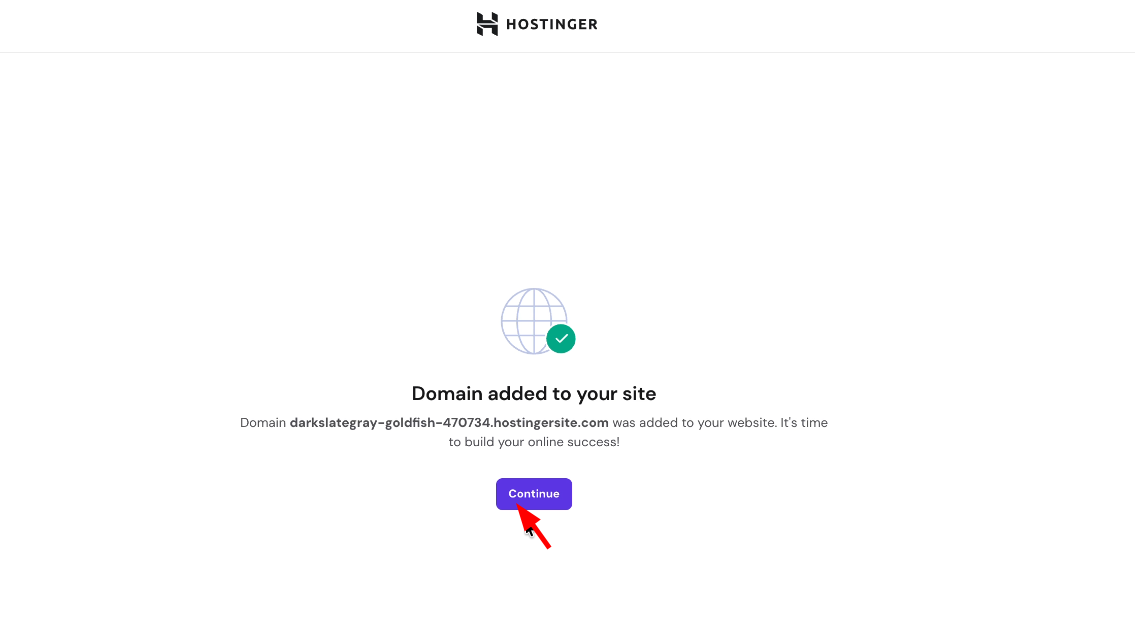
Your website is now accessible via a new temporary URL. You can use this address to continue developing your site or previewing changes before connecting another custom domain in the future.
NOTES
- Randomization: Temporary domains are randomly assigned and cannot be customized or edited.
- Previous Domains: If you used a temporary domain in the past, the new one assigned during this process will be different and unique.
- Data Recovery: Because this process deletes email accounts and subdomains, ensure you have backed up any critical data before clicking Change.