Creating an image gallery allows you to manage your photos directly from the data section. This setup is ideal for portfolios, product showcases, or event photos, as it ensures your website updates automatically whenever you add or replace an image in the data section.
Step 1 – Prompt Horizons to create the gallery
In the Hostinger Horizons chat, use a specific prompt to generate the gallery structure and the backend collection.
- Open the Horizons chat interface.
- Enter a prompt that defines both the design and the data source, such as: “Create a photo gallery section on my homepage. Store the gallery images in a data collection called “Gallery”. Each entry should have an image field and an optional caption field. Display the images in a grid layout. The gallery should automatically show all images added to the Gallery collection”
Step 2 – Access the Data tab
Once Hostinger Horizons builds your gallery, you must access the data to manage the content.
- Open your project in Horizons.
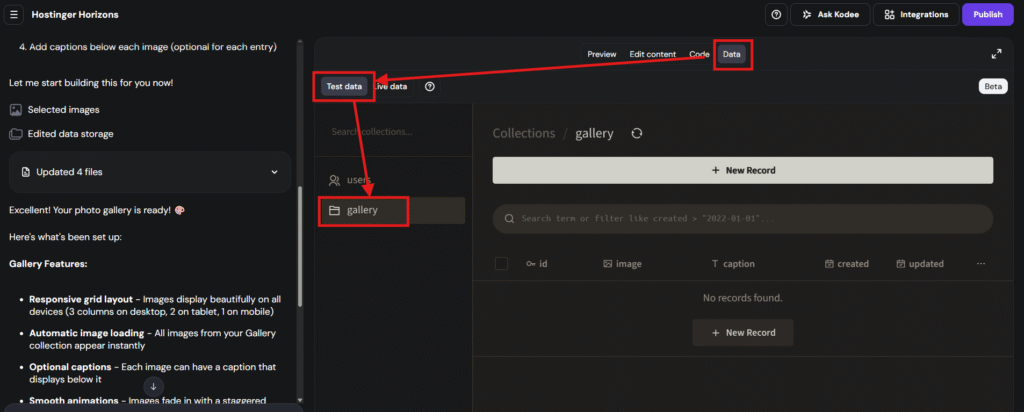
- Click the Data toggle at the top of the preview screen.
- Locate the Gallery collection in the left panel.

Step 3 – Add images to the Hostinger Horizons gallery
You can now populate your gallery without editing the website design.
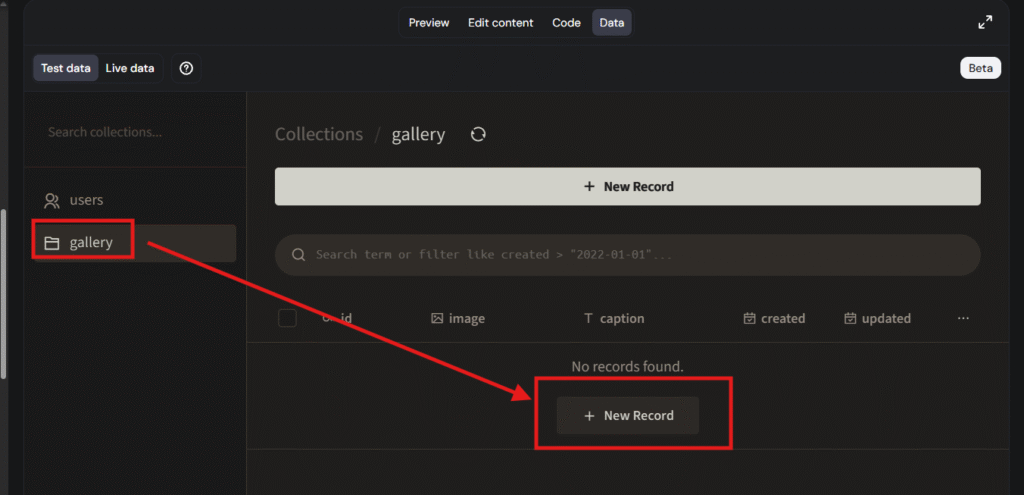
- Select the Gallery collection and click Add record.

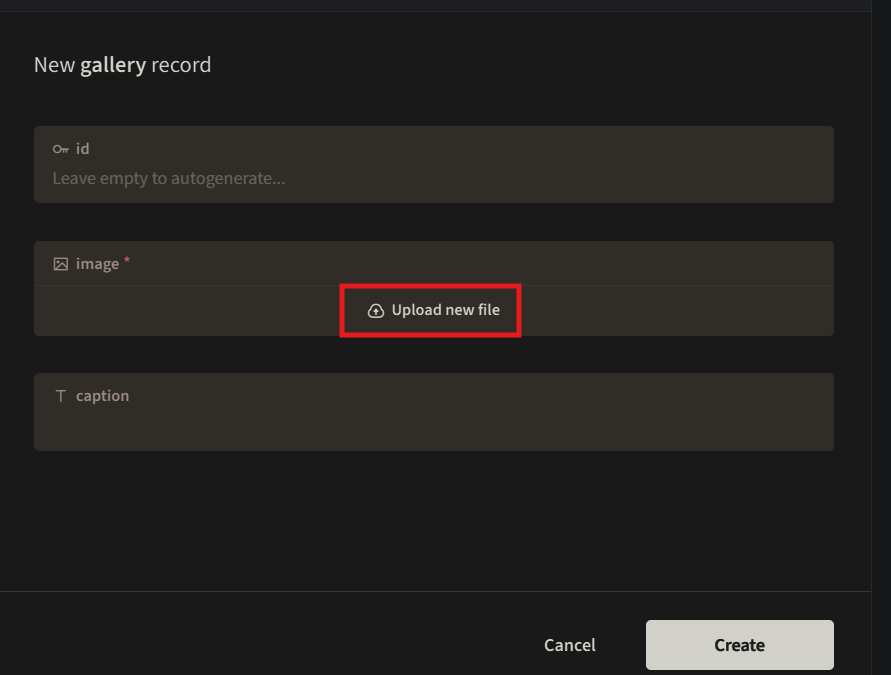
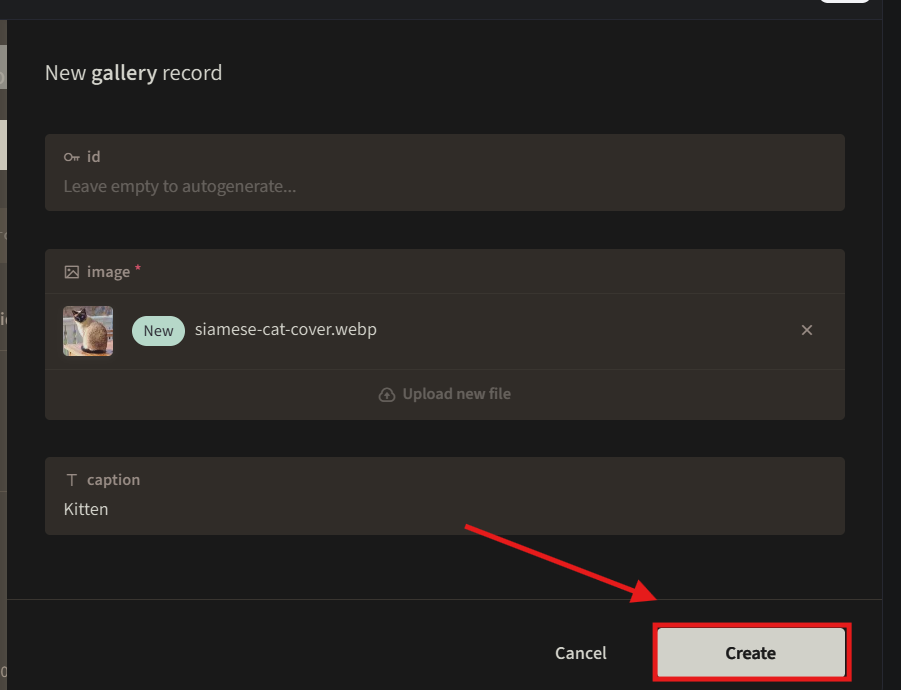
- Upload your file in the image field.

- Add a caption in the caption field if desired.
- Click Create.

- Repeat these steps for each photo you wish to display.
Step 4 – Edit or remove gallery images
Manage your existing records to keep your gallery up to date.
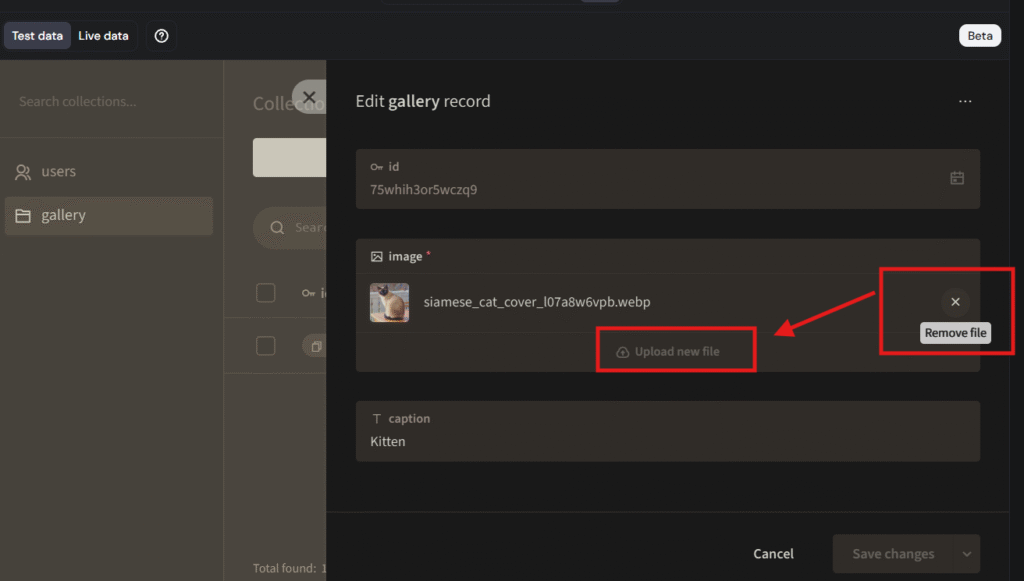
- Replace an image: Click the specific record, update the image field, and save the changes.

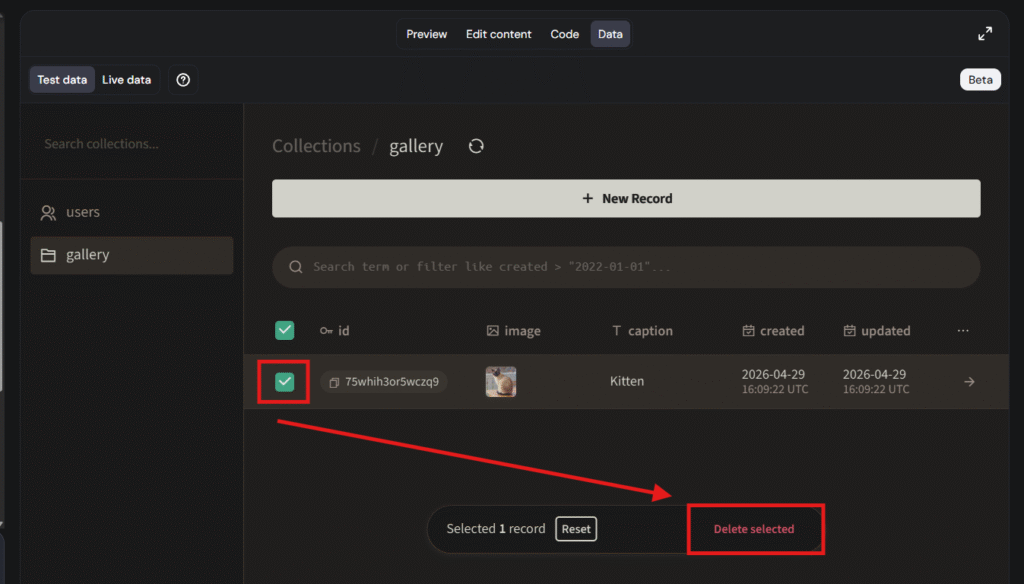
- Delete an image: Select the image and click “Delete selected”.

Ensure you publish the changes if you want to see the images on the live website. Once done, your image gallery will be fully functional and easy to update.