Hostinger’s Google Ads integration lets you create a Google Ads Performance Max campaign to generate leads directly from the Hostinger dashboard, supported for all website types created with Hostinger. To launch a campaign, set up the campaign details, configure tracking, review or edit AI-generated ad content, choose a budget, and confirm the campaign summary.
NOTE
- This campaign type uses Google’s Performance Max format, sometimes referred to as PMax, configured specifically to generate leads.
Before you start
- A Google Ads account connected in the Hostinger dashboard. To connect your account and claim the credit, see How to connect your Google Ads account in the Hostinger dashboard.
- A website hosted with Hostinger. This campaign type is supported for all website types created with Hostinger.
Create Google Ads campaign
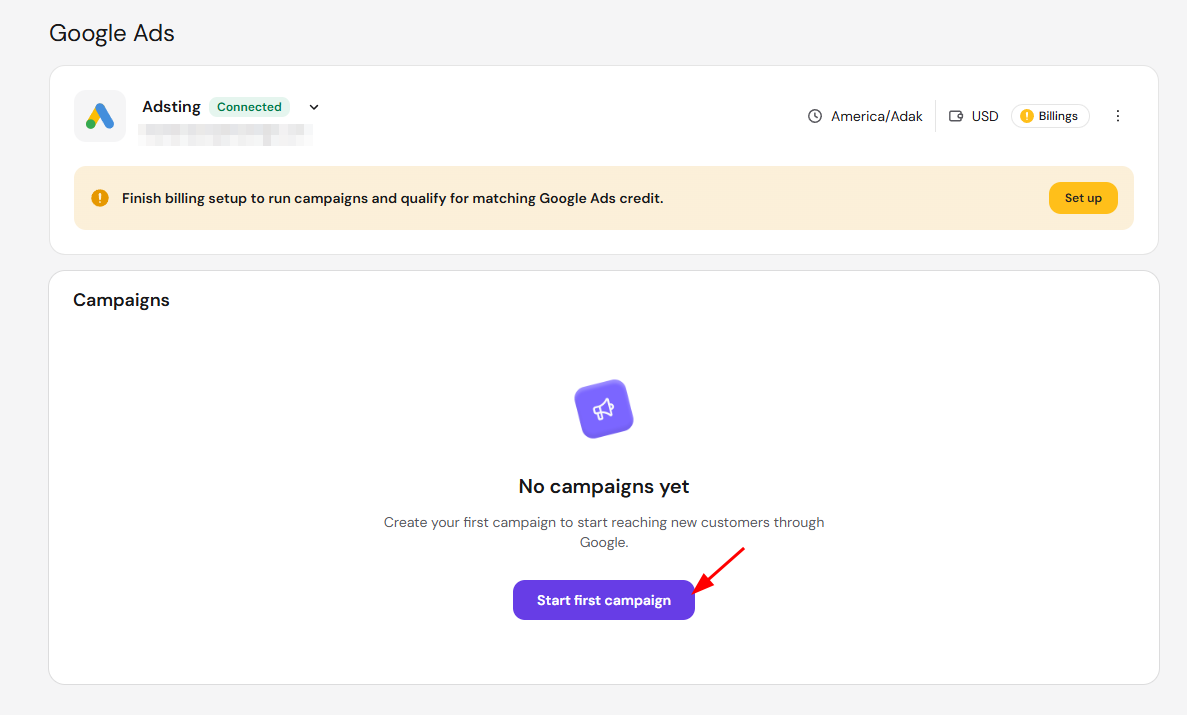
- Log in the Hostinger dashboard, go to Google Ads and click Start first campaign.
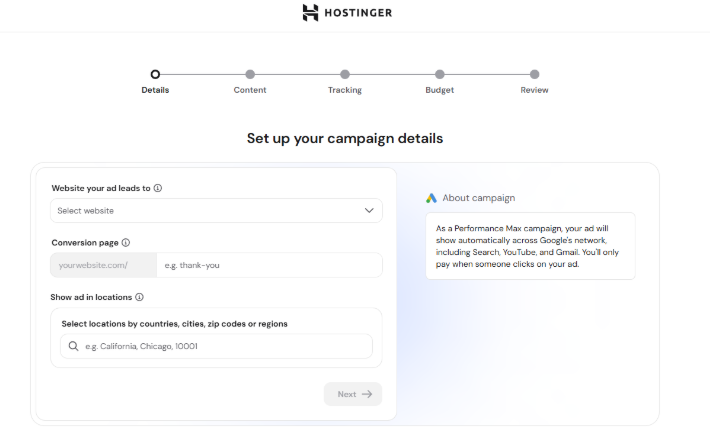
- Select the Website your ad leads to.
- Enter a Conversion page, such as a thank-you page path.
- Enter where to show your ad in the Show ad in locations field, using countries, cities, zip codes, or regions.
- Click Next.
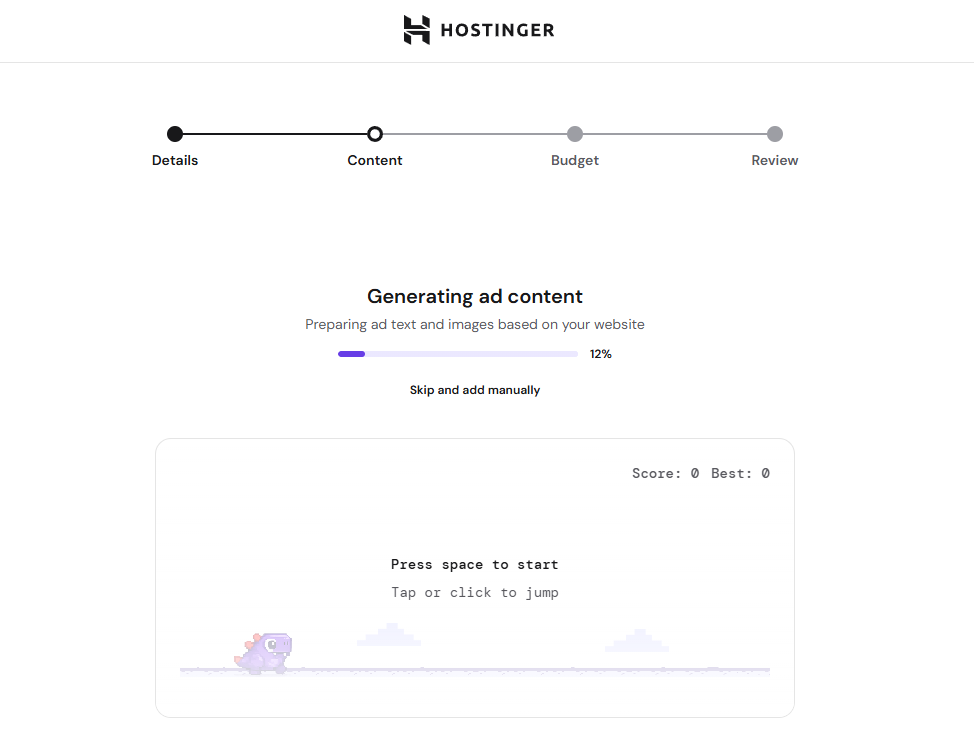
- Wait while Hostinger generates ad text and images automatically, provided by Google Ads based on advertising best practices. To write your own ad content instead, click Skip and add manually.
- On the Create ad content screen, review or edit:
- Business name
- Short headlines (up to 15)
- Long headlines (up to 5)
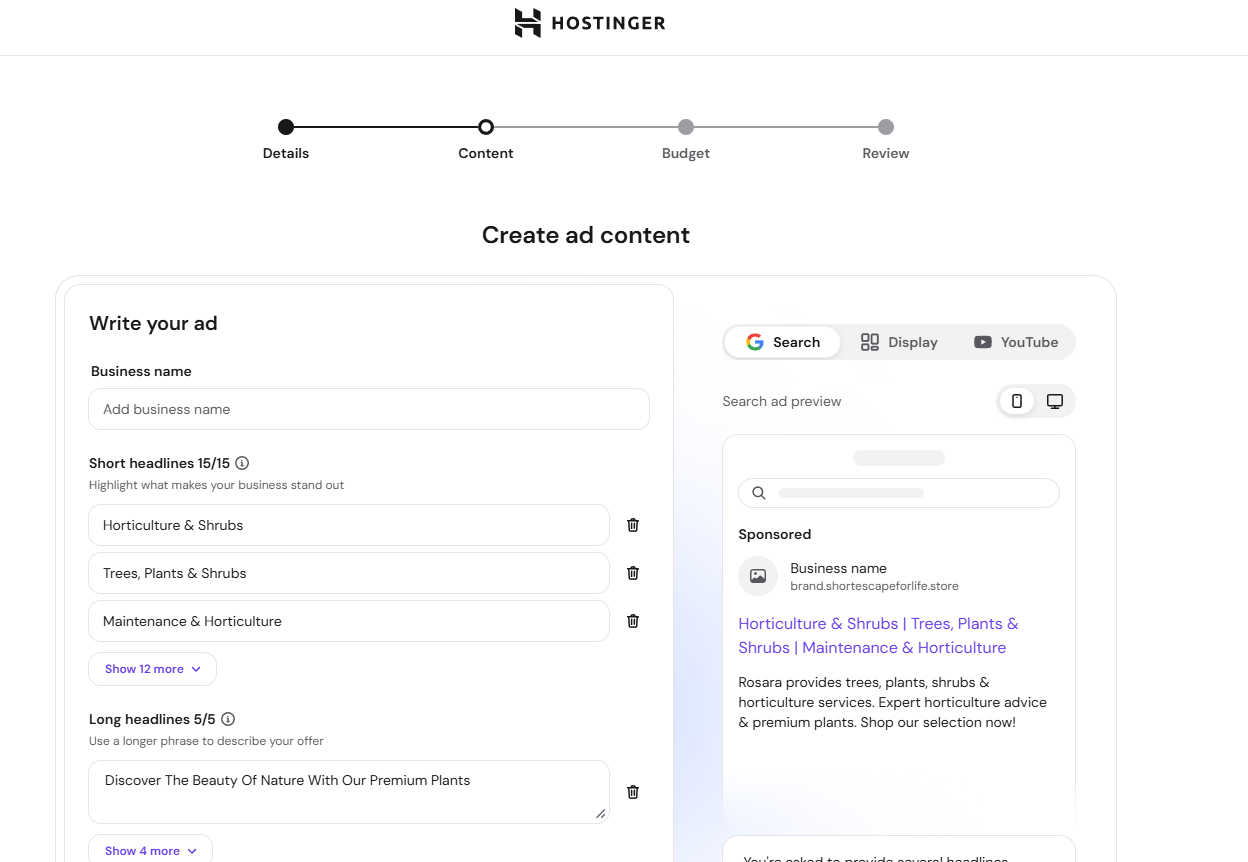
- Descriptions (up to 5)
- Images and logo, under Provide assets
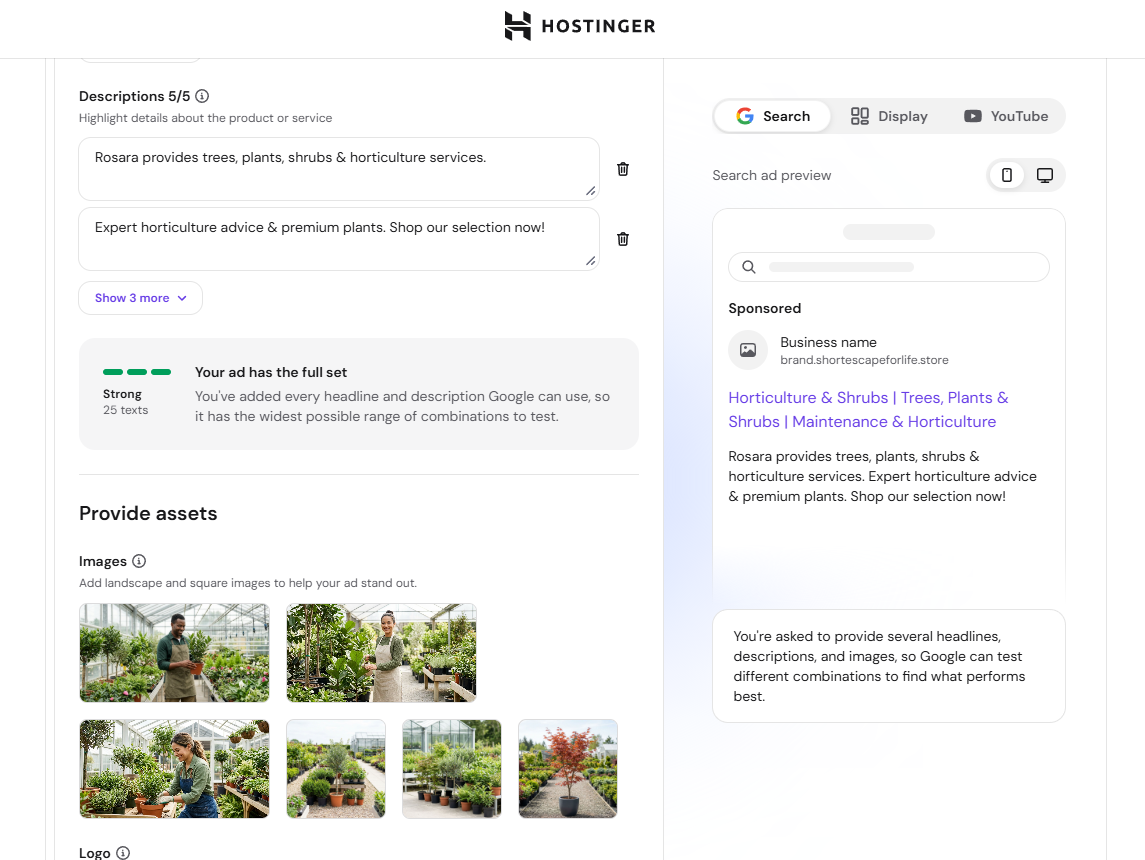 A live search ad preview appears alongside these fields.
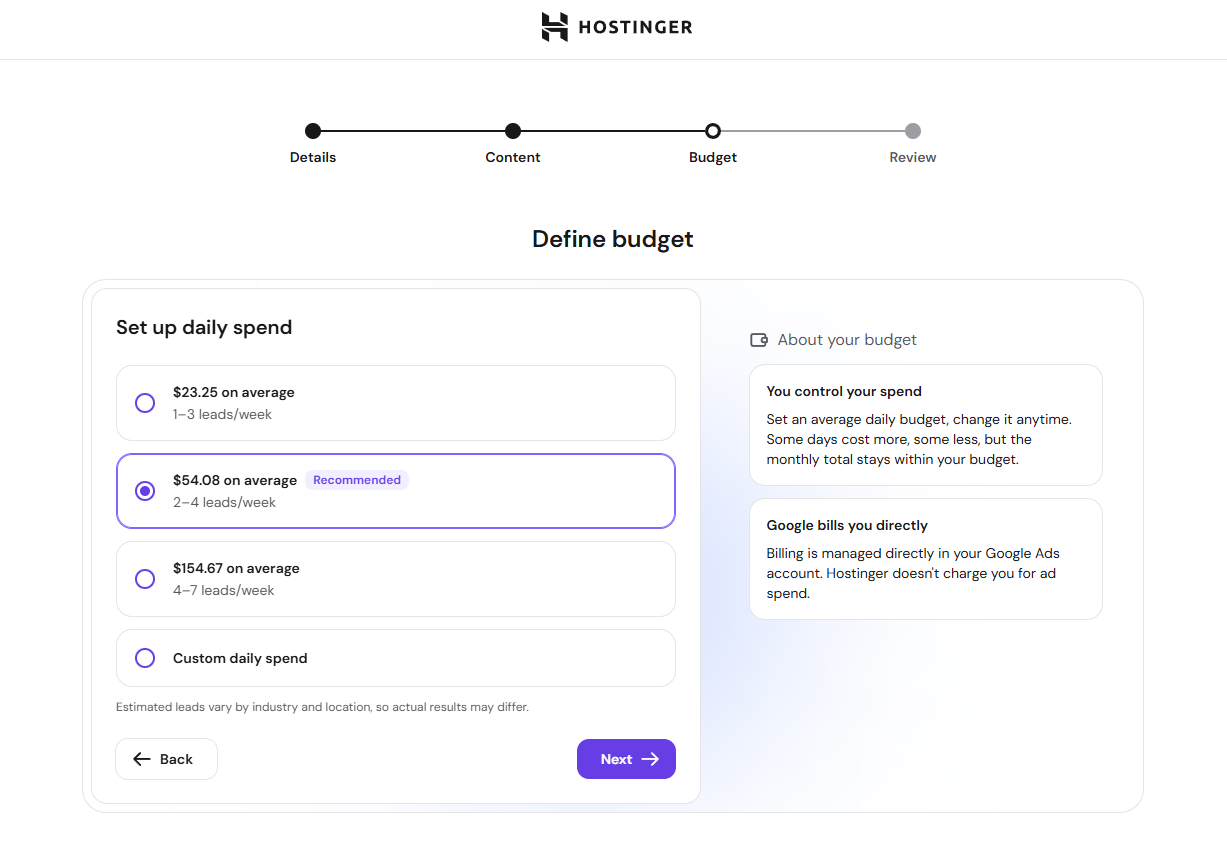
- Click Next, then choose a daily spend option, each showing an estimated number of leads per week, or select Custom daily spend.
- Click Next to review the campaign summary, including the landing page, average daily budget, audience language, ad locations, and business name.
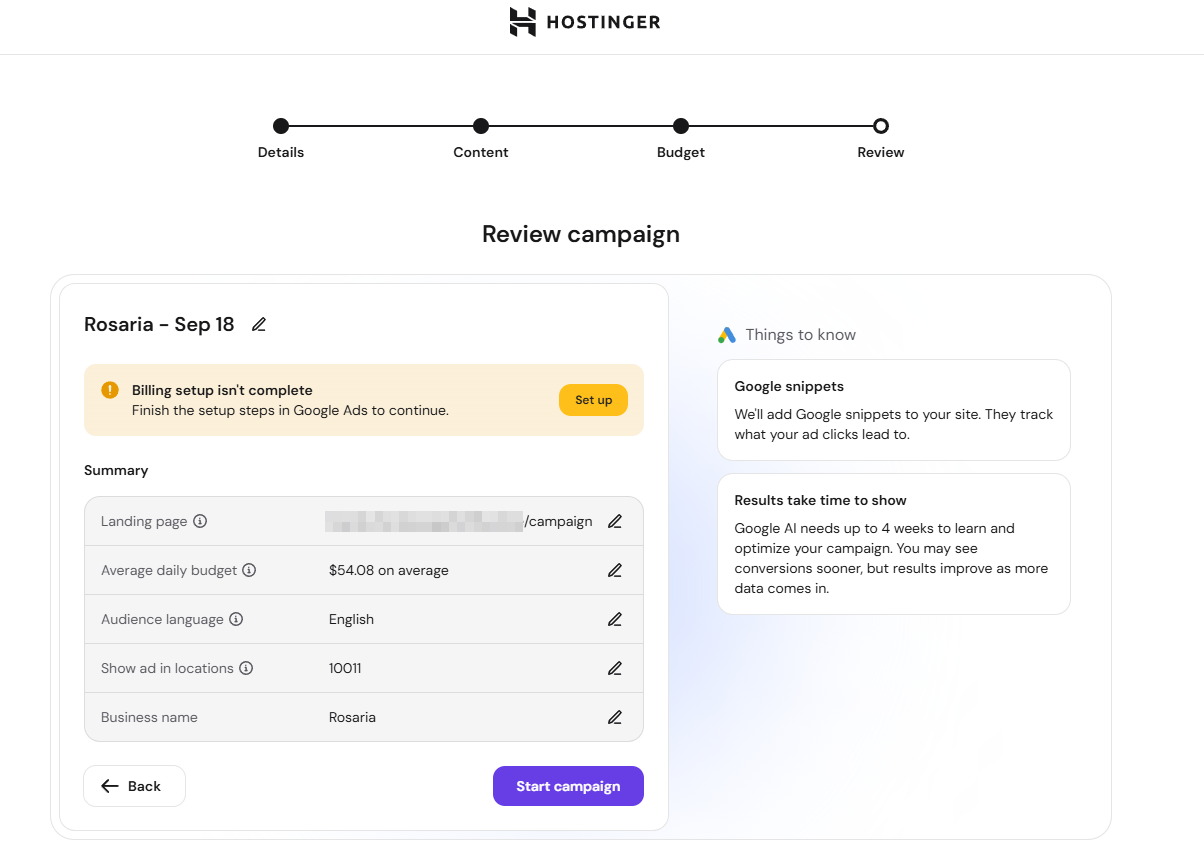
- Click Start campaign to launch it.
NOTES
- If you chose Skip and add manually, the ad content fields start empty and you’ll need to write all headlines and descriptions yourself.
- Filling in every available headline, description, and image gives Google the widest range of ad combinations to test.
- Billing for ad spend is handled directly in your Google Ads account. Hostinger doesn’t charge you for ad spend.
- If billing setup isn’t complete in Google Ads, a banner on this screen prompts you to finish it before the campaign can run.
- Google reviews every ad before it goes live, which typically takes up to 24 hours. You can check the review status for each campaign in the Campaigns table.
- Google AI needs up to 4 weeks to learn and optimize a new campaign. Results may take time to show, and typically improve as more data comes in.
Track your campaign performance
Once your campaign is live, the Google Ads dashboard shows a Performance summary for your account, including impressions, clicks, leads, average cost per lead, and amount spent, filterable by date range. The Campaigns table lists each campaign’s name, budget, and individual performance metrics, along with its status. Click Details next to a campaign to see more, or + Create new campaign to set up another one.
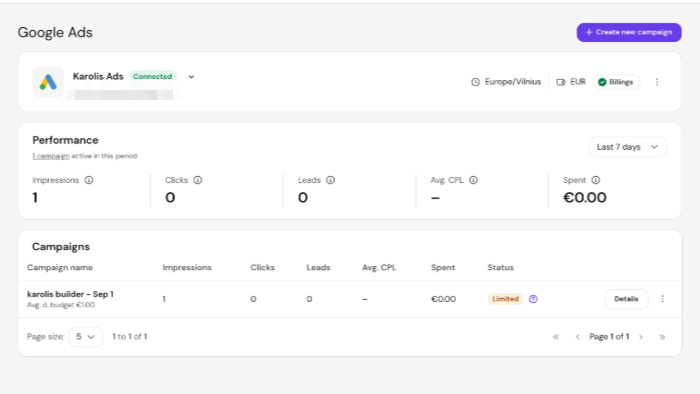
Your campaign is now created and will begin optimizing based on incoming performance data. You can track its progress from this dashboard at any time.