Hostinger’s Google Ads integration lets you connect a Google Ads account directly from the Hostinger dashboard using Google’s OAuth sign-in. To claim your promotional offer, sign in with Google, allow Hostinger’s requested permissions, create your Google Ads account, and complete billing setup in Google Ads.
Before you start
- An active Hostinger account with the Google Ads integration available in the Hostinger dashboard.
- A Google account you can use to sign in.
- Reviewed your promotional offer and terms for your billing country. See Hostinger Google Ads promotional terms and conditions.
Connect your Google Ads account
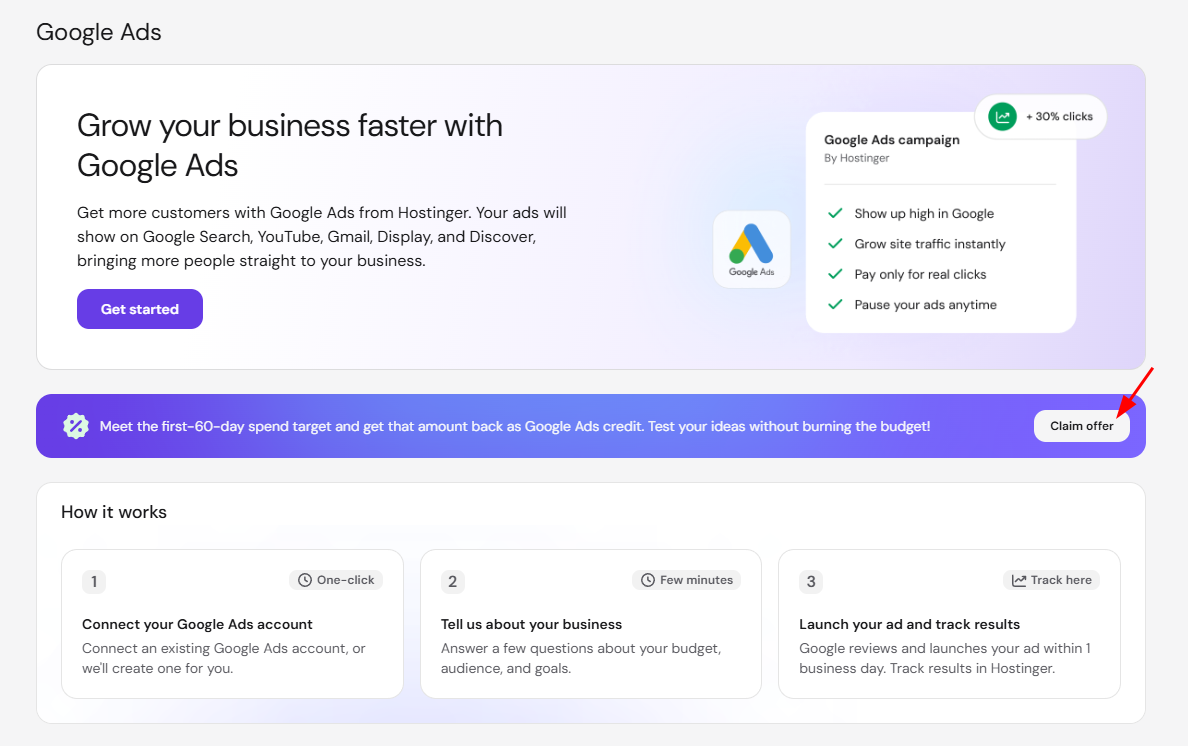
- Log in the Hostinger dashboard, go to Google Ads and click Claim offer.
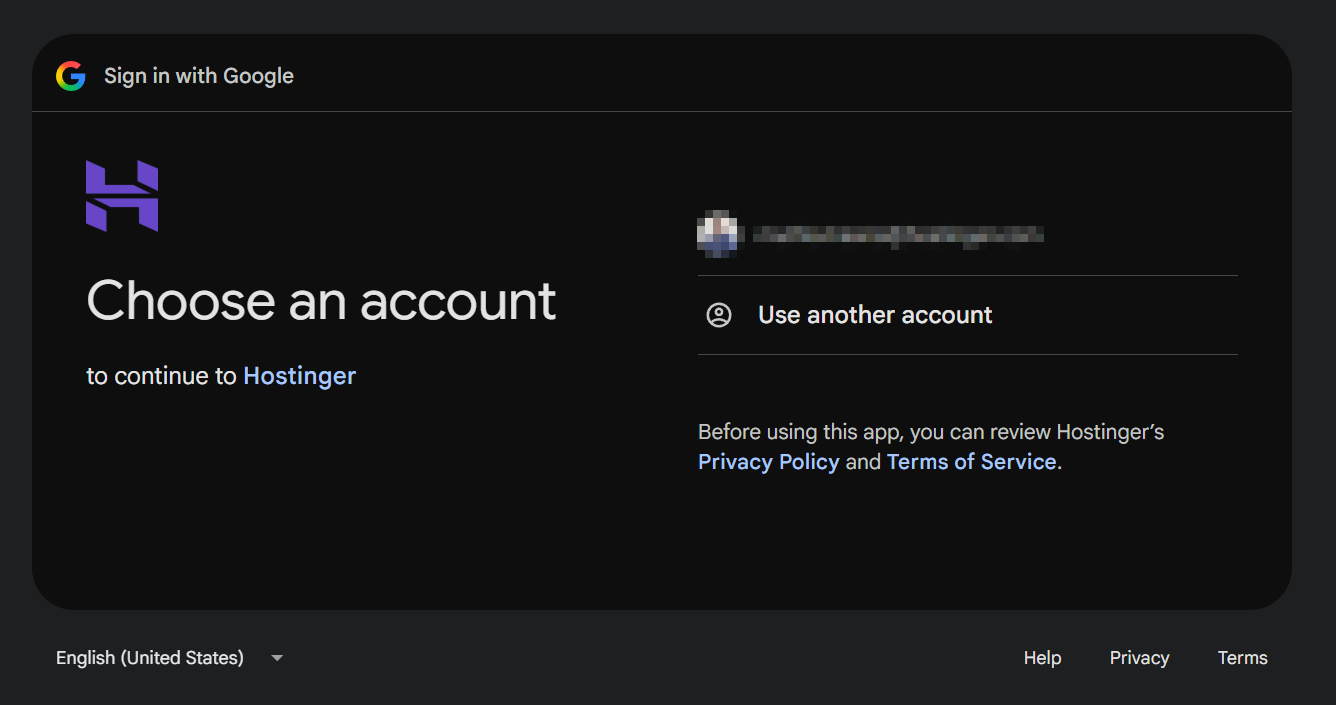
- Sign in with the Google account you want to use, then click Continue.
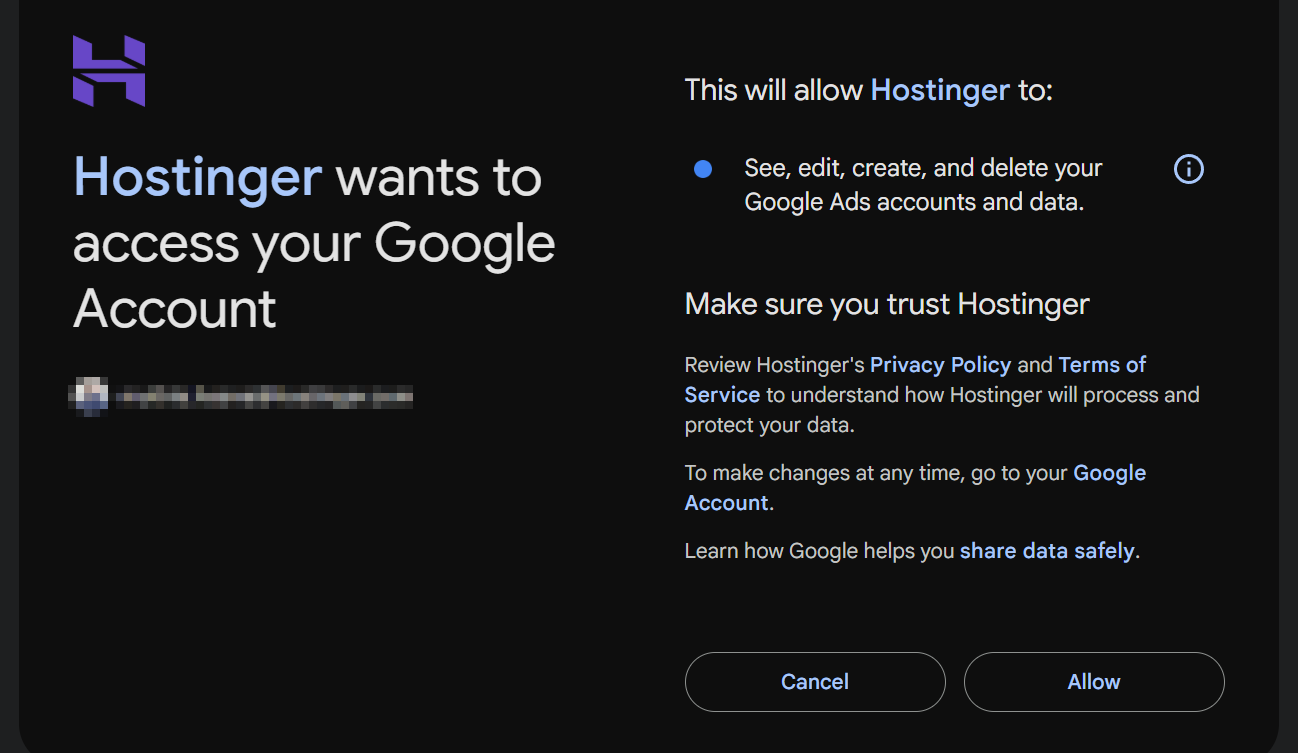
- Review the permissions Hostinger is requesting, then click Allow.
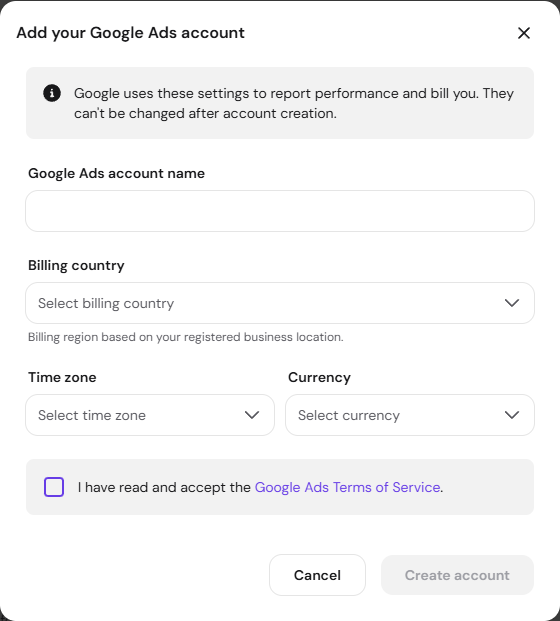
- In the Add your Google Ads account window, enter a Google Ads account name, select your Billing country, Time zone, and Currency, accept the Google Ads Terms of Service, then click Create account.
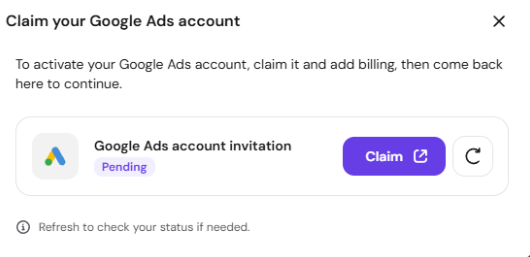
- In the Claim your Google Ads account window, click Claim next to the pending Google Ads account invitation. This opens Google Ads in a new tab.
- Follow Google’s on-screen instructions to accept the invitation and complete your account and payment details in Google Ads, then submit.
- Return to the Hostinger dashboard and click Refresh to update your account status.
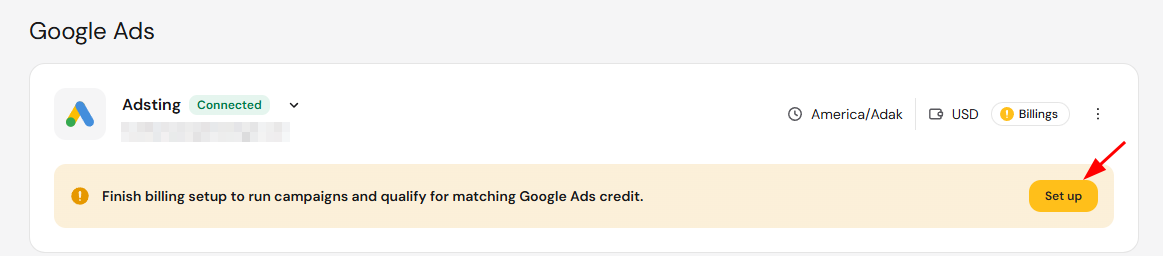
If billing setup isn’t complete yet, the Google Ads dashboard shows a banner prompting you to finish it. Click Set up and complete billing in Google Ads to qualify for the matching ads credit.
Manage your connected Google Ads account
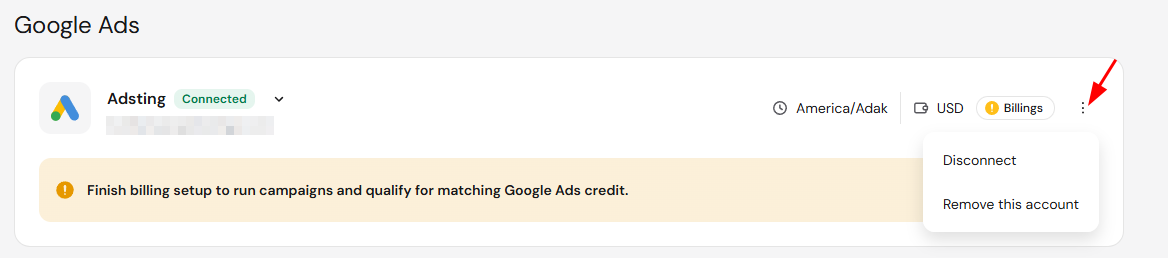
Click the options menu (⋮) next to your connected account to Disconnect or Remove this account.
- Disconnect stops Hostinger from managing your Google Ads account, but keeps it available to reconnect through Claim offer at any time.
- Remove this account removes the account and its campaigns and results from the Hostinger dashboard entirely. You can link the account again later, but it won’t appear as an existing connection.
NOTES
- Signing in with Google is required to connect your account, since the promotional offer is tied to a Google account.
- Allowing access grants Hostinger permission to see, edit, create, and delete your Google Ads accounts and data.
- Billing country, time zone, and currency can’t be changed after the Google Ads account is created.
- Billing for ad spend is handled entirely by Google. Hostinger doesn’t process ad payments.
- The promotional credit is applied automatically once billing is set up and you meet the spend requirement — no separate offer code is needed in the Hostinger dashboard.
Once billing is complete, your Google Ads account is ready and you can create a campaign to start qualifying for the promotional credit.