Hostinger Managed Paperclip runs Paperclip, an open-source platform for teams of AI coding agents, from Hostinger dashboard with no server to manage. Paperclip organizes AI agents into an organization where each agent has a role, goals, and tasks. Paperclip agents connect through harnesses such as Claude Code and Codex. Hostinger Managed Paperclip is part of AI Automation apps, while Paperclip on Hostinger VPS runs on a server you manage yourself. To get started, deploy your instance from Hostinger dashboard, create an admin account, connect an AI model, then set up your organization and first agent inside the Paperclip app.
Before you start
- A Hostinger account with access to AI Automation apps.
- An API key for OpenAI, Anthropic, Gemini, or Cursor, or an active ChatGPT subscription, to connect a model.
- To run Paperclip on your own VPS instead, see Hostinger VPS: Getting started with Paperclip.
Set up your Managed Paperclip instance
- Log in to Hostinger dashboard and click Paperclip under AI agents in the sidebar.
- Click Setup next to your AI automation apps plan.
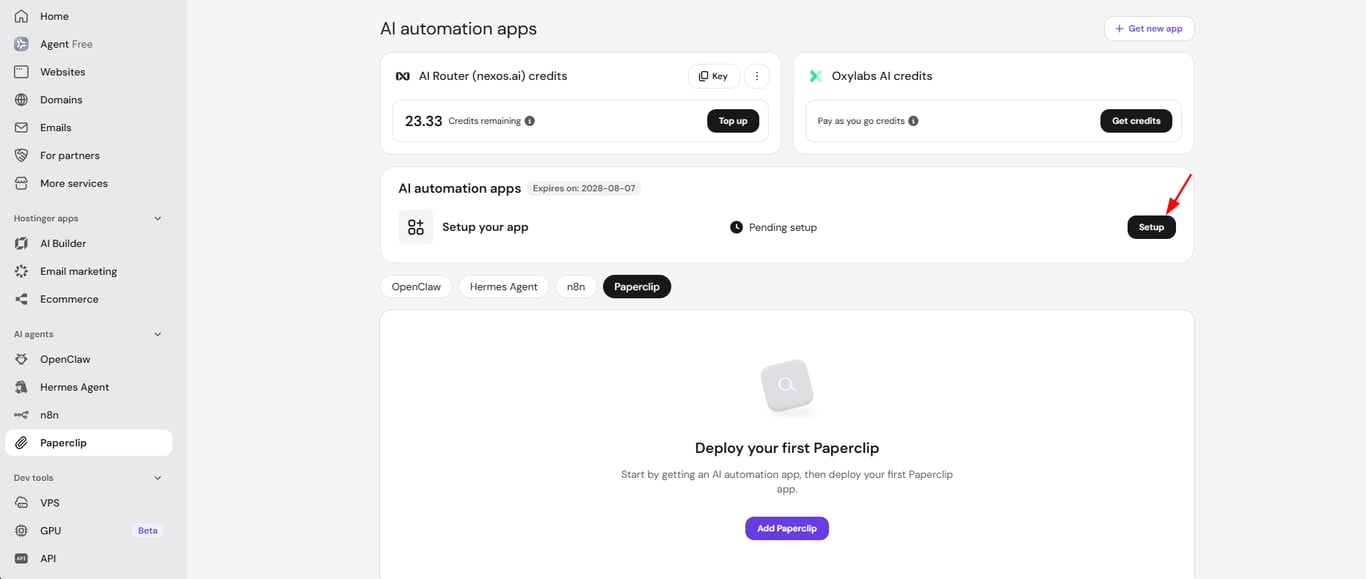
- On the Choose app to install screen, click Select under Paperclip.
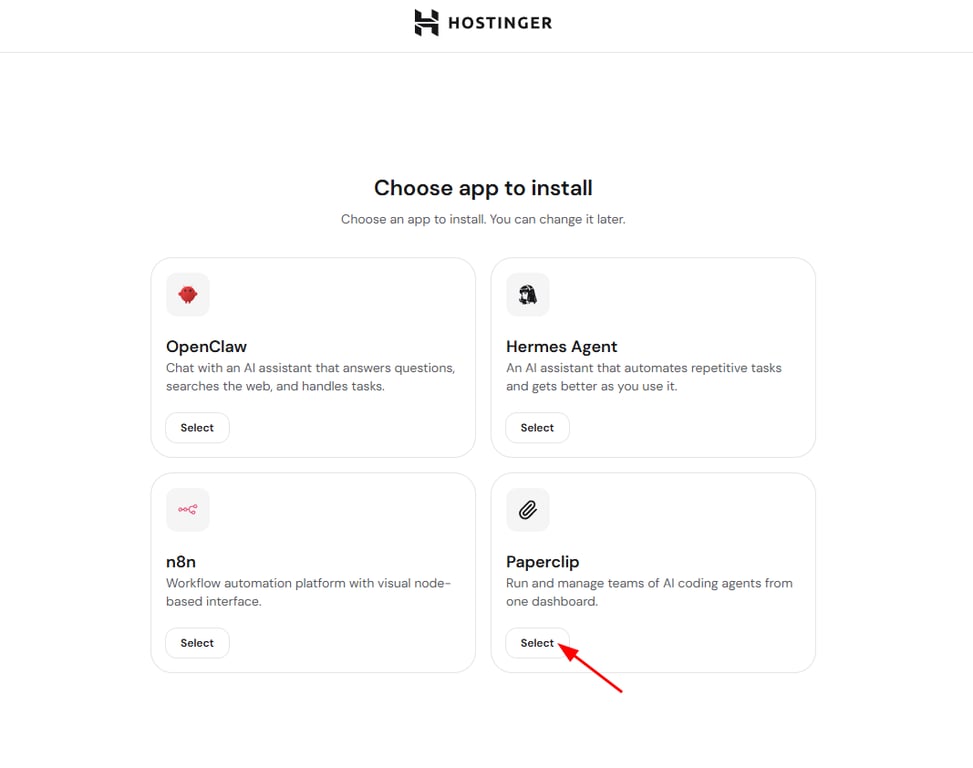
- Enter an admin email, admin password (8–128 characters), and an optional admin name, then click Continue.
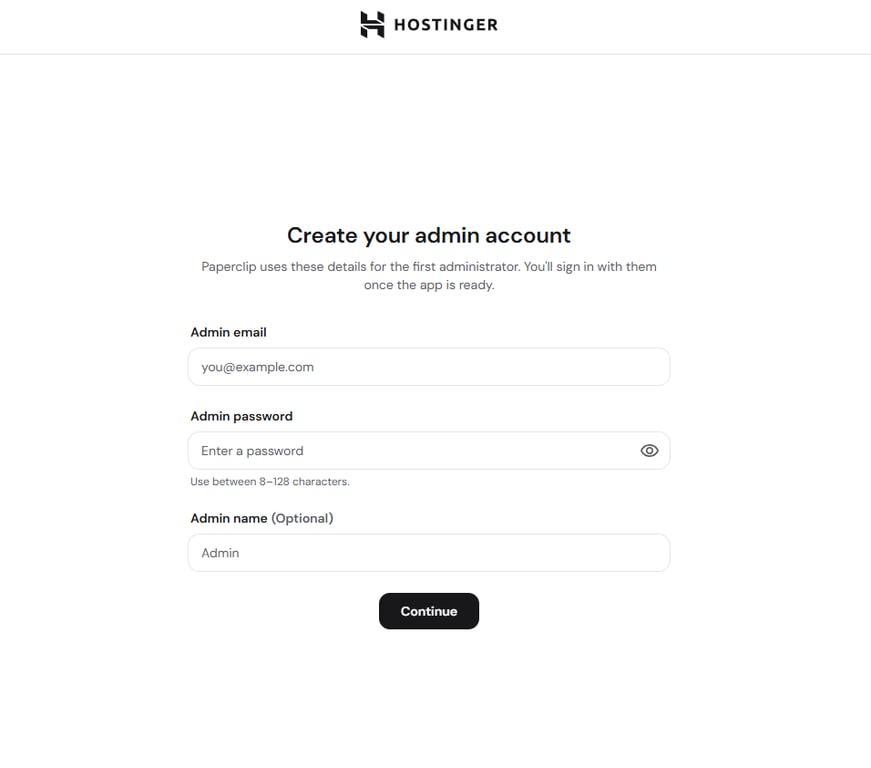
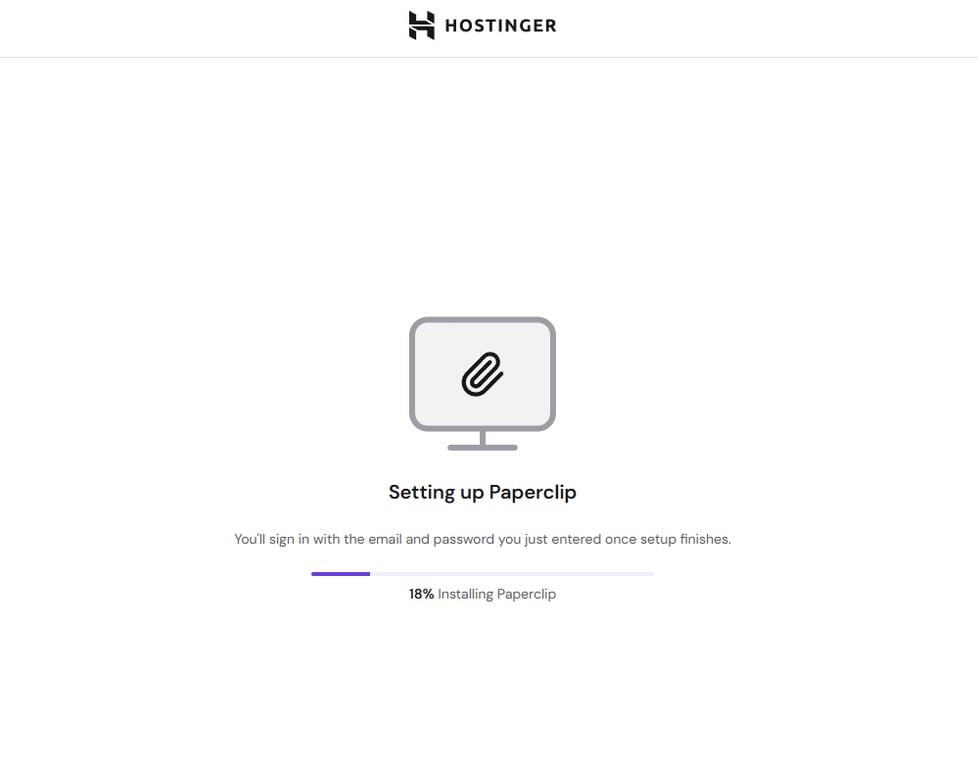
Hostinger dashboard installs Paperclip. A progress bar shows the setup status.
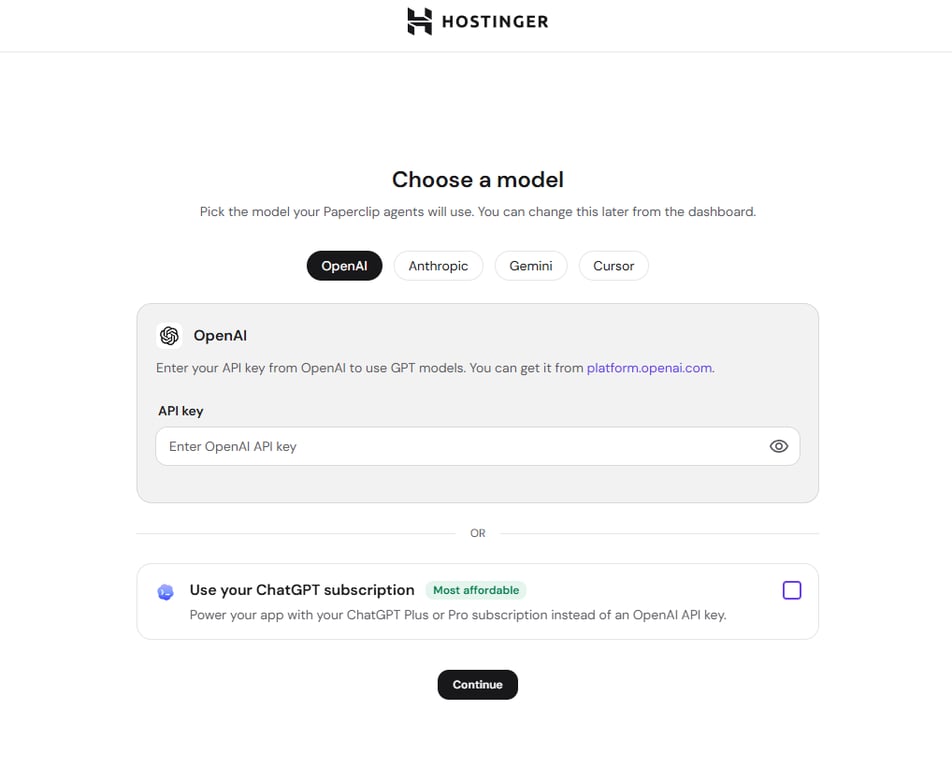
- On the Choose a model screen, select a provider tab — OpenAI, Anthropic, Gemini, or Cursor — and enter its API key, or select Use your ChatGPT subscription instead, then click Continue.
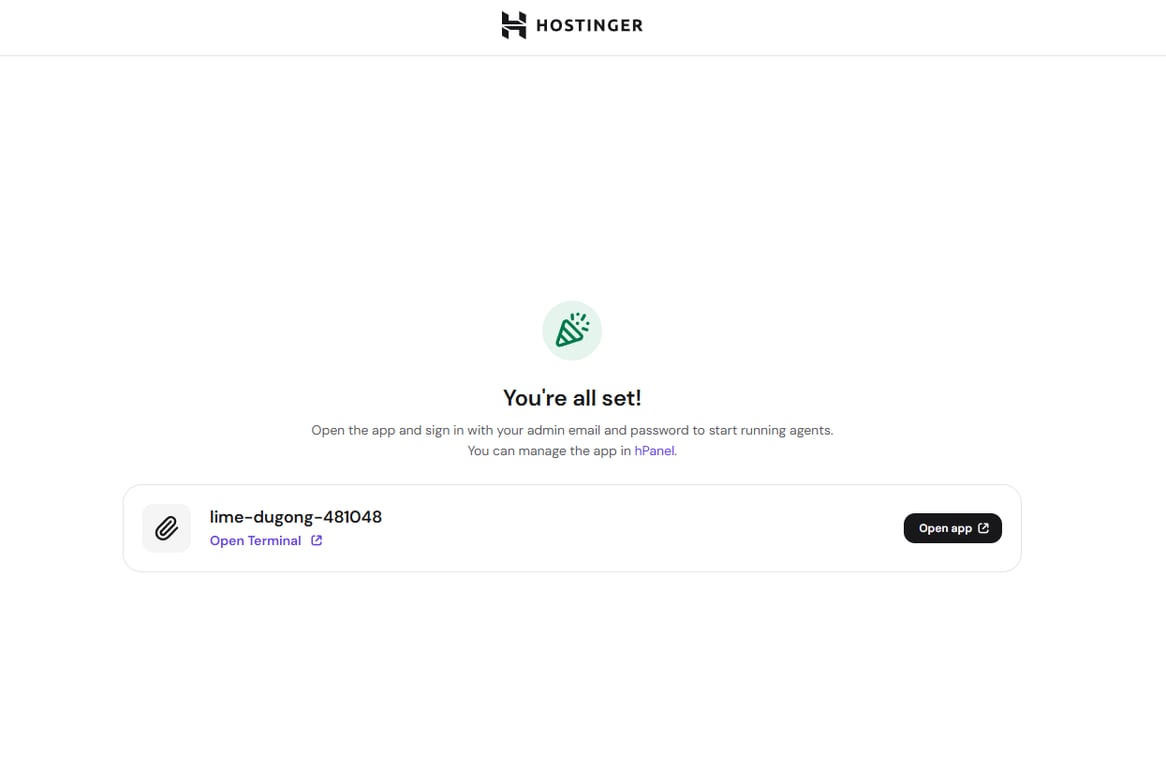
- Once setup finishes, click Open app to launch Paperclip.
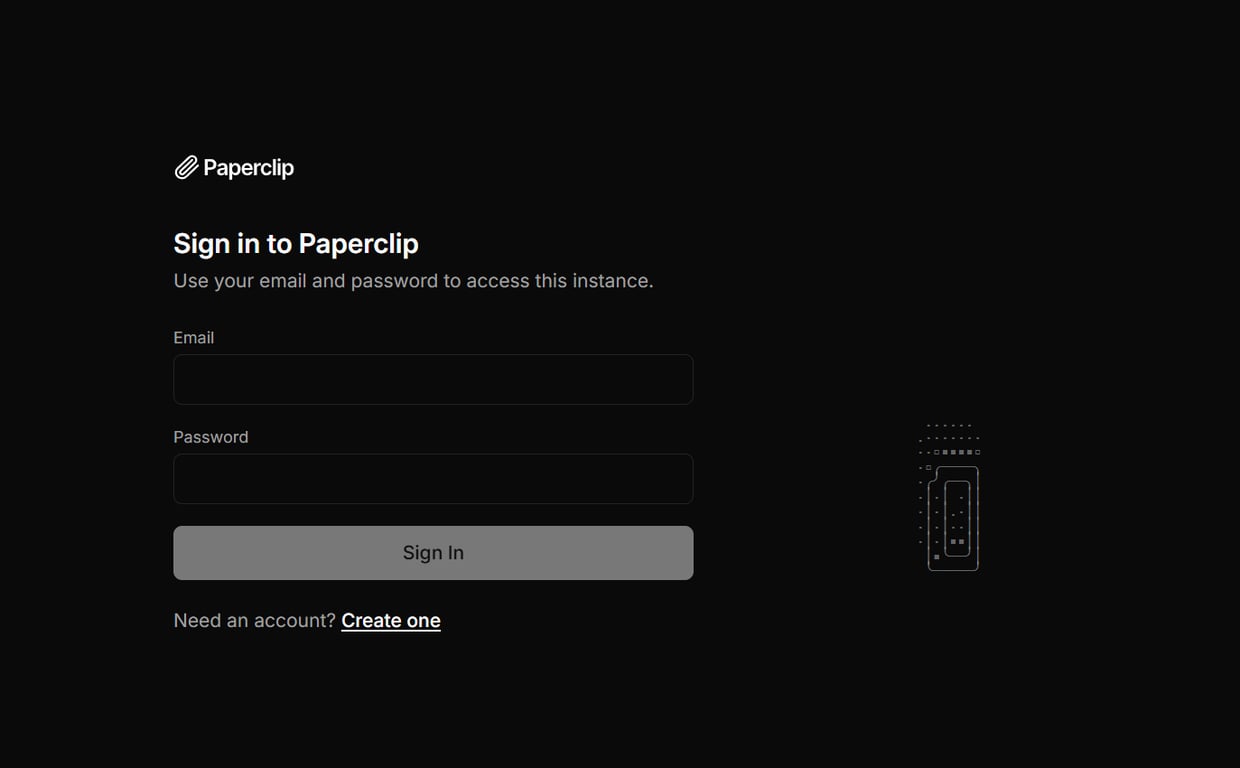
- Sign in to Paperclip using the admin email and password you created.
Set up your Paperclip organization
After signing in for the first time, Paperclip walks you through a short onboarding wizard:
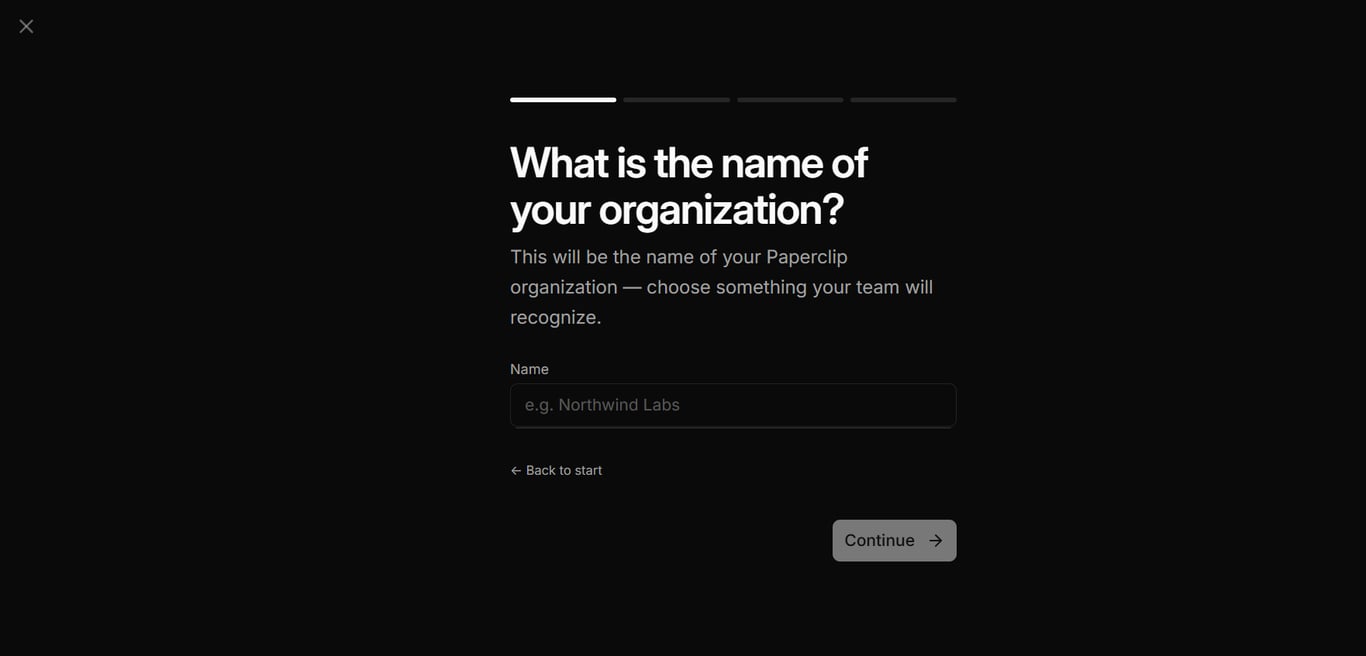
- Enter a name for your organization and click Continue.
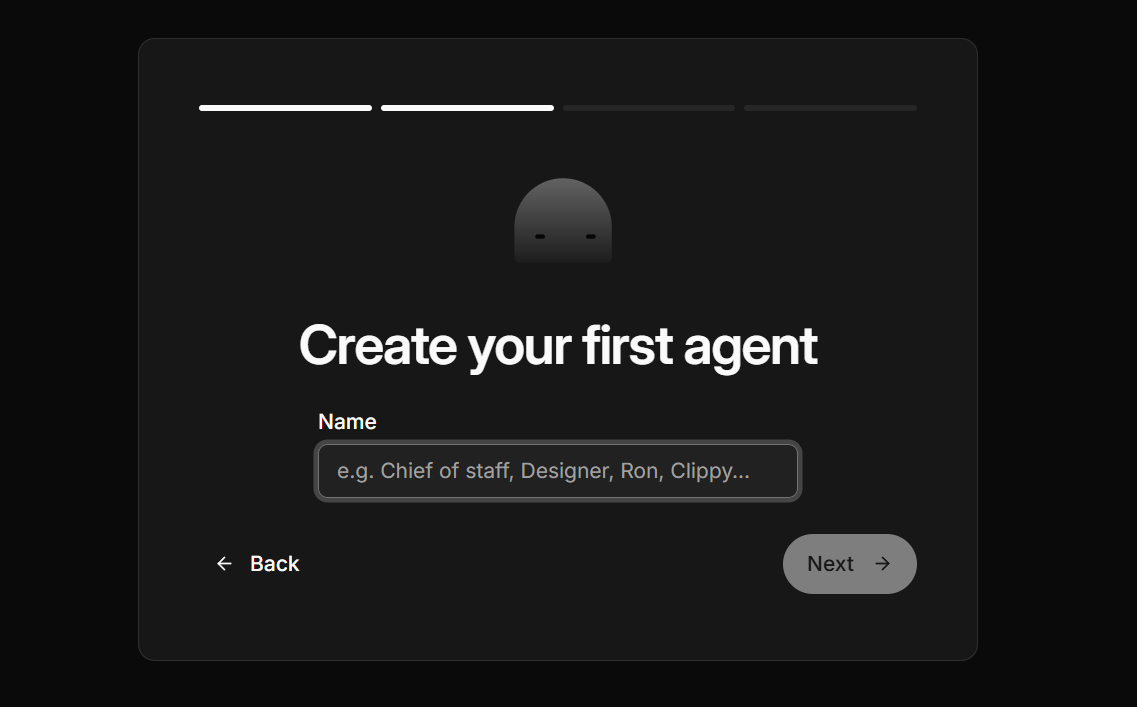
- Name your first agent (for example, Chief of staff or Clippy) and click Next.
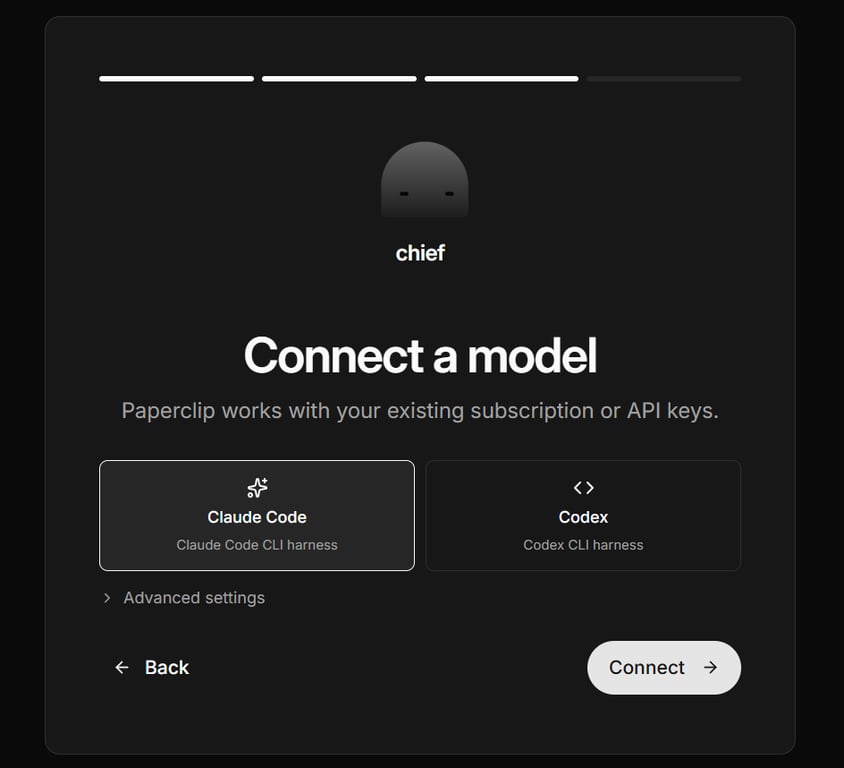
- Connect a model harness for the agent. Choose Claude Code or Codex.
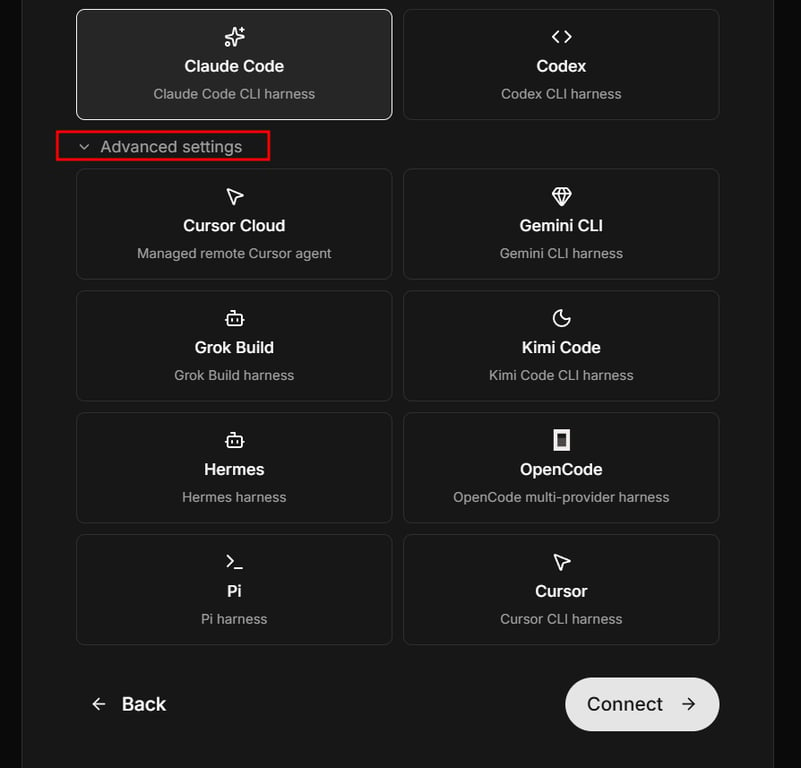
Or click Advanced settings for more options, including Cursor Cloud, Gemini CLI, Grok Build, Kimi Code, Hermes, OpenCode, Pi, and Cursor. Click Connect.
- Click Get started to activate your agent.
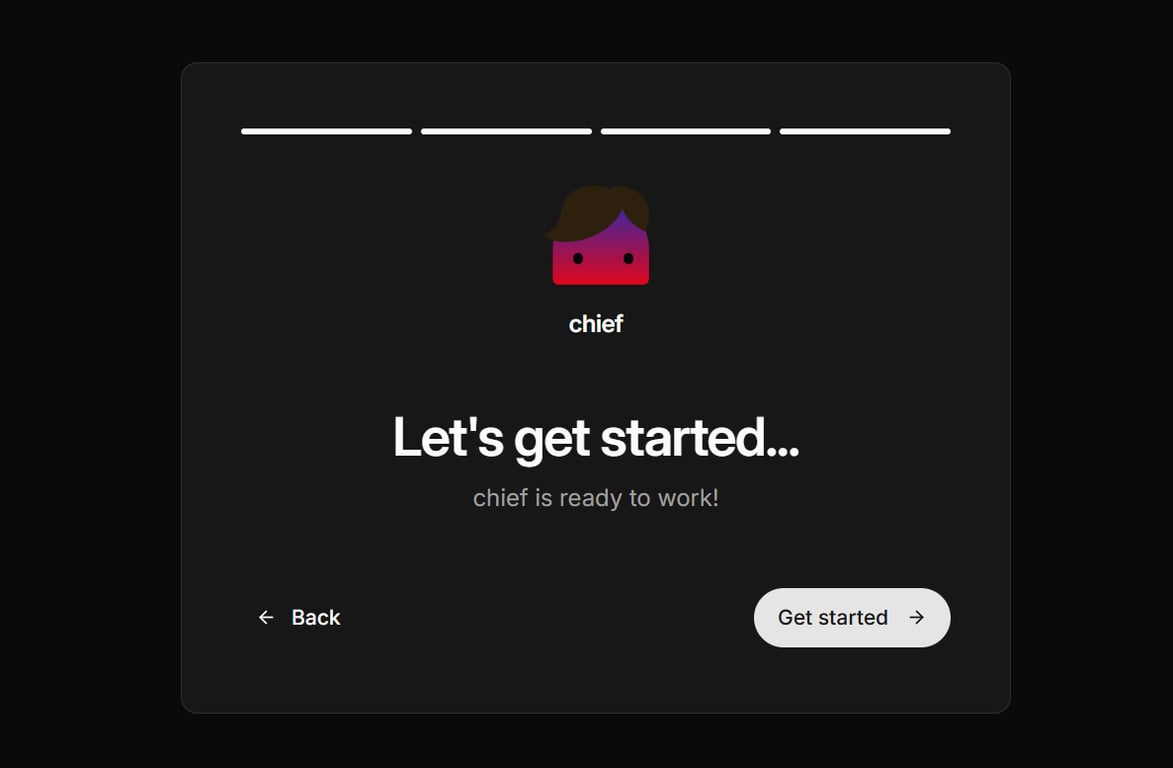
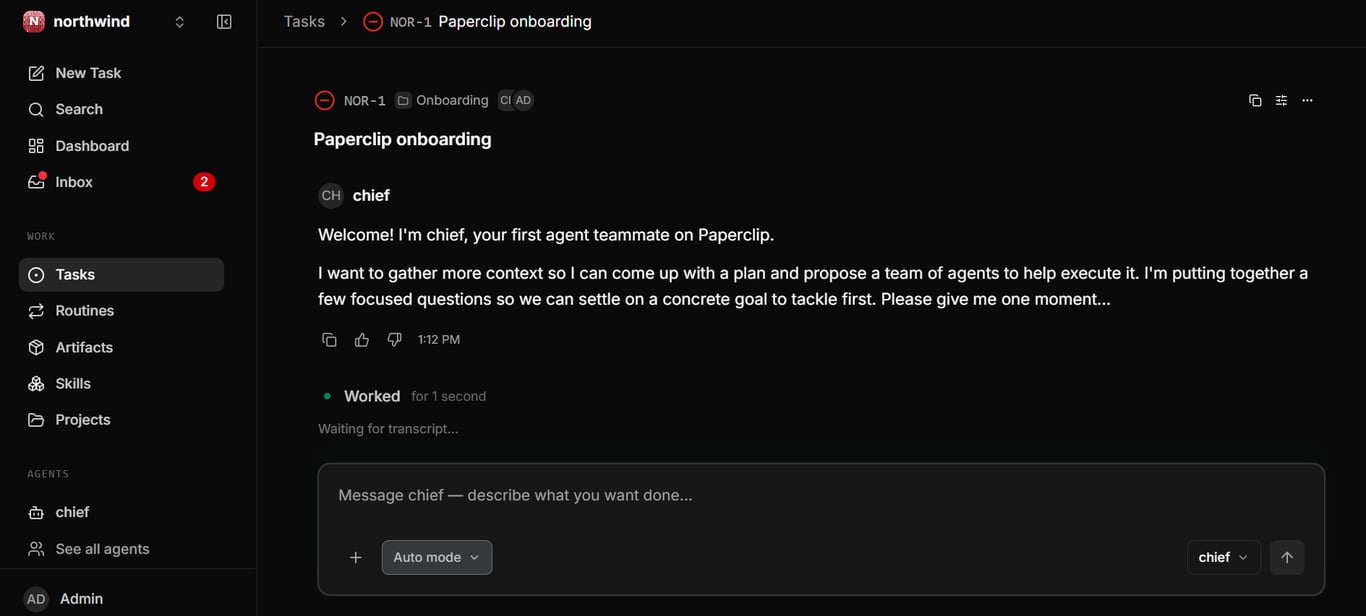
Paperclip then opens an onboarding task where your new agent introduces itself and asks a few questions to propose a plan and team of agents before starting work.
Manage your Managed Paperclip application
After completing the initial setup, you can manage your Managed Paperclip instance at any time from the Paperclip section on the Hostinger dashboard sidebar.
For more details, refer to this guide: Hostinger Managed Paperclip: How to manage your application on Hostinger dashboard.
By completing these steps, you have deployed a Managed Paperclip organization with your first AI coding agent connected and ready to work.
Additional resources