Offer your Hostinger AI Builder manual mode website in multiple languages. Adding a new language duplicates your current pages and content in your default language, so it’s best to add more languages once your website is finished in the default language.
NOTE
- A Hostinger AI Builder manual mode website supports up to 4 languages, including the default language.
Add a language
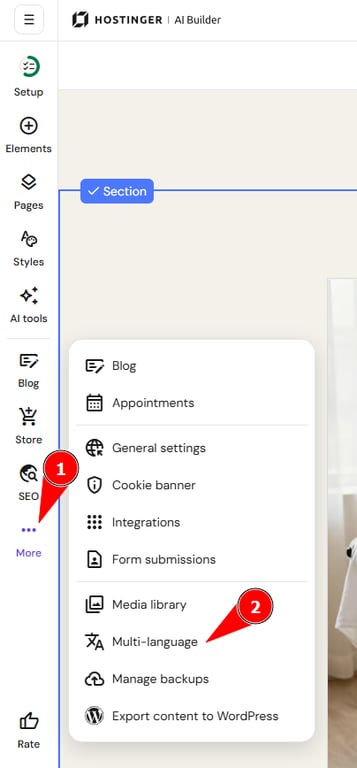
- Within the builder, click on the ellipsis ⋯ button in the sidebar
- Go to Multi-language settings:
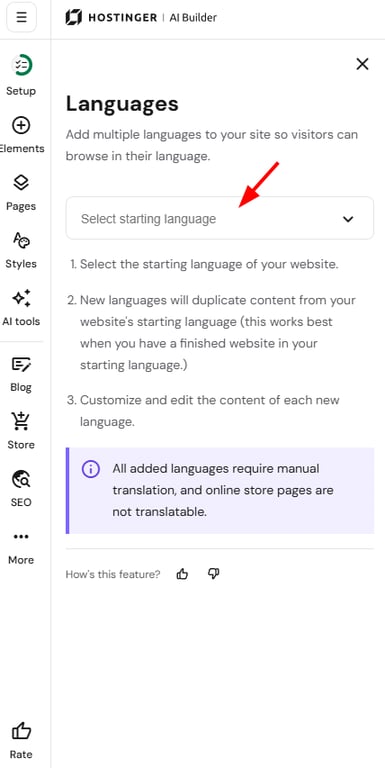
- Select the starting language of your website – it’s the default language that’s used when visitors access your site:
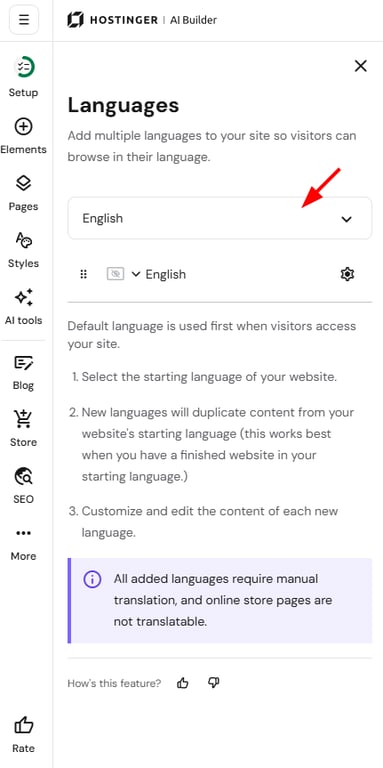
- Then, click on Add language and select the preferred additional language from the dropdown:
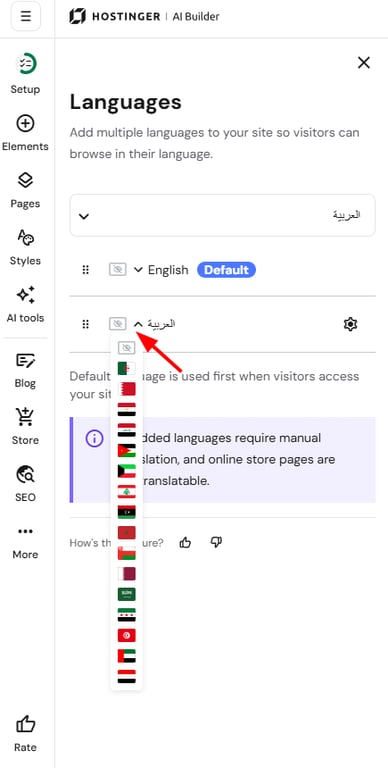
- You may also specify a flag per each language:
- Switch to other versions in the upper toolbar:
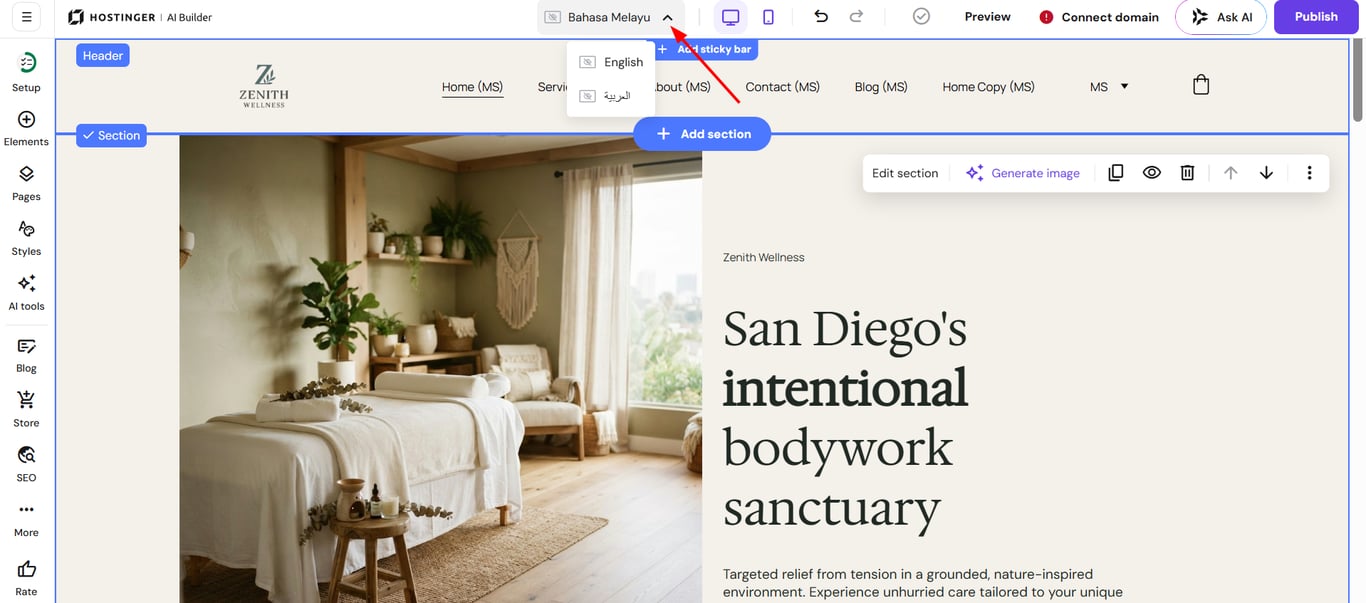
Your website is now available in multiple languages, ready for you to translate the content for each.
The content is not translated automatically: you need to translate it manually or with the help of online machine translation tools, e.g., Google Translate, DeepL, etc.
NOTE
- Adding a language doesn’t translate your online store products, because Hostinger AI Builder manual mode online stores support a single language. To show products in more than one language, follow Hostinger AI Builder: Products in multiple languages in manual mode.