Add as many horizontal slideshow sections as you like to your Hostinger AI Builder manual mode website.
Adding an image slideshow
- Within the builder, click on the Add section button – you can find it between any two adjoining sections:

- From the sections’ menu, select Slideshow and click on its thumbnail to insert a slideshow section into your page:


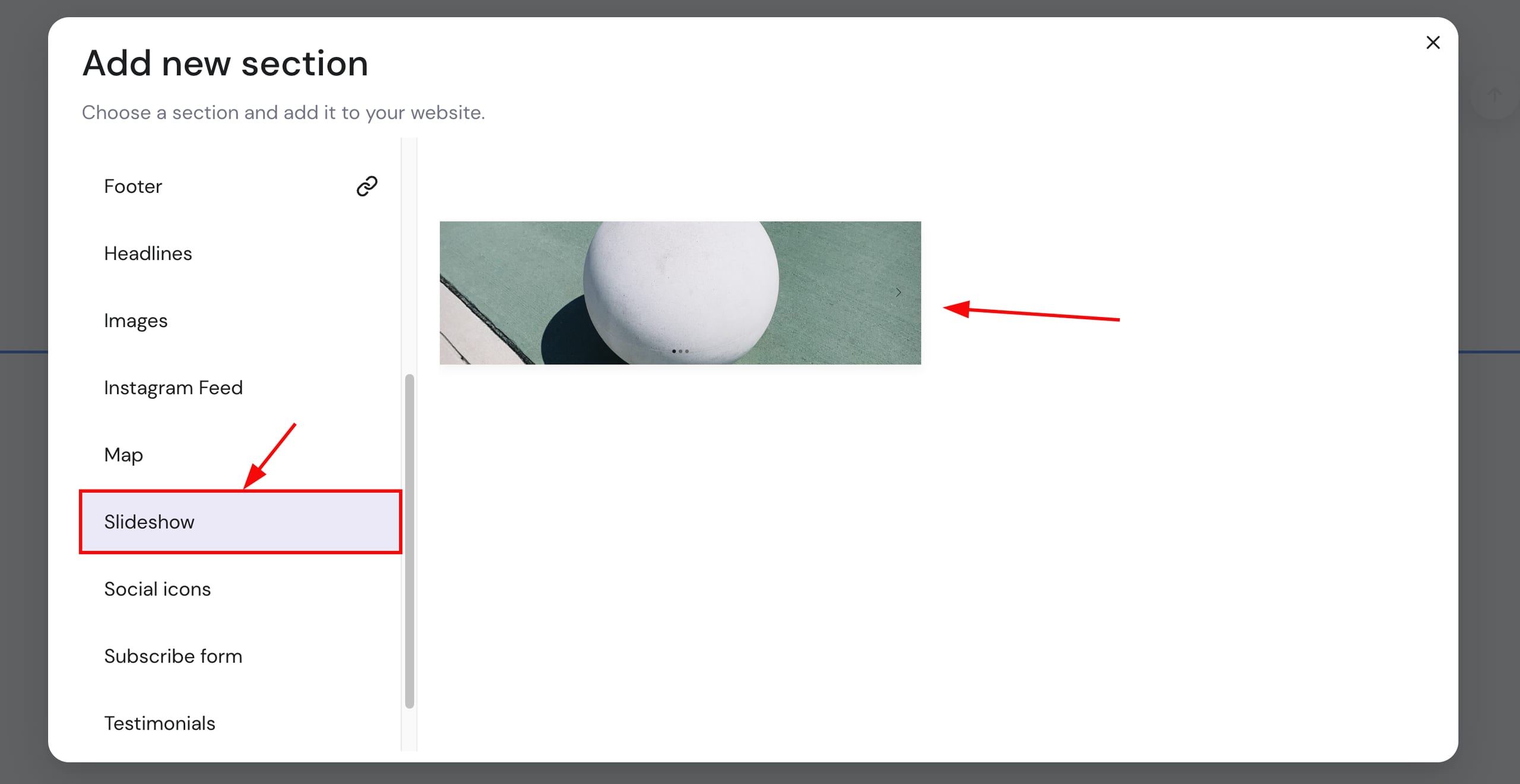
And that’s it! Now, learn how to customize the slideshow section
Managing the slideshow section
Click on the slideshow section to see all the available settings:
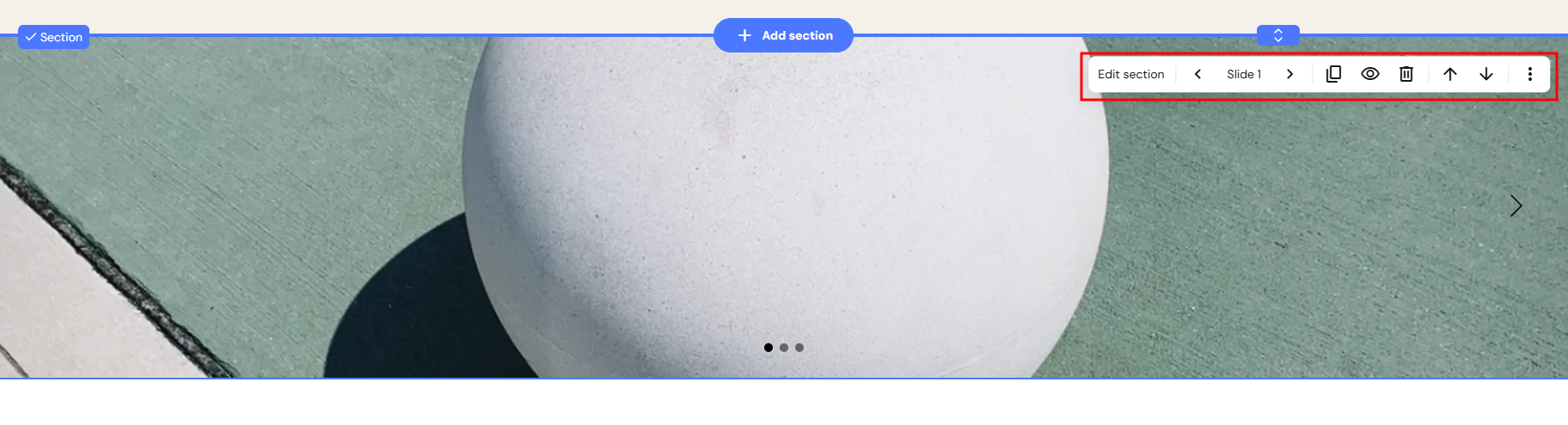
Here, you’ll find the following options:
|
Edit section |
|
|
Slide |
By clicking on ‘Slide X’, it allows you to:
|
|
Duplicate |
Duplicate the slideshow section |
|
Hide/Show |
Hide or show the slideshow section on the desktop/mobile version of the website |
|
Delete |
Delete the slideshow section |
|
Move up/down |
Move the slideshow section up or down |
|
More |
Copy the slideshow section |
Your slideshow section is now added and configured to showcase your images.
NOTES
-
To resize the slideshow section, refer here: How to Resize Elements and Sections
-
If you’re not sure what image size to use, learn more about it here: Responsive Web Design and Image Size
- Currently, there’s no option for using a vertical slideshow.