To reset your CyberPanel password on a Hostinger VPS, use either the Reset button in the Panel access tab of Hostinger dashboard or the adminPass command through SSH or the web console. Both methods set a new password for the CyberPanel admin account.
Option 1 – Via Hostinger dashboard
-
Navigate to the VPS section and choose the server to which you want to make changes
-
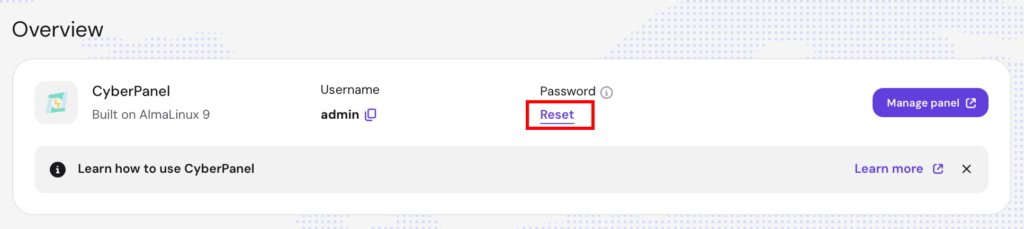
In the VPS Overview page, select the Panel access tab and click on Reset:
-
Enter a new strong password that meets the requirements and click Confirm
Option 2 – Using the command line interface
Connect to your VPS using SSH or the web console and enter the following command:
/usr/bin/adminPass newpasswordReplace newpassword with a strong password for the admin account. The password should contain at least one uppercase letter, one lowercase letter, a number, and a symbol. Use only Latin letters and ensure it’s at least 12 characters long.
Following these steps, you’ll successfully reset your CyberPanel password, allowing access to your control panel.