To connect to your Hostinger Virtual Private Server (VPS) via SSH, use the Web Console in Hostinger dashboard or a local SSH client with your SSH username, IP address, and password. Secure Shell (SSH) is a protocol that manages your VPS through a command-line interface.
Locate your SSH details
The Web Console method does not require SSH details as it connects automatically. For the web console method or in case you want to know your details:
- Go to Hostinger dashboard → VPS.
- Click Manage next to the server.
On the VPS Overview page, find the following:
- Server IP and username: Scroll down to the VPS details card to find the SSH username and your VPS IPv4 address.
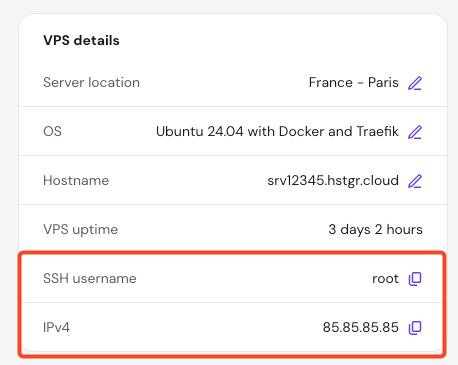
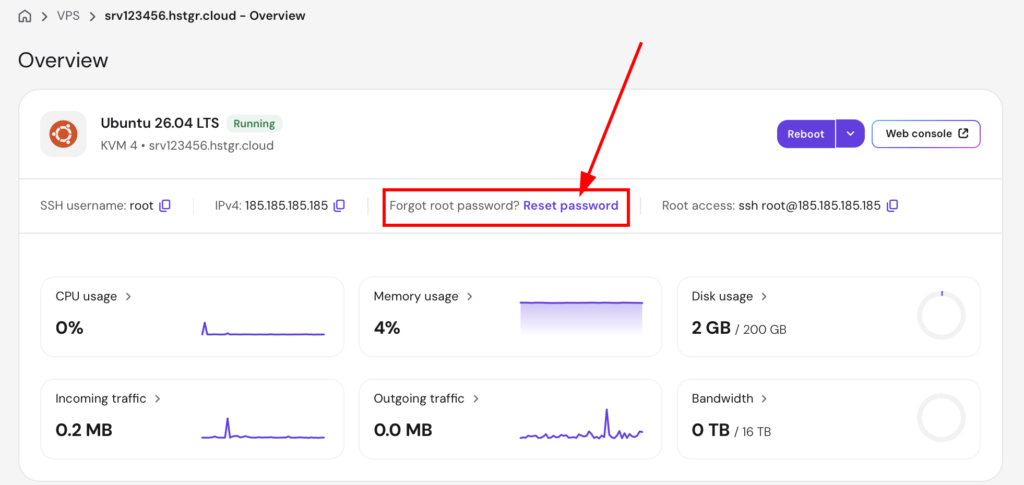
- SSH Password: Use the password you set up when you first configured the server. For security reasons, it cannot be accessed or displayed from Hostinger dashboard. If you have forgotten the password, click on Change below Root password to set a new one.
Method 1 — Connect via the Hostinger Web Console (recommended)
The web console is the simplest method as it automatically authenticates your session, allowing you to access the server without entering credentials manually or installing third-party software.
- Go to Hostinger dashboard → VPS.
- Click Manage next to the server.
- On the VPS Overview page, click the Web Console button located in the top right corner.
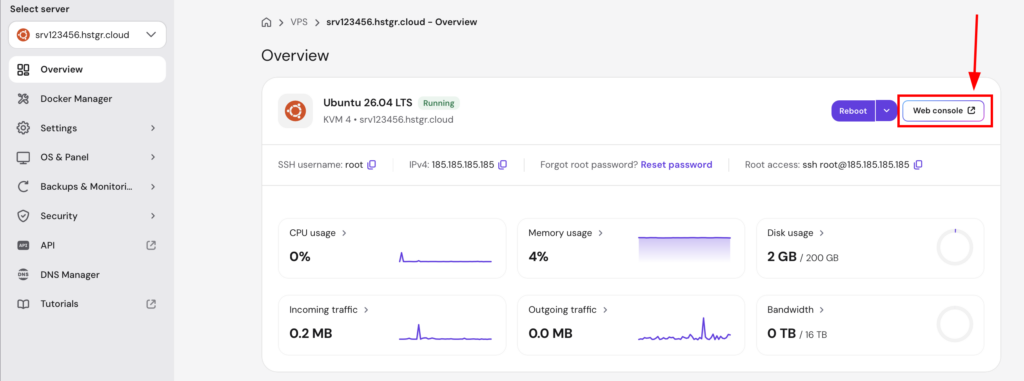
- A new window will open, and you will be automatically logged in to your VPS command line.
- If you get asked for username and password, refer to the Locate your SSH credentials above. In that case and for security reasons, the web console will not show characters or dots while you type your password.
Method 2 — Connect using a local SSH client
You can also connect using your computer’s terminal (macOS/Linux) or a client like PuTTY (Windows). This method requires you to manually enter your server details.
- Open your SSH client.
- Windows: Use PowerShell (click Win+R, type
cmdand press Enter) or an SSH client like PuTTY. - macOS: Search for Terminal in Spotlight.
- Linux: Open the Terminal application (Ctrl+Alt+T).
- Windows: Use PowerShell (click Win+R, type
- Copy the SSH command from the Root access header next to the server OS and name.

- If asked to confirm the connection, type
yesand press Enter. - Enter your password when prompted.
NOTES
- For security reasons, the web console does not show characters or dots while you type your password.
- If you do not remember your password, you can set a new one using the Reset password button in the VPS Overview page.
Troubleshooting
If you cannot establish an SSH connection:
- Reset the firewall: In your VPS dashboard, go to Settings and reset the firewall to default rules.
- Reset SSH configuration: Under the Settings menu, locate SSH configuration and click Reset SSH.
- Check server status: If connecting via SSH client, try connecting with the browser terminal to verify if the server is running and responsive.
You are now connected to your Hostinger VPS and can run commands on it.
Additional resources