The Web Console is a feature available with all Hostinger VPS plans that allows you to manage your server using terminal commands directly from your web browser. This tool eliminates the need for third-party SSH clients, providing a convenient way to execute commands and manage your VPS files and configurations through Hostinger dashboard.
Access the VPS Web Console
- Go to Hostinger dashboard → VPS.
- Select the VPS by clicking Manage.
- In the VPS Overview, locate and click the Web Console button.
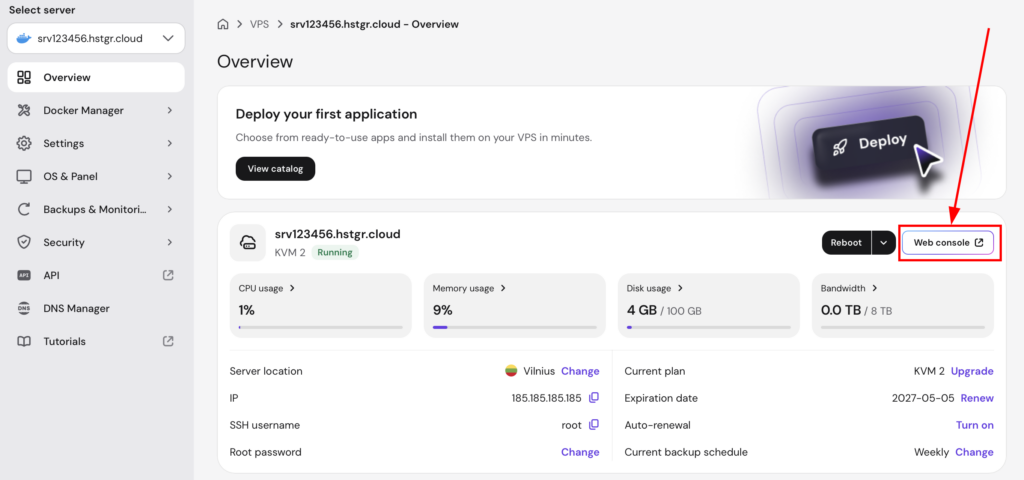
- A new browser tab will open automatically with the web console. To ensure the tab opens, always allow pop-ups and redirects from
hpanel.hostinger.comif needed.

- In most cases, the web console will log you in automatically. If you are prompted for a login (for example, if you ended the last session using the
exitcommand), enter your SSH username (usuallyroot), press Enter, then type your SSH password and press Enter again. The password will not be visible as you type.
Using the web console
Once the web console session is active, you will see a command-line interface. You can now begin entering commands to manage your VPS directly. This session functions exactly like a standard SSH connection.
It is recommended to use the web console in only one tab at a time. When done, just close the tab.
Learn the 50+ essential Linux commands you’ll need to manage your VPS from the web console.
Troubleshooting
- Web Console is empty: Close the web console, reboot your VPS, and reopen the web console.
- Wrong layout: It is not recommended to use the web console from mobile devices.
- Starting serial terminal on interface serial0 message: Press the Enter key a few times until the prompt appears.
You are now ready to manage your VPS directly from your browser. This method provides a secure and fast way to run commands without leaving your Hostinger dashboard.
Additional resources