Start building your Hostinger AI Builder manual mode website with a pre-made template, providing a ready-made layout and structure you can customize with the drag-and-drop editor.
Choose a template during setup
To start building your website with a template:
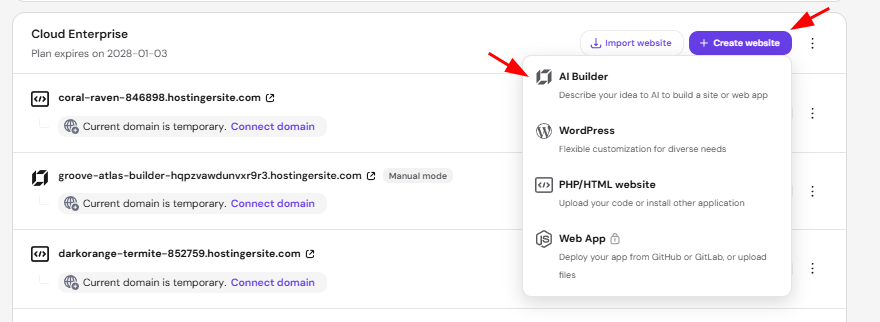
- Go to Hostinger dashboard → Websites.
- Locate your hosting plan and select Create website → AI Builder.
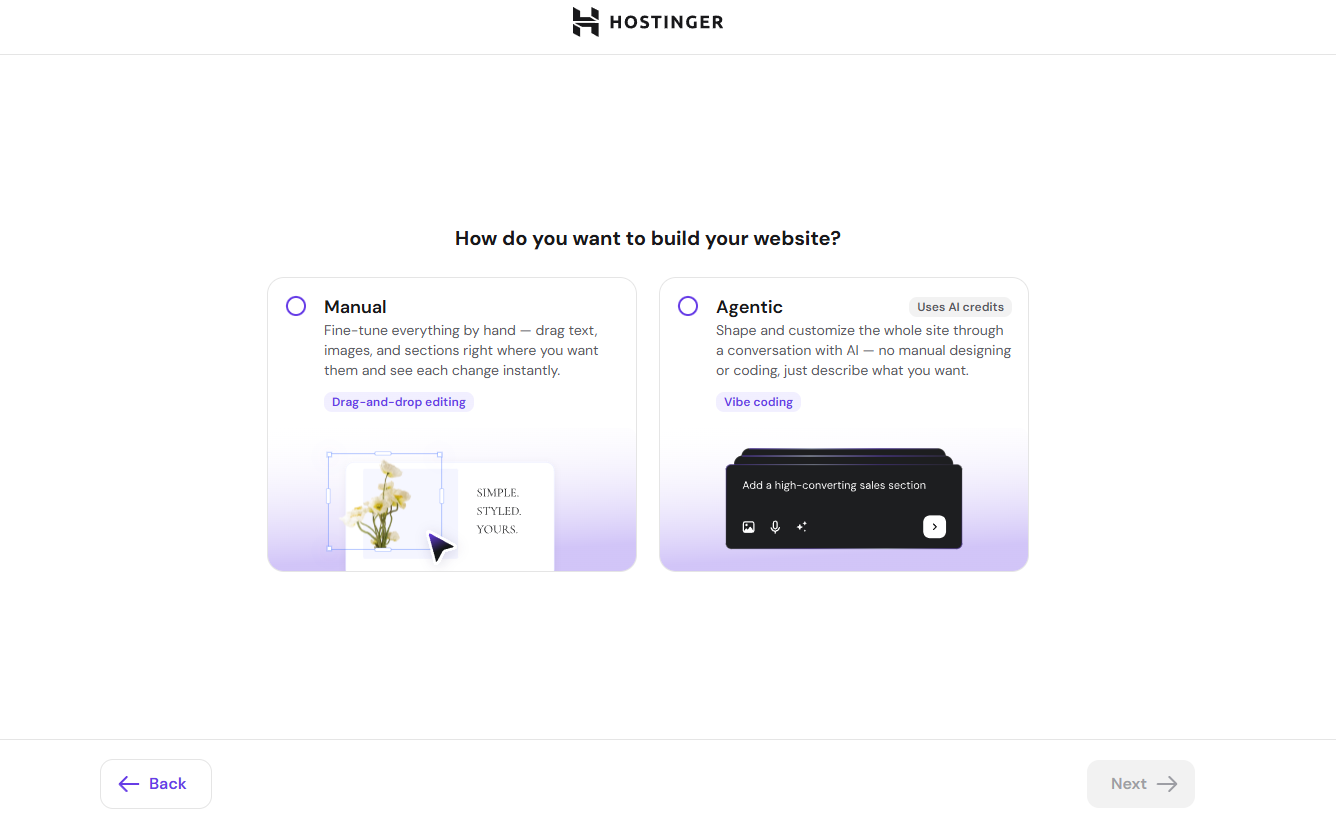
- Choose Manual
- Click Pre-made templates.
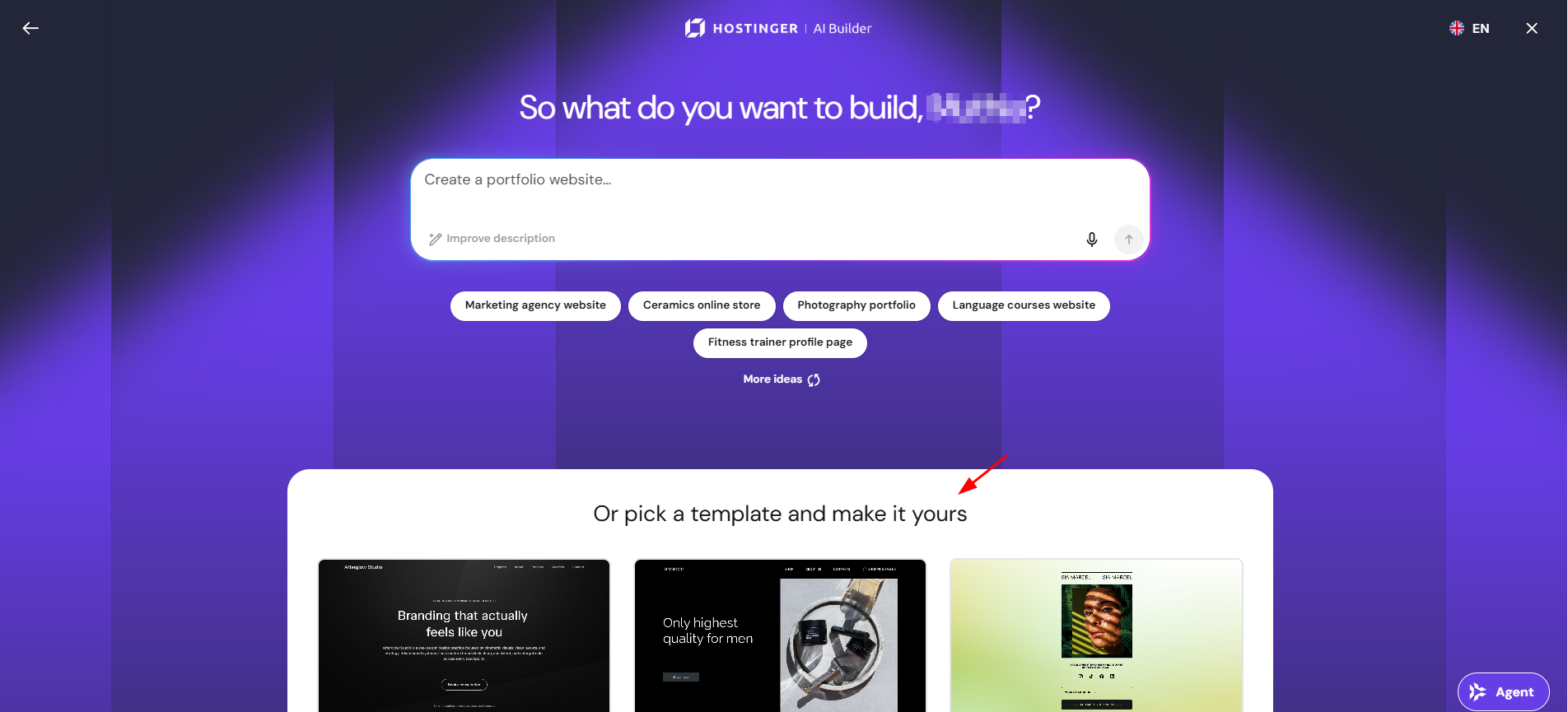 Browse the available designs in the All templates section. Templates are also organized into categories such as Portfolio, Fashion, Marketing, Events, eCommerce, and others.
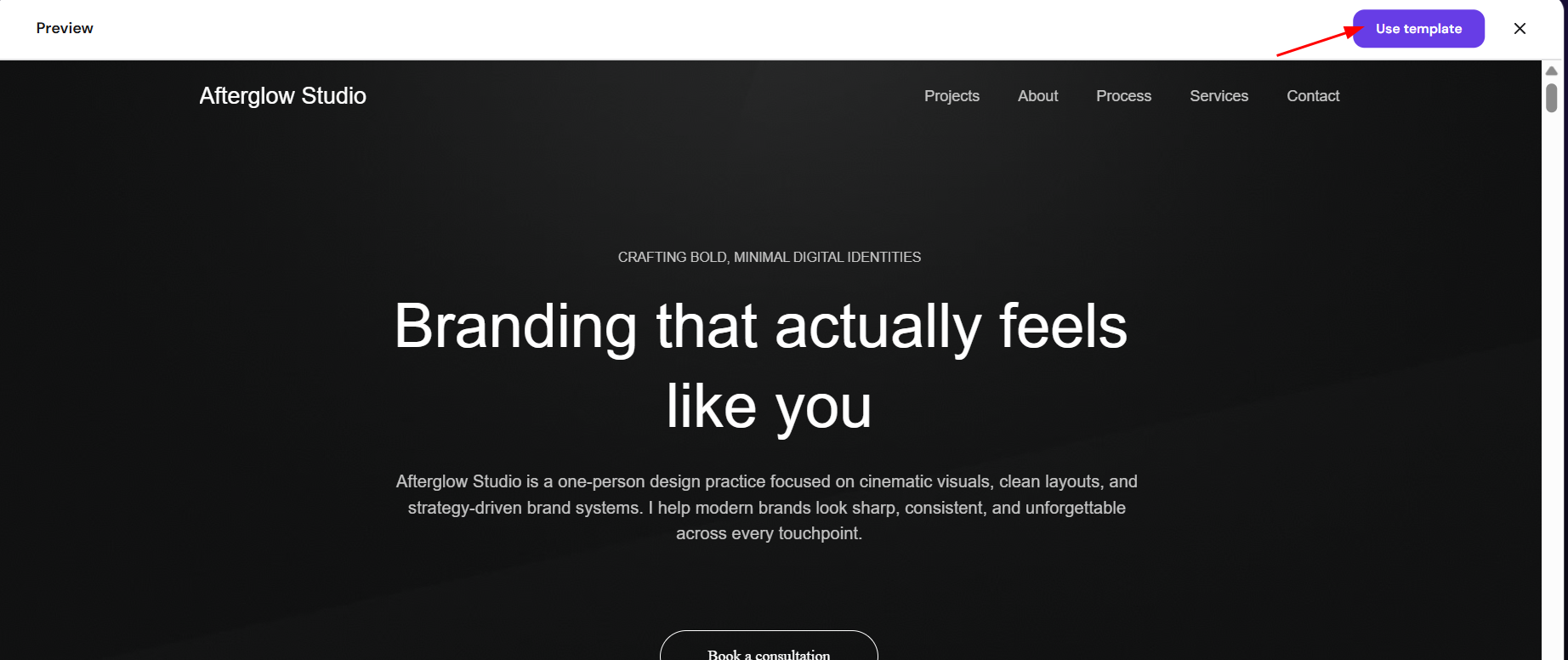
 - Hover over a template and click Preview to open the demo and explore its layout.
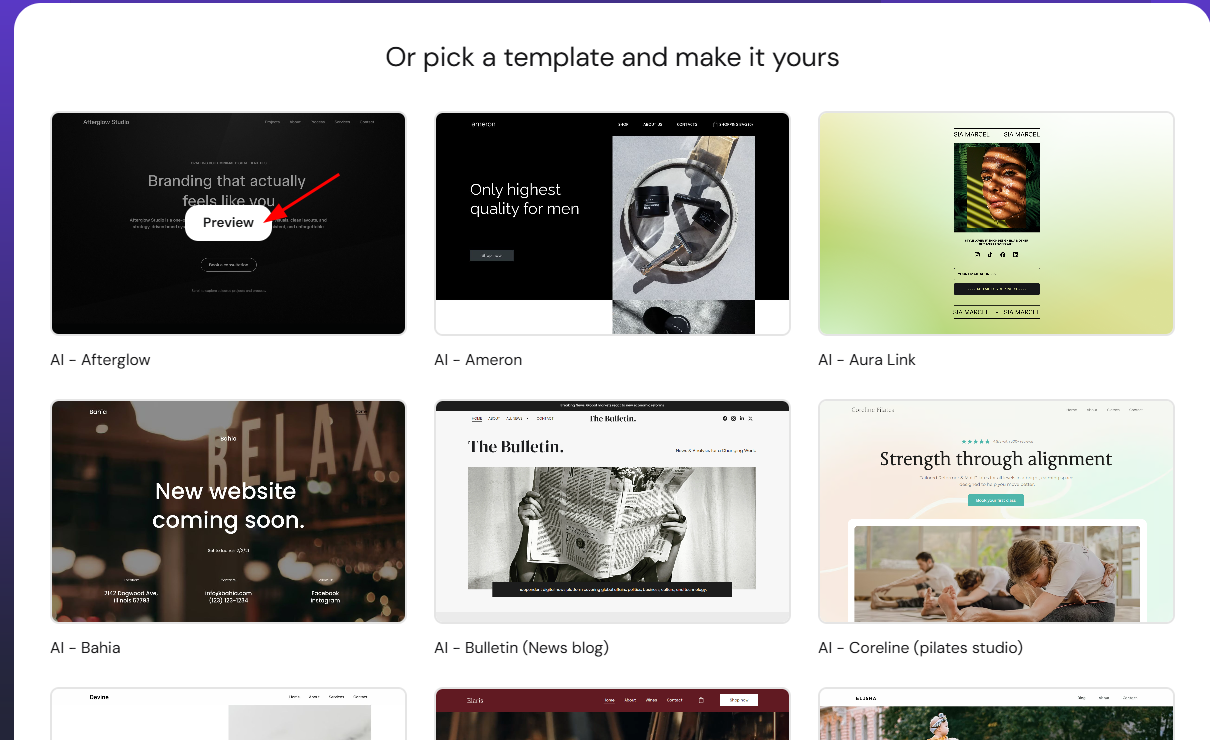
- Once you find a template you like, click Use template to start editing your website using Hostinger AI Builder manual mode.
Template flexibility
Template categories are intended only to help you browse designs. All templates include the same tools and features and can be customized using the editor. You can modify sections, text, images, colors, and layout elements to match your needs, including how to customize your website’s style.
Using a template provides a starting structure for your website while still allowing you to adapt the design to your content.
After a template is selected and the website is created, the template choice is fixed and cannot be changed later. To change it, you would need to recreate a website (that is, create a new site using a different template, disconnecting the domain from the current website and connecting to the new one). See How to display a section in full width for another way to adjust your template’s layout.
Choosing a template gives you a structured starting point for your website, allowing you to begin editing content and building your pages right away.