Hostinger Ecommerce discount codes give your customers a discount at checkout, with three discount types: Percentage, Fixed amount, and Free shipping. To create a discount code, open Discounts in the Store Manager, choose the discount type, enter the code and discount, set optional conditions and active dates, and save it.
Discount code types in Hostinger Ecommerce
Hostinger Ecommerce supports three discount code types:
- Percentage – reduces the price by a percentage. It applies to all products or to specific product categories.
- Fixed amount – reduces the price by a fixed amount in your store currency. It applies to all products and services.
- Free shipping – removes shipping costs at checkout. It applies to all shipping methods or only to the shipping zones and methods you select.
Percentage and fixed amount discount codes don’t reduce shipping costs. All discount codes, including expired, active, and scheduled codes, appear in the Discounts list with their code, name, type, number of uses, and status.
Learn how to specify a discounted price for each product individually.
Create a percentage discount code in Hostinger Ecommerce
A percentage discount code reduces the price by a percentage. It applies to all products or to specific product categories, and it doesn’t reduce shipping costs.
- In the Store Manager, go to Discounts and click Add discount.
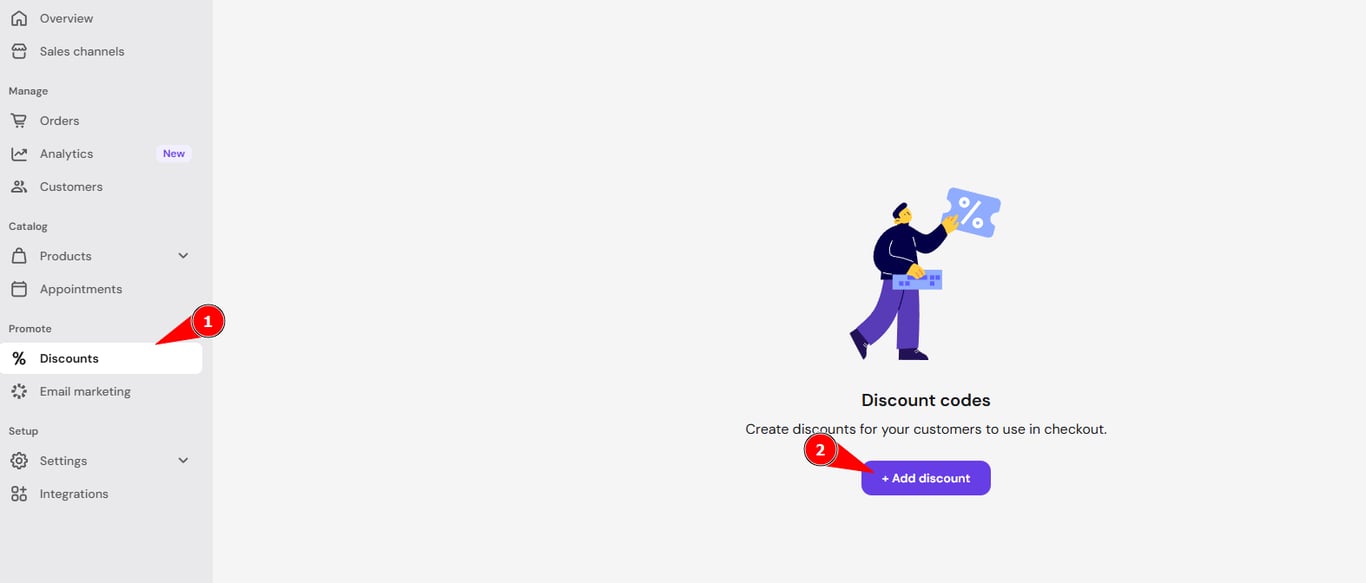
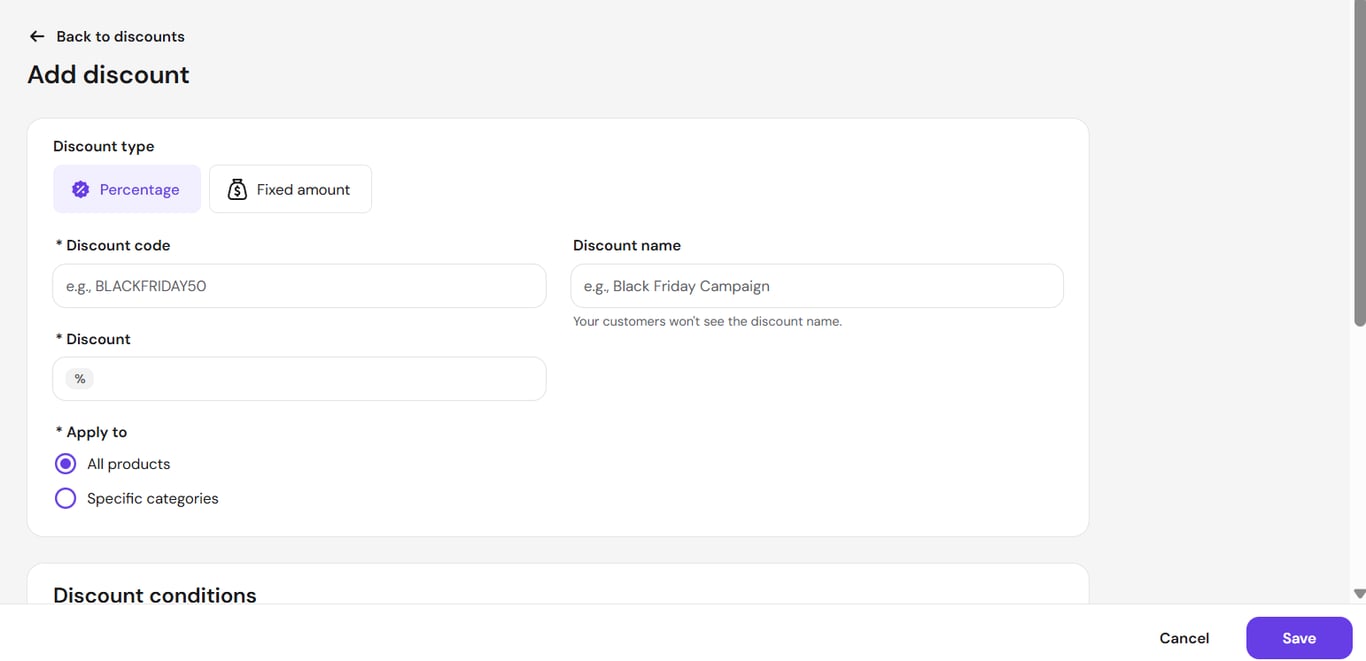
- Select Percentage as the Discount type.
- Enter the Discount code your customers type at checkout, for example
BLACKFRIDAY50. Optionally, enter a Discount name for your own reference. Your customers won’t see the discount name. - Enter the percentage in Discount.
- Under Apply to, select All products or Specific categories. See how to create product categories.
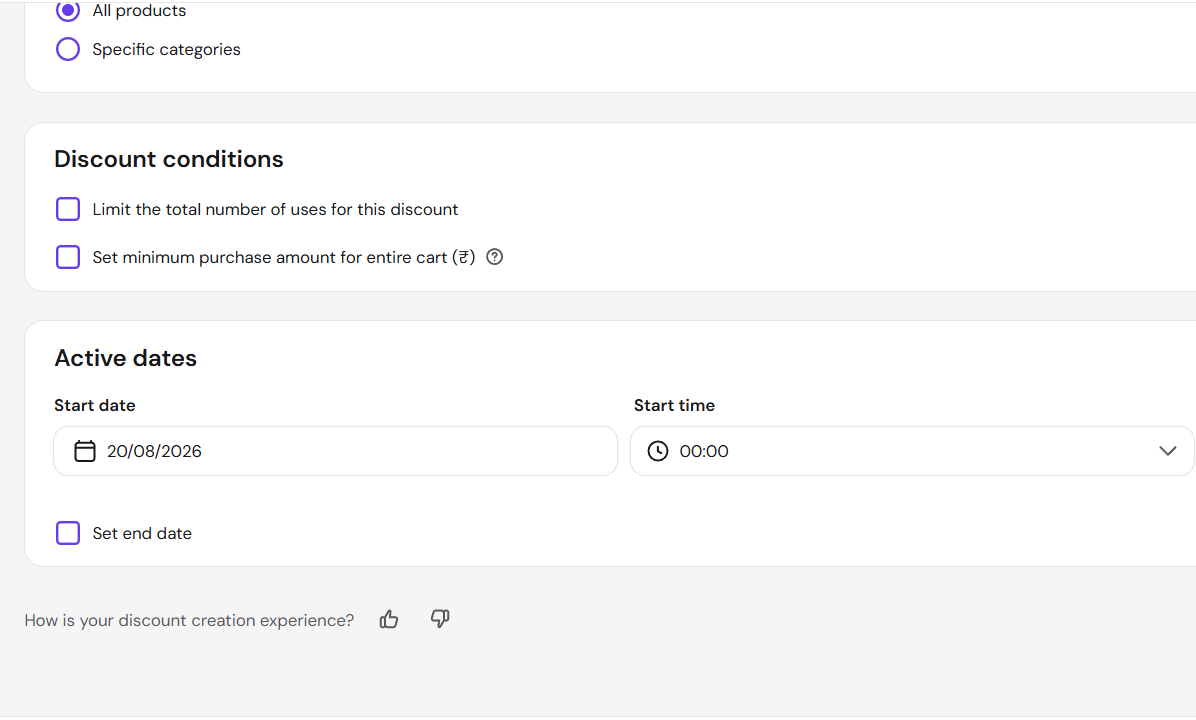
- (Optional) Under Discount conditions, select Limit the total number of uses for this discount or Set minimum purchase amount for entire cart.
- Under Active dates, set the Start date and Start time. To end the discount automatically, select Set end date and set the End date and End time.
- Click Save.
Create a fixed amount discount code in Hostinger Ecommerce
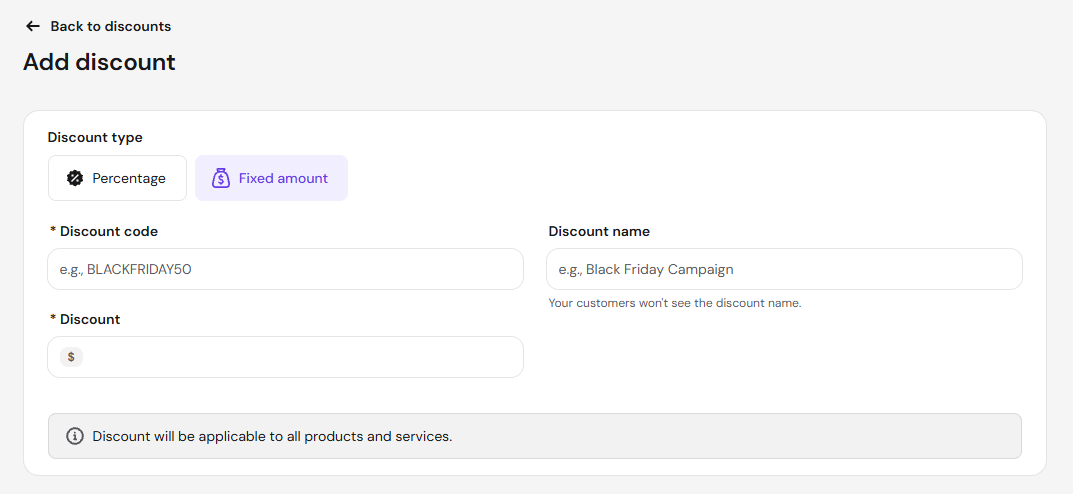
A fixed amount discount code reduces the price by a set amount in your store currency. It applies to all products and services, and it doesn’t reduce shipping costs.
- In the Store Manager, go to Discounts and click Add discount.
- Select Fixed amount as the Discount type.
- Enter the Discount code and, optionally, a Discount name.
- Enter the amount in Discount.
- (Optional) Under Discount conditions, select Limit the total number of uses for this discount or Set minimum purchase amount for entire cart.
- Under Active dates, set the Start date and Start time. To end the discount automatically, select Set end date and set the End date and End time.
- Click Save.
Create a free shipping discount code in Hostinger Ecommerce
A free shipping discount code removes shipping costs at checkout for the shipping zones and methods it covers. Shipping zones and methods the code doesn’t cover keep their regular shipping cost.
- In the Store Manager, go to Discounts and click Add discount.
- Select Free shipping as the Discount type.
- Enter the Discount code and, optionally, a Discount name.
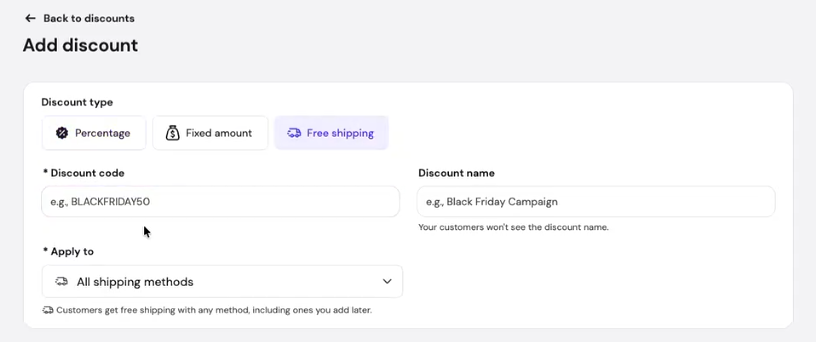
- Open the Apply to dropdown. By default, the code covers All shipping methods, including shipping methods you add later.
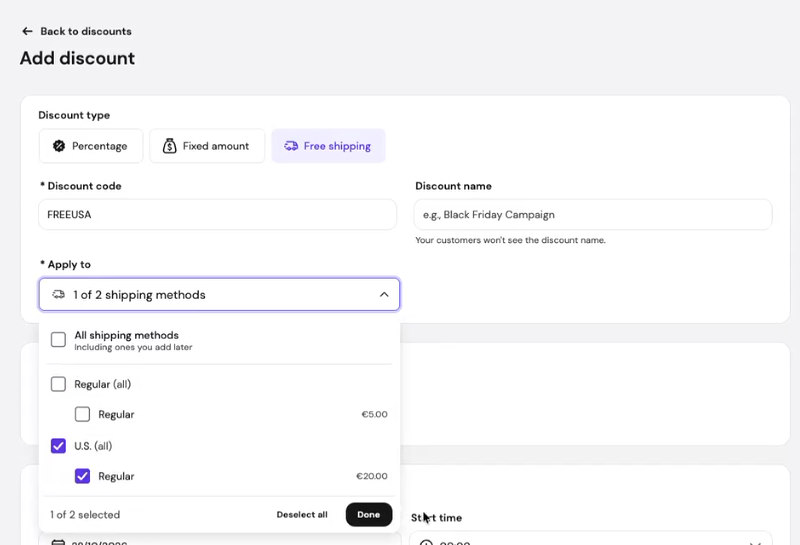
- To limit the code, clear All shipping methods and select a shipping zone or individual shipping methods, then click Done. For example, select U.S. (all) to cover every shipping method in the U.S. zone.
- (Optional) Under Discount conditions, select Limit the total number of uses for this discount or Set minimum purchase amount for entire cart.
- Under Active dates, set the Start date and Start time. To end the discount automatically, select Set end date and set the End date and End time.
- Click Save.
When a customer applies the code at checkout, it appears below the discount code field, and Shipping shows Free. The free shipping code also appears on the order confirmation, invoices, and receipts.
NOTE
- A discount code can’t be changed to or from the free shipping type after it’s created. To use a different type, create a new discount code.
To offer free shipping without a discount code, set up a free shipping option for a shipping zone. See Hostinger Ecommerce: Free shipping.
Your discount code is ready to share with customers, who can enter it at checkout during its active dates.