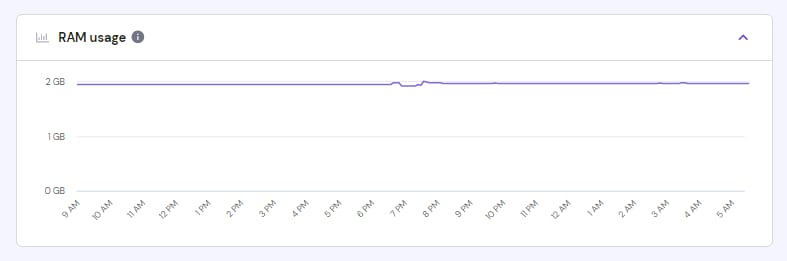
Check detailed RAM usage on your VPS at Hostinger if you see unusually high usage in the Hostinger dashboard.
Check detailed RAM usage via SSH
Our recommendation is to check the detailed usage inside the server. Just log in to your VPS via SSH and enter the following command:
free -mIt will generate a table breaking down the RAM usage similar to this:

Let’s go over each column:
-
Total – the RAM limit set for your VPS plan
-
Used – memory in use at the moment
-
Free – unused memory
-
Shared – memory used by temporary files
-
Buff/cache – memory used by kernel buffers and page cache
-
Available – how much memory your server can additionally use to execute further processes
NOTES
-
Due to the calculation method, there may be variations between the total and the sum of used and free memory
-
The Hostinger dashboard graph displays the sum of used and buff/cache as used memory
About high cache usage
If you see high usage in the cache column, you do not need to worry! Caching improves the performance of your VPS by using free memory to buffer frequently-accessed files.
In addition, Linux has a built-in memory management feature that will automatically release cache memory as pressure increases within your VPS. This will prevent it from running out of memory – so you don’t have to clear the cache to increase available memory 😊
Additional resources