If you wish to move your website from a subdomain to the root domain (subdomain.domain.tld → domain.tld), follow the steps below.
First, make sure the root domain is added to your hosting plan – it should be visible in the Websites section of Hostinger dashboard.
Step 1 – Copy files from the subdomain to the root domain
- In the Websites section, click on Dashboard next to your website that’s connected to the subdomain.
- In the left sidebar, search for File Manager and access all the files within your hosting plan:
- Open the domains folder, then open the folder of your website (e.g.,
subdomain.domain.tld), and then open the public_html folder within:

- Select all the files, and copy them to the root domain (make sure its folder is empty):


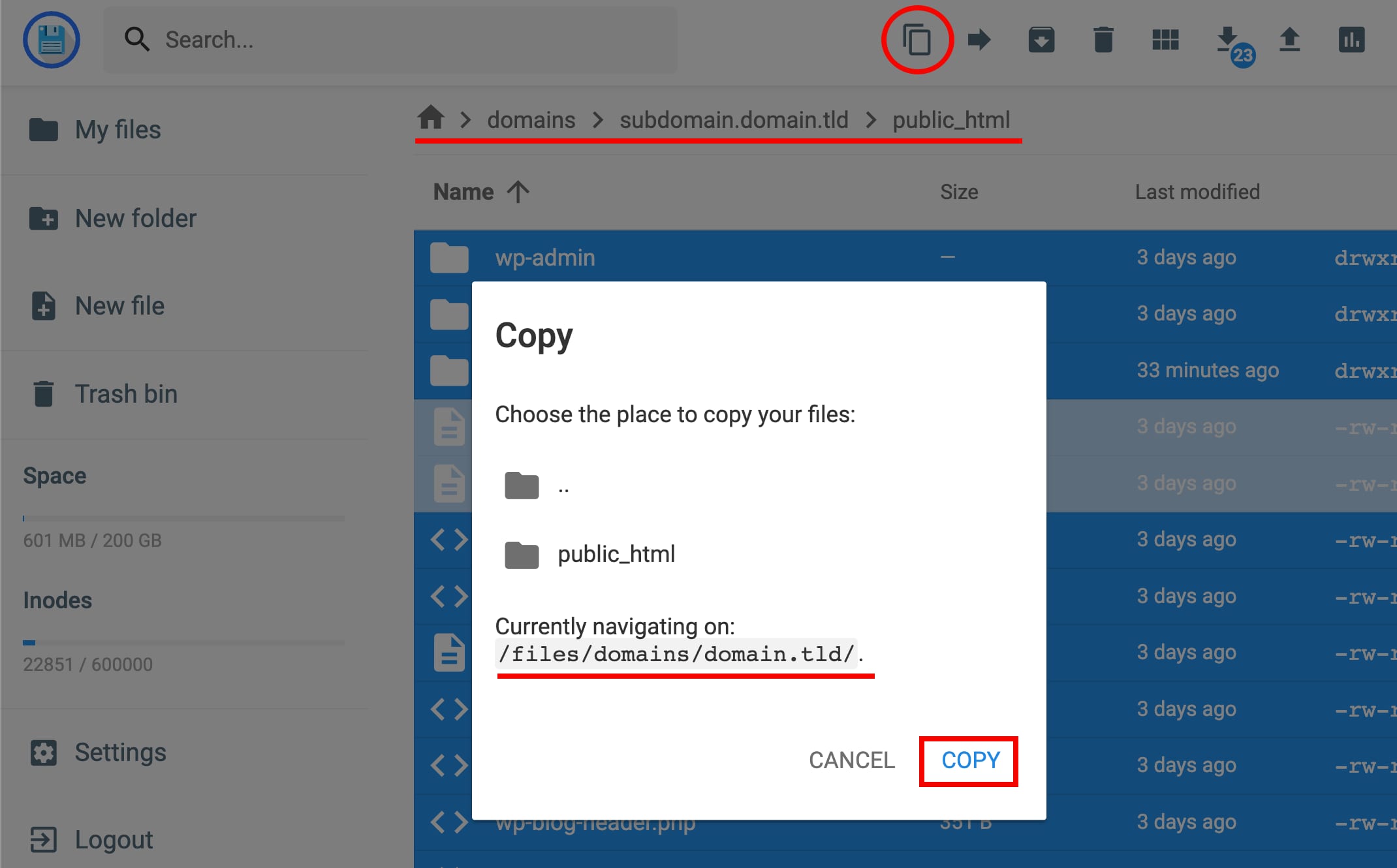
To choose the correct destination folder (e.g., domain.tld), click on the .. icon to go to the parent folder as many times as you need. Learn more: Basic Actions in the File Manager
Step 2 – Connect the database
There are two options to choose from:
Option 1
If you wish for the subdomain to remain active, duplicate the database and connect the new database to your website:
-
Download a backup of your original website’s database
-
Create a new database for your new website (that’s on the root domain)
-
Import the database backup to the new website
-
Update the database details (name, username, password) in the wp-config.php file
Option 2
If you don’t want to keep the subdomain active, you can leave the previous database connected.
Step 3 – Fix URLs
Finally, update your website’s URLs by replacing the subdomain with the root domain. There are a couple of ways to do that:
-
Define the URL by editing the wp-config.php file as described here: Changing the Site URL
-
Use a plugin, e.g., Better Search Replace
And that’s how you move your website from a subdomain to the root domain.
Additional resources