Find your MySQL database details in Hostinger to connect your database to a website or application.
Find your database details
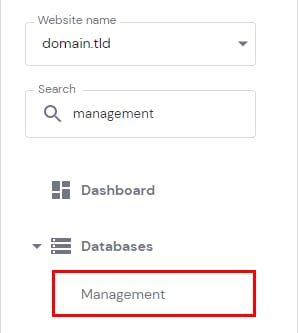
Go to the Websites section and click on Dashboard next to the site in question. Then, search for Databases Management on the sidebar and click on it:
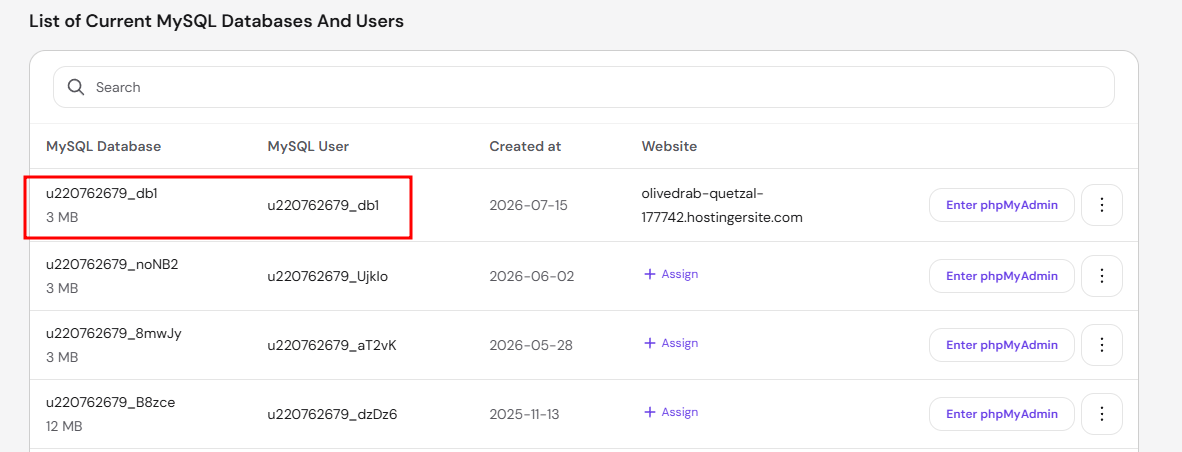
Once there, scroll down to the desired database, and the details will be shown right under MySQL Database and MySQL User. Below the database name, you will also find its size:
The hostname for all databases is localhost.
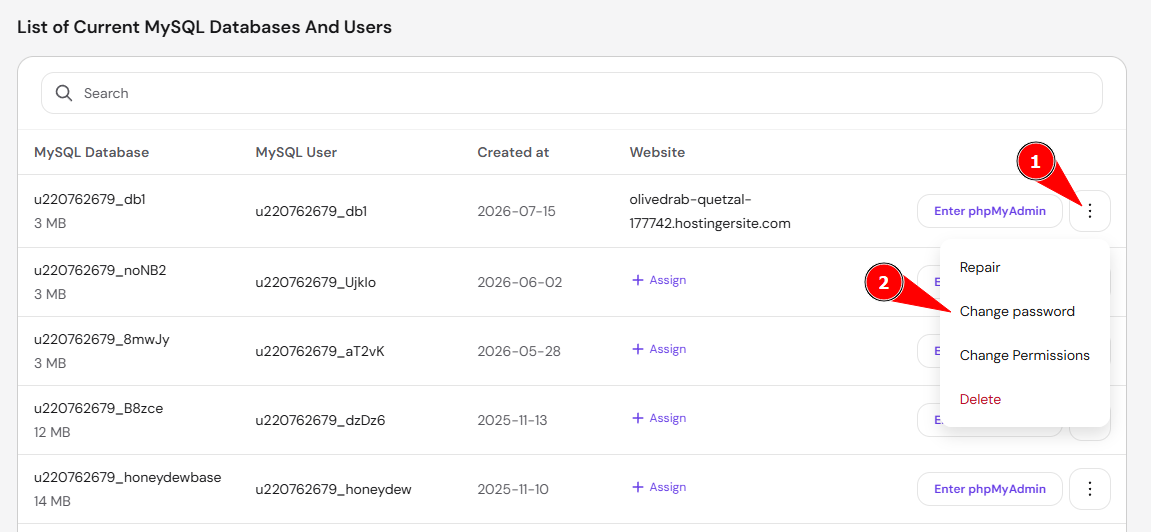
If you’re looking for the database password, it’s the one you set up while creating the database. If you don’t remember the password, you can easily reset it by clicking on the vertical ellipsis icon next to the database:
That’s it – now you know how to locate your MySQL database details on Hostinger dashboard!