Hostinger AI Builder manual mode generates new pages and sections for you from a short description, matching the result to your site’s overall business idea and mood.
Generating pages in Hostinger AI Builder manual mode
To generate a website page:
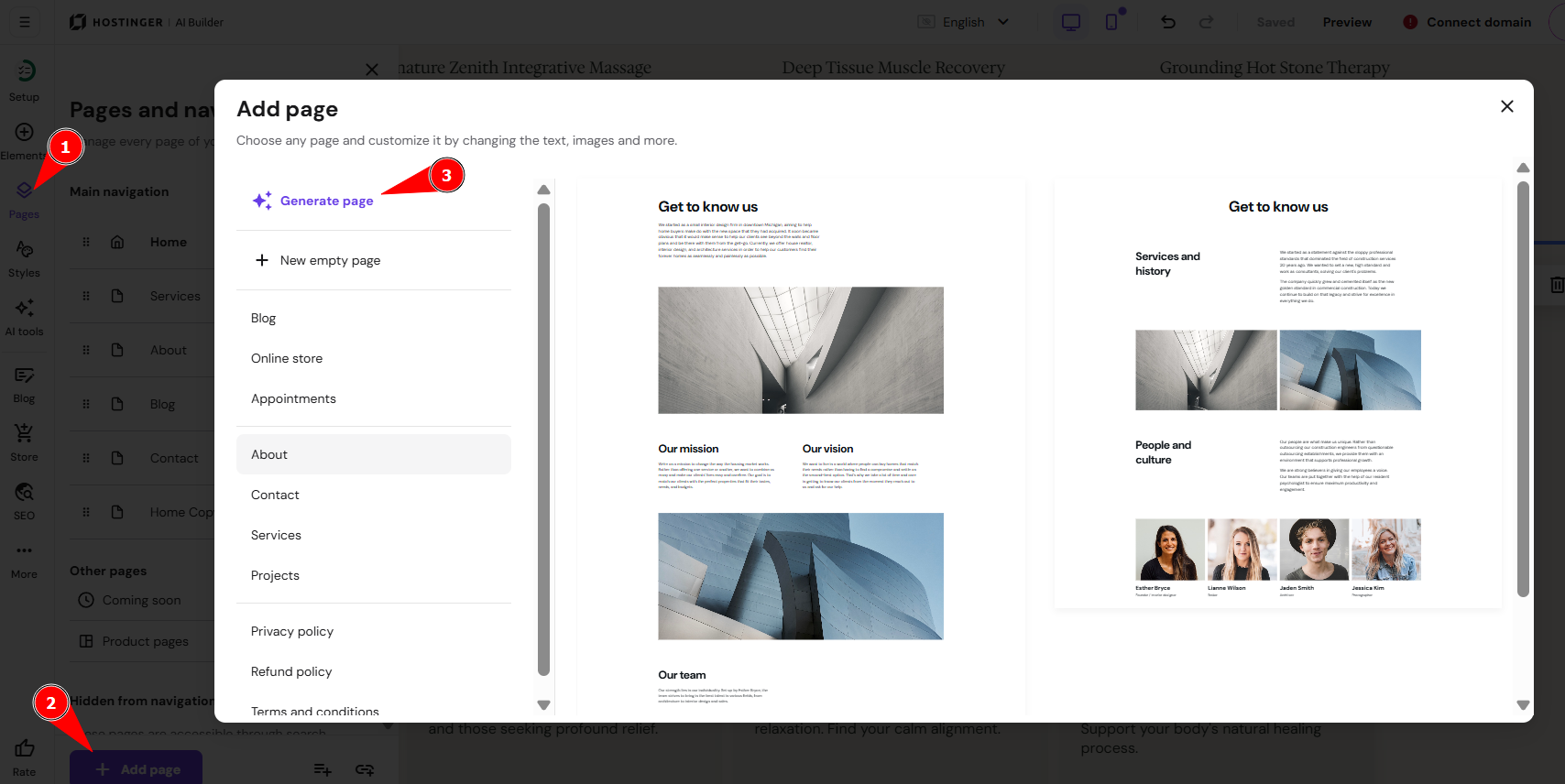
- Find your website in the Websites section of Hostinger dashboard and click Edit website.
- Expand the Pages panel on the left.
- Click on Add page.
- Select Generate page:

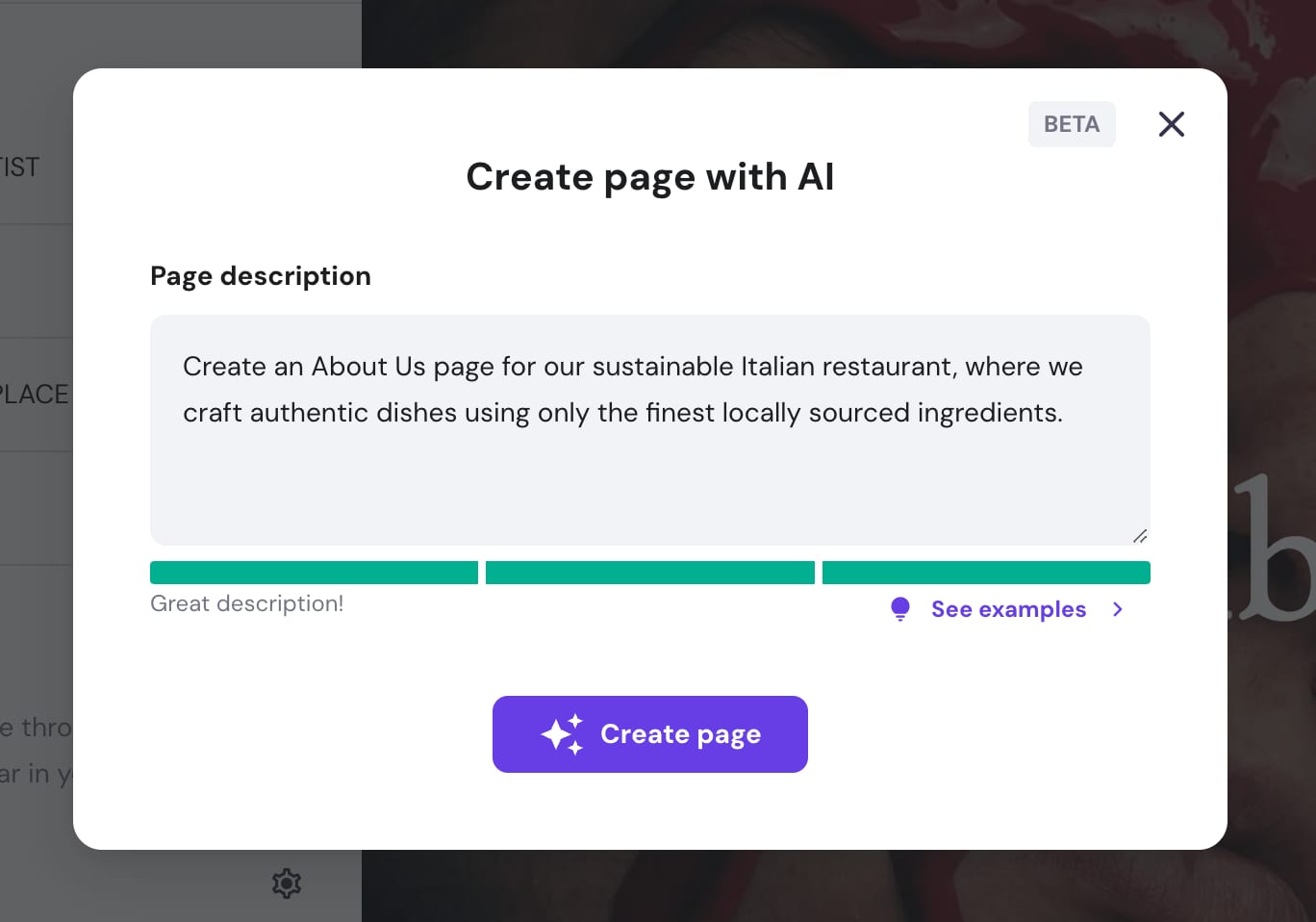
- Insert your page description and click on Create page. The AI now considers your whole website, business idea, and mood when generating the page, so the result matches the rest of your site more closely, even if your description is vague.

The generated page is added to your site. You can customize it however you like. To push the changes online, update your website.
Generating sections in Hostinger AI Builder manual mode
To generate a website section, such as a logo marquee section:
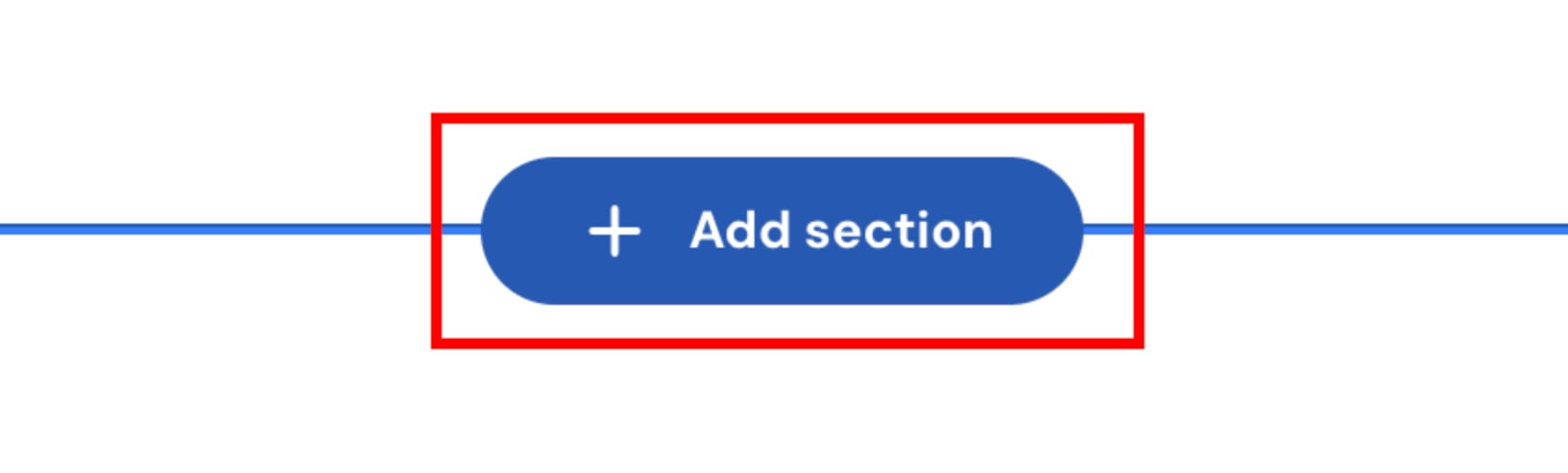
- Click on the Add section button; you’ll see it between two adjoining sections:

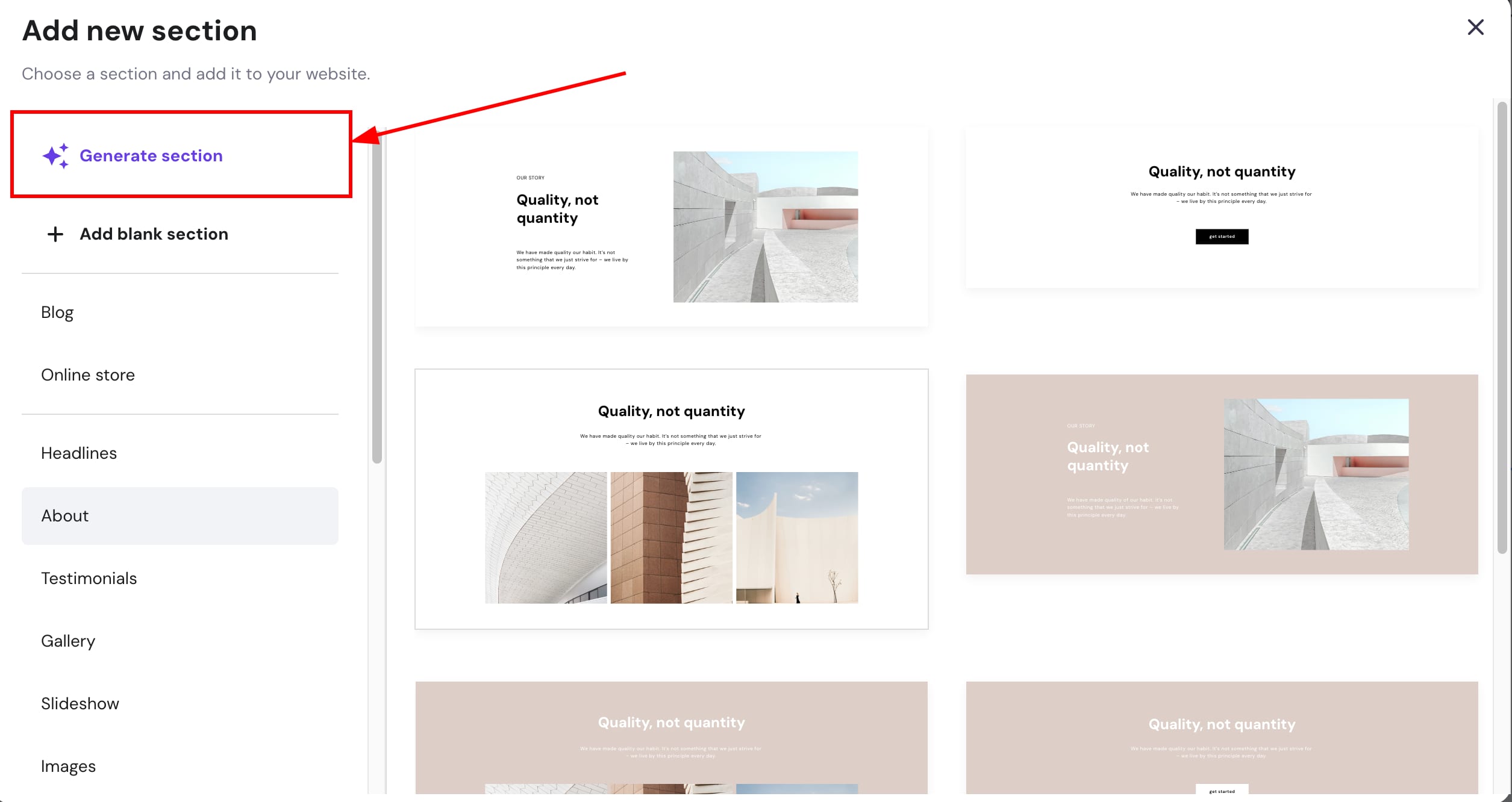
- Click on Generate section:

- Insert your section description and click on Create section. Hostinger AI Builder considers your whole website, business idea, and mood when generating the section, so the result matches the rest of your site more closely.

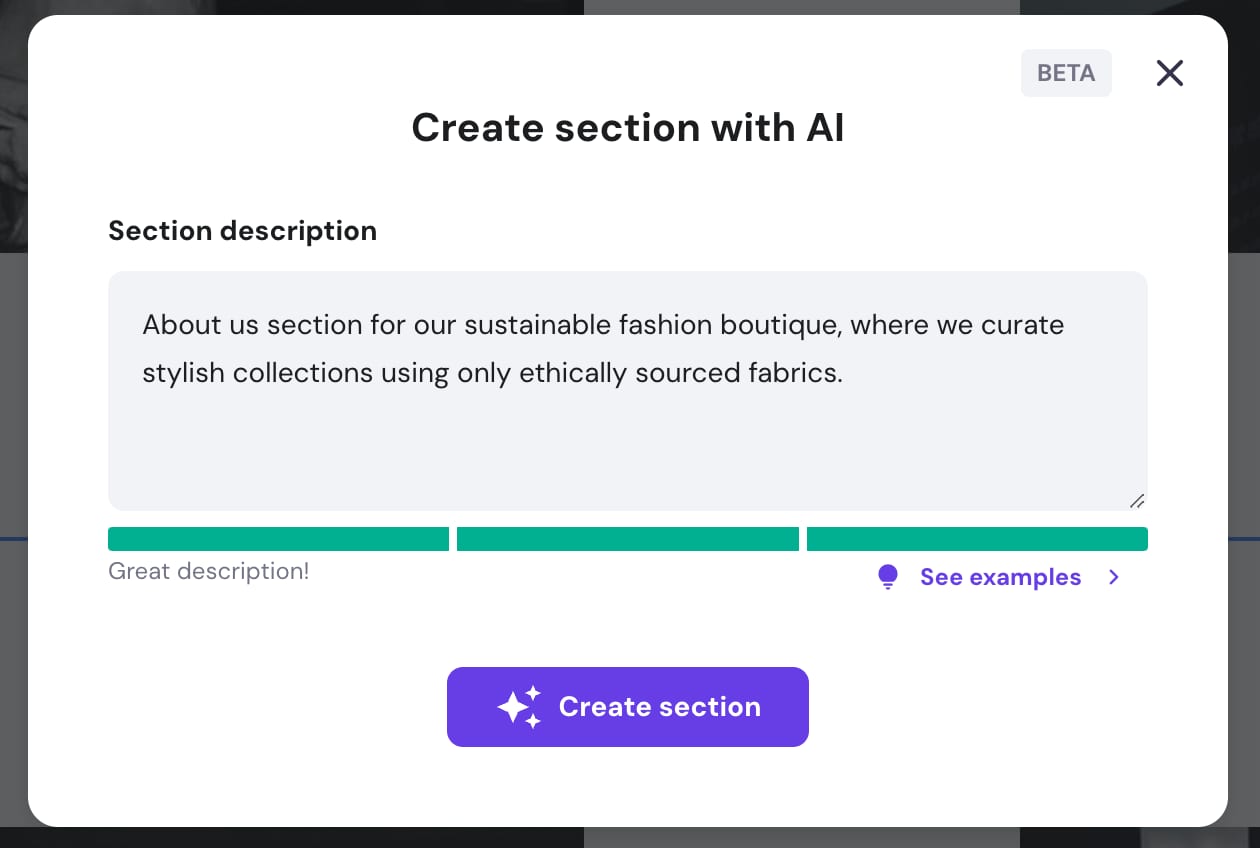
The generated section is added to your site. You can customize it however you like. To push the changes online, update your website.
Your website now includes AI-generated pages and sections, ready for further customization or publishing.
Frequently asked questions
Do I need a detailed description to generate a page or section?
No. Hostinger AI Builder still generates a matching result even if your description is vague, since it also considers your site’s business idea and mood.
Can I edit an AI-generated page or section afterward?
Yes. You can customize a generated page or section however you like before updating your website.
Do I need to publish my website after generating a new page or section?
Yes. Update your website to push the new page or section changes online.