Hostinger AI Builder manual mode generates new pages and sections that match your site’s overall mood, business idea, and existing style when you describe what you want to add. The AI considers your whole website’s content and design, not just the new page or section, so the result blends in with pages you’ve already built.
To open the generate a new section, follow the steps in Hostinger AI Builder: How to generate pages and sections in manual mode.
Hostinger AI Builder matches generated pages and sections to your site’s mood
Hostinger AI Builder reads your site’s existing business idea, mood, and design when you submit a page or section description, then generates content styled to match. This means two identical descriptions can produce different results on two different sites, since each result reflects that site’s existing colors, tone, and layout. A vague description still produces a result that matches your site’s mood, since the AI fills in missing details based on your site’s existing content.
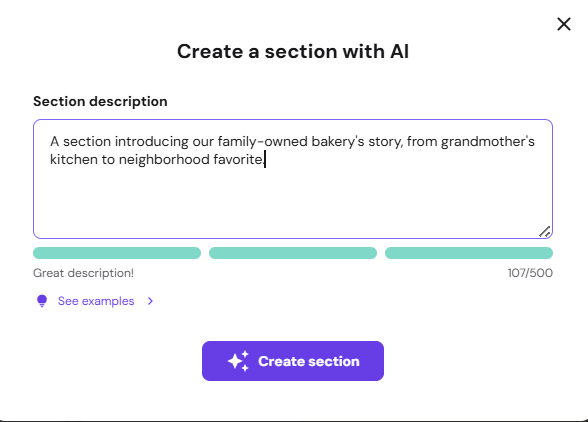
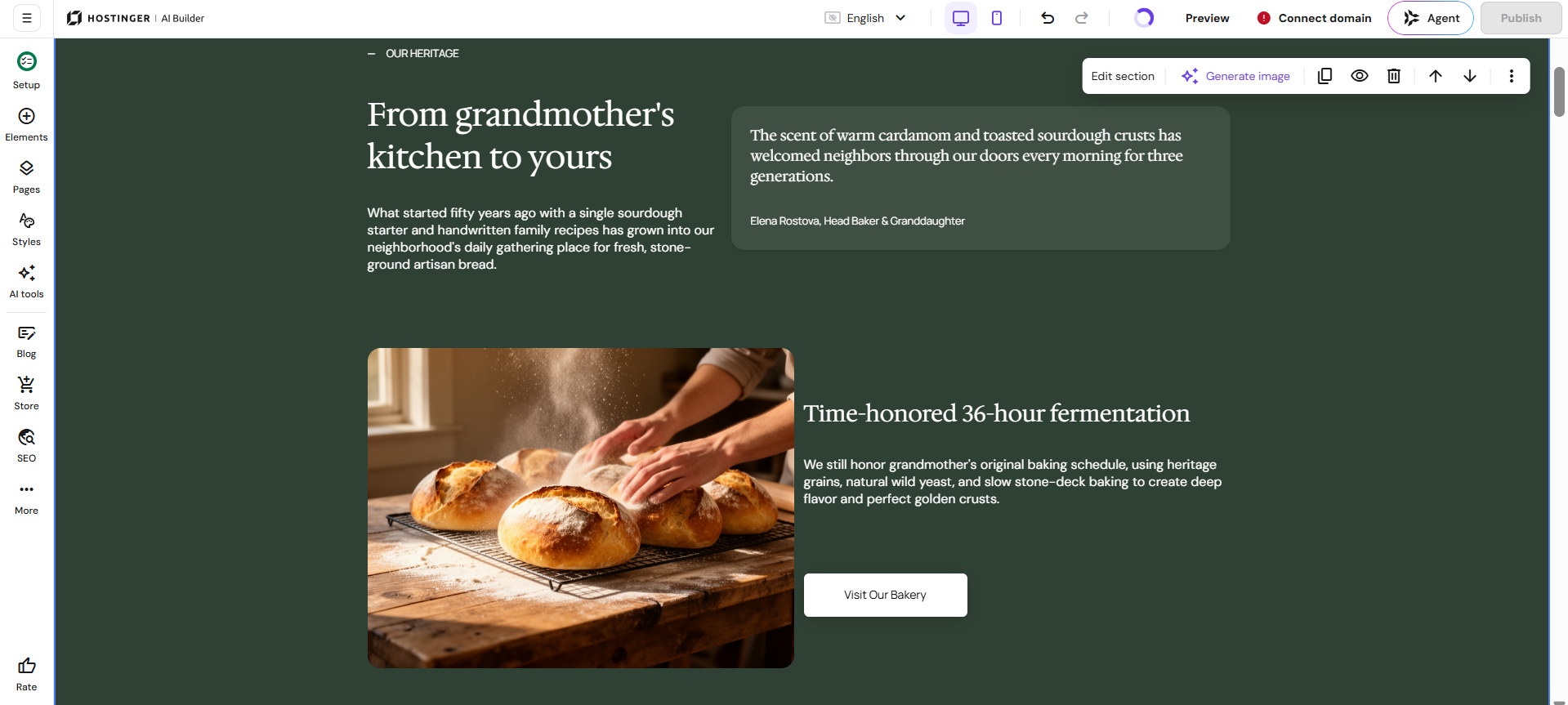
Link generated sections to your actual products, posts, or bookings
Hostinger AI Builder connects a generated blog, product, or appointment section to your actual content only when your description explicitly asks for that connection. Include phrasing such as “link it to the actual product,” “connect to our actual blog posts,” or “link to the actual page” in your section description to generate cards connected to your real store, blog, or booking data. A description that only names the type of content, without asking for a link to your actual pages, generates a placeholder section instead.
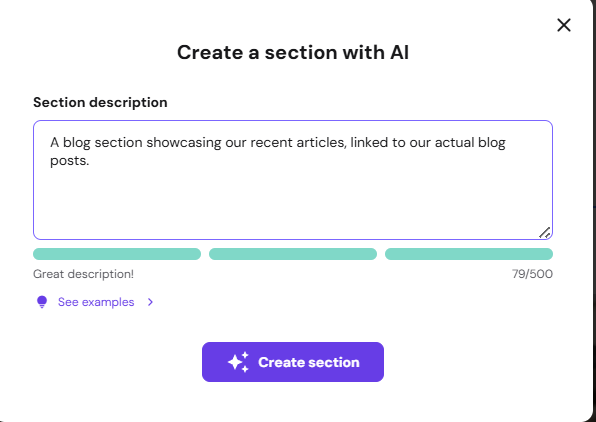
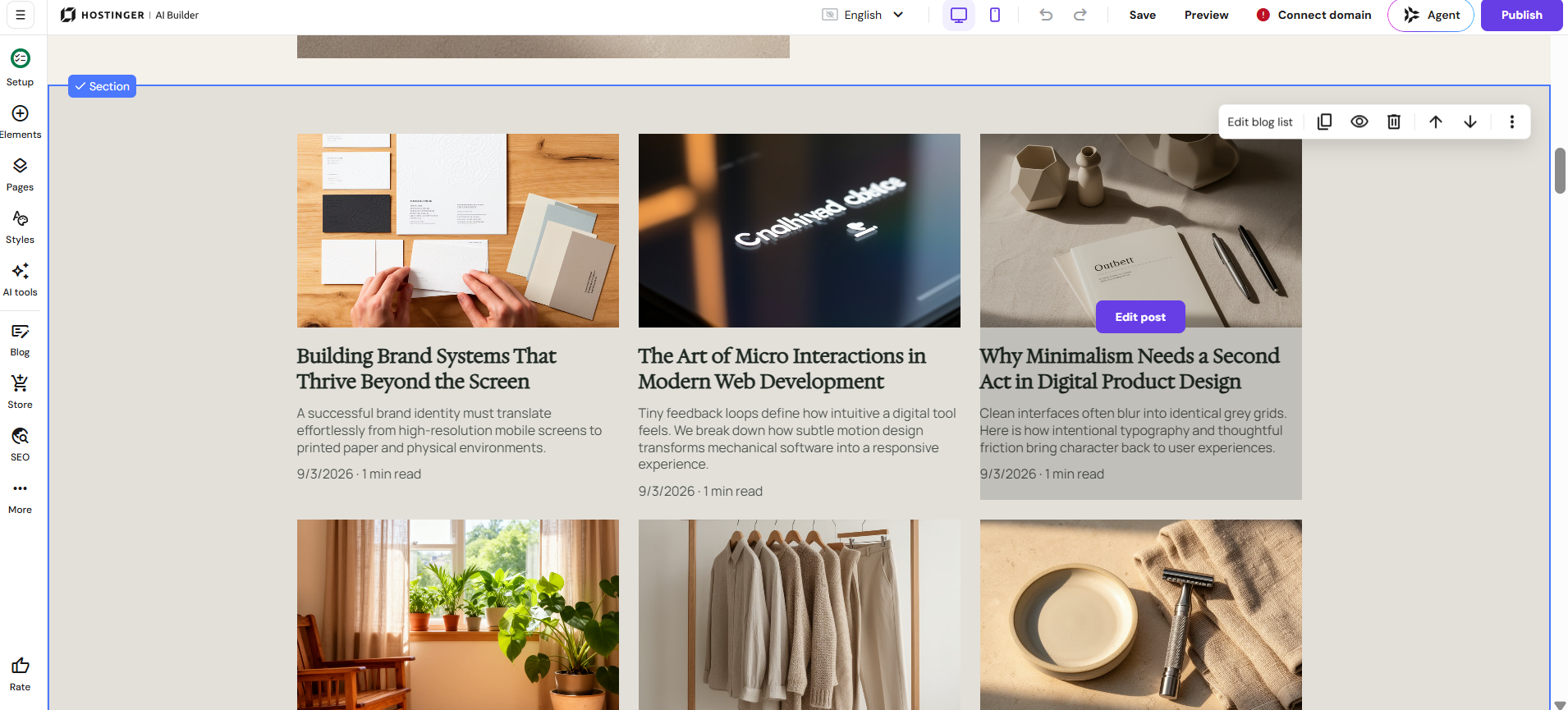
Hostinger AI Builder applies mood-based generation to every new page or section you create through the Generate page or Generate section option, with the result matching your site’s existing style automatically.
NOTE
- Ask AI Builder to link a section to your actual products, blog posts, or booking pages in your description, or it generates placeholder content instead.