Hostinger Mail Calendar is the calendar app for Hostinger Email, available at calendar.hostinger.com on Starter, Standard, and Premium Business Email plans. You sign in with your mailbox’s email address and password, view events by day, week, or month, and create events with participants, repeats, and meeting links. Hostinger Mail Calendar, also called Hostinger Calendar, is separate from the calendar invitation cards that Webmail shows inside emails.
Before you start
- You need an active Hostinger Email mailbox on a Starter, Standard, or Premium Business Email plan. If your plan doesn’t include Hostinger Mail Calendar, an upgrade window appears with Upgrade and Back to Email buttons.
- You need your full email address and mailbox password.
How to access Hostinger Mail Calendar
- Go to
calendar.hostinger.com. - Sign in with your full email address and mailbox password.
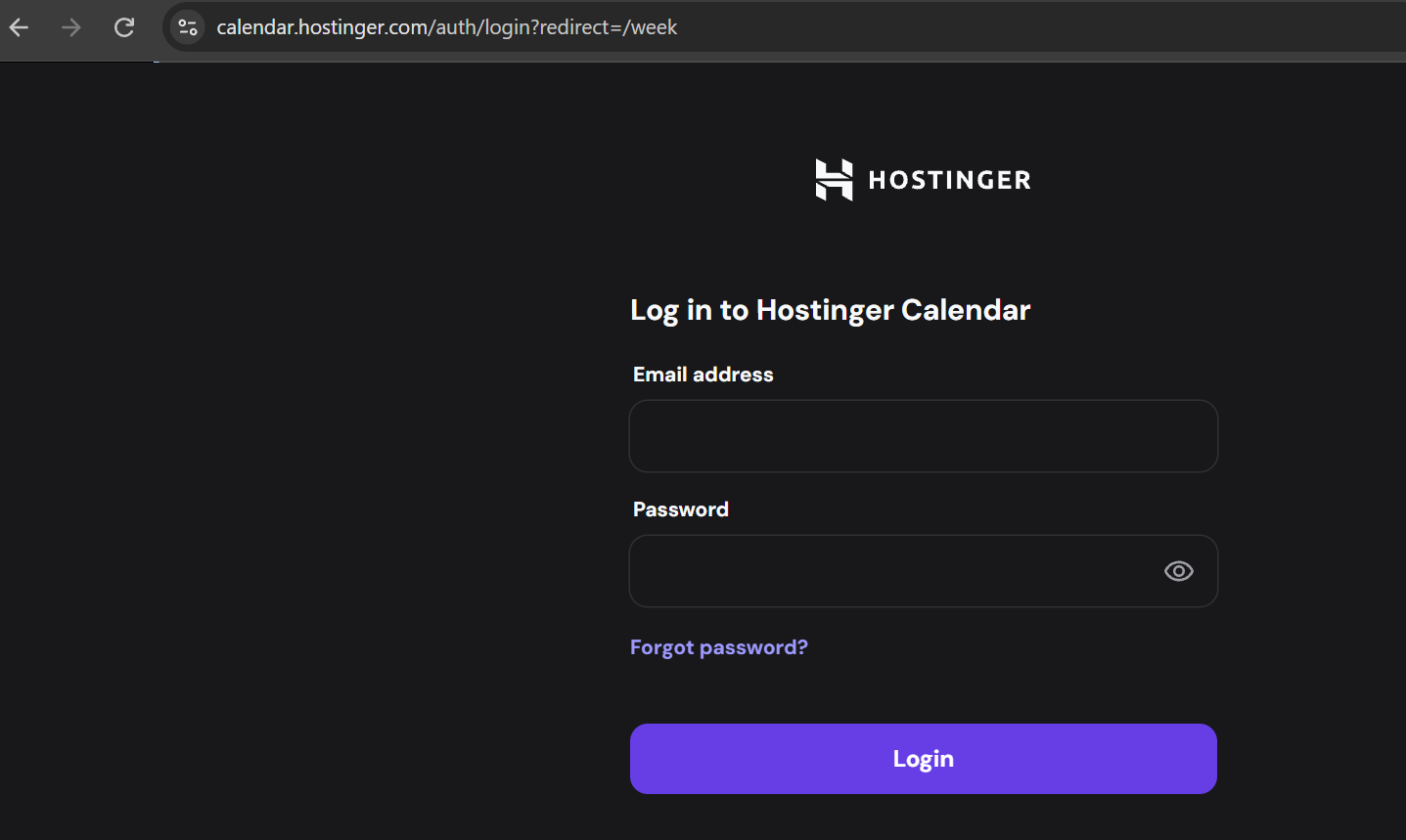
Hostinger Mail Calendar uses the same login as Hostinger Mail web app (Webmail), so you don’t need a separate account. To switch between Calendar and Webmail, click the calendar icon or the envelope icon in the left menu.
How to view events in Hostinger Mail Calendar
Hostinger Mail Calendar shows your events in a day, week, or month view. Select the view from the view menu at the top of the page, next to the settings icon.
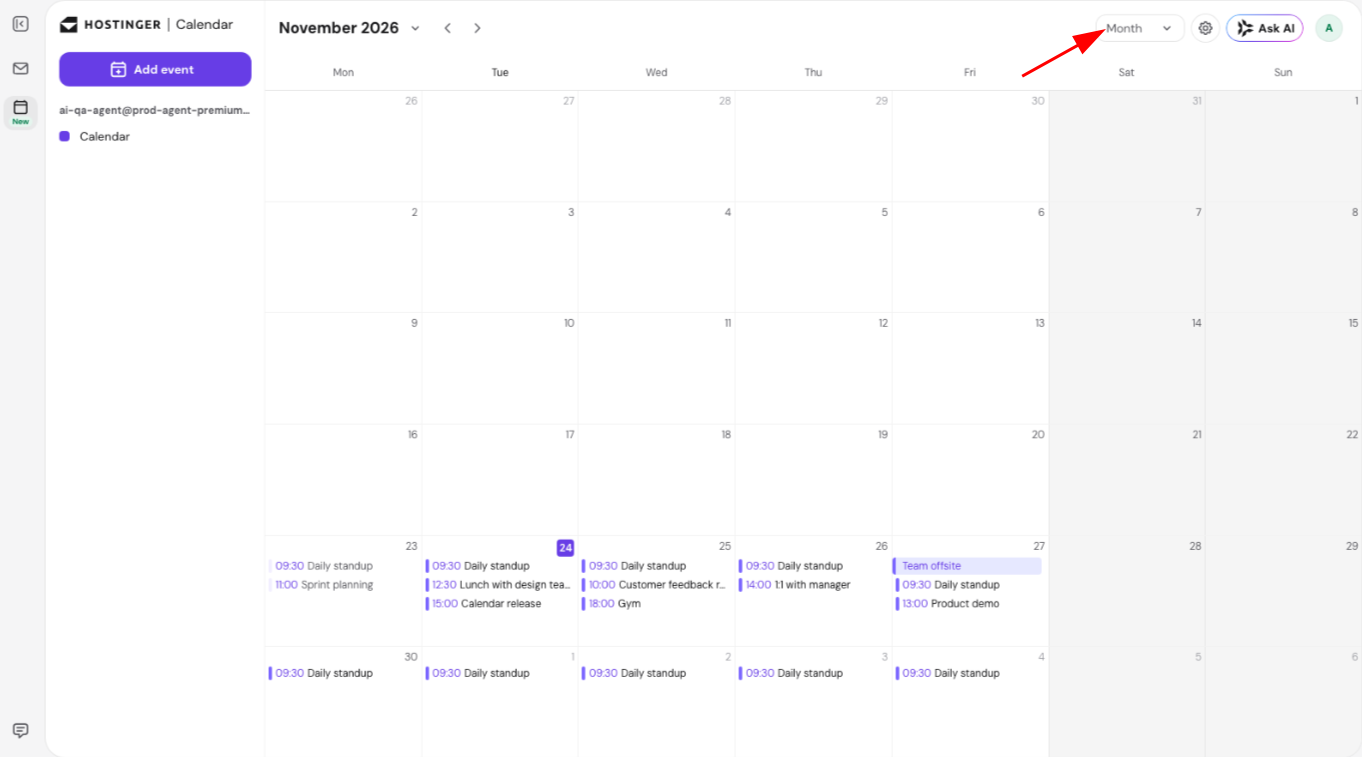
Use the arrows next to the month name to move to the previous or next period. All-day events appear in the all day row at the top of the week view.
How to create an event in Hostinger Mail Calendar
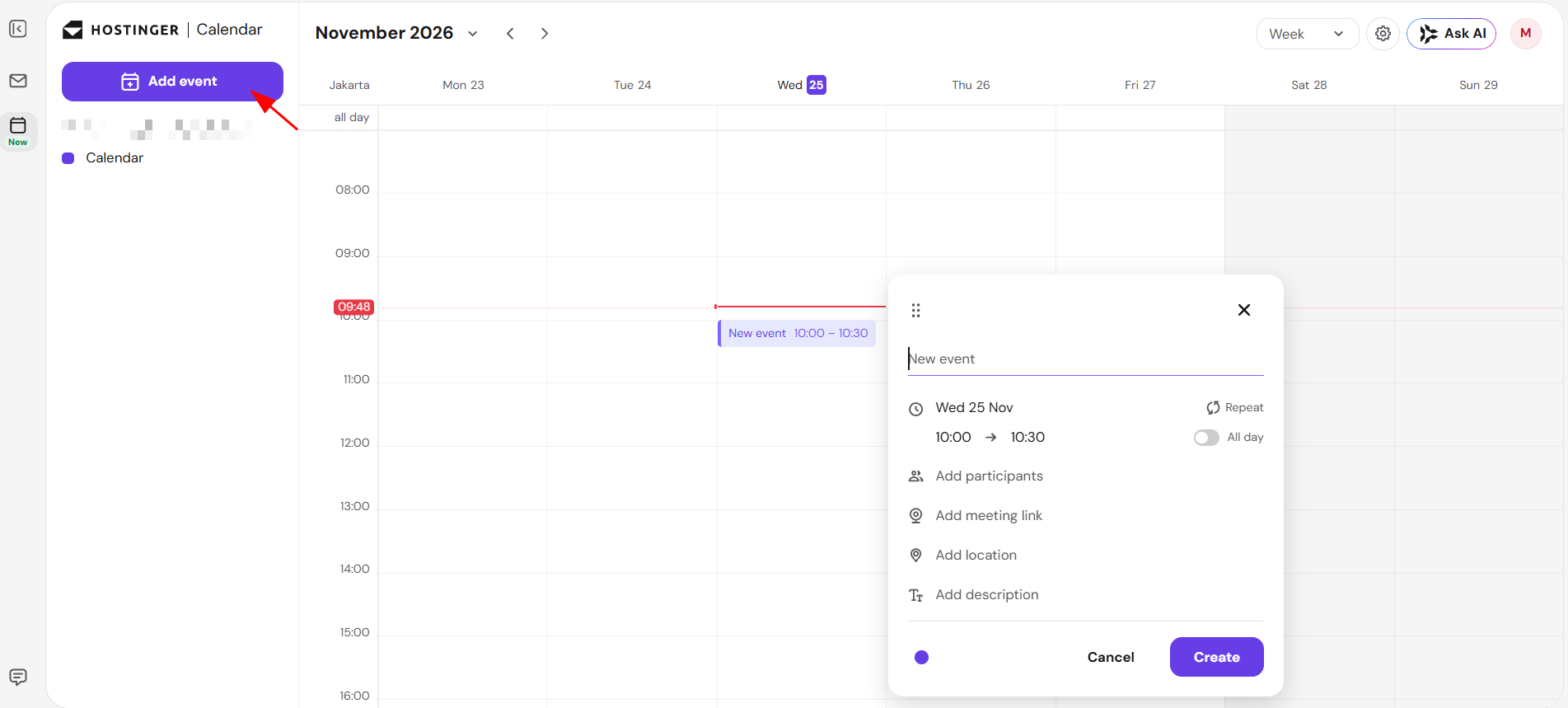
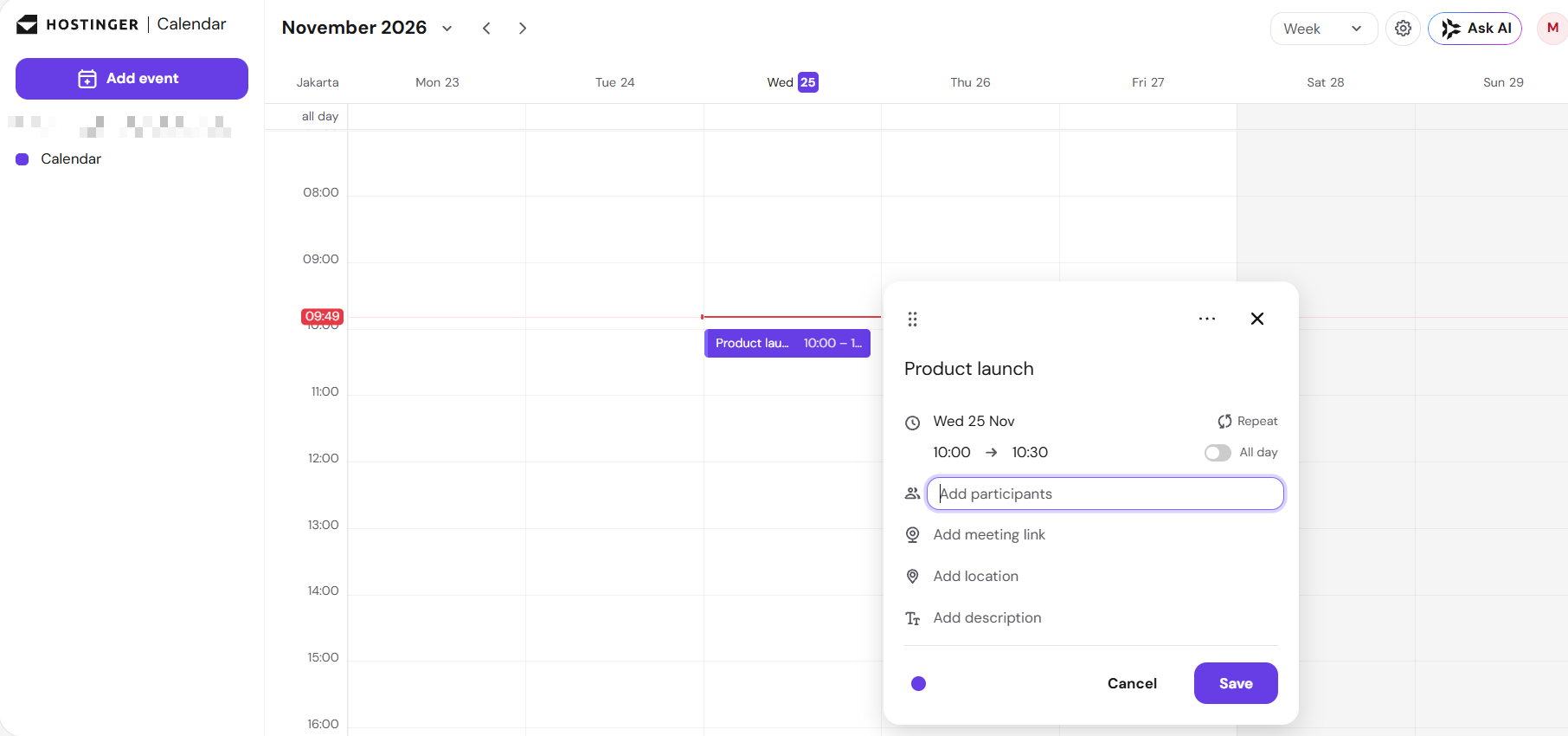
Click Add event to create an event. An event in Hostinger Mail Calendar has five types of details:
- Title, date, and time – the event name and its start and end time. Turn on All day for an event without a set time.
- Repeat – makes the event recurring, such as a weekly check-in.
- Add participants – invites people by email address, up to 100 guests per event. Participants don’t need a Hostinger mailbox, because the invitation arrives in their own inbox.
- Add location – adds where the event takes place.
- Add description – adds notes or an agenda.
Invitations you receive by email appear as cards in Webmail, as explained in How to use calendar invitation cards in Hostinger Webmail.
How to reschedule an event in Hostinger Mail Calendar
Drag an event to a new time slot to reschedule it, or resize it to change how long it lasts. To change other details, click the event to open it.
How to join an online meeting from Hostinger Mail Calendar
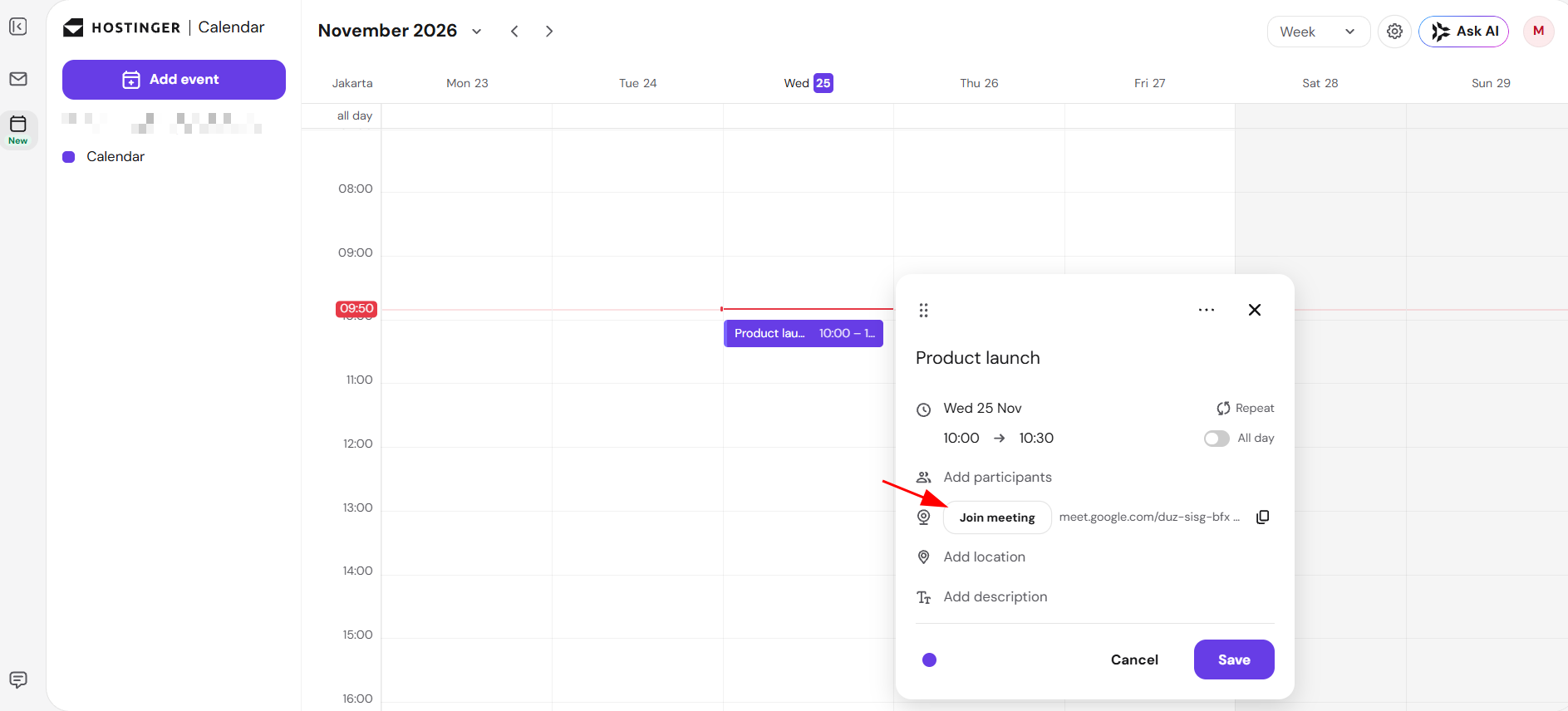
Click the event, then click Join meeting to open its video call link, such as a Zoom link. Click the copy icon next to the link to copy it.
How to use Hostinger Agent in Hostinger Mail Calendar
Hostinger Agent in Hostinger Mail Calendar schedules meetings, reschedules them, and tells you what’s on your calendar. Click Ask AI at the top of the page to open the Agent panel.
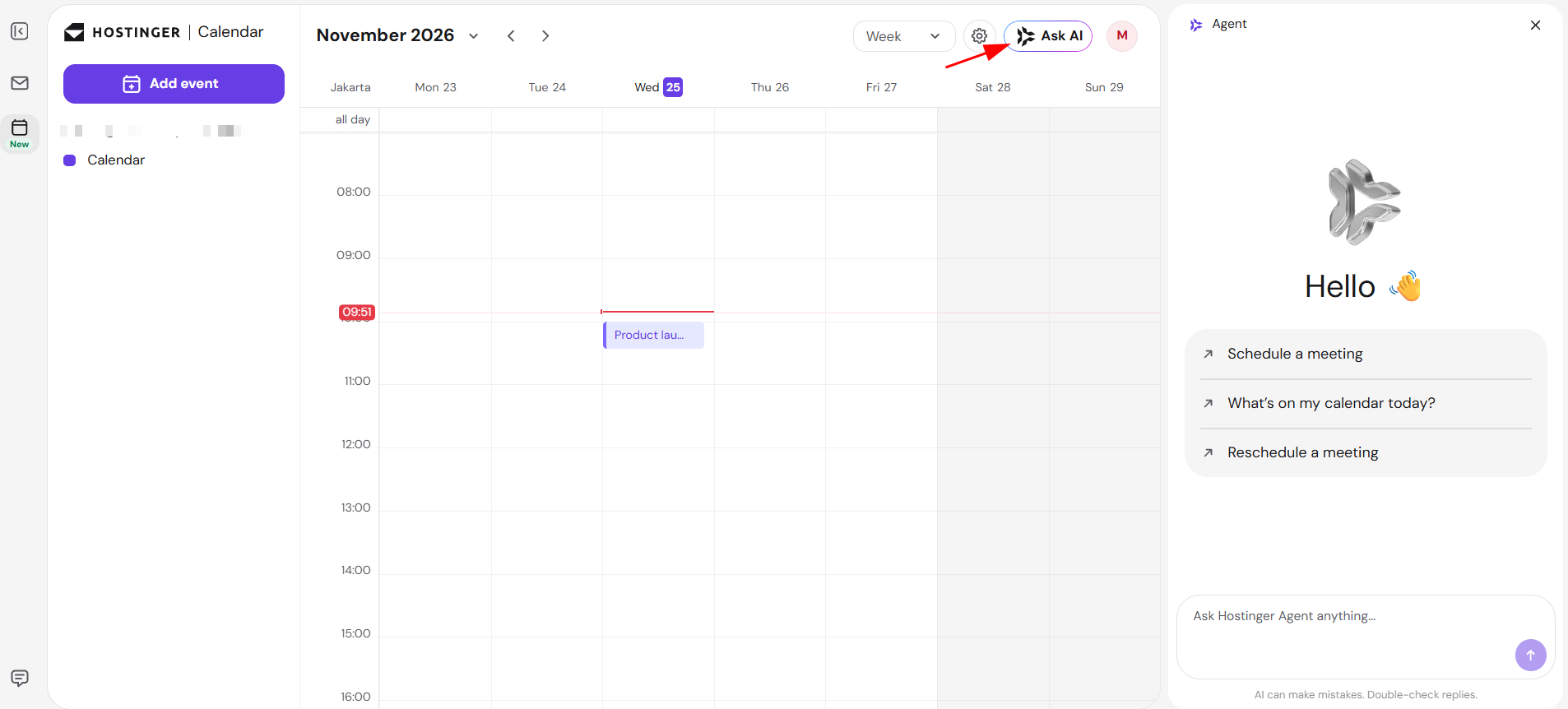
Type a request in the Ask Hostinger Agent anything… field, or pick a suggestion: Schedule a meeting, Reschedule a meeting, or What’s on my calendar today?
Your Hostinger Mail Calendar is ready to use with the same login as your mailbox, so you can plan meetings, invite participants, and join calls from one place.
NOTES
- Each calendar belongs to one mailbox. Hostinger Mail Calendar doesn’t support sharing a calendar or booking pages for clients.