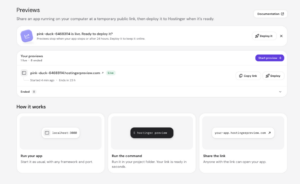
Hostinger Preview shares a website from your localhost environment on a temporary Hostinger domain that stays live for 24 hours. To share your project, run the hostinger preview command in the Hostinger CLI and send the generated URL to anyone who needs to view it. To publish the project permanently, run hostinger up to deploy it to a new or existing Hostinger hosting plan.
Before you start
Make sure the Hostinger CLI is installed and set up on your computer, as described in How to use Hostinger API CLI. Make sure your website project runs in your local environment.
Share a local website with Hostinger Preview
The hostinger preview command publishes your local project on a Hostinger temporary domain. The site stays live for 24 hours after you run the command.
- Open the terminal in your project’s local environment.
- Run the following command:
hostinger preview - Copy the temporary domain URL that the CLI generates.
- Send the URL to the people you want to review the project.
How long Hostinger Preview stays live
A Hostinger Preview site stays live for 24 hours after you use the hostinger preview command. To share the project again after that, run the command again.
View a website shared with Hostinger Preview
Anyone with the Hostinger Preview URL can open the temporary site in a browser. A message informs visitors that they are viewing a temporary site that is available for 24 hours.
Deploy a Hostinger Preview project to your hosting plan
The hostinger up command deploys your local project directly to a new or existing Hostinger hosting plan. Use it once the project is ready to go live permanently. For build settings, redeployments, and linking a project folder, see How to deploy a website with the Hostinger CLI.
- Open the terminal in your project’s local environment.
- Run the following command:
hostinger up - Select a new or existing hosting plan to deploy the project to.
Your project is now live on your hosting plan instead of a temporary domain.
You can now share your local project for review with Hostinger Preview and publish it to your hosting plan when it’s approved.
NOTES
- Hostinger Preview is separate from the preview features in Hostinger Website Builder and WordPress. It works with projects that run in your local environment.
- To preview changes from a GitHub pull request on a deployed Node.js website instead, see How to use pull request previews for Node.js websites in Hostinger.
- A Hostinger Preview site is temporary and removed after 24 hours, so use
hostinger upto keep the project online.