Node.js cron jobs at Hostinger run a script from your Node.js website on a schedule, for example to send reports, clean up data or sync records. The Cron Jobs tool has supported Node.js websites since 8 October 2026 and pre-fills the Node.js part of the command. To set one up, open Cron Jobs, enter the command with your script path, and set the schedule. Node.js cron jobs run in UTC, stop after 30 minutes, and don’t receive your website’s environment variables unless you load them in the command.
Before you start
- You need a Node.js website on a web or cloud hosting plan that supports Node.js. Check the Node.js website limits in parameters and limits of hosting plans in Hostinger.
- Redeploy your Node.js website first if it hasn’t been redeployed since August 2026. Older deployments use a different folder structure, so the paths in this article won’t match.
- Test your script before scheduling it.
Set up a Node.js cron job
Step 1 – Open Cron Jobs
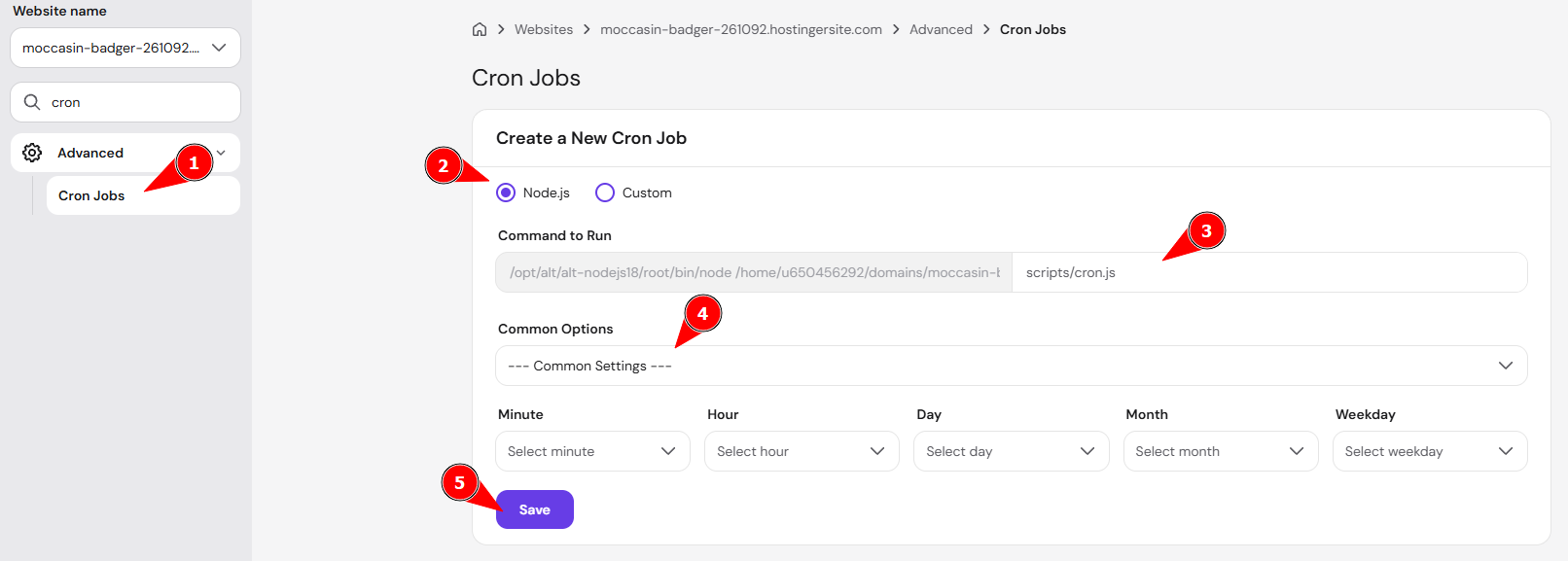
Open the dashboard of your Node.js website and go to Advanced → Cron Jobs. The Node.js command is pre-filled in the command field. For general cron job settings, see how to set up a cron job at Hostinger.
Step 2 – Enter the Node.js command
A Node.js cron job command has three parts:
- Node.js path:
/opt/alt/alt-nodejs20/root/bin/node. Replace20with the Node.js version of your website:18,20,22or24. See how to select the Node.js version for your application. - Environment variables (optional):
--env-file=/home/u123456789/domains/domain.tld/hbuilds/config/.env. Add this only if your script uses environment variables. - Script path: the full path to your script inside the deployed website, for example
/home/u123456789/domains/domain.tld/hbuilds/current/nodejs/scripts/job.js.
A complete command looks like this:
/opt/alt/alt-nodejs20/root/bin/node --env-file=/home/u123456789/domains/domain.tld/hbuilds/config/.env /home/u123456789/domains/domain.tld/hbuilds/current/nodejs/scripts/job.jsReplace u123456789 with your username and domain.tld with your domain.
Step 3 – Set the schedule and save
Choose a common schedule or set one manually, then click Save. The cron job runs on the schedule you set, based on Coordinated Universal Time (UTC).
Load environment variables in a Node.js cron job
A Node.js cron job doesn’t receive your website’s environment variables automatically. Add --env-file=/home/u123456789/domains/domain.tld/hbuilds/config/.env to the command to load them. The --env-file option requires Node.js 20.6 or newer, so it doesn’t work on Node.js 18.
Node.js cron job limits
Node.js cron jobs at Hostinger follow four rules:
- Each cron job runs one command.
- The command must be 255 characters or shorter.
- The command can’t contain the
%character, because cron treats it as a line break. - A cron job is stopped after 30 minutes.
Cron jobs suit tasks that start, finish and exit, for example a nightly cleanup. They don’t replace always-running background workers such as queue workers or bots, which aren’t supported, as listed in Hostinger Node.js hosting limits for web and cloud plans. For the number of cron jobs per plan, see how many cron jobs you can set up in Hostinger.
Run a Node.js cron job through a website URL
Call a protected route of your Node.js app with curl if you’d rather keep the task inside your app. Protect the route with a secret key so only the cron job can trigger it:
curl -s https://domain.tld/api/cron?key=your-secret-keyThis option uses your app’s existing environment variables, so the --env-file option isn’t needed.
Check the output of a Node.js cron job
Node.js cron jobs log their output the same way as other cron jobs. Follow how to check the output of a cron job at Hostinger to view the results. If a cron job doesn’t run, see troubleshooting cron jobs at Hostinger.
Your Node.js cron job now runs on schedule. If it doesn’t run as expected, check the cron job output first, then confirm the Node.js version and script path in the command.