Checking the output of a cron job at Hostinger shows whether a scheduled script on your web, cloud, or Agency hosting plan runs correctly. Open the Cron Jobs section in Hostinger dashboard and click View Output to read the log. An empty output usually means the script produces no output, or the command contains >/dev/null 2>&1.
Before you start
- This guide applies to custom PHP or HTML websites on web, cloud, and agency hosting plans.
- Hostinger AI Builder do not support cron jobs, as they are not file-based platforms.
- A cron job is already created for the website. To create one, see How to set up a cron job at Hostinger.
Verify the cron job output
The execution results become available as soon as the scheduled task runs.
- Go to Hostinger dashboard → Websites
- Click on Dashboard next to the website where the cron job is created.
- On the sidebar, select Advanced → Cron Jobs.
- Scroll down to the List of Cron Jobs section.
- Locate your cron job and click View Output.


A text area appears displaying the log details or output generated by your script.
Troubleshoot an empty cron job output
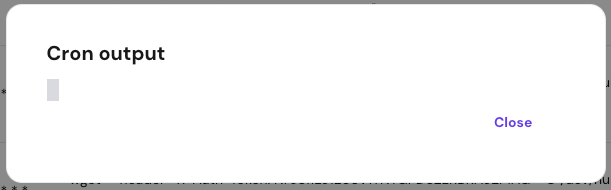
If the output log is completely empty, it usually means the command or script does not generate any output by default.
Check for output silencing
Review your cron job command string. If it contains >/dev/null 2>&1, the script is explicitly instructed to hide and discard all output. Removing this specific string from the command allows the system to log and display the output normally.
Add a test output to your script
If your script executes successfully but remains silent, you can add a temporary output command to confirm it runs. For example, add a test string to the beginning of your PHP script:
<?php
echo "hello world";
// ...
?>
When the cron job runs next, the message text appears in the output log.
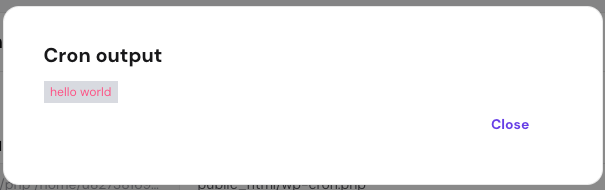
Your cron job output now appears in the View Output log, so you can confirm each scheduled run directly in Hostinger dashboard.