Printful sync issues in Hostinger Ecommerce usually happen when your store is connected to a different Printful store than the one that holds your products. To fix them, check which Printful store is connected, reconnect the store that has your products, then sync and publish again. This guide also covers connections you can’t reconnect and orders that show Printful order failed.
Before you start
- Print-on-demand products with Printful are available for Hostinger AI Builder manual mode, custom sales channels, and Quick link stores.
- Your products must be published to the Printful store that you connect to Hostinger.
Check which Printful store is connected
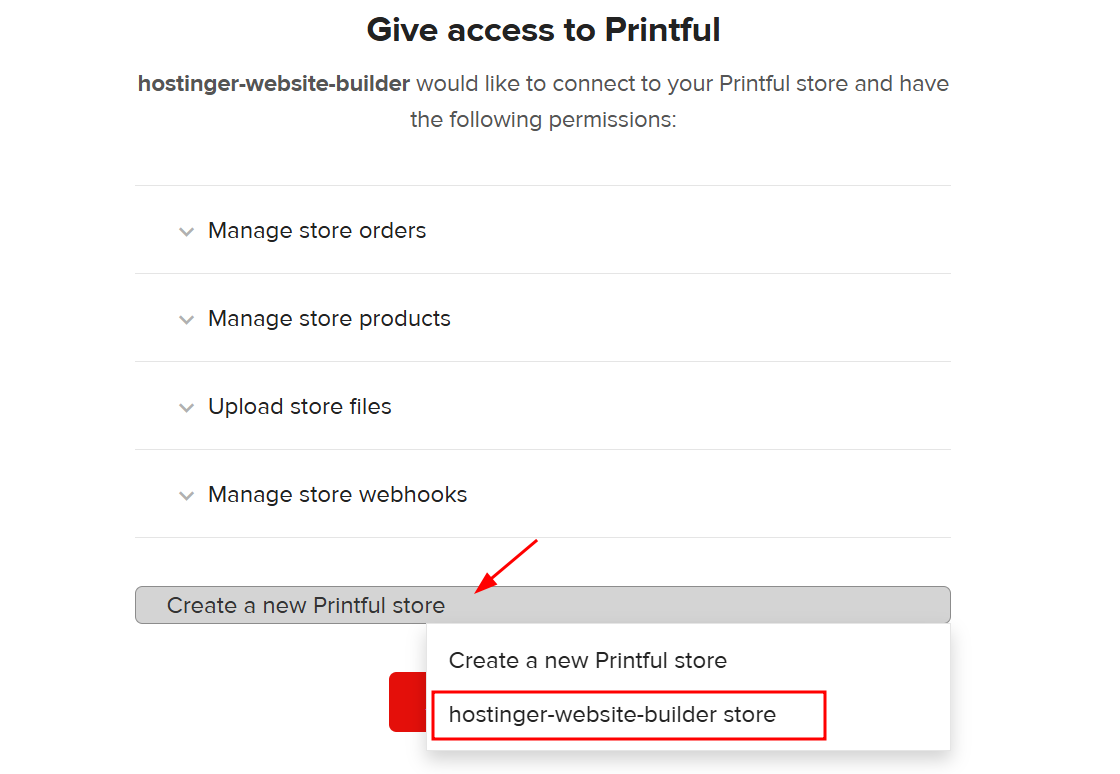
Hostinger syncs products only from the Printful store that you connected. By default, the connection uses a Printful store named hostinger-website-builder store. If you disconnect Printful and connect it again without selecting your existing store, Printful creates a new, empty store, and your products don’t appear in Hostinger.
- Log in to Printful.
- Open one of your published products.
- Check which store the product belongs to.
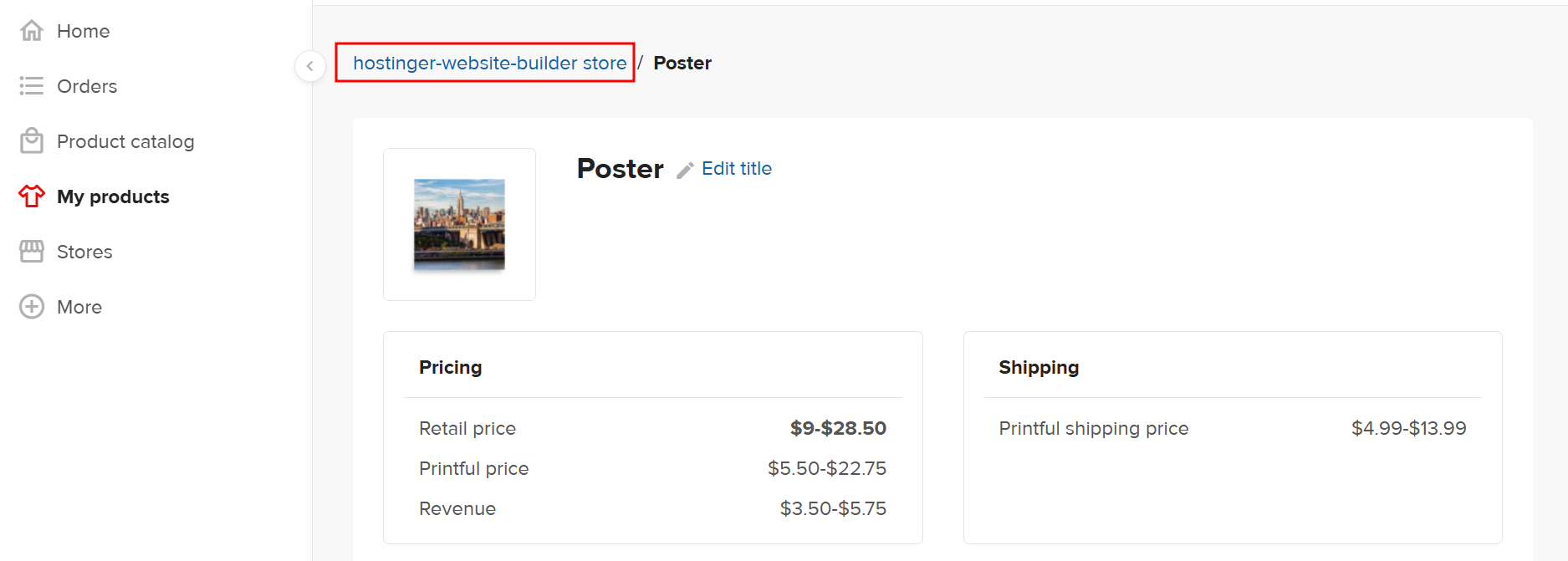
If the product belongs to a different store than the one connected to Hostinger, copy the product to Hostinger store first to make it available in Hostinger Ecommerce.
Reconnect the Printful store that holds your products
Reconnect Printful and select your existing store on the Printful authorization screen. See How to connect Printful to your store for the full connection flow.
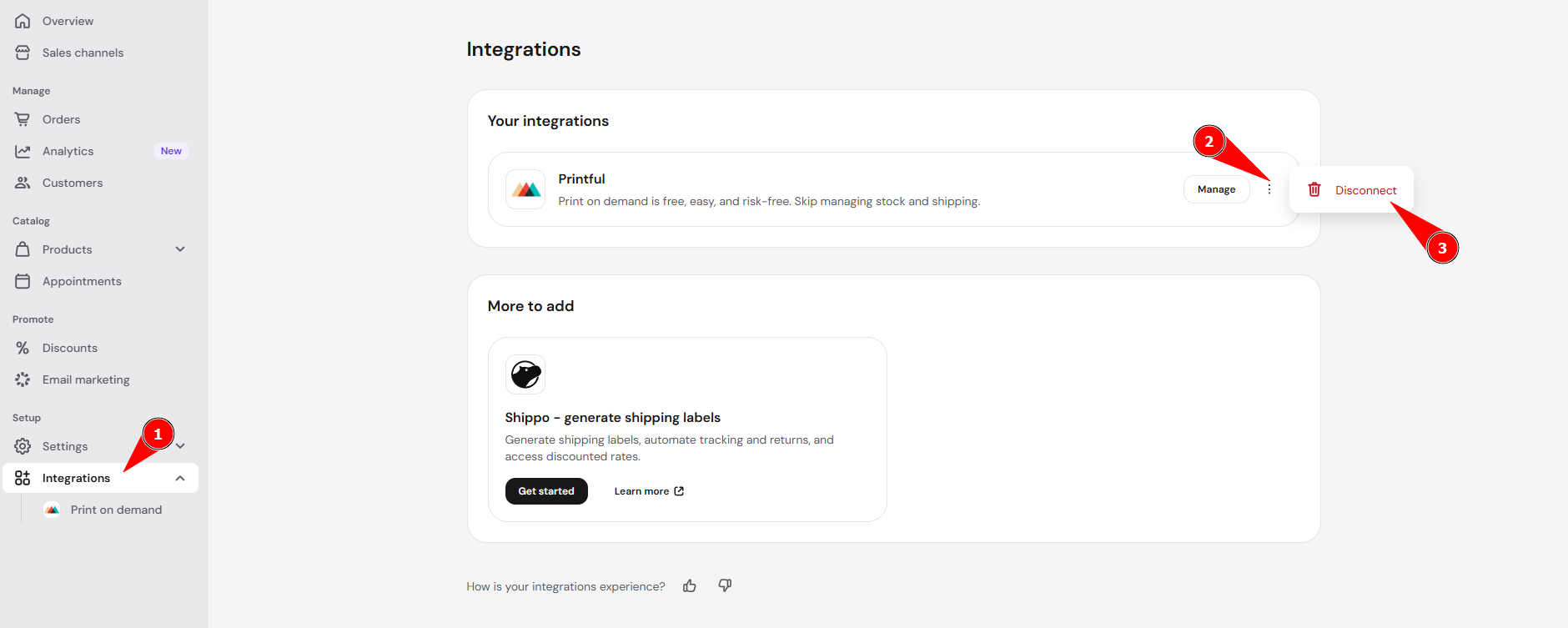
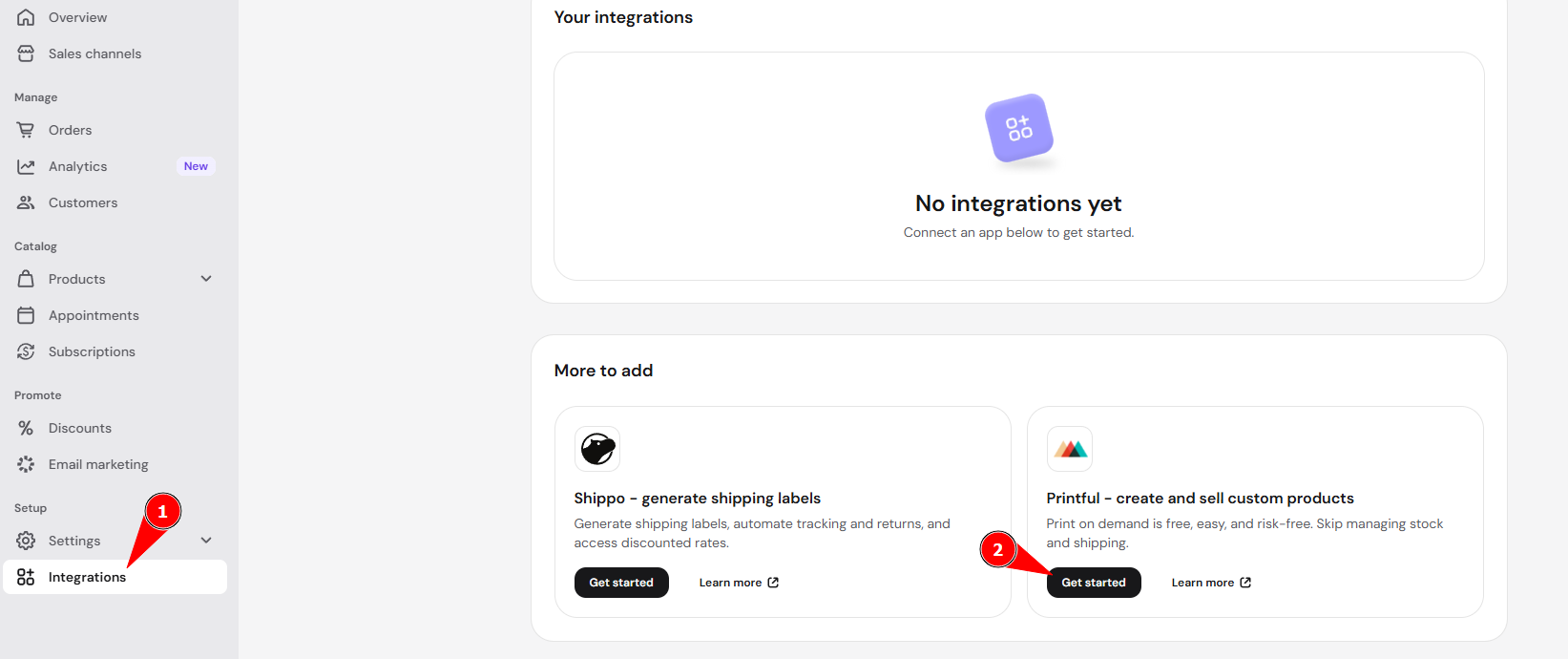
- In Store Manager, go to Integrations.
- Under Your integrations, click the three-dot icon (⋮) next to Printful and select Disconnect.

- On the Integrations page, click Get started next to Printful and log in to Printful.

- On the Printful authorization screen, select the existing store that holds your products. Don’t select Create new Printful store.

- In your product list, click Sync Printful products. See How to create and edit print-on-demand products to see how synced products appear.

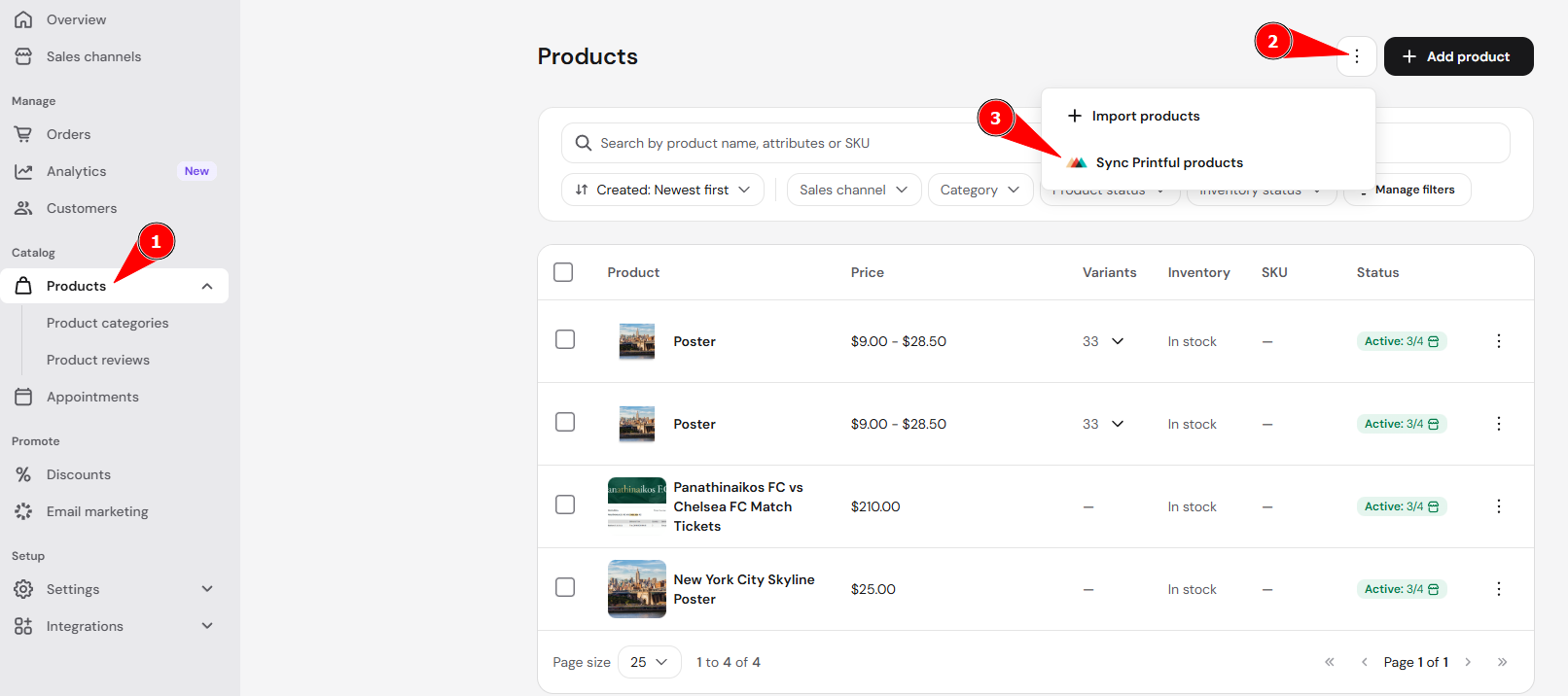
If the products appear in Products but not on your Hostinger AI Builder manual mode website, add them to a product section. See How to add and customize product sections in manual mode to display them. Make sure to publish your website for the products to appear in your store.
NOTES
- Connecting without selecting a store creates a new, empty Printful store. Your original store, products, and orders stay in your Printful account.
Hostinger Support can’t reconnect the store for you, because it has no access to your Printful account. - If your website still shows old content after you publish, see Why changes do not appear on your website in manual mode to check for cached versions.
Fix a Printful connection that you can’t reconnect
If Printful still shows Manage under Your integrations after you disconnect it, or syncing shows Store not found or not valid, the connection needs to be removed before you reconnect. This also happens if you deleted the connected store in Printful. Contact Hostinger Support and include your domain name. Support removes the connection, and then you reconnect the store that holds your products using the steps in the previous section.
Fix orders that show Printful order failed
Hostinger sends each paid order to the Printful store that is connected when the order is paid. If no Printful store is connected at that moment, the order fails and shows Printful order failed in your orders. See How to manage orders to find the order status.
- Reconnect the Printful store that holds your products, using the steps above.
- Contact Hostinger Support to resync the failed orders. A resync isn’t guaranteed.
- If a product variant no longer exists in Printful, the order can’t be resynced. Fulfill it manually in Printful, or refund the payment. See How to deal with refunds for Printful orders to refund the customer.
After you reconnect the correct Printful store, sync, and publish your website, your products appear in your store, and new paid orders are sent to that Printful store.