Switch sales channels in Hostinger Ecommerce by deleting or disconnecting your current sales channel and adding a new one. You can’t switch the Hostinger Ecommerce plan itself. A Hostinger AI Builder agentic mode sales channel is removed by asking Hostinger AI Builder to remove the store, and a WordPress sales channel can’t be removed. The steps depend on your sales channel type and on whether you have a paid Hostinger Ecommerce plan or Hostinger Ecommerce bundled with an older hosting plan.
Before you start
- Make sure you have a Hostinger Ecommerce store.
- Check the sales channel type shown under each channel’s name on the Sales channels page, such as Quick Link, Payment links, WordPress, or AI Builder.
Choose how to switch your sales channel in Hostinger Ecommerce
|
Your situation |
What to do |
|
Quick link store or Payment links on a paid Hostinger Ecommerce plan |
Delete the sales channel, then add a new one. A plan allows one of each. |
|
Hostinger AI Builder, WordPress, or Custom sales channel on a paid plan |
No need to switch. Add another sales channel, because a paid plan allows multiple. |
|
Hostinger AI Builder manual mode website you want to remove |
Select Disconnect to disconnect it from Hostinger Ecommerce, or Delete website to delete the website itself. |
|
Hostinger AI Builder agentic mode sales channel you want to remove |
Delete and Disconnect aren’t available on the Sales channels page. Ask Hostinger AI Builder to remove the store, which removes the sales channel, then add a new one. |
|
WordPress sales channel you want to remove |
It can’t be removed. Delete and Disconnect aren’t available, and deleting the plugin doesn’t remove it. Add another sales channel instead. |
|
Hostinger Ecommerce bundled with an older Cloud or Business hosting plan, which includes one sales channel |
For a Hostinger AI Builder manual mode website, disconnect it. For an agentic mode sales channel, ask Hostinger AI Builder to remove the store. Then add a new sales channel. WordPress sales channels can’t be removed. |
|
A hosting plan without Hostinger Ecommerce included, and no Hostinger Ecommerce plan |
You can edit and disconnect the website, but you need a Hostinger Ecommerce plan to add a sales channel or accept payments. |
Switch a Quick link store or Payment links
Delete the Quick link store or Payment links channel, then add a new one, because a Hostinger Ecommerce plan allows one of each.
- Log in to the Hostinger dashboard and go to Ecommerce.
- Open your Store Manager.
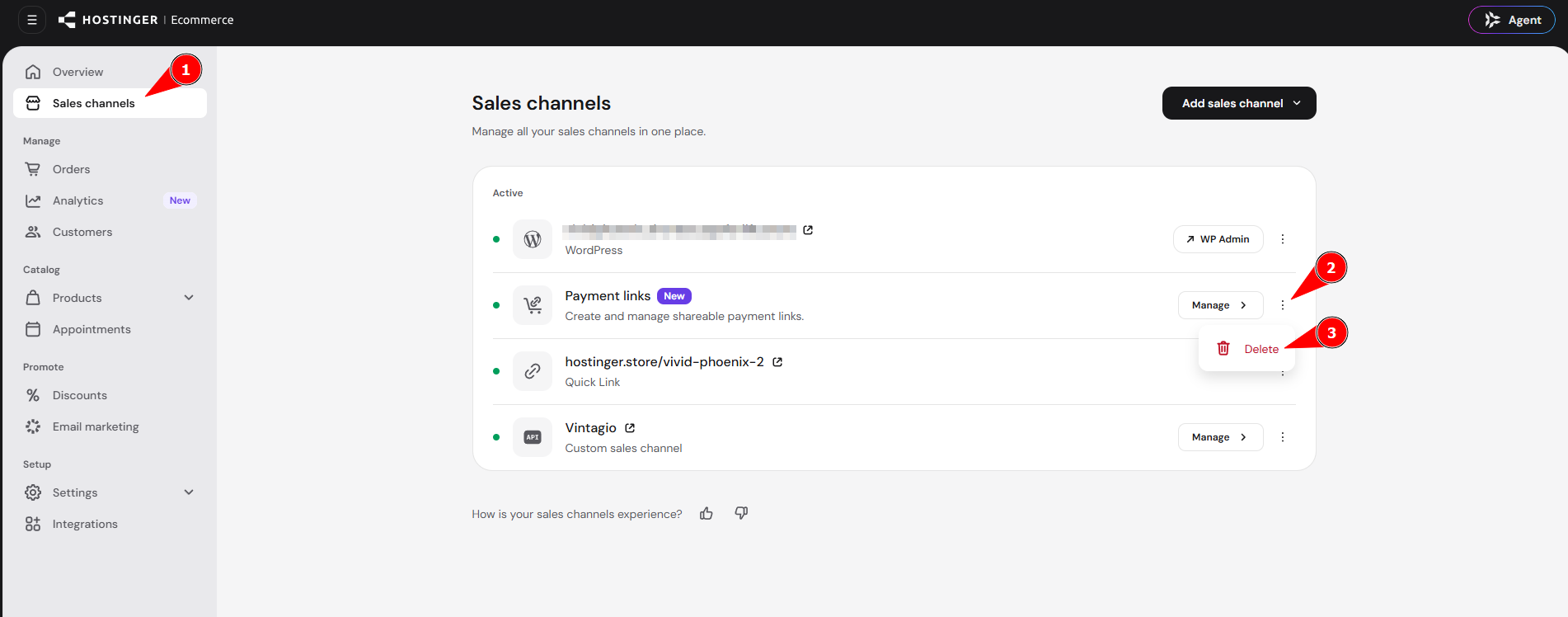
- Click the three-dot icon next to the sales channel and select Delete.

- Click Add sales channel and select Payment links or Instant store with a quick link.
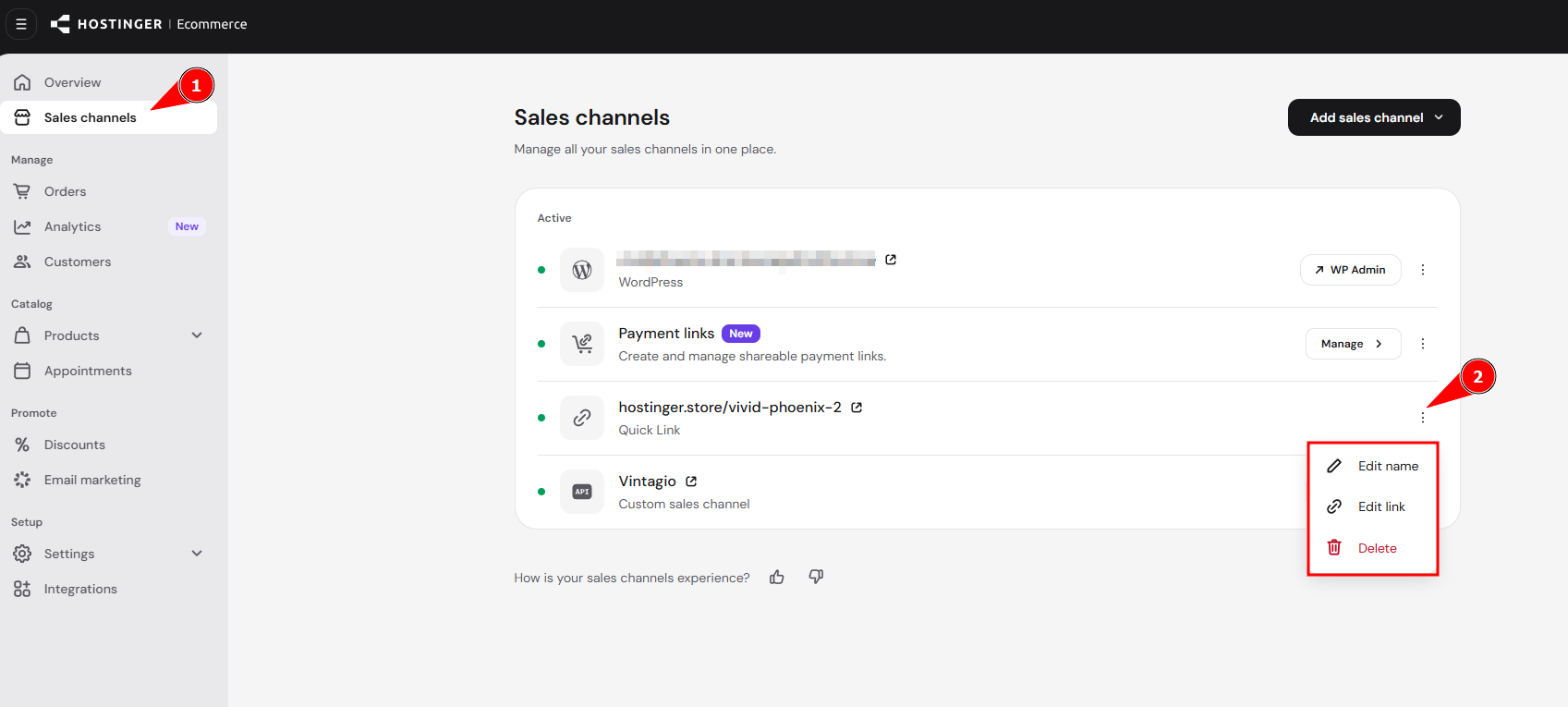
Selecting Edit name or Edit link instead changes only the Quick link store’s name or link.
To set up the new channel, follow Hostinger Ecommerce: How to create and manage a Quick link store or Hostinger Ecommerce: How to create a Payment Link.
Add another Hostinger AI Builder, WordPress, or Custom sales channel
A paid Hostinger Ecommerce plan allows multiple Hostinger AI Builder, WordPress, and Custom sales channels, so add another sales channel instead of switching. For the steps, see How to add a sales channel in Hostinger Ecommerce.
Switch Hostinger AI Builder manual mode sales channel
Disconnect your current Hostinger AI Builder manual mode sales channel, then add a new one, because a bundled plan includes one sales channel.
- Go to the Sales channels page, as in the steps above.
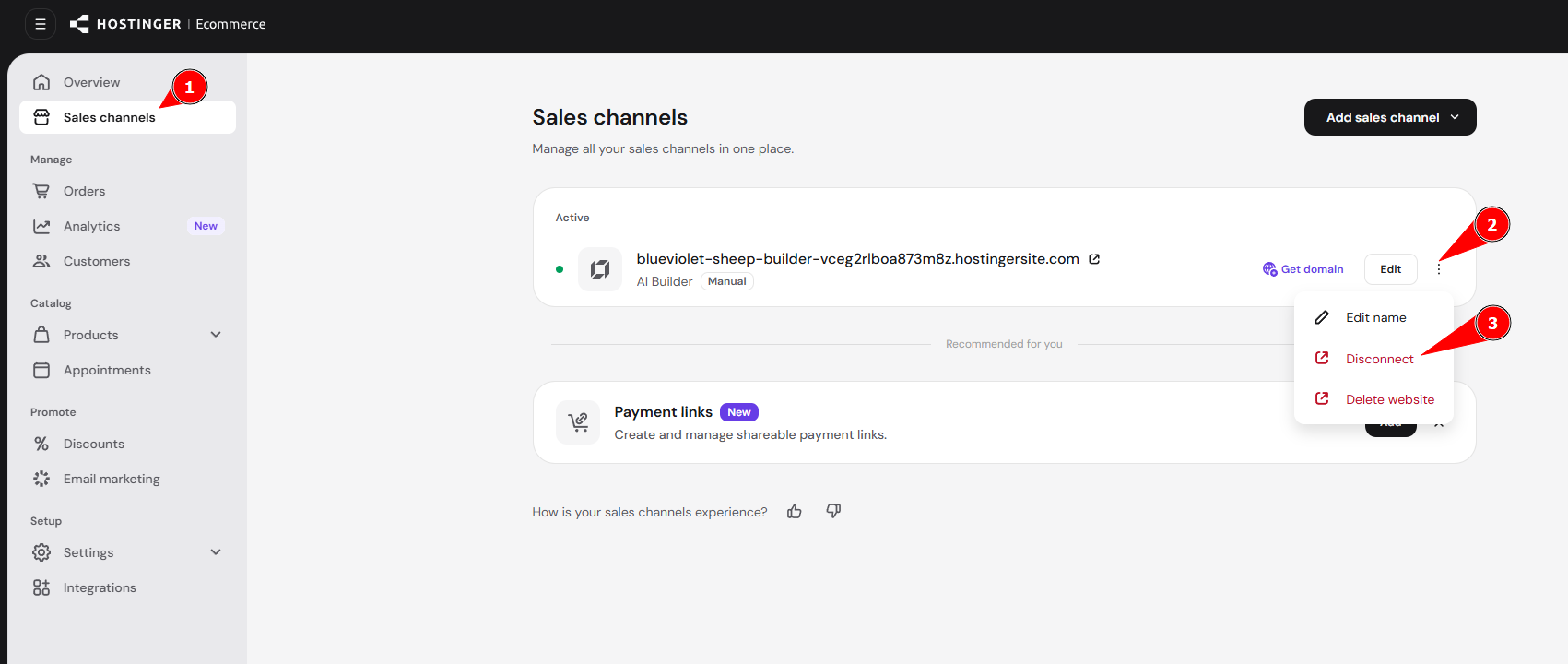
- Click the three-dot icon next to the sales channel and select Disconnect.

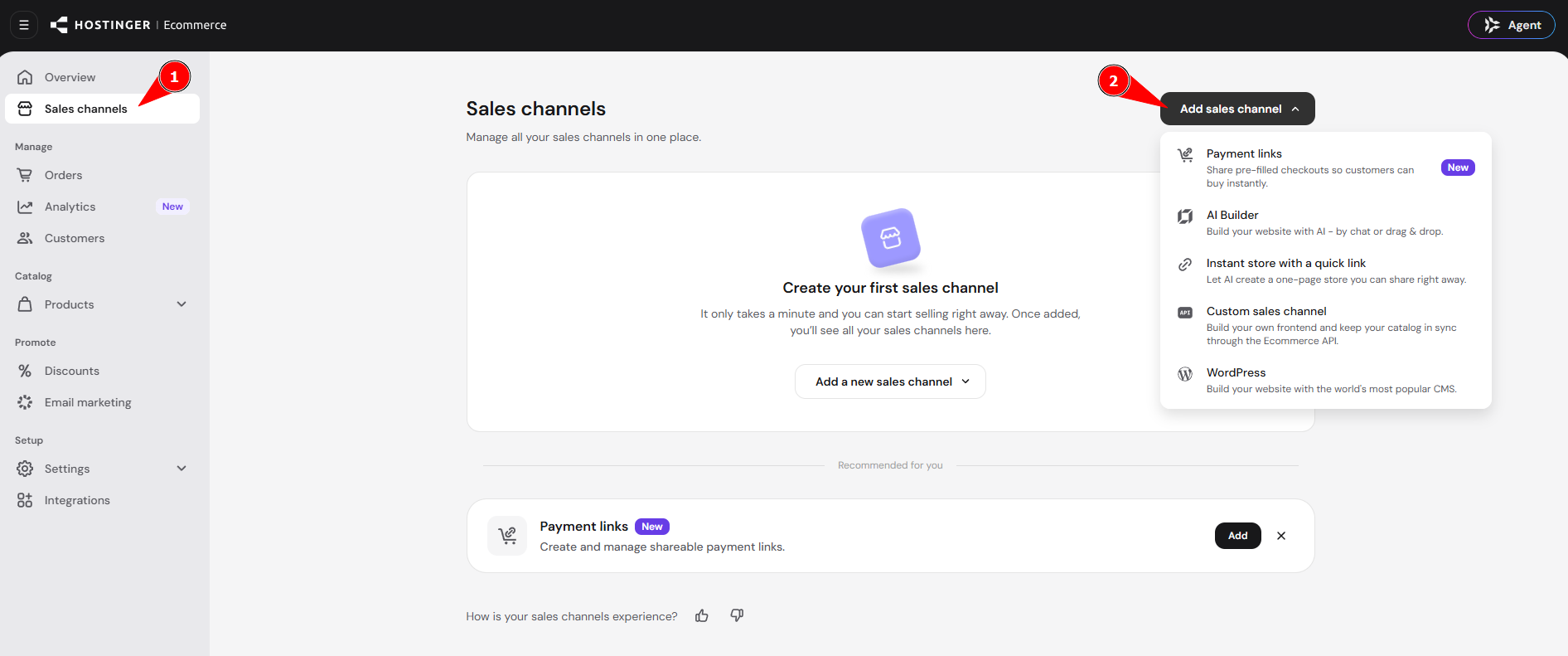
- Click Add a new sales channel and select the sales channel you want.
- After you disconnect, the Add sales channel list shows every sales channel.

Switch a Hostinger AI Builder agentic mode sales channel
You can’t delete or disconnect a Hostinger AI Builder agentic mode sales channel from the Sales channels page. To remove it, ask Hostinger AI Builder in agentic mode to remove the store.
- Open your project in Hostinger AI Builder agentic mode.
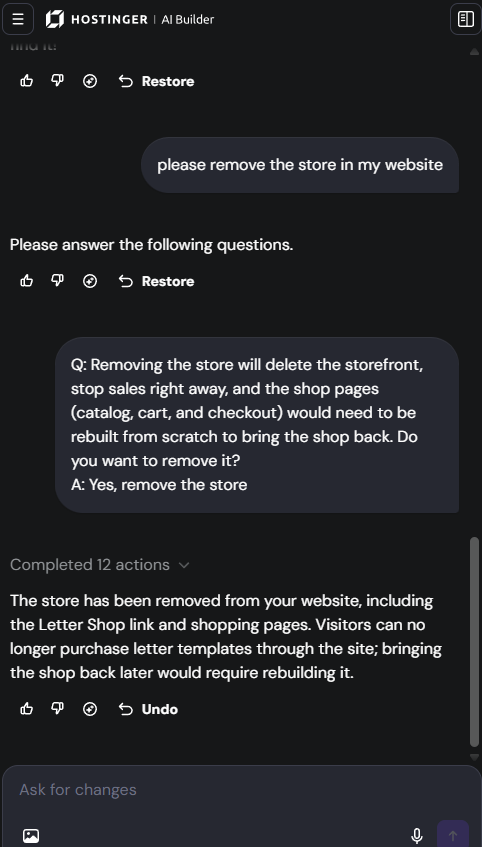
- In the AI chat, type: please remove the store in my website
- Answer the confirmation question by selecting Yes, remove the store.
- Wait for Hostinger AI Builder to finish. A message confirms that the store has been removed from your website, including the shop link and shopping pages.

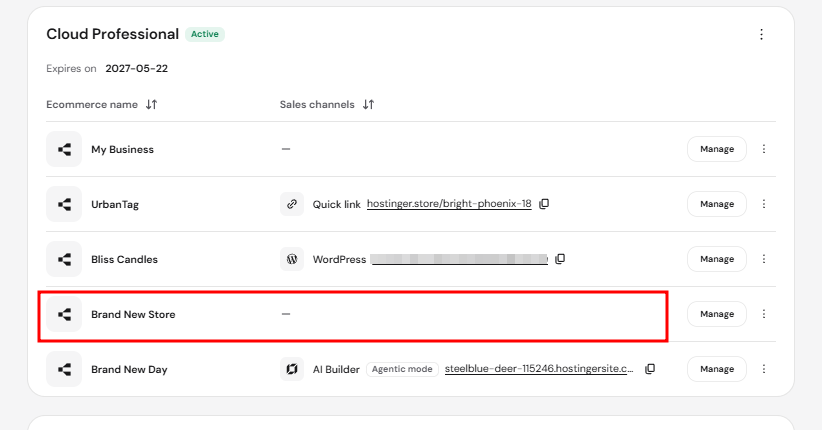
The sales channel no longer appears for your store. In the Hostinger dashboard, go to Ecommerce: the store stays in the list, and its Sales channels column shows a dash. Then add a new sales channel. For the steps, see How to add a sales channel in Hostinger Ecommerce.
WordPress sales channels can’t be switched
You can’t delete or disconnect a WordPress sales channel from the Sales channels page. Deleting the Hostinger Ecommerce plugin from the WordPress website doesn’t remove the sales channel. It stays on the Sales channels page.
Add a new sales channel instead of switching. A paid Hostinger Ecommerce plan allows multiple WordPress, Hostinger AI Builder, and Custom sales channels. For the steps, see How to add a sales channel in Hostinger Ecommerce.
Switch the sales channel when your hosting plan doesn’t include Hostinger Ecommerce
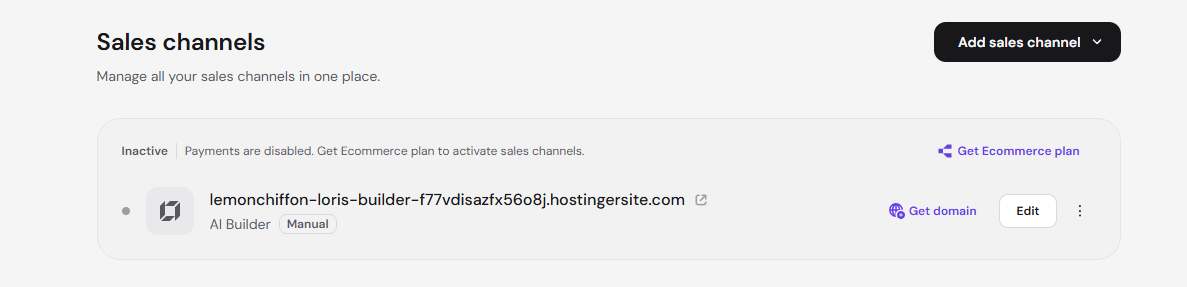
If your hosting plan doesn’t include Hostinger Ecommerce and you have no Hostinger Ecommerce plan, your sales channel shows Inactive with the message Payments are disabled. Get Ecommerce plan to activate sales channels. You can still edit your website and disconnect it, but payments don’t work until you get a Hostinger Ecommerce plan. To add a sales channel or activate this one, click Get Ecommerce plan on the Sales channels page.
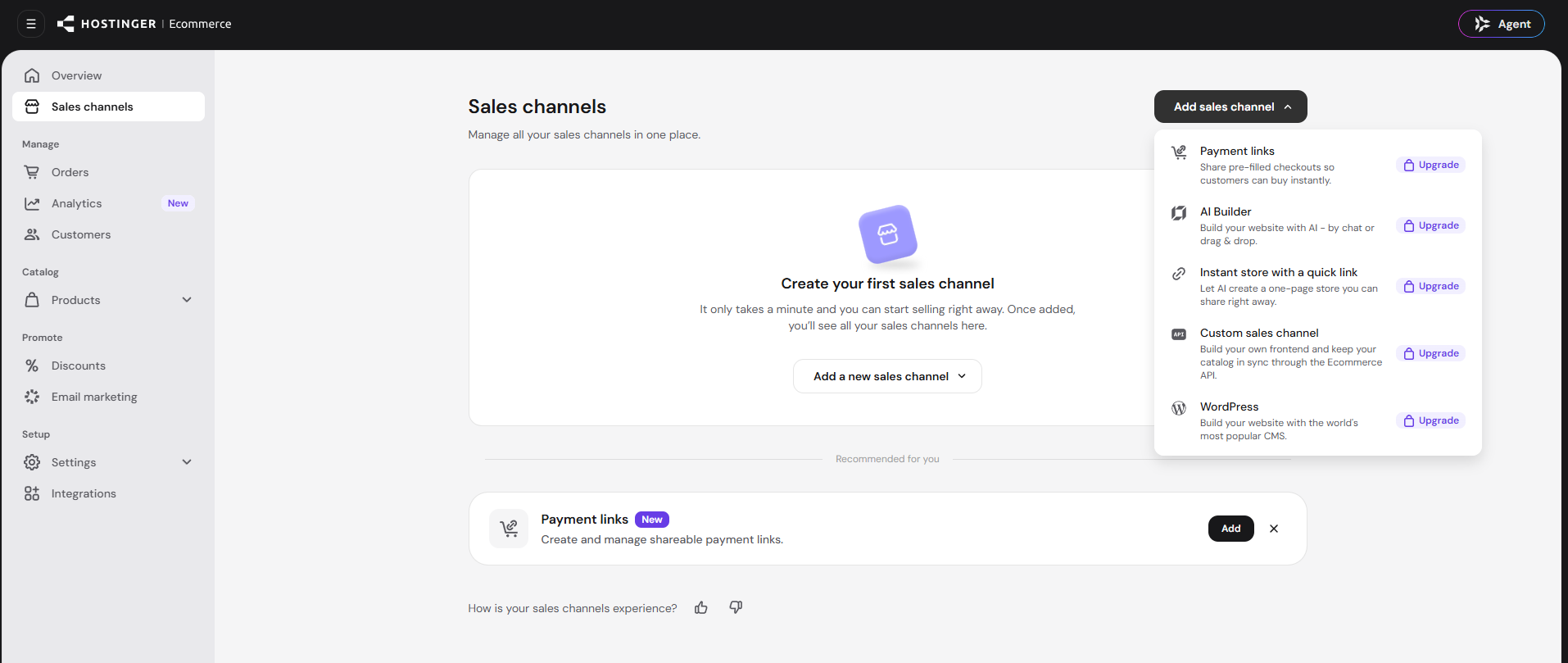
If you disconnect the website, every sales channel in the Add sales channel list shows Upgrade until you get a Hostinger Ecommerce plan.
Switching a Hostinger Ecommerce plan isn’t possible
You can’t move a Hostinger Ecommerce plan to another store. Each Hostinger Ecommerce plan covers one store, which the Set up button on the plan creates, and a store can have several sales channels.
To use your plan with your website, connect the website as a sales channel to the store that holds your paid plan, not to the old store. Your paid plan will be listed under Your Ecommerce plans in Hostinger dashboard.
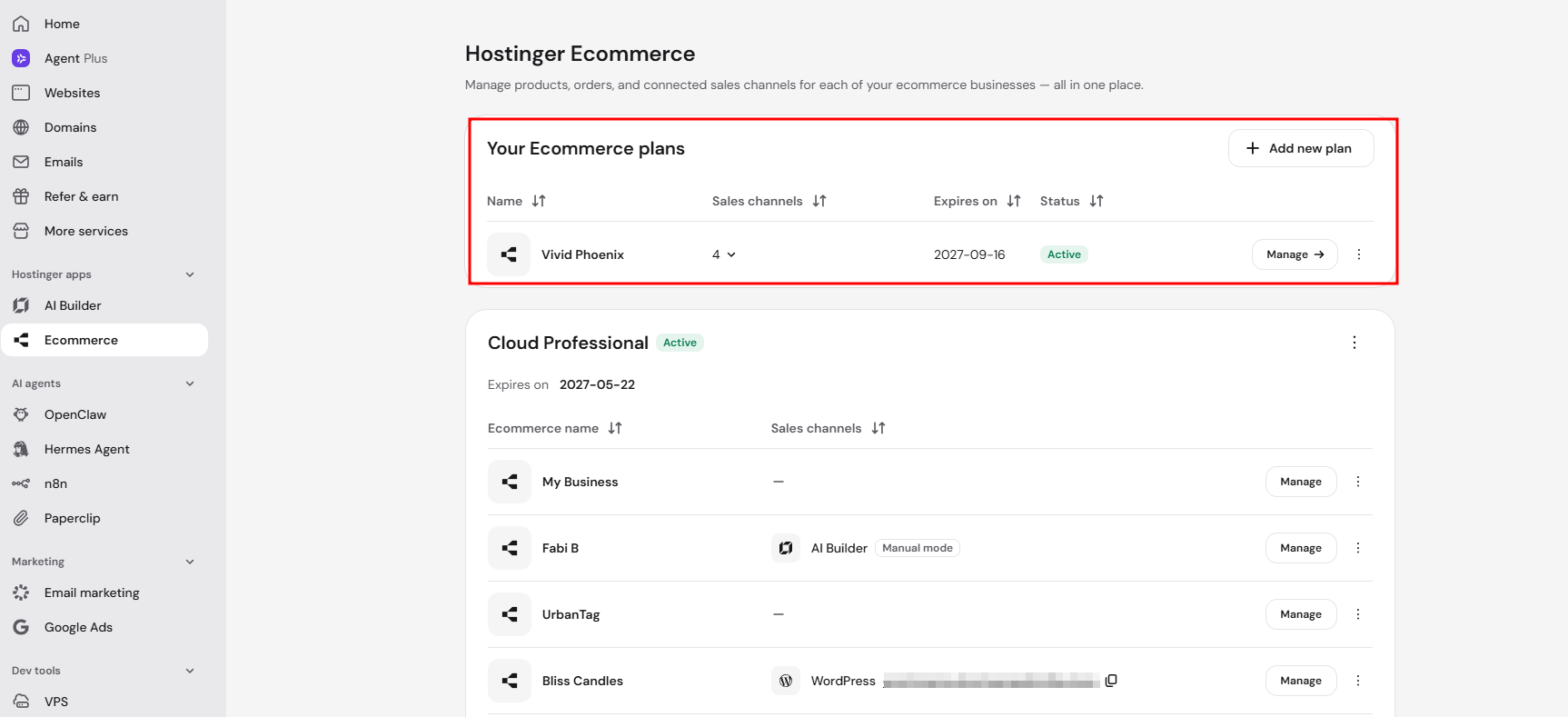
If the website is connected to another store, remove it from that store first by following the steps for your sales channel type in this article. See How to add a sales channel in Hostinger Ecommerce to connect the website to the store that holds your plan.
Your Hostinger Ecommerce store now uses your new sales channel.
NOTES
- To set up the new sales channel, see How to add a sales channel.
- If a sales channel shows Inactive or Payments are disabled, see How to fix “Payments are disabled” on a sales channel.