Creating WhatsApp message templates in Hostinger Reach requires Meta’s approval before you can use them in a campaign. Build the template in Reach, add supported content and personalization, submit it to Meta, and only send templates that are currently approved and available for your connected account.
Create and submit a WhatsApp template in Hostinger Reach
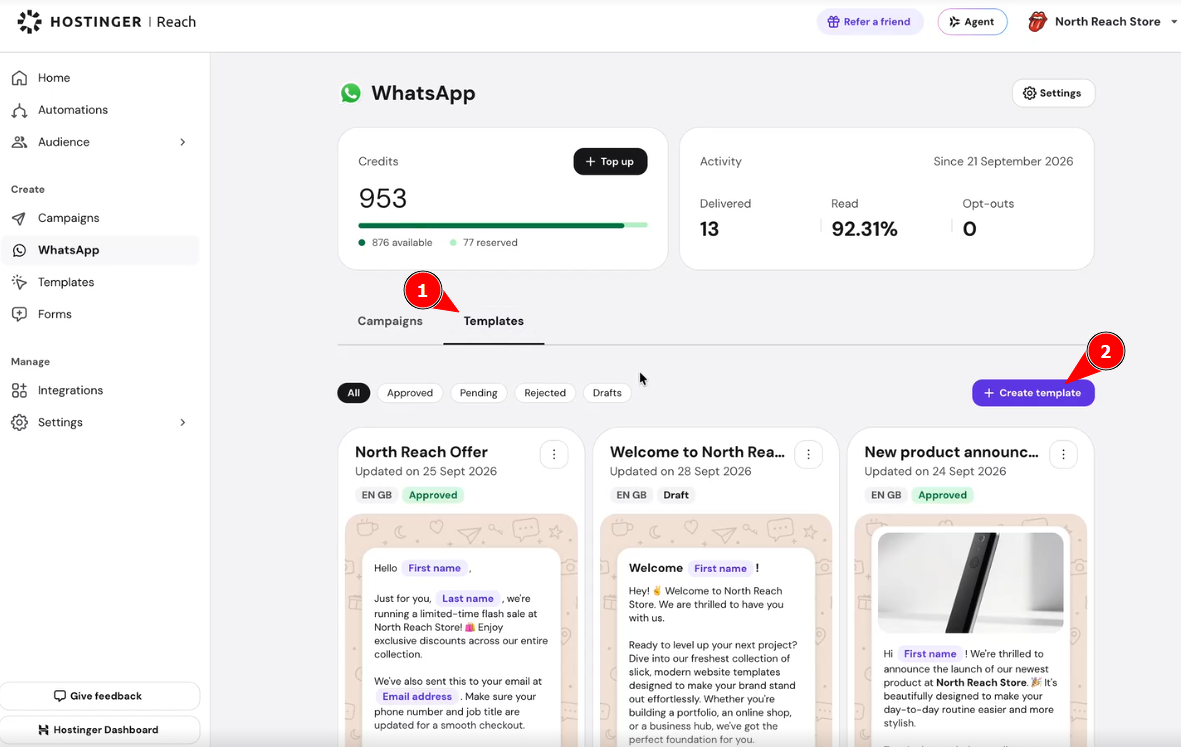
- Open WhatsApp in Hostinger Reach and select Templates.
- Click Create template and give it a clear internal name.
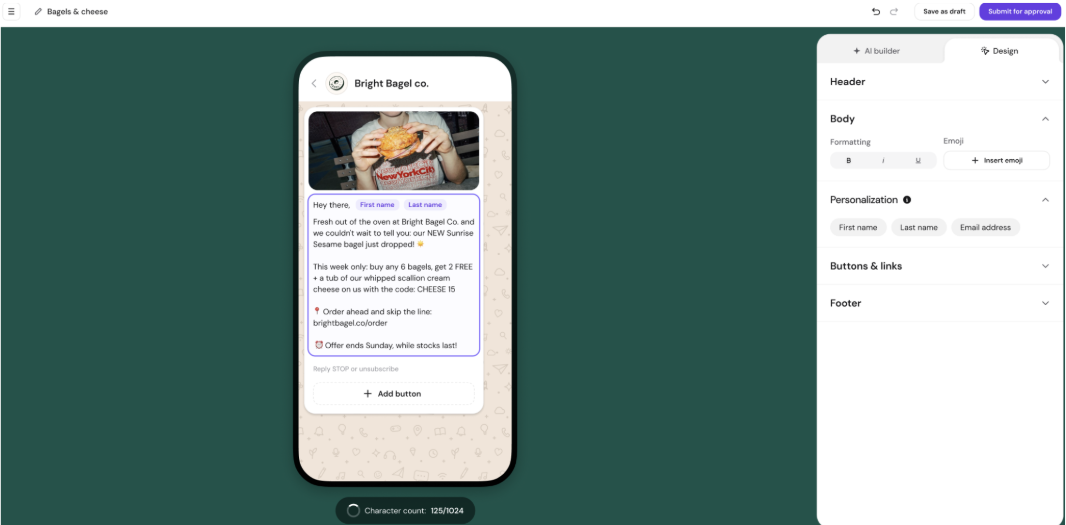
- Build the message body and optionally add a supported header, personalization variables, and buttons.
- Select a personalization variable from the panel to insert it into the header or body, then enter a fallback value when prompted. Meta uses fallback values as examples during review, and Reach uses them when a contact field is empty.
- Review the message preview and correct any validation errors.
- Select Submit for approval. Meta reviews the template and returns its status to Reach.
Manage your WhatsApp templates in Hostinger Reach
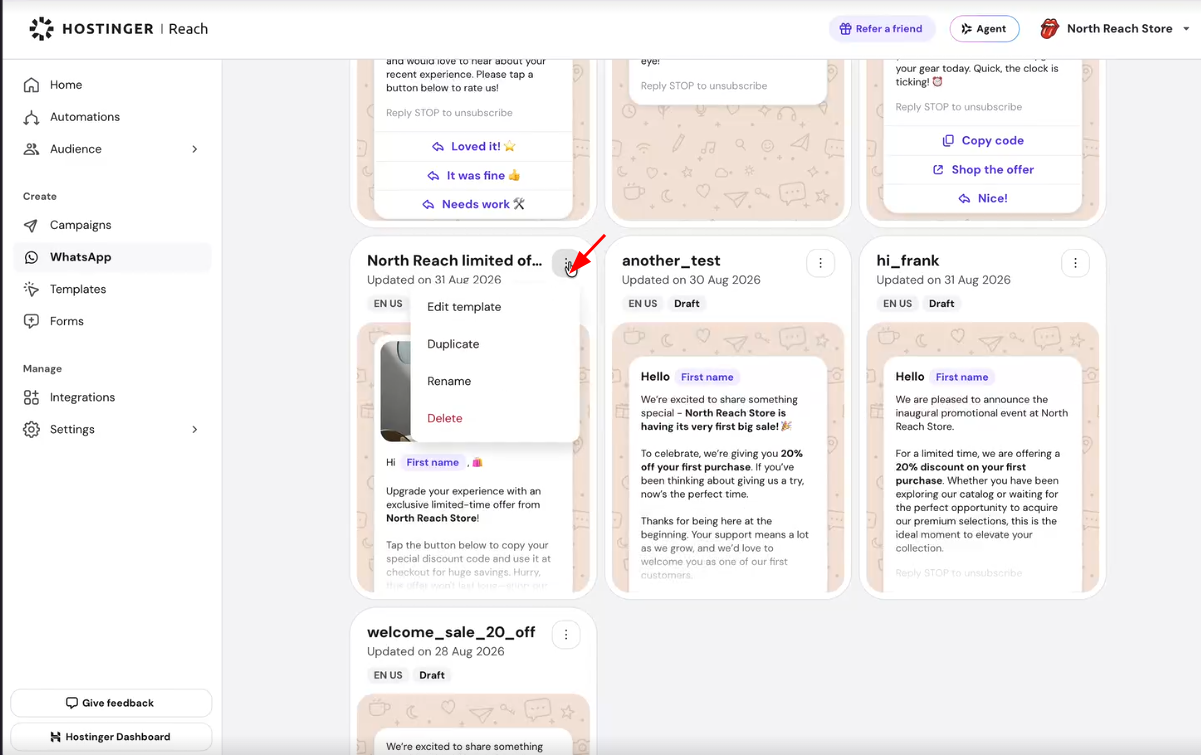
Manage an existing WhatsApp template from the Templates tab without recreating it.
Select the options menu (⋮) on a template card to:
- Edit template – open the template in the editor to change its content.
- Duplicate – create a copy of the template under a new name.
- Rename – change the template’s internal name.
- Delete – remove the template from Hostinger Reach.
Supported WhatsApp template elements in Hostinger Reach
|
Element |
Available options and limits |
|
Header |
Optional. Use no header, text, or an image. Text supports up to 60 characters and one variable. Images can be JPEG, PNG, or WEBP up to 5 MB. GIF, video, document, and location headers are not available. |
|
Body |
Required and limited to 1,024 characters. Bold, italic, and strikethrough formatting is supported. The message must remain within the limit after fallback values are inserted. |
|
Footer |
Fixed, non-editable compliance text: Reply STOP to unsubscribe. Reach localizes the footer to the template language. |
|
Buttons |
Quick reply, website URL, phone number, and copy code. A template can contain up to 10 buttons, including no more than two URL buttons, one phone button, and one copy-code button. Flow buttons are not available. |
|
Variables |
Use first name, last name, email, phone number, job title, or a custom contact field. A text header can contain one variable; the body can contain several. Every variable requires a fallback value. |
|
Language |
One language per template. New templates use English US by default, and the initial editor does not include a language picker. |
|
Category |
Marketing only. Utility and authentication templates are not available in the initial release. |
Follow the WhatsApp template content rules in Hostinger Reach
Variables
- Do not place a variable at the very beginning or end of the body.
- Do not place two variables directly next to each other without text between them.
- Provide a meaningful fallback value for every variable and keep the completed body within 1,024 characters.
Buttons
- Website URLs must use HTTPS and can contain up to 2,000 characters. Do not use known link-shortener domains. Place the URL at the end if it contains a variable.
- Phone buttons must use a valid international phone number.
- Copy-code buttons require an example offer code of no more than 20 characters.
- Keep quick-reply buttons together rather than placing other button types between them.
Wait for Meta approval of a WhatsApp template
Meta controls the approval decision, policy interpretation, template status, and any restriction. Review can take from a few hours to a few days, so do not plan a campaign that depends on immediate approval.
Refresh the template page in Hostinger Reach to retrieve the latest status from Meta. Check the current Meta status before recreating the template if an approved template later becomes unavailable, since Meta can change a template’s status after approval.
Use an approved WhatsApp template in a campaign
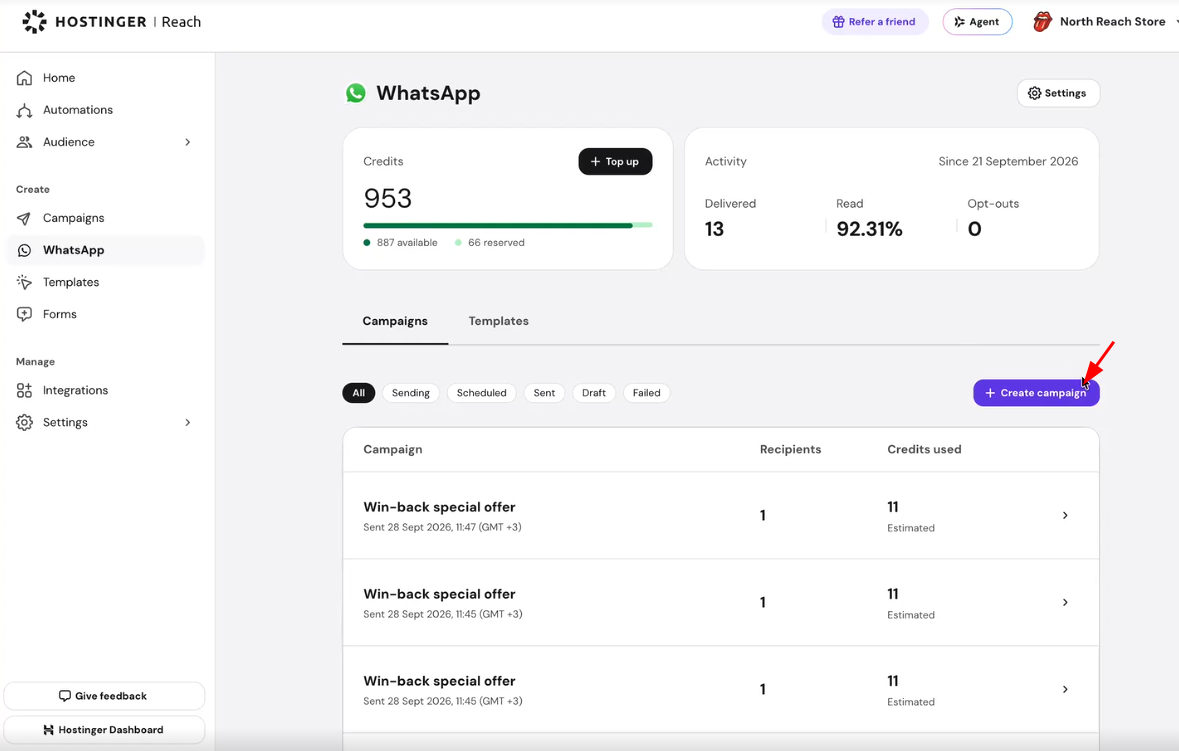
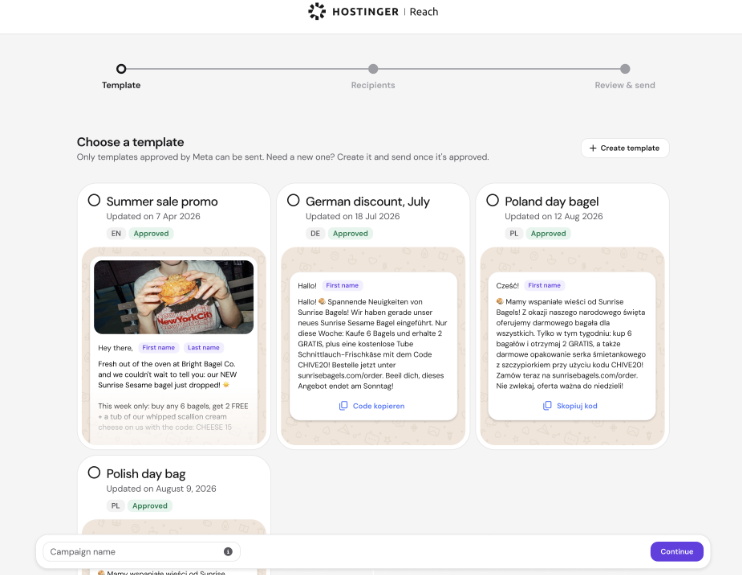
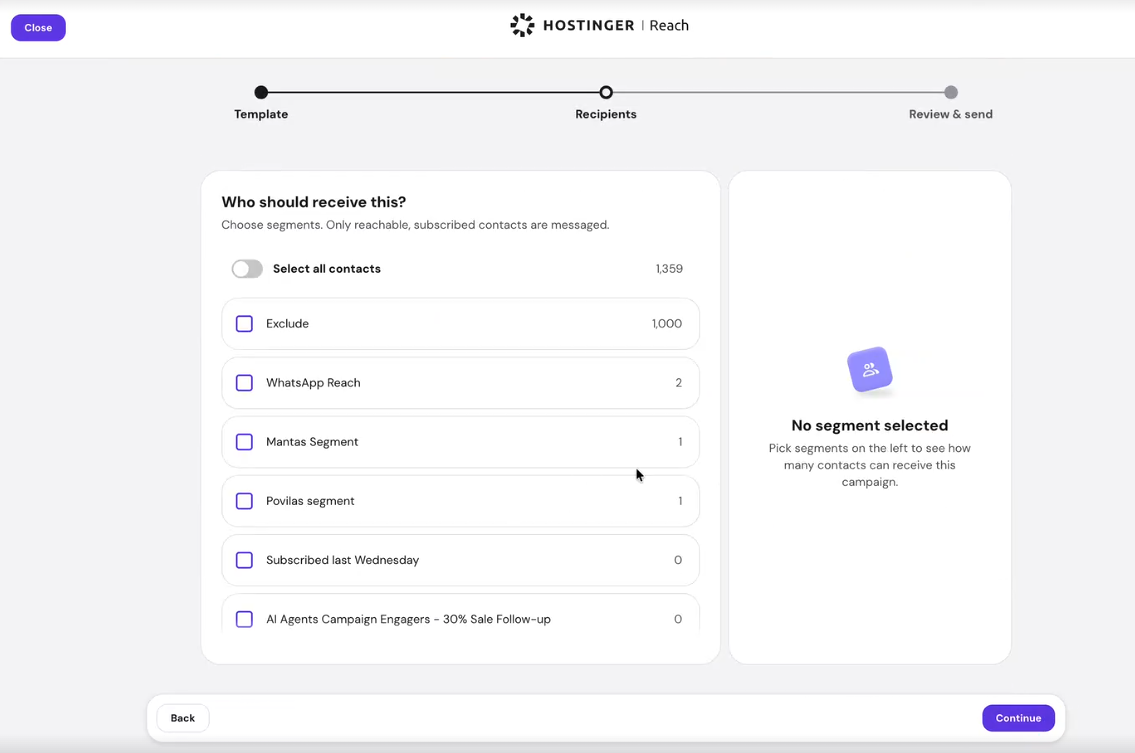
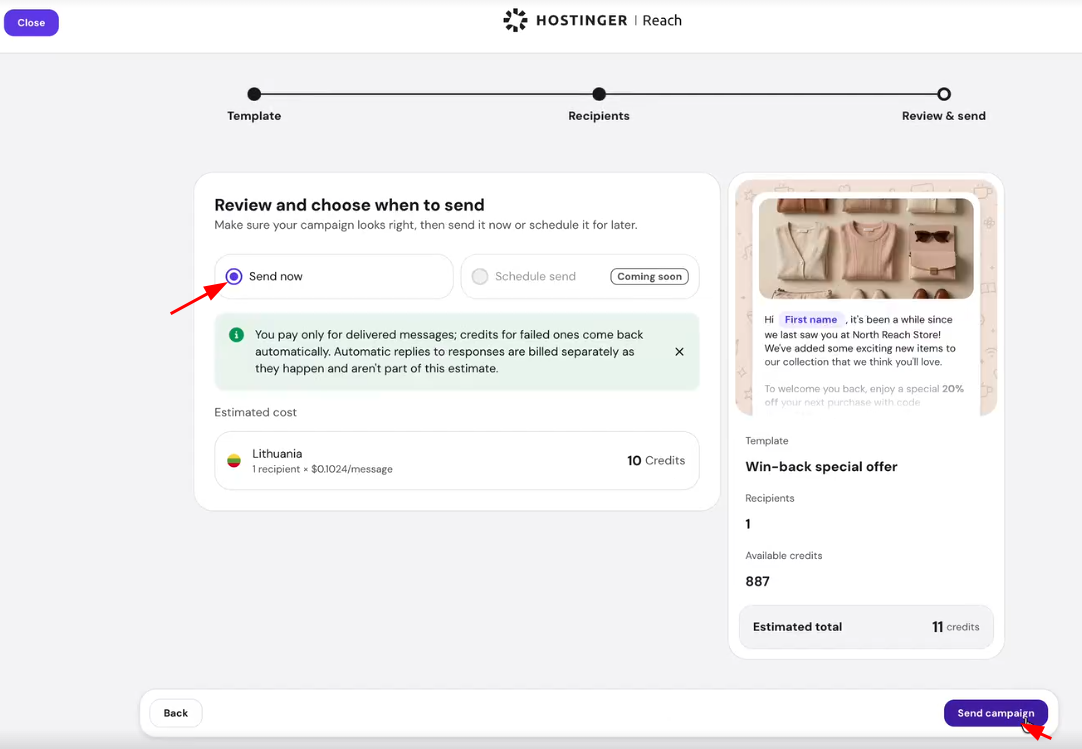
Sending a WhatsApp campaign takes three steps: choose an approved template and name the campaign, select recipients, then review the estimated cost and send. Scheduling is not available in the initial release.
- Open WhatsApp in Hostinger Reach and select Create campaign.
- Select an approved template from the list and enter a campaign name.
- Select the segments to include, or turn on Select all contacts, then review the recipient count.
- Review the message preview and the estimated cost by destination country.
- Select Send now, then select Send campaign.
Once a template is approved, it stays available in Hostinger Reach for you to reuse across future WhatsApp campaigns.
Frequently asked questions
Why is my existing Meta template missing?
Reach does not import templates that were created directly in Meta or through another provider. Recreate the template in the Reach editor and submit it for Meta approval, since Reach also does not provide a ready-made template library in the initial release.
Can Hostinger approve or speed up my template?
No. Meta makes the approval decision and controls the review time. Make sure the template follows Meta’s policies, then refresh Reach to check for the latest status.
Why did an approved template become unavailable?
Template status can change after approval. Refresh Reach and review the current status in Meta. Contact Hostinger Support with the template name, language, and screenshots of both statuses if the two views still differ.