Hostinger Agent connects to external apps and to custom MCP (Model Context Protocol) servers so it can pull data, send messages, and complete actions without leaving the chat. You can connect apps like Google Sheets, Slack, and Gmail through the Apps tab, or add your own MCP server so the agent can use the tools it provides.
Before you start
App connections are included in the Agent Plus subscription. Connections shows a lock icon on each Connect button and an Upgrade to Agent Plus button until you upgrade. See Hostinger Agent pricing for what Agent Plus includes.
NOTE
- Connecting a custom MCP server to Hostinger Agent is different from Hostinger Connector, which lets external AI clients such as Cursor or Claude connect into your Hostinger hosting. This article covers Hostinger Agent connecting out to a server you provide.
Connect external apps to Hostinger Agent
Hostinger Agent connects to 1000+ external tools, including Google Sheets, Slack, Gmail, and Notion, to pull data, send messages, and update records directly from the conversation. For a full overview of what Hostinger Agent can do beyond these connections, see Hostinger Agent: Features and overview.
To connect an app:
- Ask your agent to perform a task that requires an external app (e.g., “Add this to my Google Sheet”).
- If the app isn’t connected yet, a Connect button appears inline in the agent’s response.
- Click Connect and follow the authorization steps.
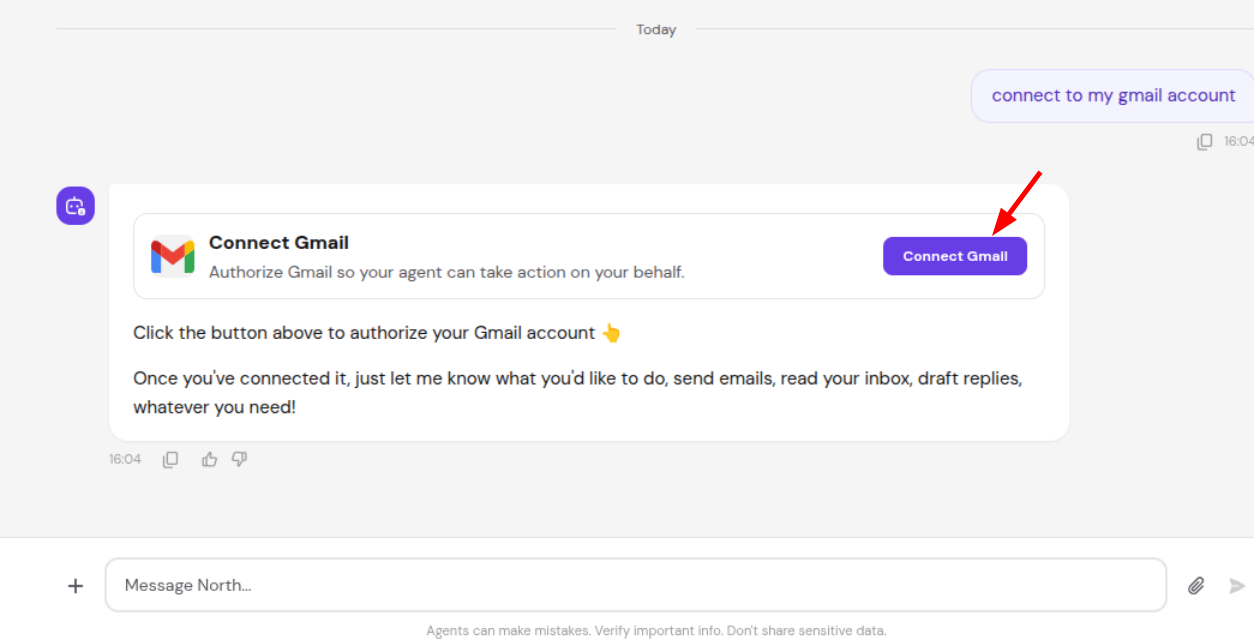
- Once authorized, the agent completes the requested action.
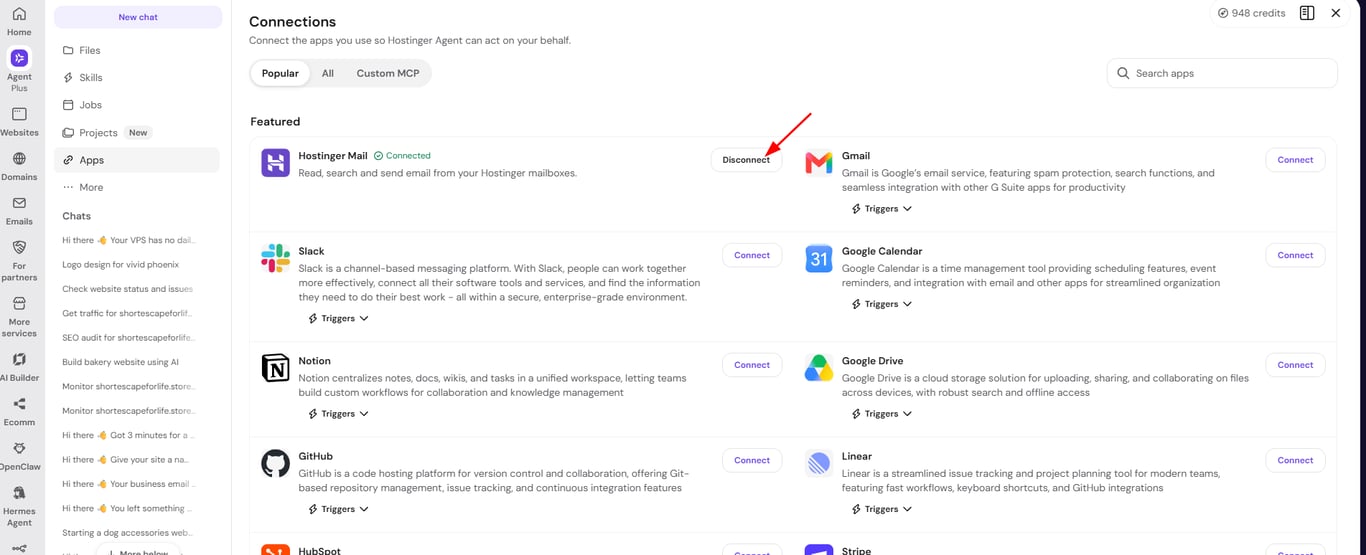
To connect or manage apps, open Connections from the Apps tab in the navigation panel. From there, select Popular, All, or Custom MCP to browse available apps, or use the search bar to find one, then select Connect next to any app to add it directly from this page.
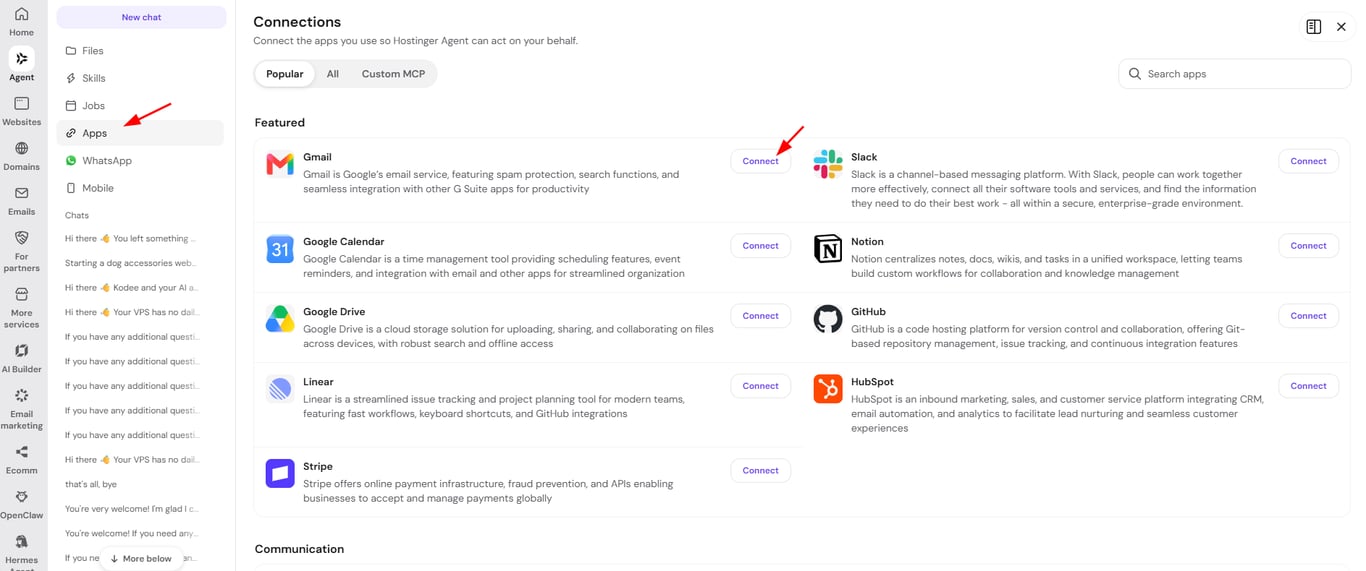
Apps you can connect to Hostinger Agent
Connections groups the apps you can connect to Hostinger Agent into nine categories, including Communication, Productivity, and Developer tools. Each category contains the following apps:
|
Category |
Apps |
|
Communication |
Gmail, Outlook, Slack, Discord, WhatsApp, Zoom, Google Meet |
|
Productivity |
Google Calendar, Calendly, Cal, Notion, Todoist |
|
Docs & storage |
Google Docs, Google Sheets, Google Slides, Google Drive, OneDrive, Excel, Dropbox, Box |
|
Project management |
Linear, Jira, Trello, Asana, ClickUp, Airtable, Monday, Basecamp |
|
Developer tools |
GitHub, GitLab, Bitbucket |
|
Business & operations |
HubSpot, Salesforce, Attio, Intercom, Zendesk, Typeform |
|
Marketing & social |
Mailchimp, Kit, YouTube, LinkedIn, Facebook, Instagram, Reddit |
|
Creativity & design |
Figma, Canva, Miro |
|
Finance & analytics |
Stripe, Square, Google Analytics |
NOTES
- WhatsApp supports WhatsApp Business accounts only, not WhatsApp Personal accounts.
- Facebook supports Facebook Pages only, not Facebook Personal accounts.
- Instagram supports Instagram Business and Creator accounts only, not Instagram Personal accounts.
Connect Hostinger Mail to Hostinger Agent
The Hostinger Mail integration lets Hostinger Agent read, search, and send email from your Hostinger mailboxes in the chat. You connect Hostinger Mail with OAuth sign-in, and no API key or MCP server URL is required.
Before you start, make sure you have a Hostinger mailbox and know its email address and password. See How to reset a Hostinger Email mailbox password if you forget and need to reset your password.
To connect Hostinger Mail:
- Open Connections from the Apps tab in the navigation panel.
- Find Hostinger Mail and select Connect.
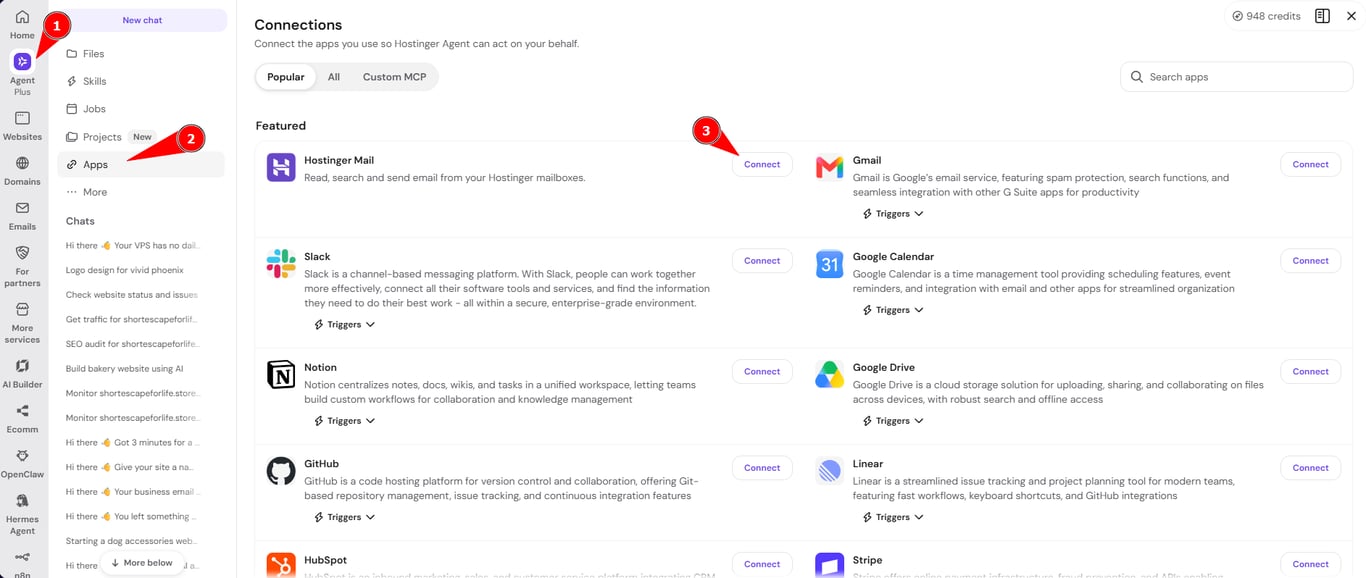
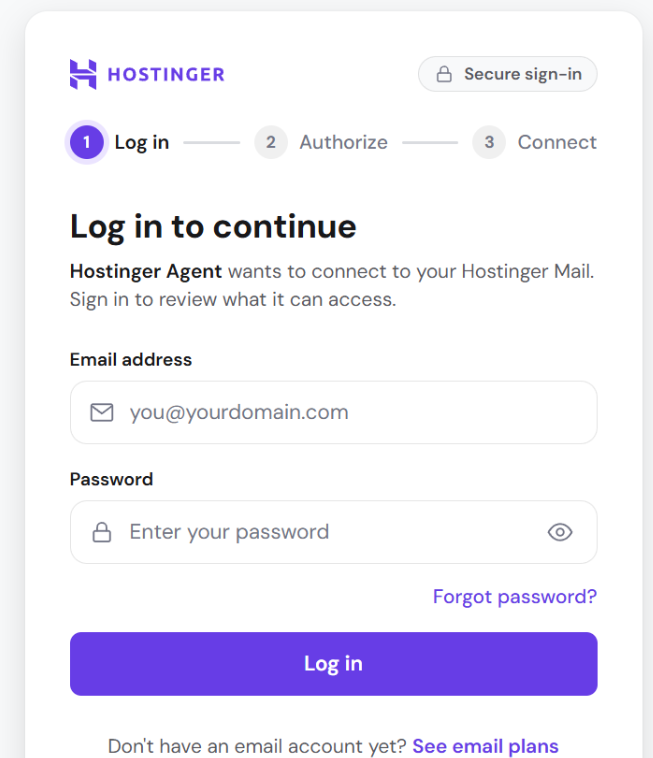
- Enter the email address and password of your Hostinger mailbox on the Log in to continue page, then select Log in.
- Review the permissions on the Hostinger Agent wants access to your mail page, then select Allow access.
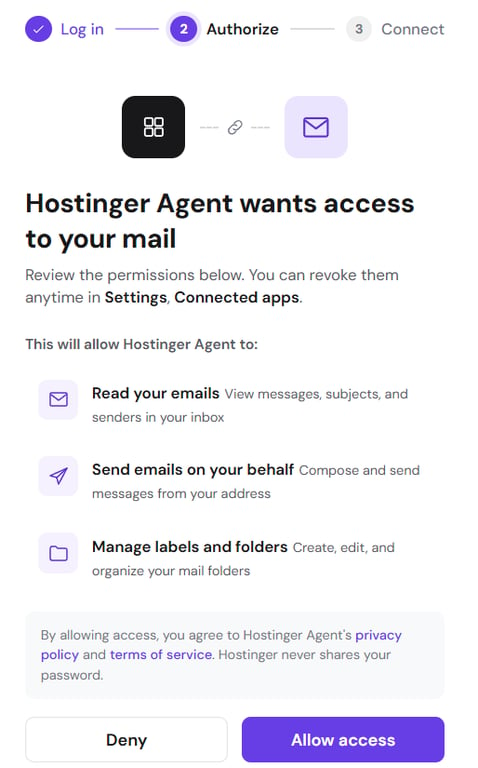
Hostinger Agent requests three permissions:
- Read your emails: view messages, subjects, and senders in your inbox.
- Send emails on your behalf: compose and send messages from your address.
- Manage labels and folders: create, edit, and organize your mail folders.
After you allow access, Hostinger Mail shows a Connected label and a Disconnect button in Connections. Select Disconnect next to Hostinger Mail to remove the connection from Hostinger Agent.
Once connected, ask Hostinger Agent to work with your inbox, for example: “Read the emails from my inbox.” Hostinger Agent checks your connected integrations, finds your Hostinger Mail mailbox, and returns the Inbox messages with their sender, date, subject, and a short summary.
NOTE
- Hostinger Mail connects Hostinger mailboxes only. External inboxes such as Gmail connect as external apps.
Connect custom MCP servers to Hostinger Agent
Hostinger Agent lets you connect your own custom MCP servers so the agent can use their tools in chat, in addition to the app integrations above. You can connect up to 5 custom MCP servers at a time, with up to 50 tools per server. Hostinger Agent only uses the tools an MCP server provides; it ignores any resources or prompts the server exposes.
To connect a custom MCP server:
- Open Connections from the Apps tab in the navigation panel.
- Under Custom MCP servers, select Add server.
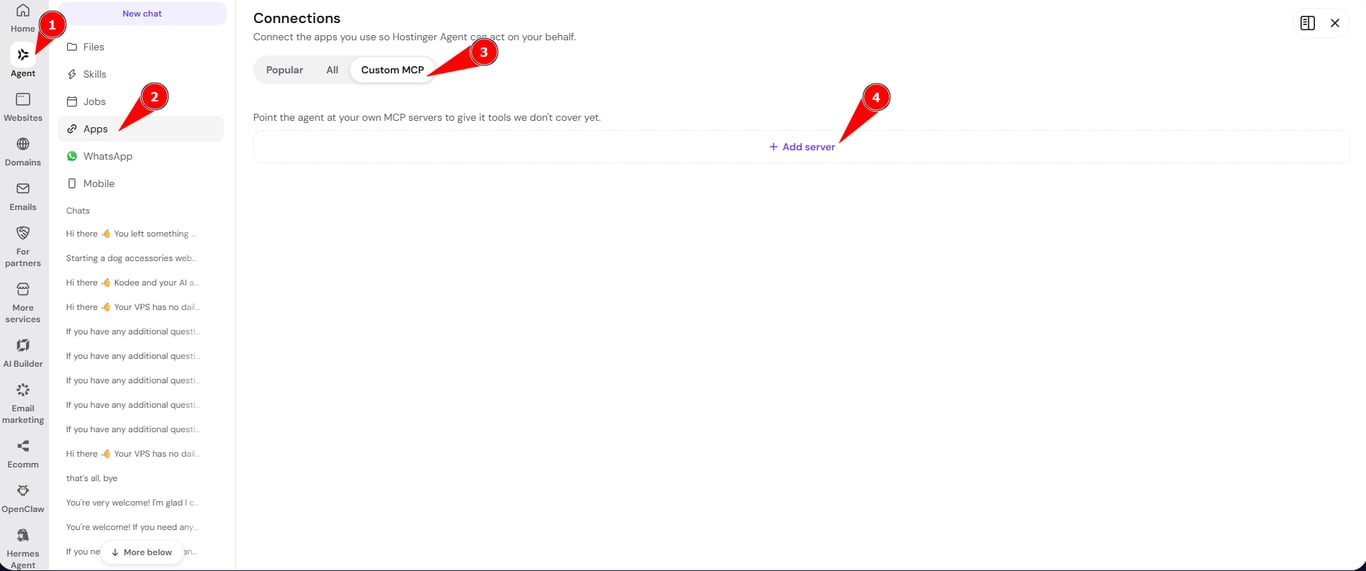
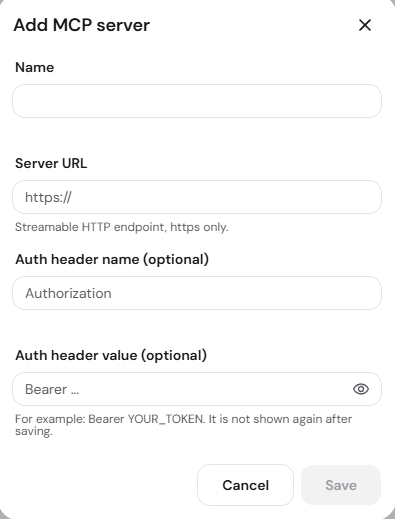
- Enter a name and the server’s URL. The URL must be a Streamable HTTP endpoint using https.
- If the server requires authentication, enter the auth header name and value, or select Sign in if the server uses OAuth.
- Select Save.
Actions performed through a custom MCP server always run in Agent mode and use Agent mode credits, even if the task itself is simple. For example, connecting a GitHub-based MCP server lets you ask Hostinger Agent to make and push code changes to a repository directly from chat.
Once connected, both your apps and your custom MCP servers stay available across conversations, so Hostinger Agent can use them whenever a task calls for it.
Watch the video guide on how to connect a custom MCP server to Hostinger Agent:
FAQ
What’s the difference between an app integration and a custom MCP server?
App integrations are 1000+ pre-built tools you connect with one click, like Google Sheets or Slack. Custom MCP servers are your own MCP endpoints, which let Hostinger Agent use tools that aren’t available as a built-in app integration.
How many custom MCP servers can I connect to Hostinger Agent?
Hostinger Agent supports up to 5 custom MCP servers at a time, with up to 50 tools per server.
Does Hostinger Agent ask for approval before using a connected app?
Yes. Each app action requires your approval before it runs, with Allow one or Allow all options shown in the prompt.