Import a database with phpMyAdmin in Hostinger by uploading an .sql file, or a compressed .sql file, of up to 256 MB through the Import tab. Empty the target database first, then select the file and click Go. Import databases larger than 256 MB over SSH instead.
Import a database with phpMyAdmin in Hostinger
- Open your database via phpMyAdmin and check its current content.
It’s highly recommended to make sure that your database is empty before importing a new database backup
- Next, since your database will be selected by default, click on Import:

- Choose a file in .sql or .sql.zip format:
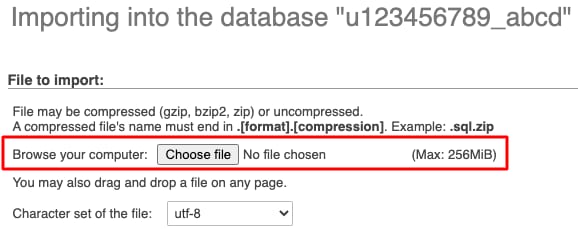
- Proceed further without making any other changes to the import settings and click Go. In a few moments, your database will be imported.
If you encounter any issues, check the following section.
Common errors
Here you will find the most common issues when importing a database:
The database is too big
Max size for a database that can be uploaded via phpMyAdmin is 256 MB. If your database file is bigger, you can easily import it via SSH instead.
Incorrect format parameter
Make sure that your file format is .sql. Alternatively, you can import a compressed database with the following formats: gzip, bzip2, and zip (for example, database.sql.zip).
If you have checked and the file format is correct, this error might also indicate a corrupted database file.
Command denied to user
If you get this error, it means that your database user doesn’t have enough permissions to import the database. All you need to do is fix the database permissions.
Access is denied. You need the SUPER privilege for this operation
This error means that your database includes queries that require SUPER privileges to be executed. In this case, double-check the nature of the queries on your .sql file and remove them if possible using any text editor of your choice. Next, try importing the database again.
If the queries that require SUPER privileges are definitely required, you may consider going for one of our VPS plans.
Your MySQL database now contains the tables and data from your imported backup file.