The Managed Hermes application features an AI-powered log analysis tool that automatically evaluates your application log streams to diagnose errors and optimize performance. Instead of manually parsing lines of text, you can review automated summaries and sequential solutions to resolve your application anomalies quickly. This feature ensures your Managed Hermes application operates efficiently and handles tasks or channel integrations without disruption.
Before you start
- You need an active Hostinger account with a configured Hermes application.
- If you’re not familiar with managing your Hermes application in general, see how to manage your Managed Hermes application on Hostinger dashboard.
How to access Managed Hermes application log insights
To view the AI-generated evaluation of your Managed Hermes application logs, navigate to the tracking section in your management panel:
- Log in to your Hostinger account to access the Hostinger dashboard.
- Select the Hermes section from the left sidebar menu.
- Navigate to your Hermes dashboard by clicking the Manage button next to your application.
- Access the AI Automation application logs by clicking Logs in the side menu or navigating to the Settings section.
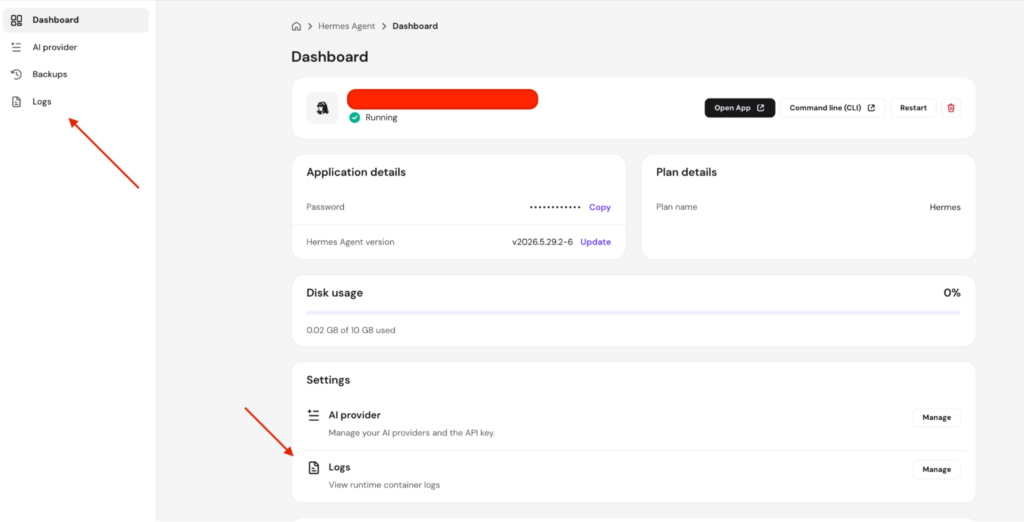
How to review log analysis and suggested actions
Once inside the log interface, you can leverage the automated assessment to pinpoint and resolve AI Automation application issues:
- Locate the Get insights from your logs section at the top of the page.
- Click the Analyze logs button to generate an analysis of your logs.
- Review the summary text provided under the Analysis section. This area details recent agent behavior, unexpected channel crashes, or timeout events detected by the system.
- Examine the breakdown under the Suggested actions section. A sequential troubleshooting list appears to guide you through fixing the specific agent problem, such as clearing corrupted channel configurations or restarting the instance.
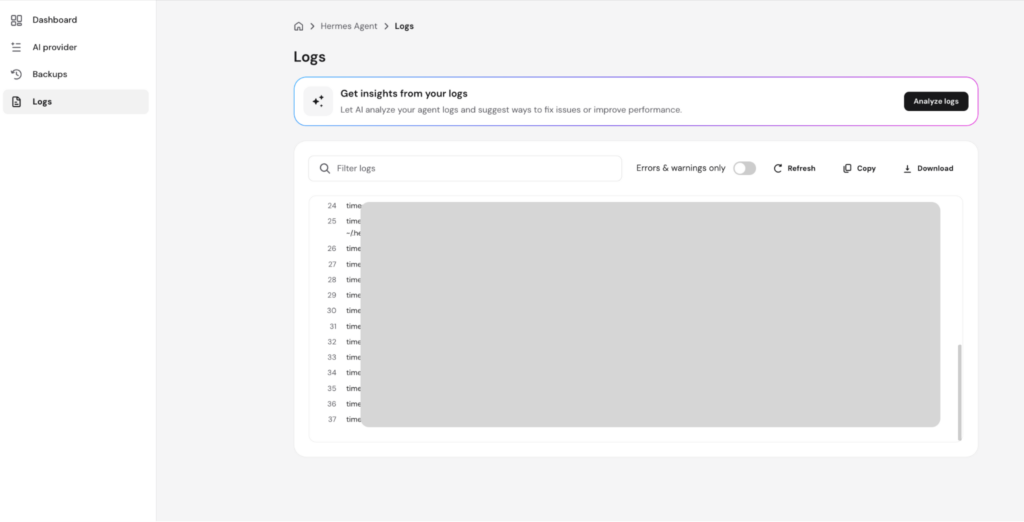
By regularly monitoring your automated log insights, you can proactively resolve application errors and maintain optimal uptime for your managed workflows.