Managed Hermes automatically backs up your application every day, allowing you to restore your agent to an earlier state whenever needed. Backups are created and managed automatically without requiring manual setup.
This guide covers how to view, restore, download, and track the restore history of your active Managed Hermes agent.
Before you start
- You must have an active Hostinger Managed Hermes service.
- Ensure your Managed Hermes application has been active for at least 24 hours.
- Note that backups are generated automatically once daily and retained for 7 days.
Navigate to the Backups interface
To access your application backups, open the backups management panel inside your control area:
- Select the Hermes section from the left sidebar menu.
- Click the Manage button next to your application to manage your Hermes.
- Select the Backups option from the management menu.
Inside the Backups page, you can toggle between two tabs:
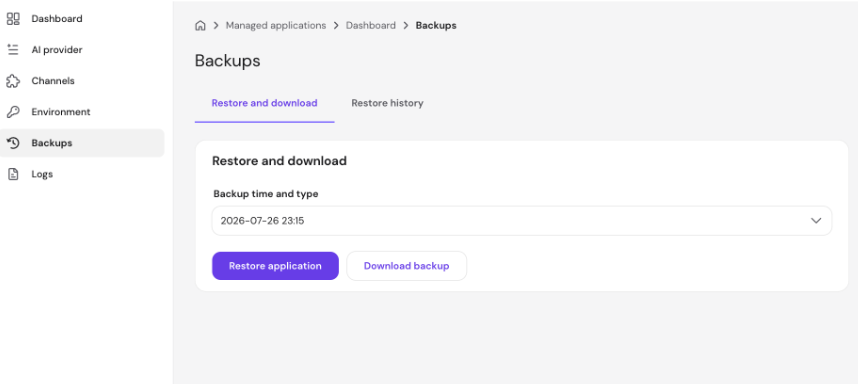
- Restore and download: Select, restore, or download available daily backups.
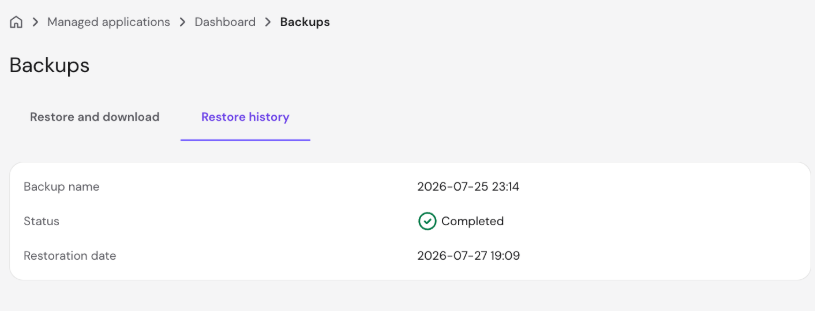
- Restore history: Audit previous restoration operations and their statuses.
Restore a backup
Restoring returns your application to the exact state saved in the selected backup:
- Open the Restore and download tab.

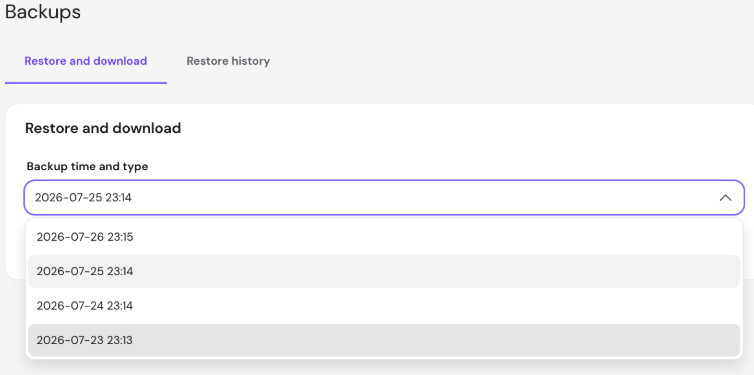
- Select your desired backup from the dropdown menu (listed by date and time, newest first).

- Click Restore application.
- Read the notice, then select the confirmation checkbox to acknowledge that current application files will be replaced.

- Click Restore.
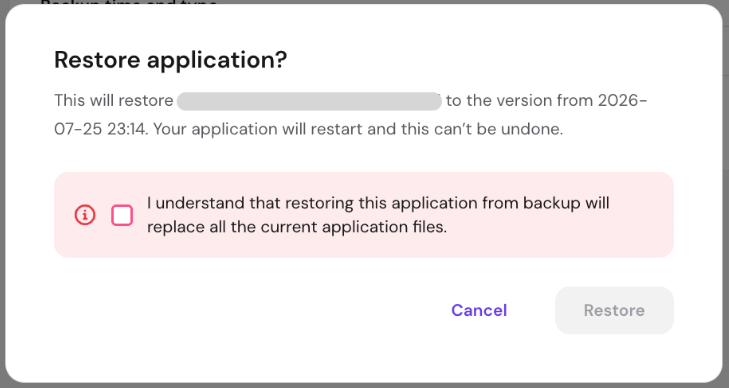
Your application will restart and begin restoring. The process usually takes about 5 minutes, and a notification will display once completed. Only one restore operation can run at a time.
Download a backup copy
You can save a local copy of any available backup to your device:
- Open the Restore and download tab.
- Select the backup you want to download from the dropdown menu.
- Click Download backup.
Your backup will be prepared in the background (which may take up to an hour for larger applications). Once ready, a notification will appear with a temporary download link.
Check your restore history
To view past restoration activity and monitor ongoing restores:
- Open the Restore history tab.
- Review your past restores, including requested timestamps, backup dates, and statuses (In progress, Completed, or Failed).