Set up a recovery email for your Hostinger account in the Account settings section of the Account information page, then confirm it from your primary account email. A verified recovery email receives verification codes for password resets, email changes, email-based two-factor authentication (2FA), and suspicious login checks.
Before you start
- Ensure your primary account email address is active, as you will need it to verify the changes.
- Choose a recovery email address that is secure and always accessible to you.
Step 1 – Add the recovery email in Hostinger dashboard
- Log in to your Hostinger dashboard.
- Click on the profile icon in the top-right corner and select Account Information.
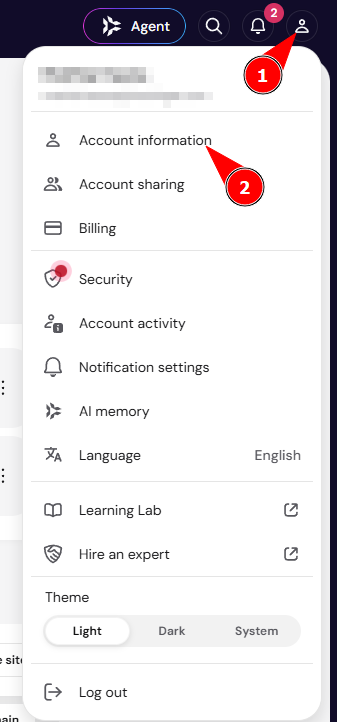
- Scroll down to the Account settings section.

- Locate Recovery email and click on it.

- Enter the alternative email address you want to use and click Continue.
Step 2 – Confirm the changes
- Open the inbox of your original primary account email address (not the new recovery email).
- Locate the verification message from Hostinger.
- Confirm the request immediately to enable the recovery email feature.
Benefits of a recovery email
Once enabled, the recovery email serves as a secure alternative verification method. You can use it to:
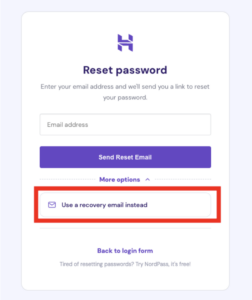
- Reset your password: Receive password reset links if you cannot access your primary inbox.
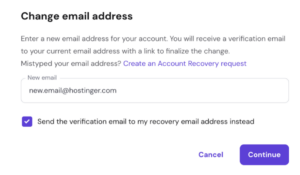
- Change your account email: Receive verification codes at your recovery email if you need to update a lost primary email address.
- Bypass primary email 2FA: Gain access to your account if your primary email is inactive and you use email-based Two-Factor Authentication (2FA).
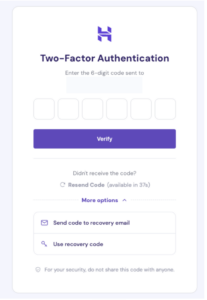
This does not apply if you use application-based 2FA (like Google Authenticator).
- Handle suspicious login alerts: Receive one-time passcodes securely when logging in from an unfamiliar location or device.
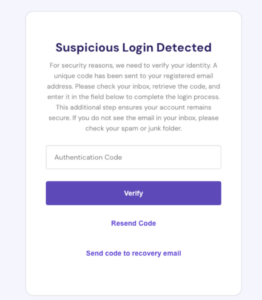
The recovery email is now fully set up and ready to protect your account access. If you lose access to your primary email before you set up a recovery email, see How to recover your Hostinger account if you can’t access your email.