Recover your Hostinger account if you can’t access your email by submitting an account recovery request from the Hostinger login page. Prepare an alternative email address and a payment receipt that proves account ownership, then complete the recovery form. Hostinger replies to your alternative email within two business days. The same process applies if you forgot your account email or lost your two-factor authentication (2FA) device.
Preparations
Before beginning the recovery process, make sure you have the following:
-
An alternative email address you can currently access.
-
A document that verifies your identity and account ownership, such as a payment receipt.
Step 1 — Prepare required documents
Upload a payment receipt to verify your account ownership. The payment receipt is mandatory. Add other documents from the list below to help Hostinger process your account recovery request faster.
Accepted Documents:
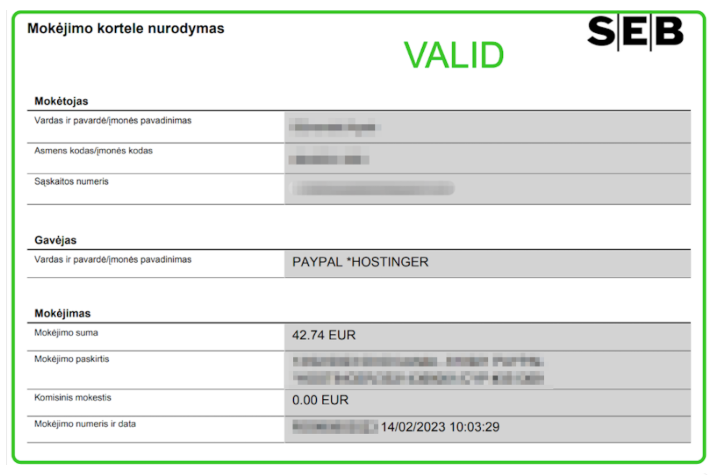
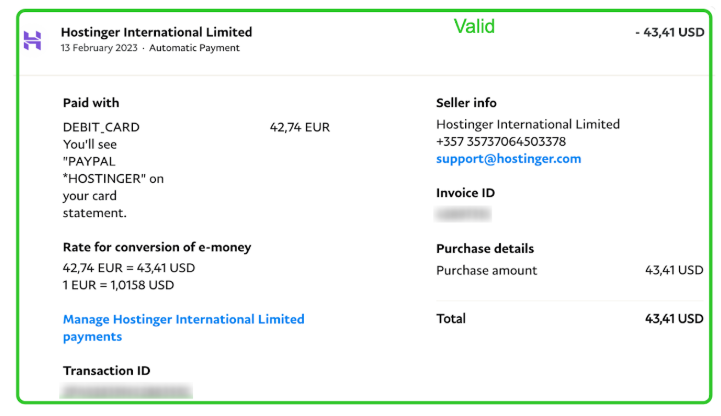
- Payment Receipt (mandatory) – Recent proof of payment for the purchase in Hostinger directly from the payment source, such as a bank statement, application.
- Government-issued ID – passport, or national ID card
- Credit/Debit Card – Photo showing first 6 and the last 4 digits of the physical card used for account payments (please mask other digits for security)
- Business Registration – If account is registered to a business entity
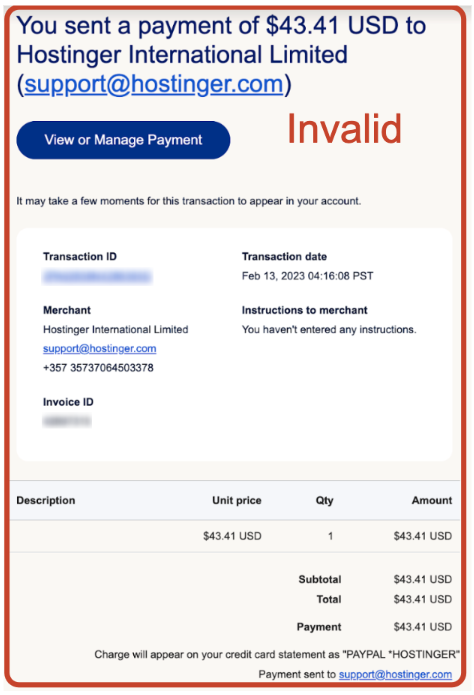
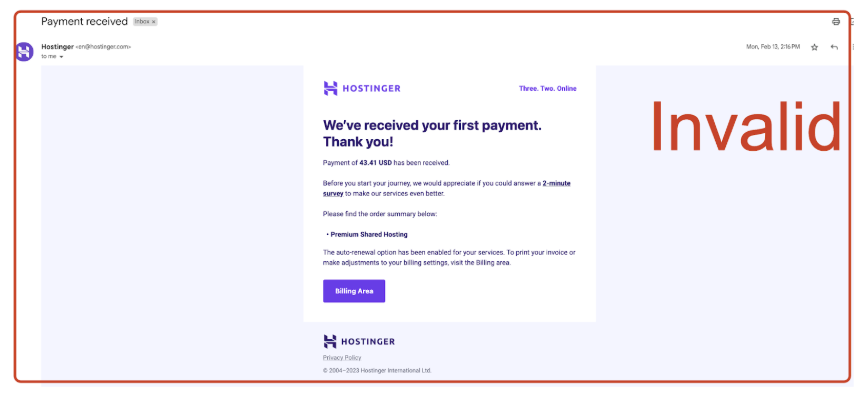
Payment proof that is not considered acceptable:
- SMS screenshots
- Email screenshots (including Hostinger emails)
- Hostinger dashboard screenshots
- Hostinger invoices or invoice screenshots
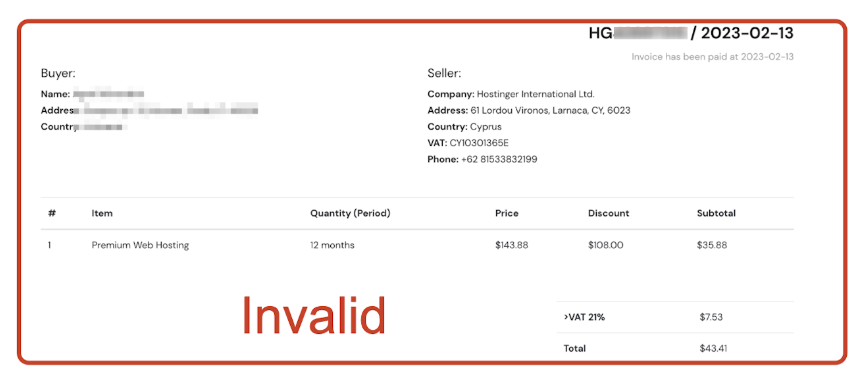
- Virtual card images (unless accompanied by a full bank statement)
Important Guidelines:
- All documents must be clearly visible and legible
- Accepted file formats: JPG, PNG, or PDF
- Maximum upload size: 2MB per file, 8MB for multiple files
- Redact any sensitive information not required for verification
- If providing a virtual card image, you must include a complete bank statement
Step 2 — Start the account recovery process
-
Go the Hostinger log in page and select Can’t Access Your Account?
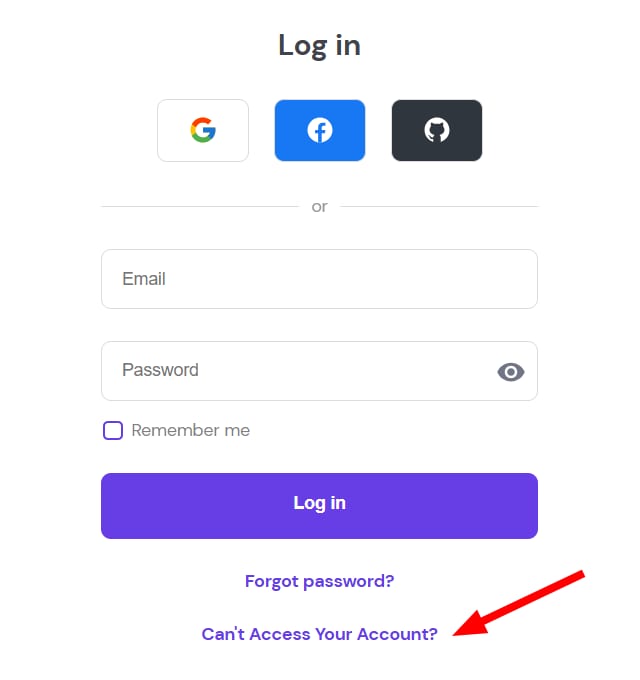
Alternatively, you can use this direct link: Account Recovery.
-
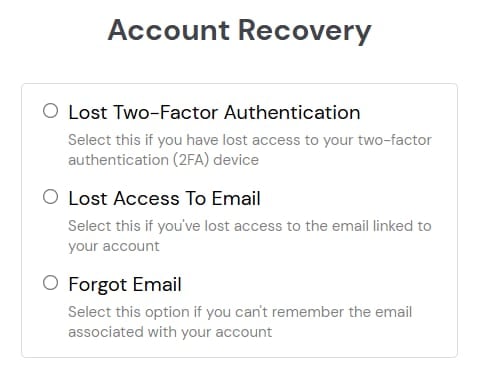
Choose the option that best describes your situation:
-
Lost two-factor authentication – For cases where you don’t have access to your 2FA device.
-
Lost access to email – If the email associated with your account is inaccessible.
-
Forgot email – If you don’t remember the email linked to your account.
-
-
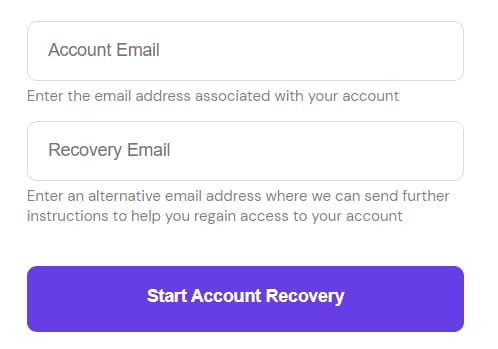
Provide the requested information:
-
The email address associated with your account, if known.
-
An alternative email address for further contact.
-
When done, click Start Account Recovery. A confirmation message will appear, and you can proceed to the next step
Step 3 — Check your alternative email inbox
Shortly after submitting, you’ll receive a message at the alternative email address you provided. Be sure to check your spam folder if it doesn’t appear in your inbox.
Click the Start Account Recovery link in the email to access the recovery form.
Follow these four steps in order if the Start Account Recovery link opens the Hostinger homepage instead of the account recovery form:
- Log out of any other Hostinger account that is logged in on your browser.
- Open the Start Account Recovery link from the newest account recovery email in a private or incognito browser window.
- Request a new account recovery email from the Hostinger login page by selecting Can’t Access Your Account? if the link still opens the homepage. Use only the link in the newest email, and ignore links from earlier account recovery emails.
- Connect to a VPN and open the newest link again if it still redirects to the Hostinger homepage.
Contact Hostinger Support if the account recovery form still doesn’t open after these steps.
Step 4 — Complete the account recovery form
Fill out the form with the following details:
-
A domain name linked to your account – if you have several, provide any you can recall.
-
Upload a document (in image or PDF format) that verifies your identity and account ownership. Examples and further instructions are included in the form. If unsure, you can upload multiple documents.
-
Optionally, provide any additional details that may help with the recovery process.
When ready, click Submit. Your request will be reviewed, and you’ll receive a response at the alternative email address within two business days.
If you need additional asistance during this process, feel free to reach out to us.
Once you regain access, set up a recovery email for your Hostinger account to have a backup contact point if you lose access to your primary email again.