Change the email address of a Hostinger account in the Account settings section of the Account information page, then verify the change by email or two-factor authentication. Email addresses on a domain registered in the same Hostinger account can’t be used.
If you’ve lost access to your email account, refer here: How to recover access to a Hostinger without having access to the currently linked email account
Change your account email
You can easily change your Hostinger account email address. Once you’re logged in to your Hostinger account, click on the profile icon in the top-right and choose the Account Information option:
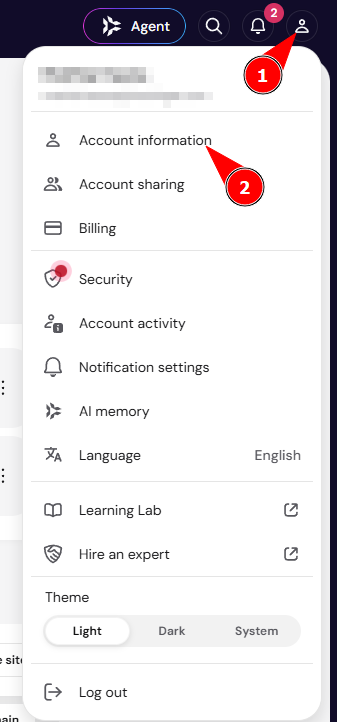
Once there, scroll down to the Account settings section and click on the Email field:

Enter your new email address and click on Continue. Next, confirm by entering your password.
Once the change is applied, you will be requested to verify it via email or your two-factor authentication method if enabled.
NOTE
- Recovery email option: if you have a verified recovery email on your account, you can receive the email change verification link there instead of at your current profile email. This option appears during the email change flow for accounts with a verified backup email configured.
Domain restrictions for account email
You can’t use an email address hosted under a domain registered in the same Hostinger account as your login email or recovery email. For example, if you own yourdomain.com in your Hostinger account, you can’t set you@yourdomain.com as your account email or recovery email.
This prevents account lockout if the domain expires and its mailbox stops working. Use an external email provider (e.g., Gmail, Outlook) for your account and recovery email instead. This restriction doesn’t affect new account registrations.
If you need to change your domain’s contact information instead (e.g., to move a domain between Hostinger accounts), see how to change domain contact details instead.